Logging in with Kron PAM User
2 min
To create tokens, give approvals to the requesters, manage the passwords stored at the vault, or use two-factor authorization with geofencing, the user needs to log into the Kron PAM server.
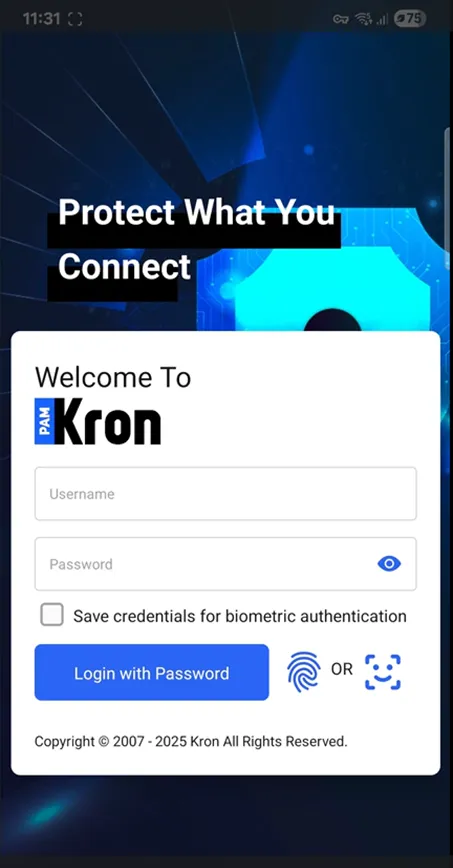
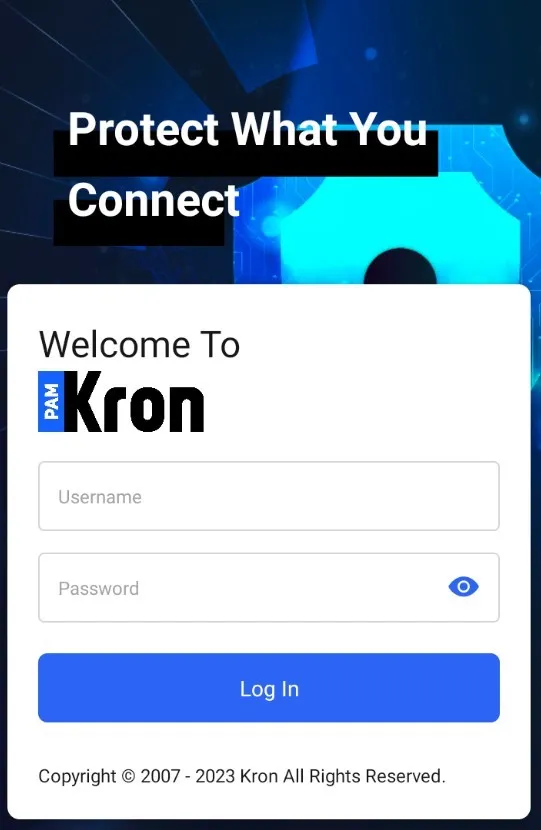
- Open the Kron PAM Mobile Client Application and tap on the Password Manager, Geo Fencing, or Approval Management screen. It will direct you to the login page.
- Enter the username and password to enter the target Kron PAM server.
- Click Login.
Login Page
Alternatively, if the smartphone supports the Biometric Authentication feature, like fingerprint or face scanning, the user can save his/her credentials on the phone. To automatically fill in their credentials, the user can use their biometric values in later attempts.
- Initially, the user needs to enter his/her credentials manually and tick the Save credentials for biometric authentication checkbox.
- Click the Login with Password button. If the checkbox is ticked before clicking the button, the credentials are saved on the phone. So, for the next time, using the biometric values fills the user's credentials automatically.
- After saving credentials on the phone, the user should select one of the possible biometric authentication methods by clicking the Biometric Authentication button
The required permissions related to the biometric authentication should be granted to the Kron PAM Mobile Client Application.