Logging in with SSH Key
3 min
To enable this feature, the user needs to navigate to the SSH key manager screen to generate a new public and private key. Admins can manage user group authorizations for passwords and SSH keys. To generate new public and private keys:
- Navigate to SSH Key section.
- Click the Generate New Key Pair tab.
- A pop-up window will open with the choices: a) Download Public Key, b) Download Private Key, and c) Copy to Clipboard.
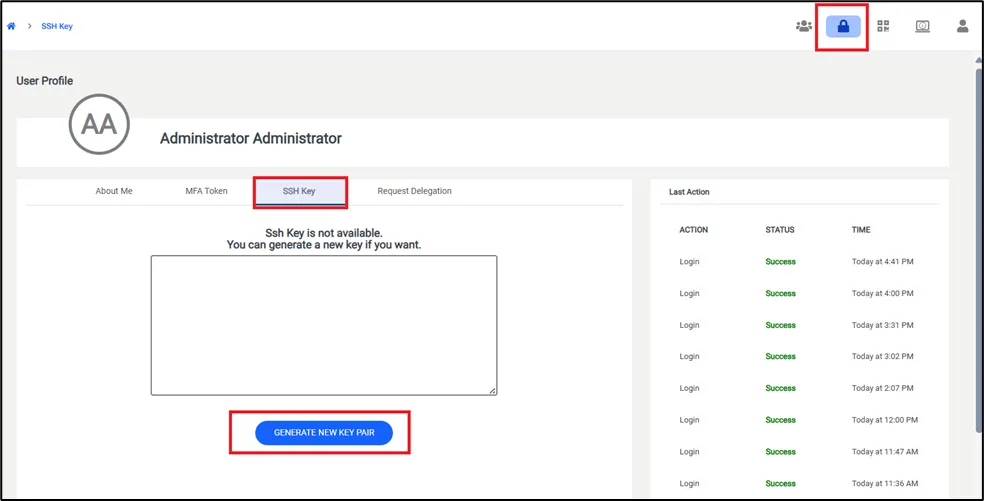
Generating new key pair
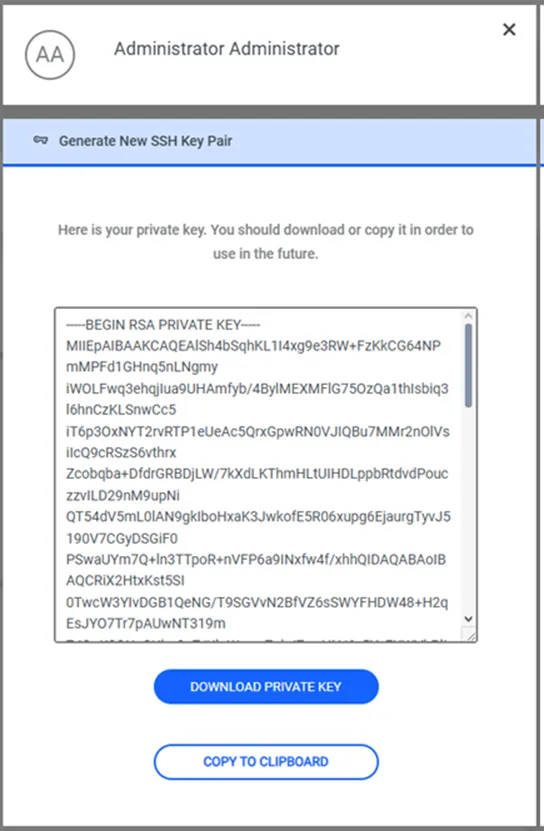
Generating new key pair
- Generate an SSH key pair.
- Download the generated SSH key file.
- Enable the private key option in the SSH settings of your CLI.
- Add the downloaded SSH key file.
- Complete the remaining steps to establish the SSH connection.
If an SSH Key is not used to log in to the Kron PAM SSH Proxy, the downloaded key pair must be disabled by following the steps below:
- Navigate to Users > SSH Key Management > User Group Key Management.
- Click the Options of the desired User Group.
- Choose Disable SSH Key Auth.
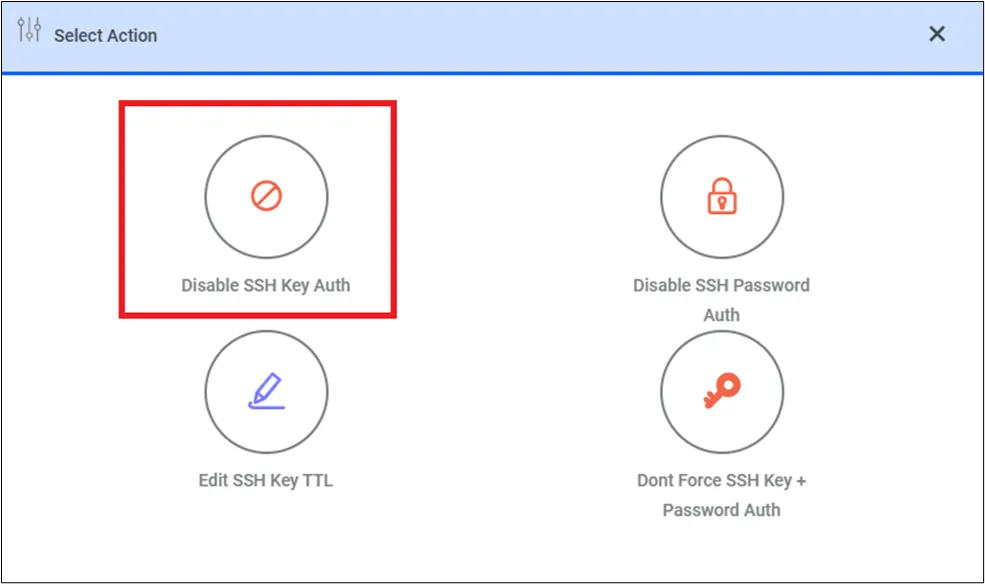
Disable SSH Key Auth Section