Connect to the Target Device over the Check Out Password Option
1 min
To connect to the target device over check out password, the user should click the Connect to Target Device button for the vault account under the Vault tab on the Kron PAM Desktop Client.
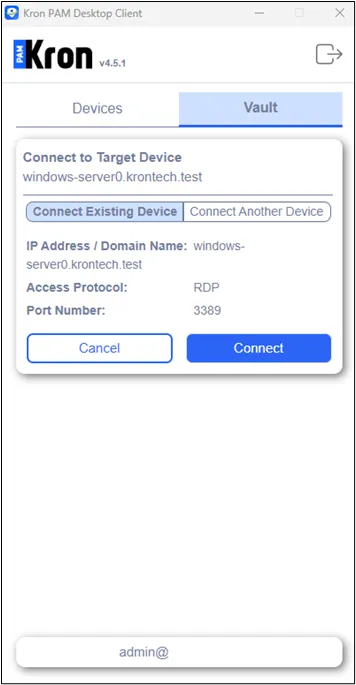
Connect to Target Device over Password Vault
Connect Existing Device option is selected as the default.
In the case of the user connecting to an existing target device, the user should click the Connect button.
The user might select to make a connection with another device option by clicking the Connect Another Device button. In that case, the user should enter the IP Address / Domain Name and Access Protocol type, and optionally select the port number, and lastly click the Connect button in order to connect to the target device on Vault.
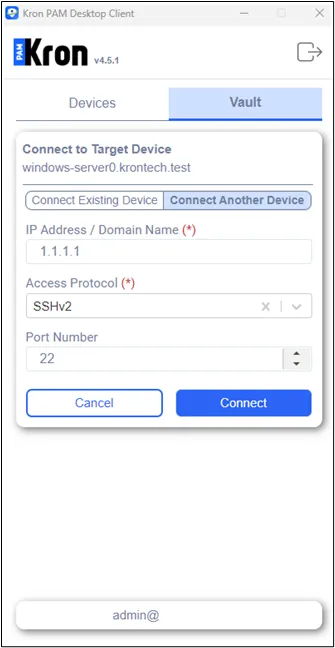
Connect to Another Device using the Connect to Target Device Feature over Password Vault