Offline Token
Follow the steps below to add an offline token:
- Log in to Kron PAM Web GUI.
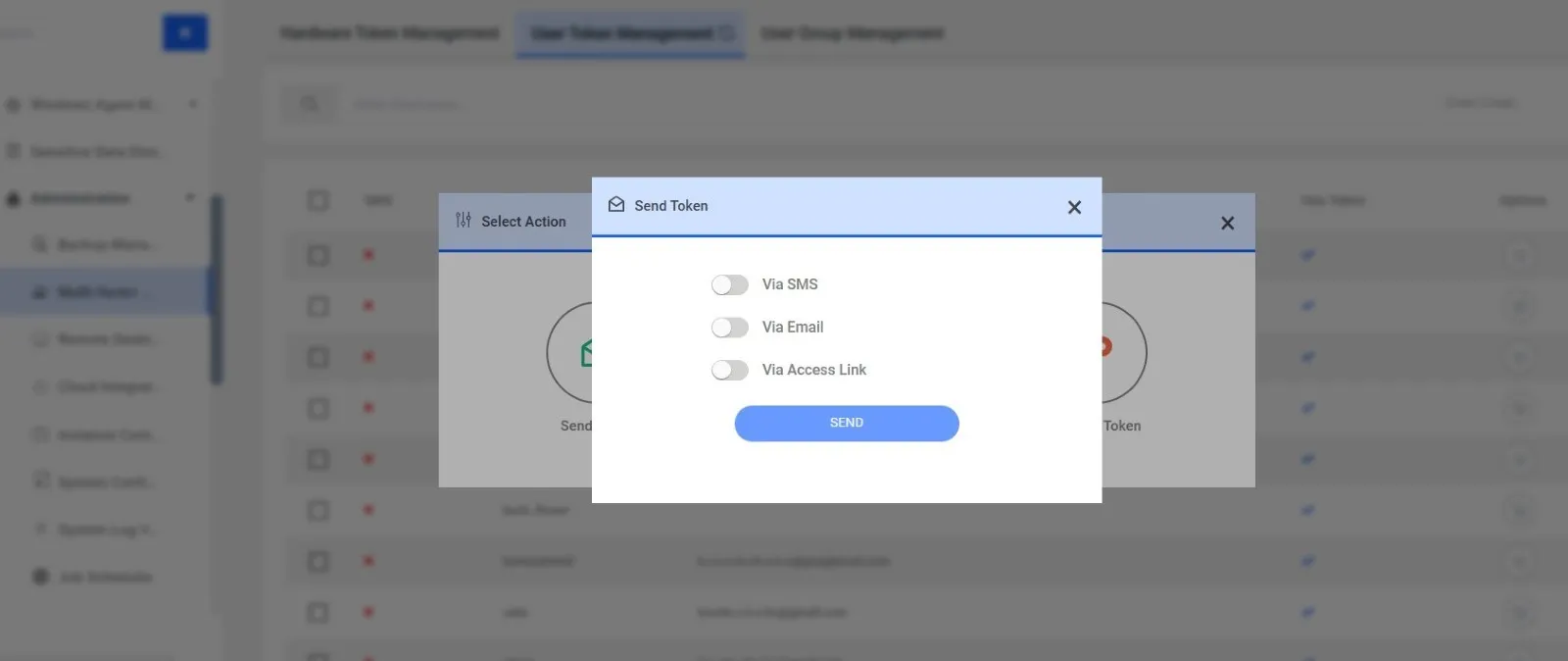
- Navigate to Administration > Multi-factor Authentication > User Token Management. To generate a new QR, select the Actions button and click the Send Manual Registration Key button. You can select at least one of the send token options (Via SMS, via Email, or Via Access Link) and click the SEND button.
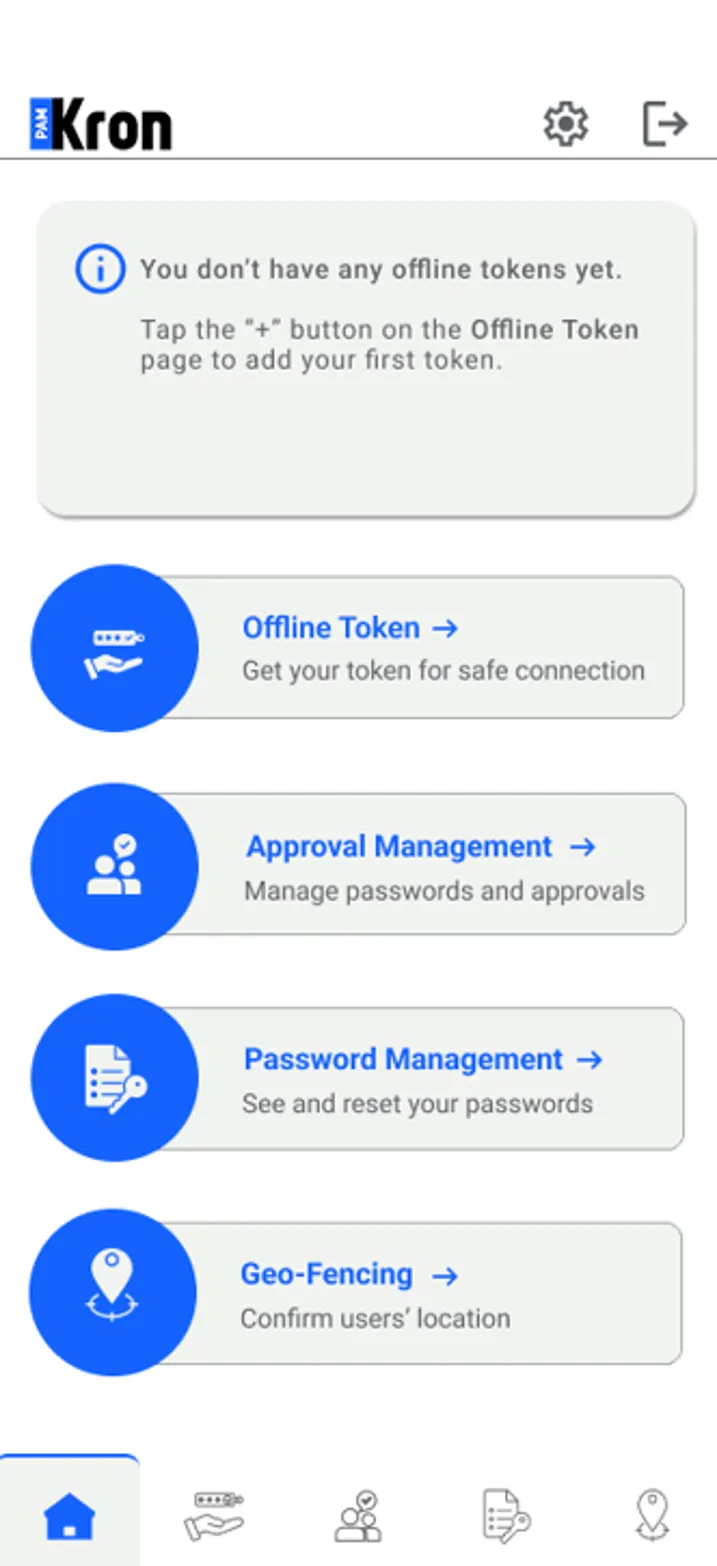
- Open the Kron PAM Mobile Client Application.
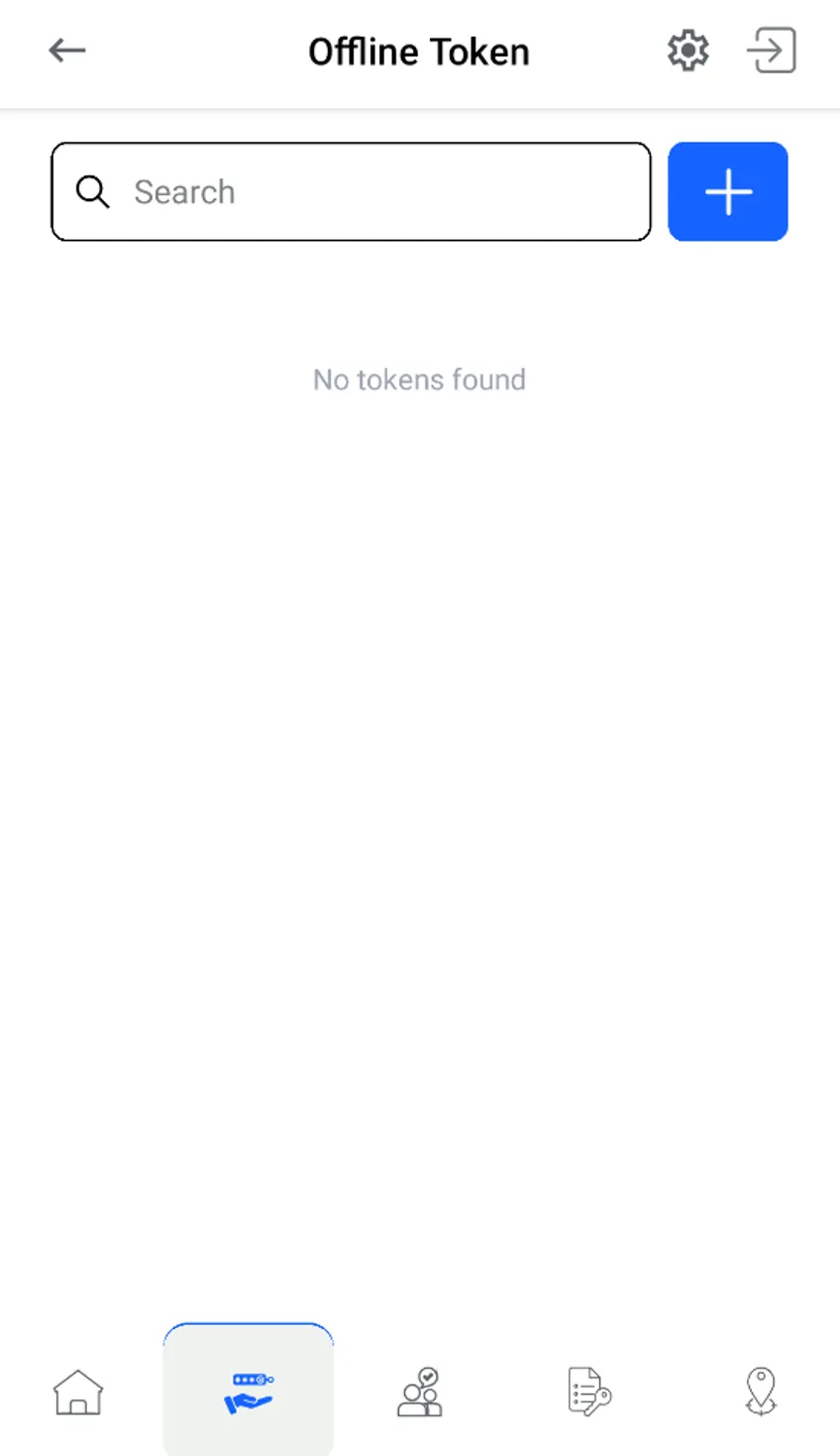
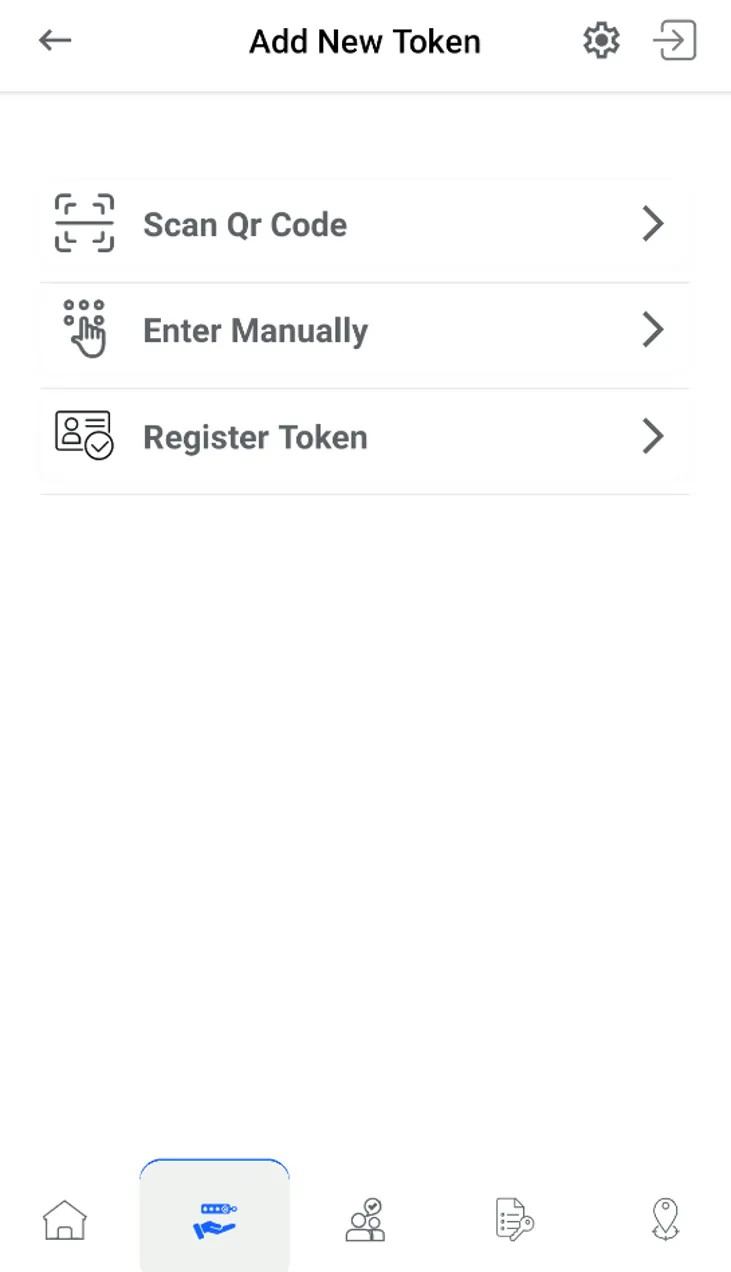
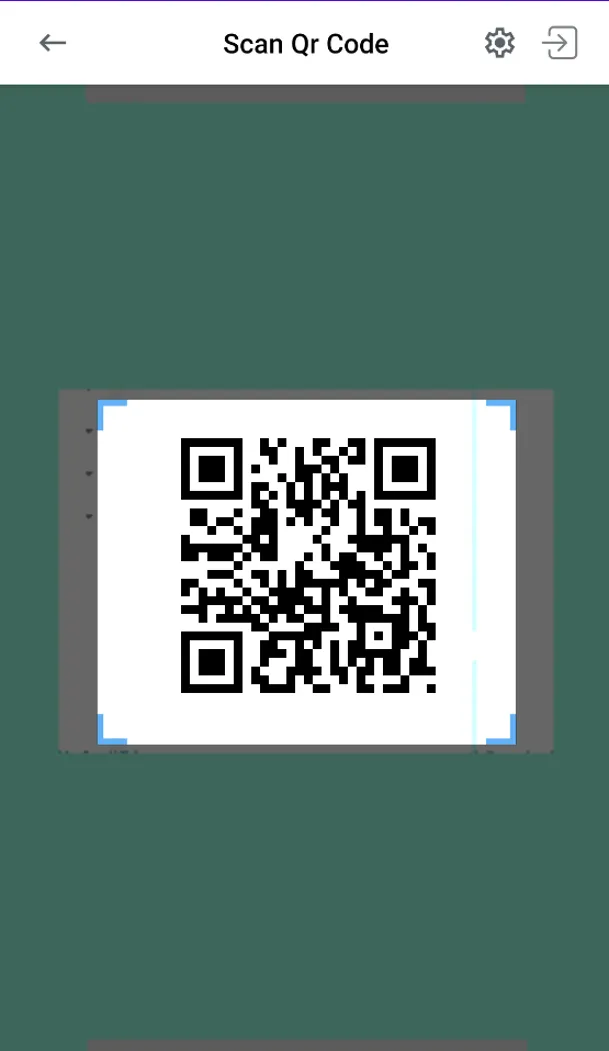
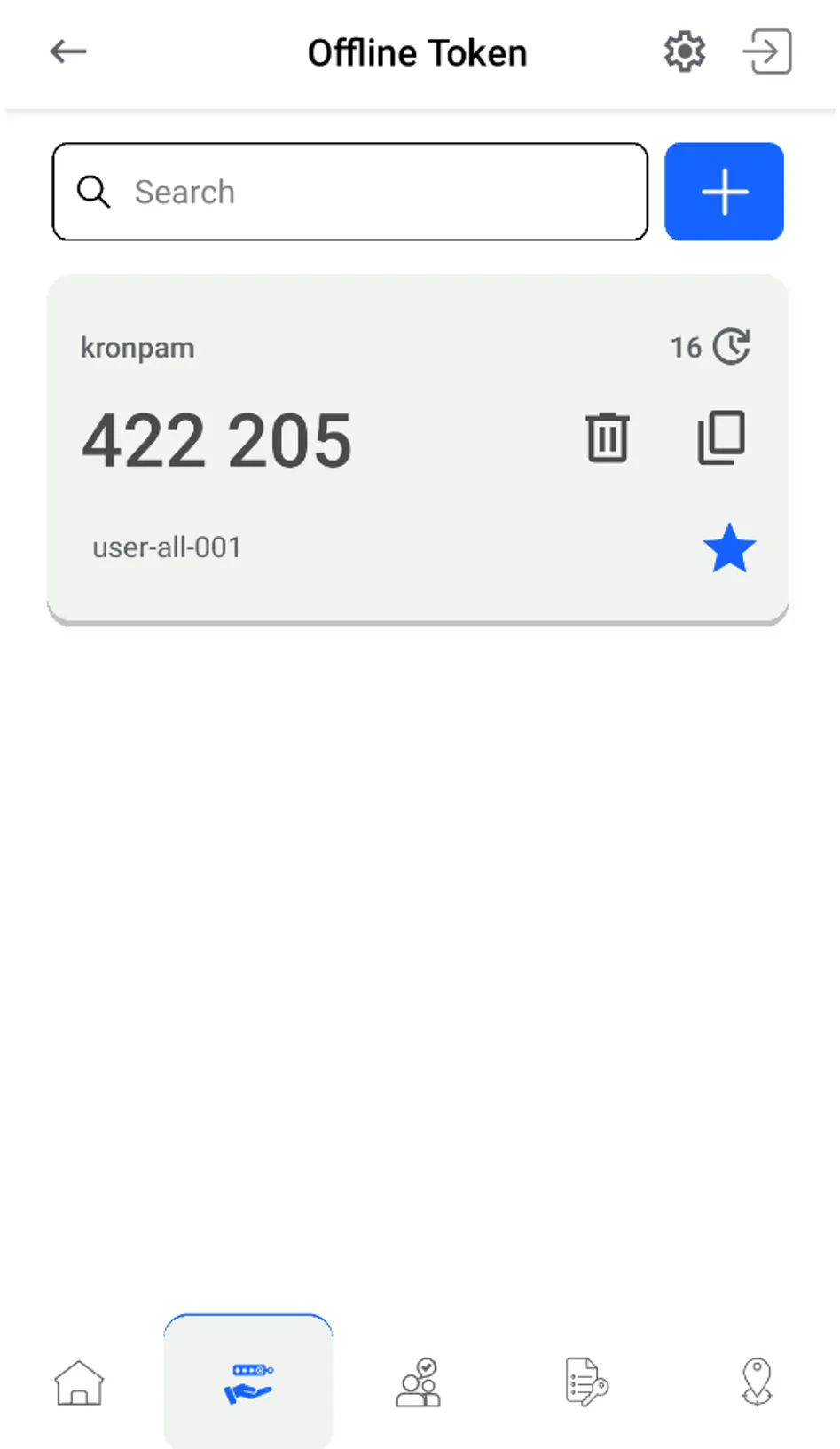
- Navigate to Offline Token > + > Add New Token > Scan QR Code, or Enter Manually.
Register token is an option where the token has been generated for the username & MFA Issuer combination to be stored a single smart phone. To use the Register Token option, the user must log in to the Kron PAM server and the OTP should be set for the user. Check Protecting Tokens with MFA (Register Token)Protecting Tokens with MFA to see details.
- Generate an offine token by any of the following:
- Scanning the QR code – the user must allow the Kron PAM Mobile Client Application to access and use the camera.
- Entering the key manually with the account name.
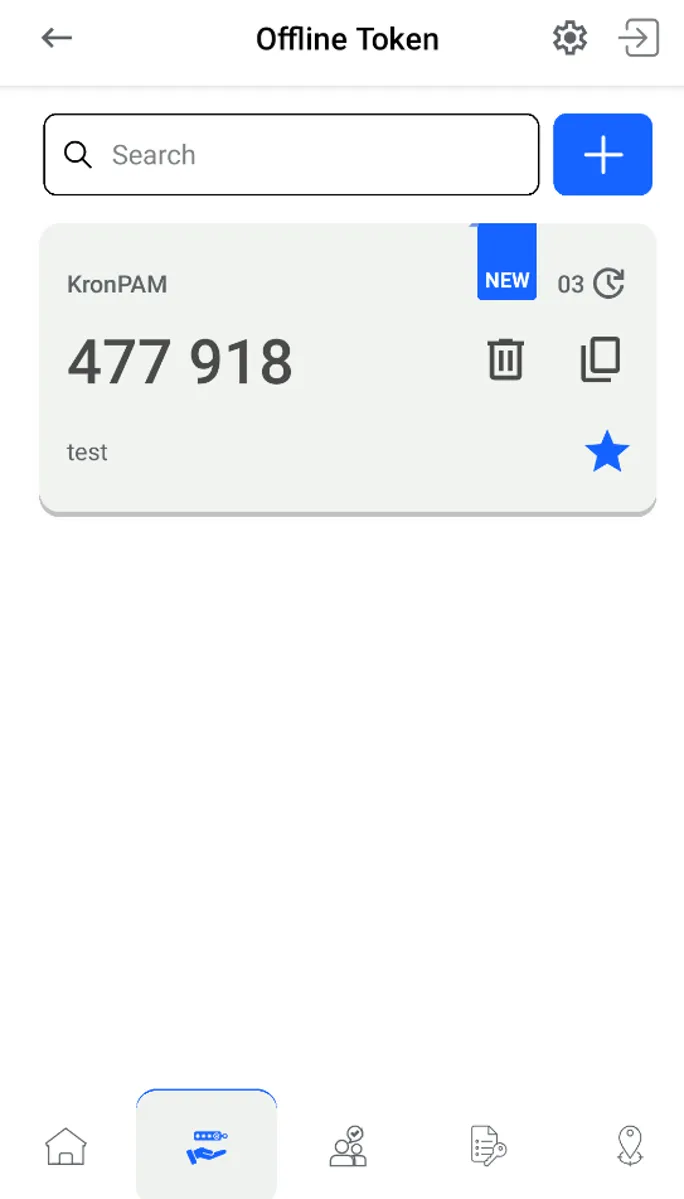
The user will see the generated tokens on the Offline Token screen after generating the token. If the token is added by using any type of strategies, it will be listed with the “NEW” ( ) banner.
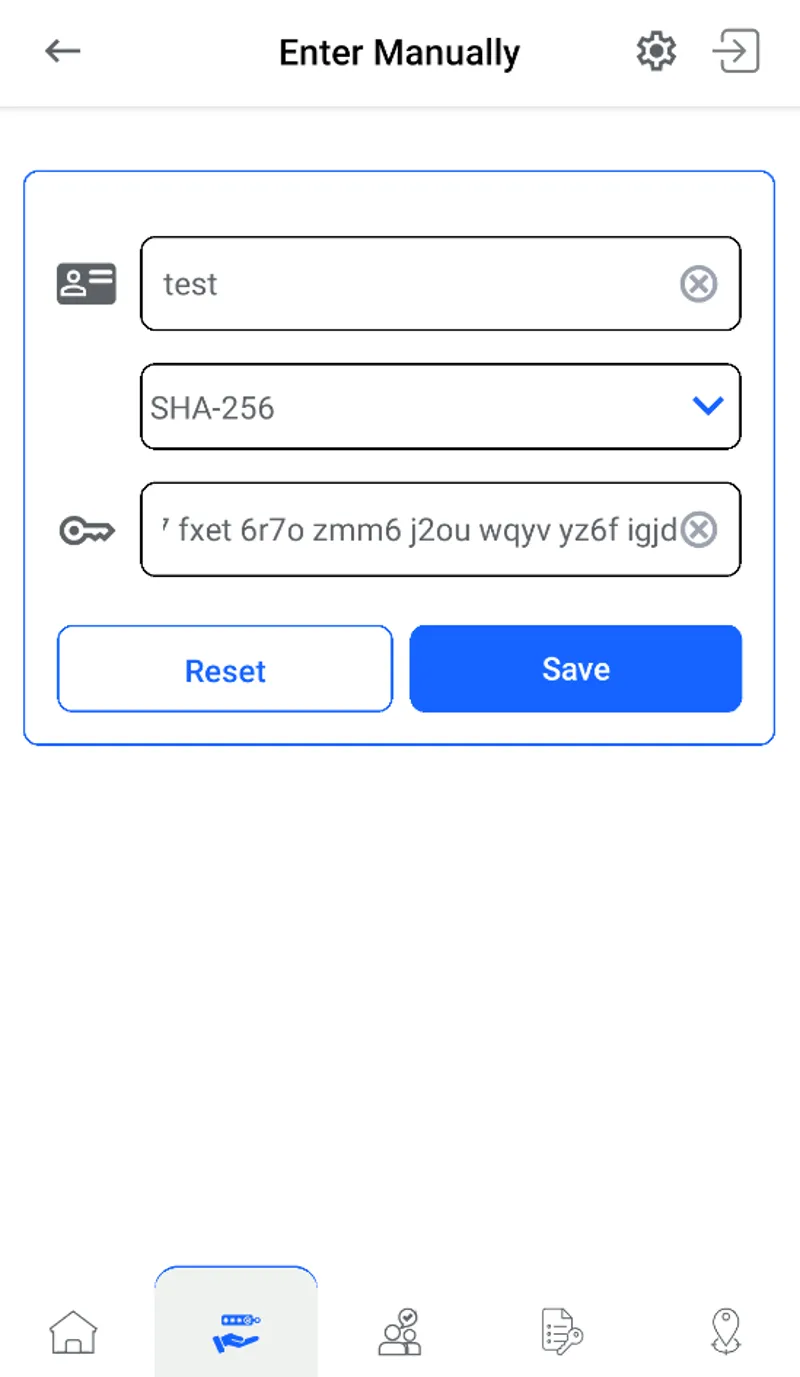
The Enter manually option asks the cryptographic hash function algorithm (SHA-256 or SHA-1) of your generated key. Select the algorithm that has been sent to you along with the manual key from the dropdown list. In the Kron PAM versions starting with 3.9.0, SHA-256 is always used; however, some old Kron PAM versions still rely on the SHA-1 algorithm. By default, SHA-256 is selected.