Exporting and Importing Tokens
3 min
The user can export the tokens from the Kron PAM Mobile Client Application. The exported token can be copied to another device by tapping Import Token.
Registered Tokens can neither be exported nor imported due to their nature of being dedicated to a single smartphone.
To export a backup file for tokens:
- Tap on Settings and then on Export Token Information.
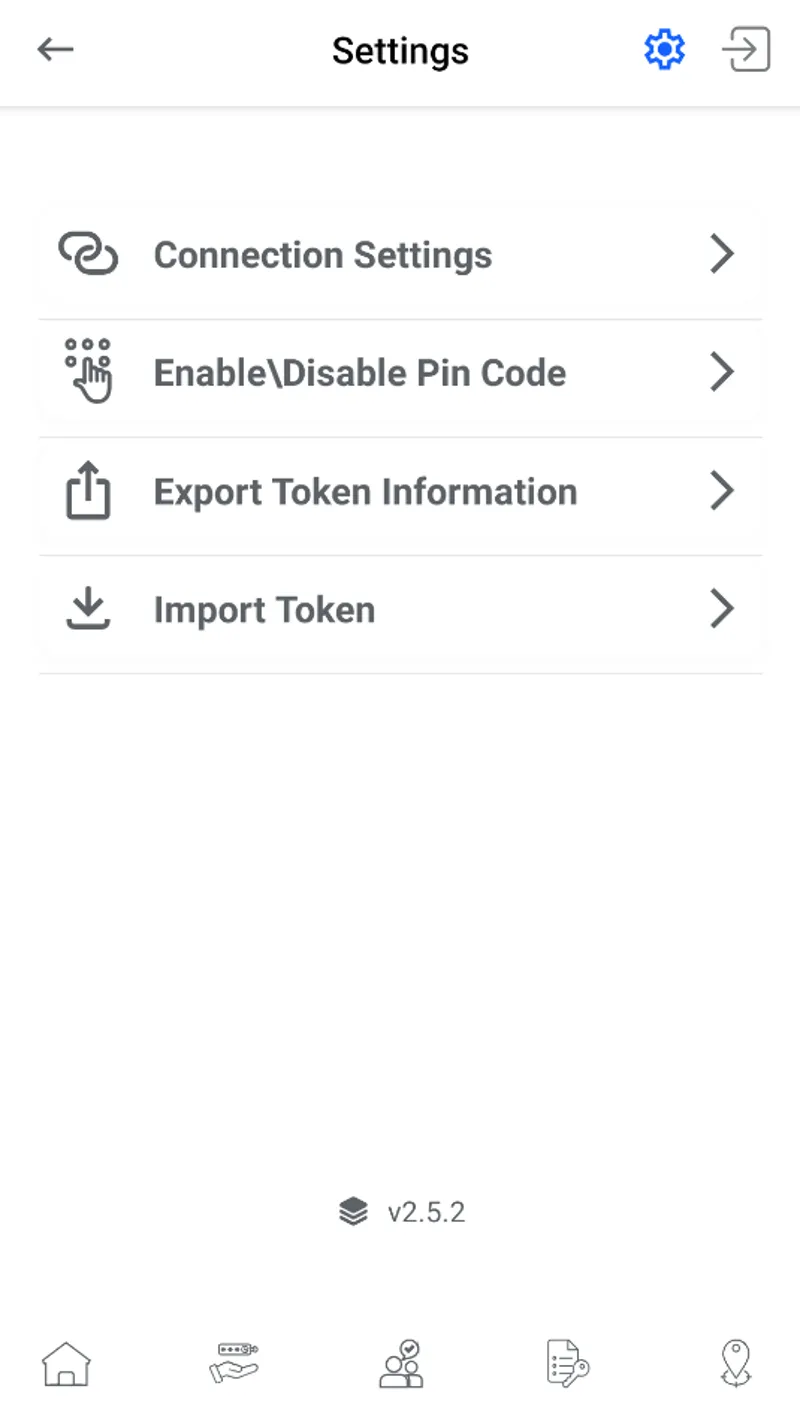
Export Token Information
- Enter a password to encrypt your collection of tokens before saving it. Then press the Export button.
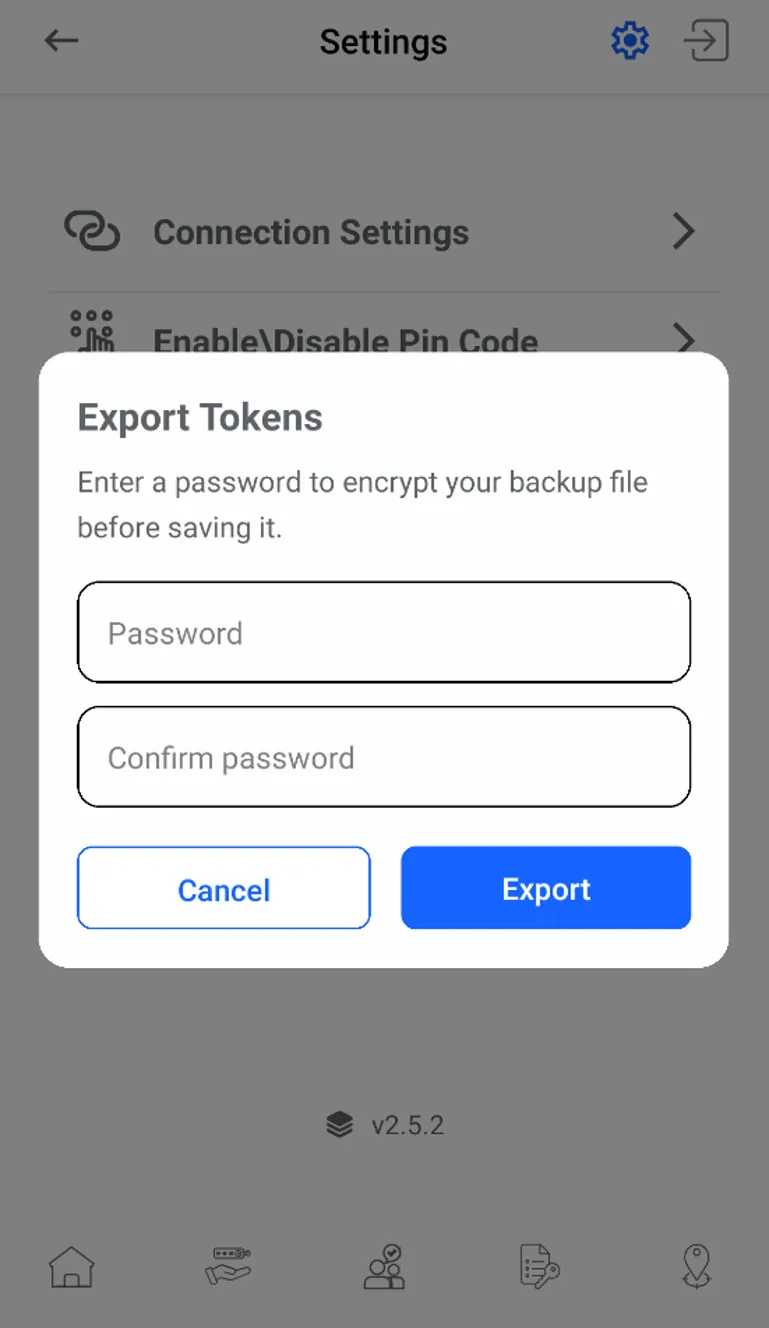
Add a password to encrypt tokens
- Select the folder to save the encrypted backup file and then press the Save button.
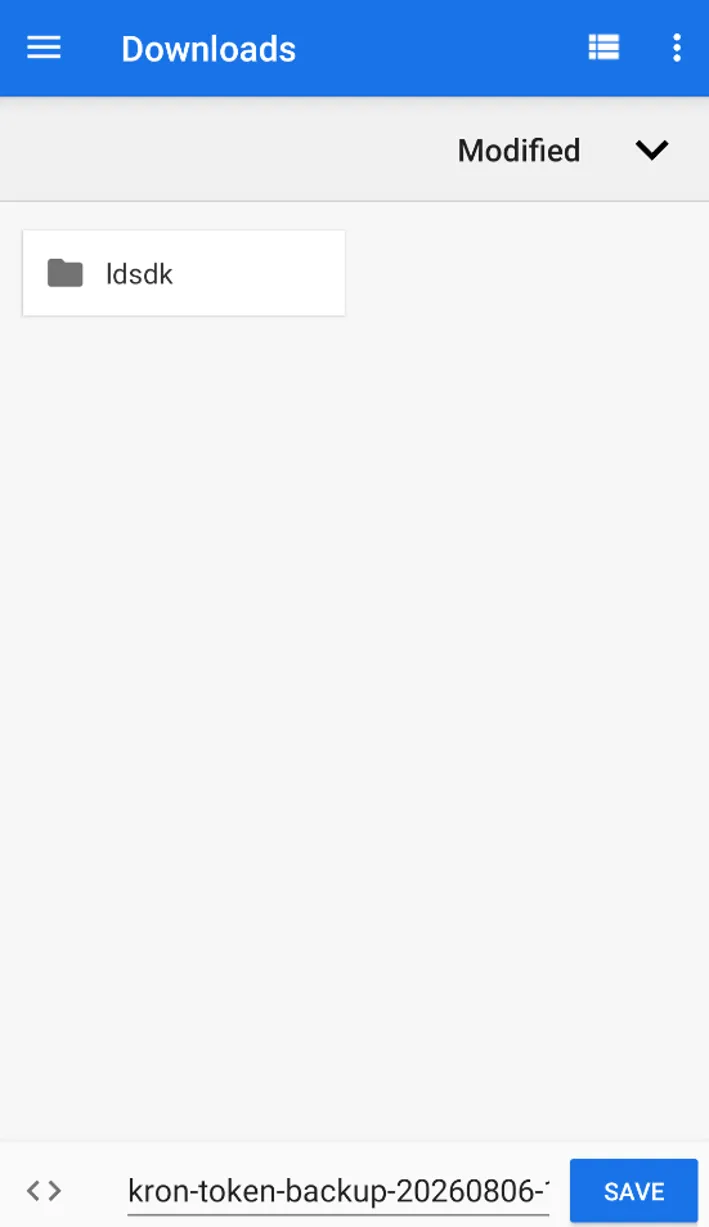
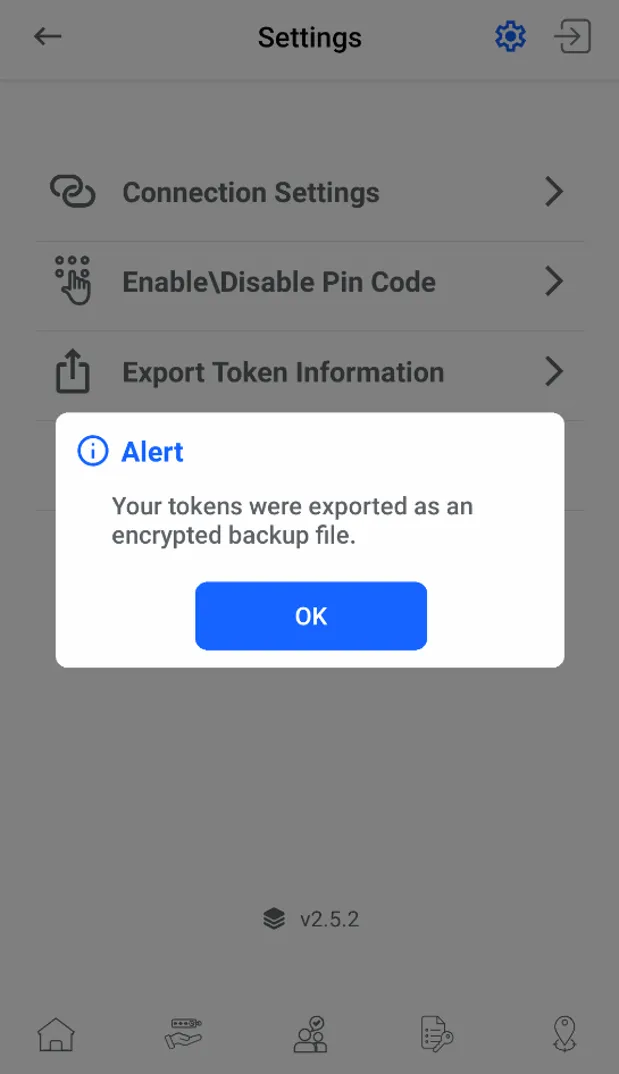
Save the encrypted backup file
To import a backup file for tokens:
- Tap on Settings and then on Import Token.
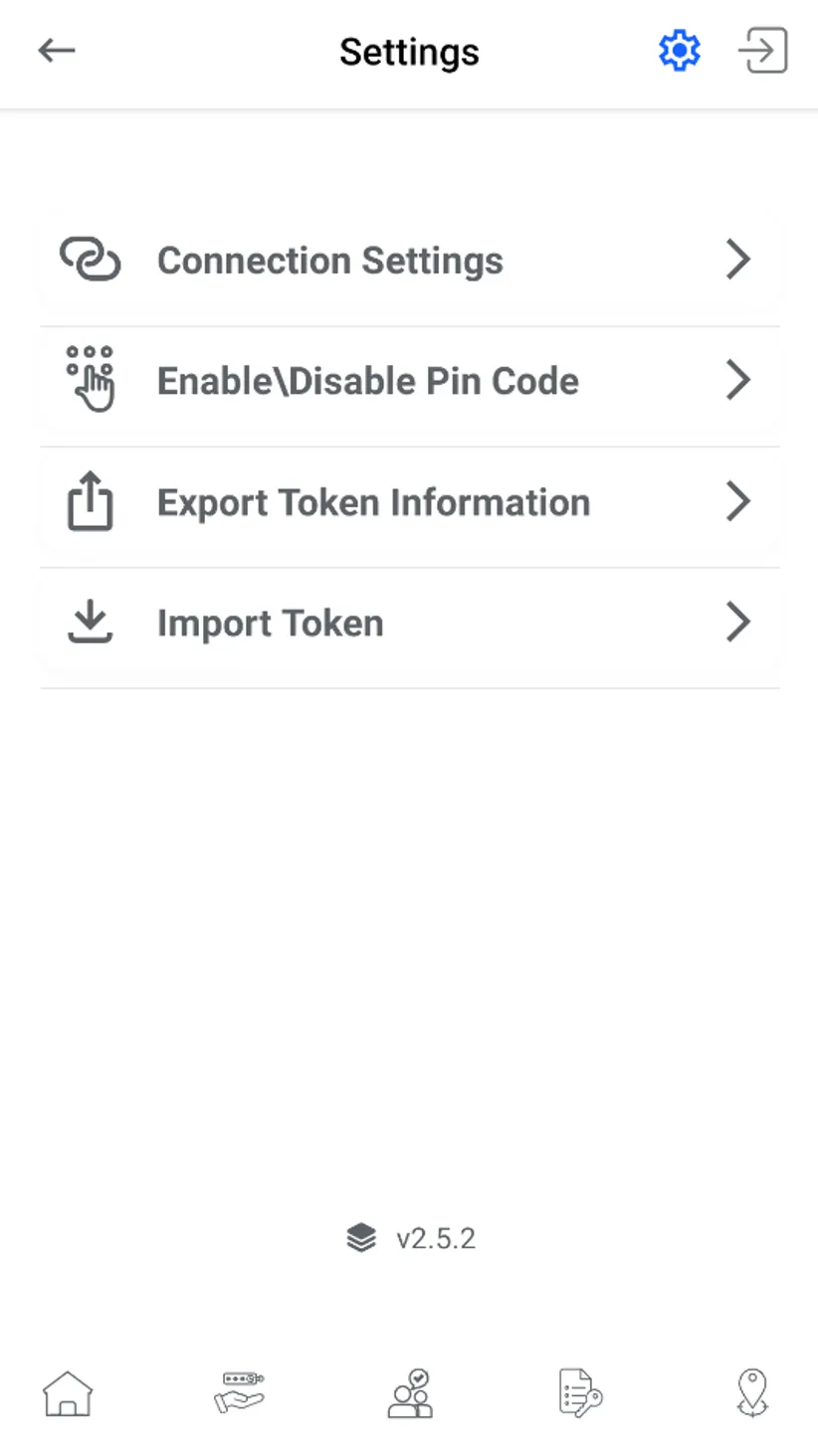
Import Token
- Select the encrypted backup file from the smartphone.
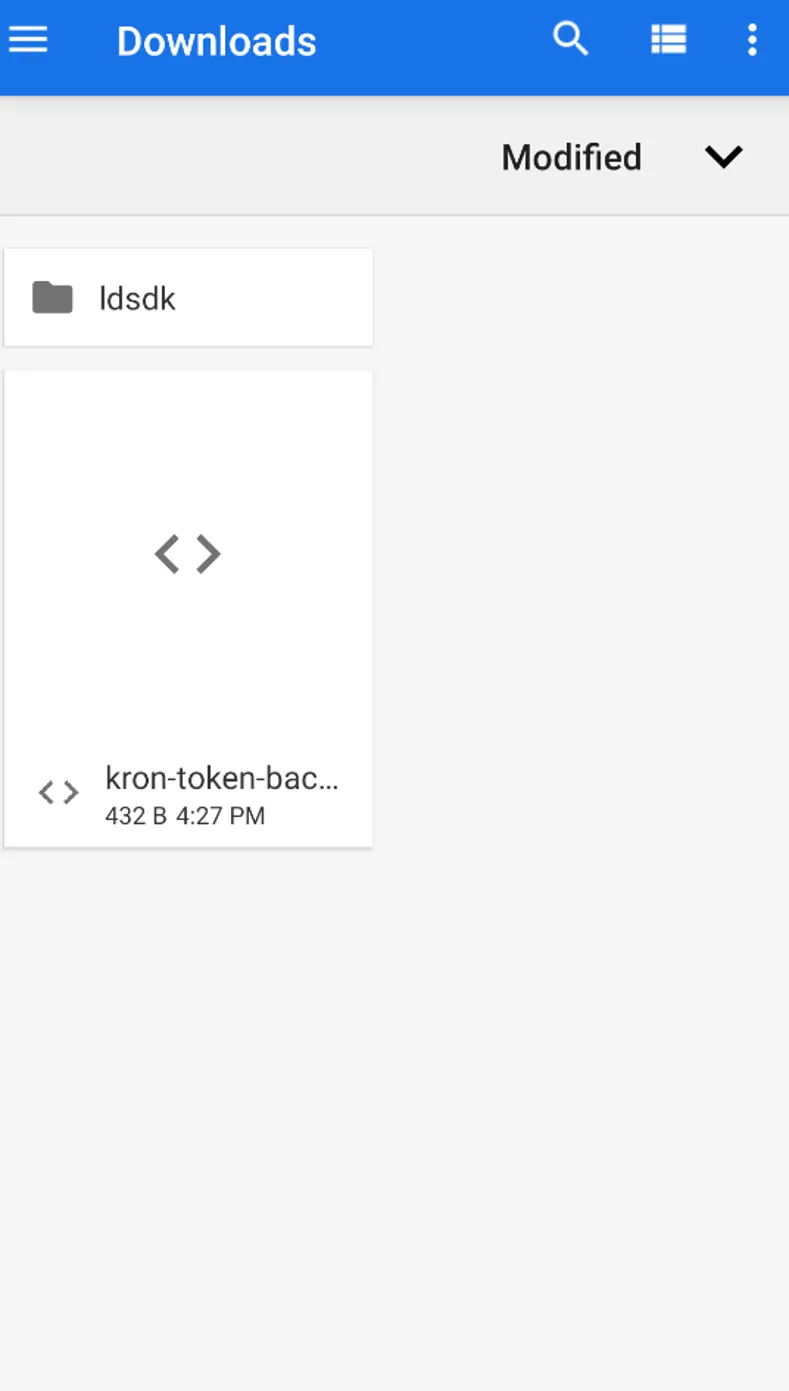
Select the downloaded backup file
- To import tokens successfully, enter the password that was set during the export operation.
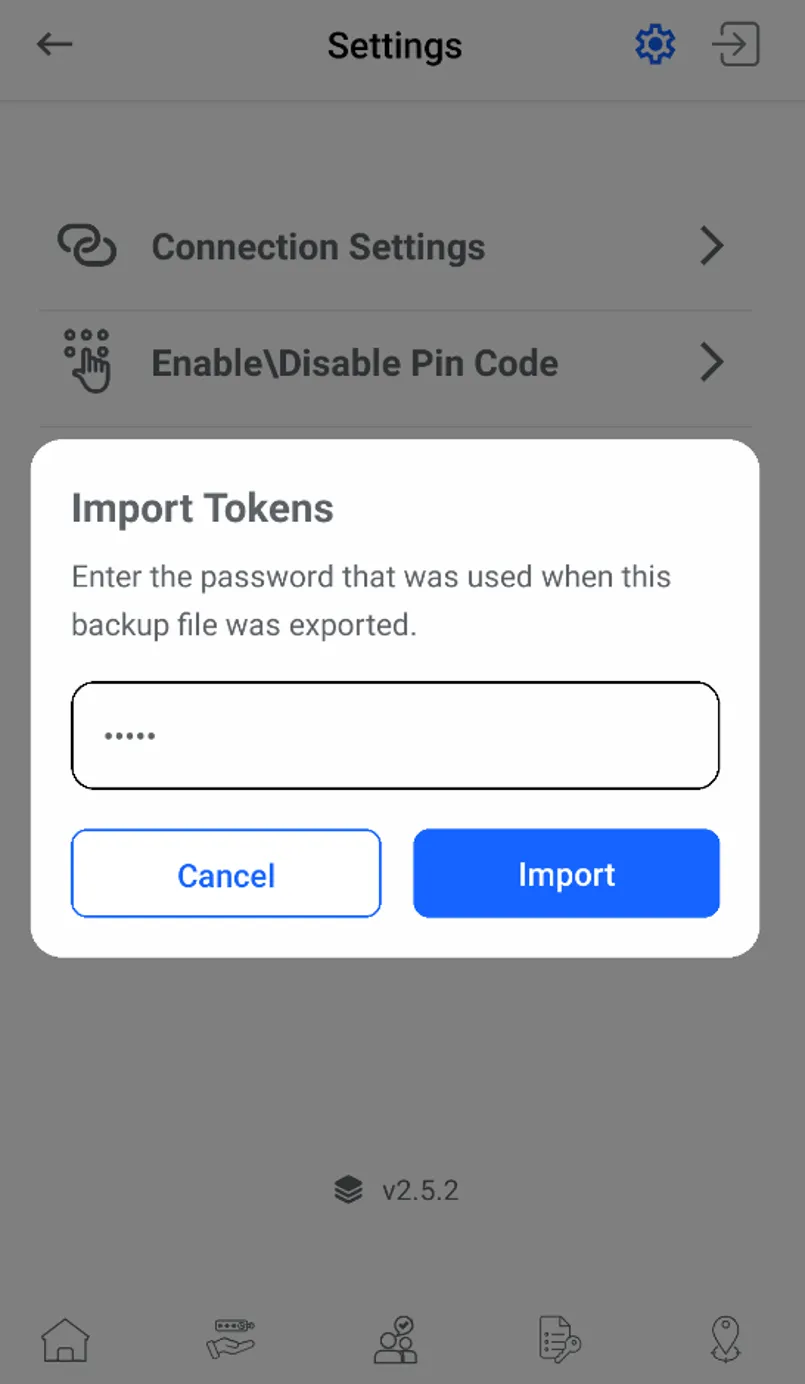
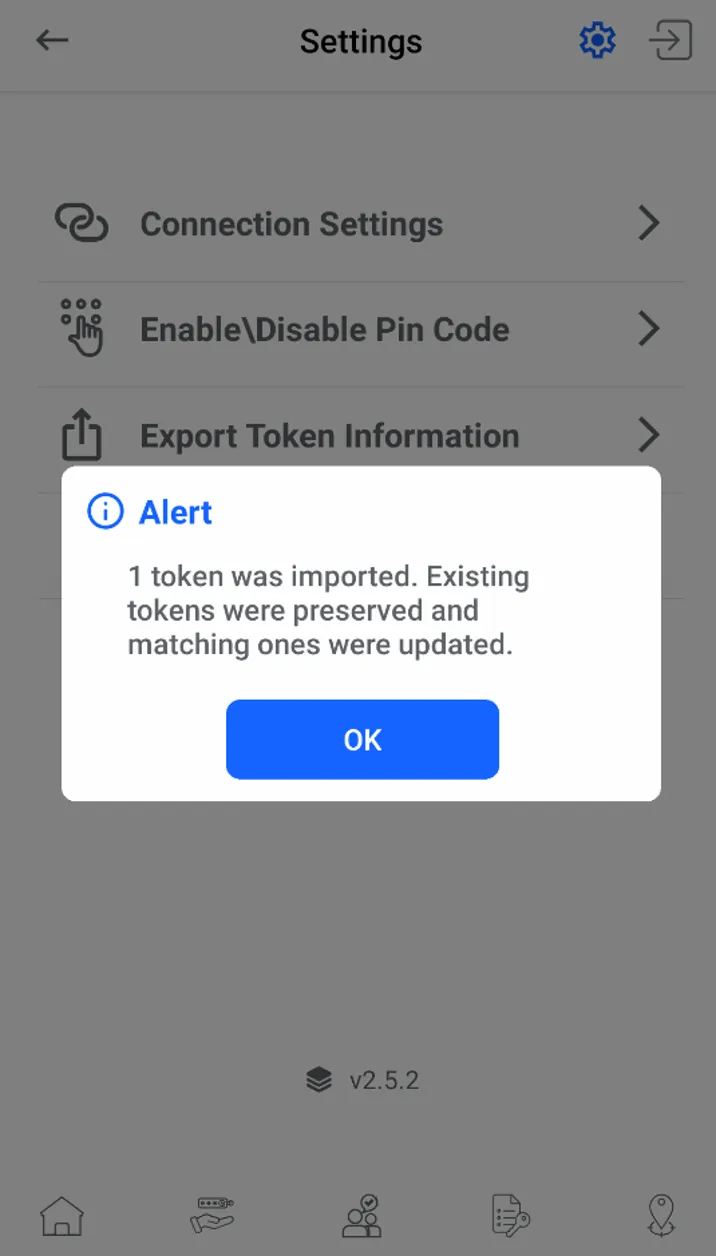
Enter the password to import tokens