Making RDP/SSH/HTTP/Container Based Sessions via Kron PAM Desktop Client Application
Follow the steps below to log in to your target device via Kron PAM Server:
- Open the Kron PAM Desktop Client Application.
- Enter your Username and Password, select the Server, and Login.
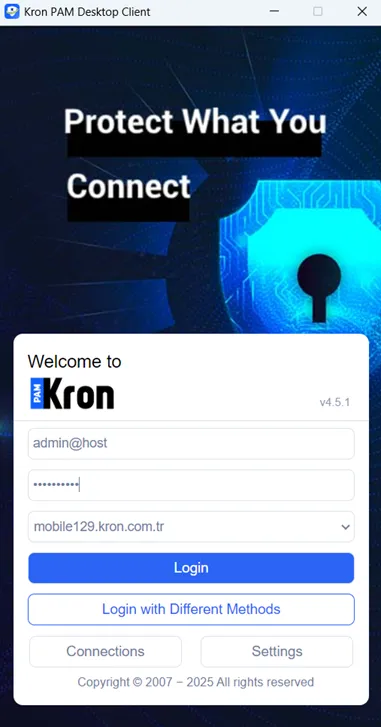
To list RDP/SSH/HTTP devices and make sessions on them via the Kron PAM Desktop Client Application, the user has to have at least single.connect.rdp.client.moduleVisibility, single.connect.cli.client.moduleVisibility and desktop.device.group.moduleVisibility portal functions. These three portal functions allow users only to list devices and make sessions on the Kron PAM Desktop Client, but not on Kron PAM Web GUI.
If the users have to use both Kron PAM Desktop Client Application and Kron PAM Web GUI in this sense, the user has at least single.connect.rdp.client.moduleVisibility, single.connect.cli.client.moduleVisibility, netright.discovery.moduleVisibility and aioc.device.group.moduleVisibility portal functions.
Here are all possibilities and their outcomes:
1) single.connect.rdp.client.moduleVisibility && single.connect.cli.client.moduleVisibility Web GUI: no device list, DC: no device list 2) single.connect.rdp.client.moduleVisibility && single.connect.cli.client.moduleVisibility && netright.discovery.moduleVisibility Web GUI: device list appears & NO edit device, DC: no device list 3) single.connect.rdp.client.moduleVisibility && single.connect.cli.client.moduleVisibility && aioc.device.group.moduleVisibility Web GUI: device list appears & NO edit device, DC: device list appears 4) single.connect.rdp.client.moduleVisibility && single.connect.cli.client.moduleVisibility && netright.discovery.moduleVisibility && aioc.device.group.moduleVisibility Web GUI: device list appears & YES edit device, DC: device list appears 5) single.connect.rdp.client.moduleVisibility && single.connect.cli.client.moduleVisibility && desktop.device.group.moduleVisibility(NEW) Web GUI: no device list, DC: device list appears 6) single.connect.rdp.client.moduleVisibility && single.connect.cli.client.moduleVisibility && desktop.device.group.moduleVisibility(NEW) && netright.discovery.moduleVisibility Web GUI: device list appears & NO edit device, DC: device list appears 7) single.connect.rdp.client.moduleVisibility && single.connect.cli.client.moduleVisibility && desktop.device.group.moduleVisibility(NEW) && netright.discovery.moduleVisibility && aioc.device.group.moduleVisibility Web GUI: device list appears & YES edit device, DC: device list appears
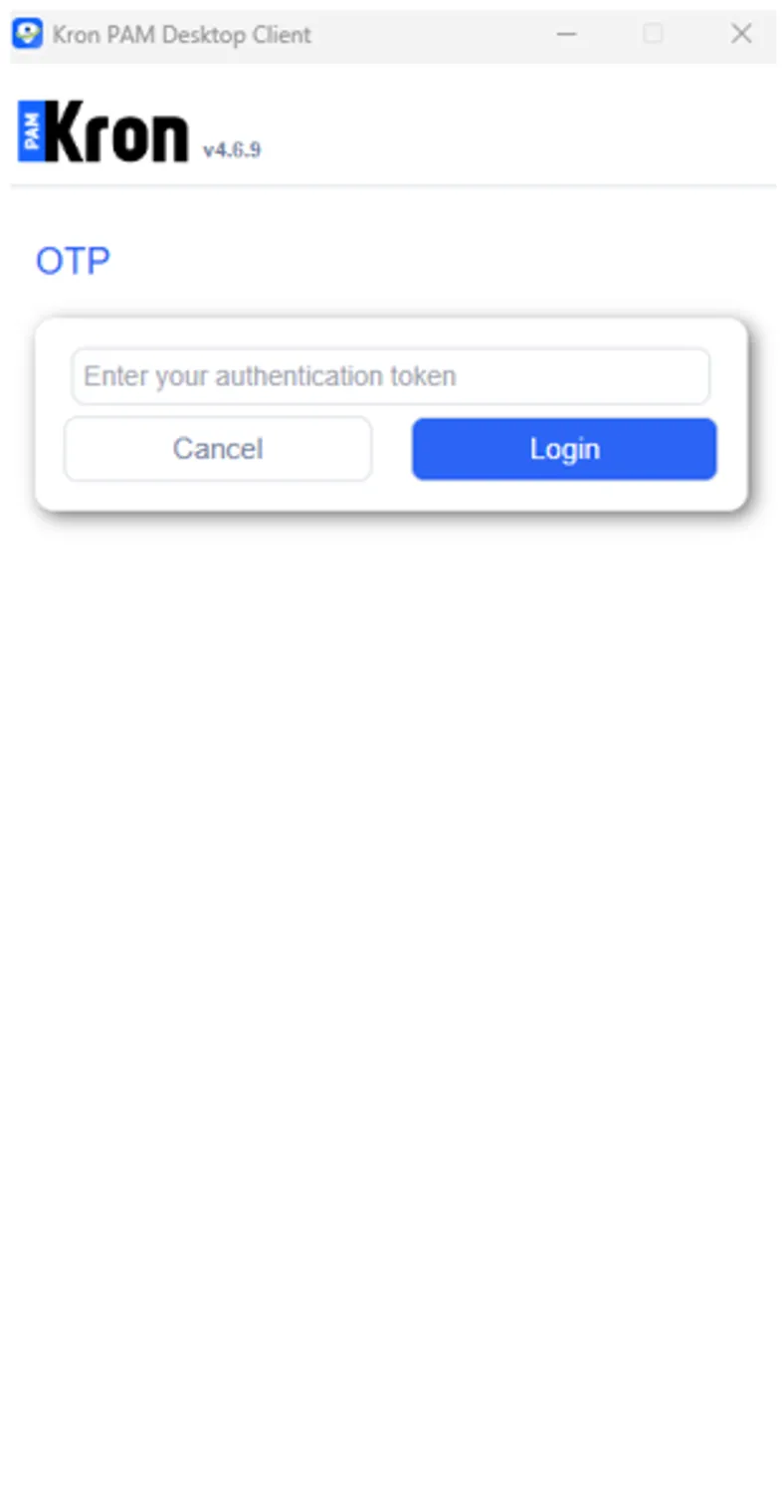
(Optional) If the desktop.client.otp.enabled system config parameter is set as true and if the Multi-factor Authentication (OTP) is enabled for the user, the Kron PAM Desktop Client asks the user to enter his/her authentication token to finalize the authentication process.
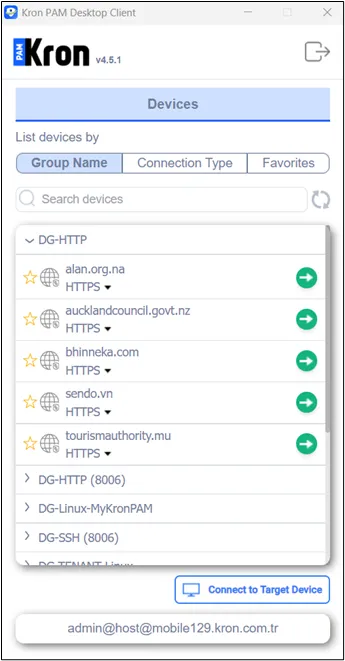
- From the Device tab, press the Make a Connection button on the far right of the target server.
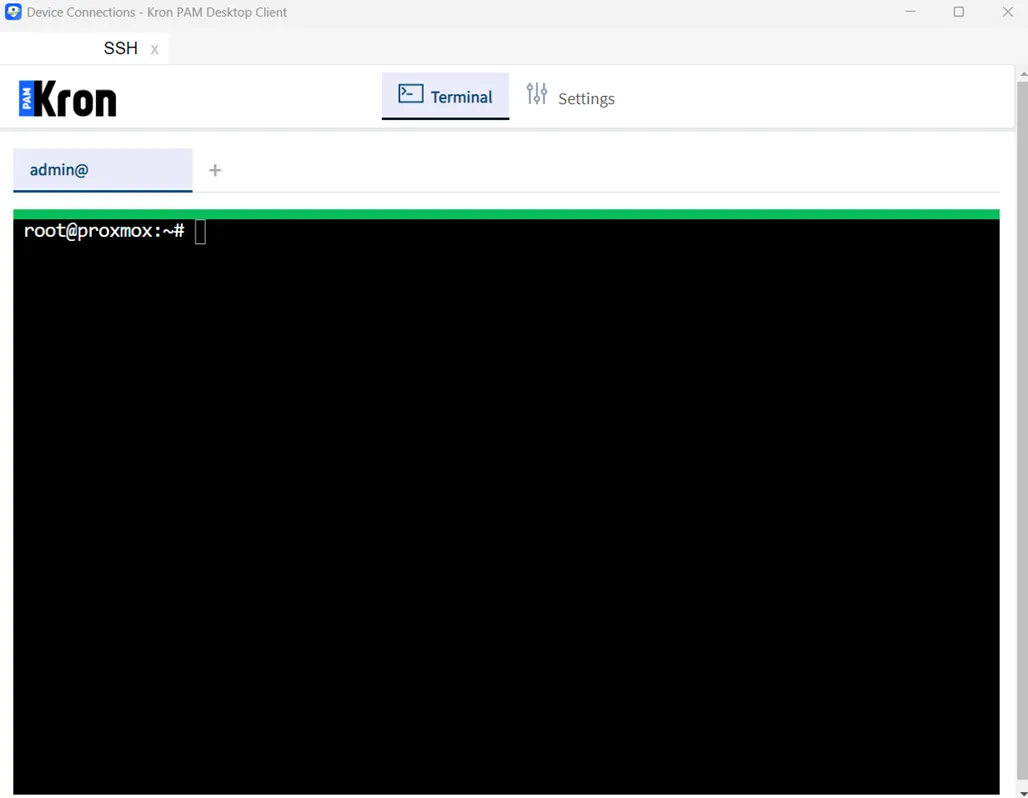
- After pressing the Make a Connection button, the session will be opened.
Kron PAM Desktop Client Application uses its own idle session timeout, separate from the Kron PAM Web GUI idle timeout. Your Kron PAM administrator sets this value using the aioc.desktop.client.session.idletime.minute system config parameter. If this parameter is not defined, Kron PAM Desktop Client uses a default idle timeout of 20 minutes.