Password Vault Support in the Kron PAM Desktop Client Application
If the user has at least SAPM Account Module Visibility, SAPM Group Module Visibility, and “SAPM Management” portal privileges, the Vault tab of the Kron PAM Desktop Client Application appears for this user. If the user has only a “list only” account permission, the user cannot see the Vault tab.
If the user has sufficient portal privileges and permissions, the user can list both Vault Account Groups and Vault Accounts that are bound to these groups. Moreover, the user can search the Vault Accounts by using the filters.
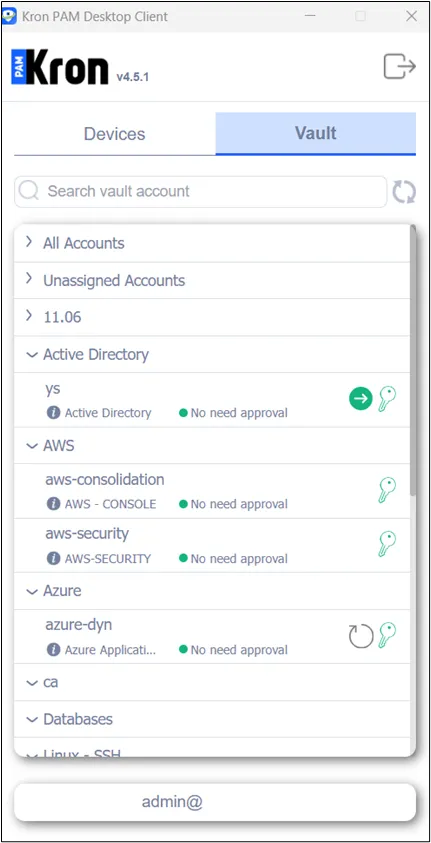
Under the Vault Account Groups, there is at least one Vault Account, and each Vault Account is represented by a line that contains:
- Vault Account Name (e.g., Static SSL),
- Vault Configuration (e.g., Static SSL Certificate),
- Details button
- Approval Status (e.g., Need approval, waiting, no need approval, etc),
- Connect to Target Device button (this button works as a target device button, similar to Web GUI)
- Colorful Check out button (might be Check outPassword, Check outSSH Key, etc, depending on the Vault Configuration). Moreover, depending on the Approval Status, its color is changed.
- Lastly, the Reset Password button if the Vault Configuration is Account With Device (Dynamic Type).
For the details of the Password Vault, please refer to the Password Vault Section in theReference Guide.
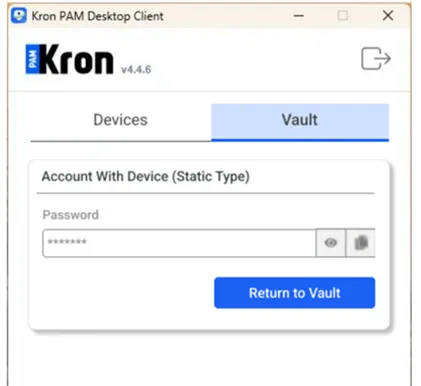
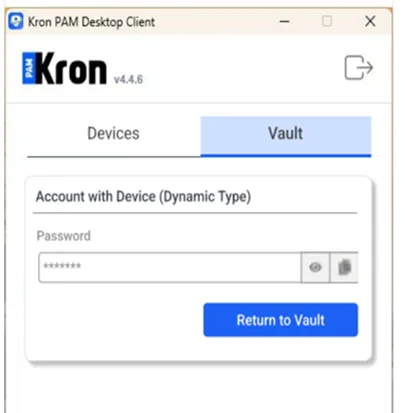
If there is no approval flow for the static vault account, the user clicks the Check out button to check out the passwords/SSH keys, etc, depending on the Vault Configuration.
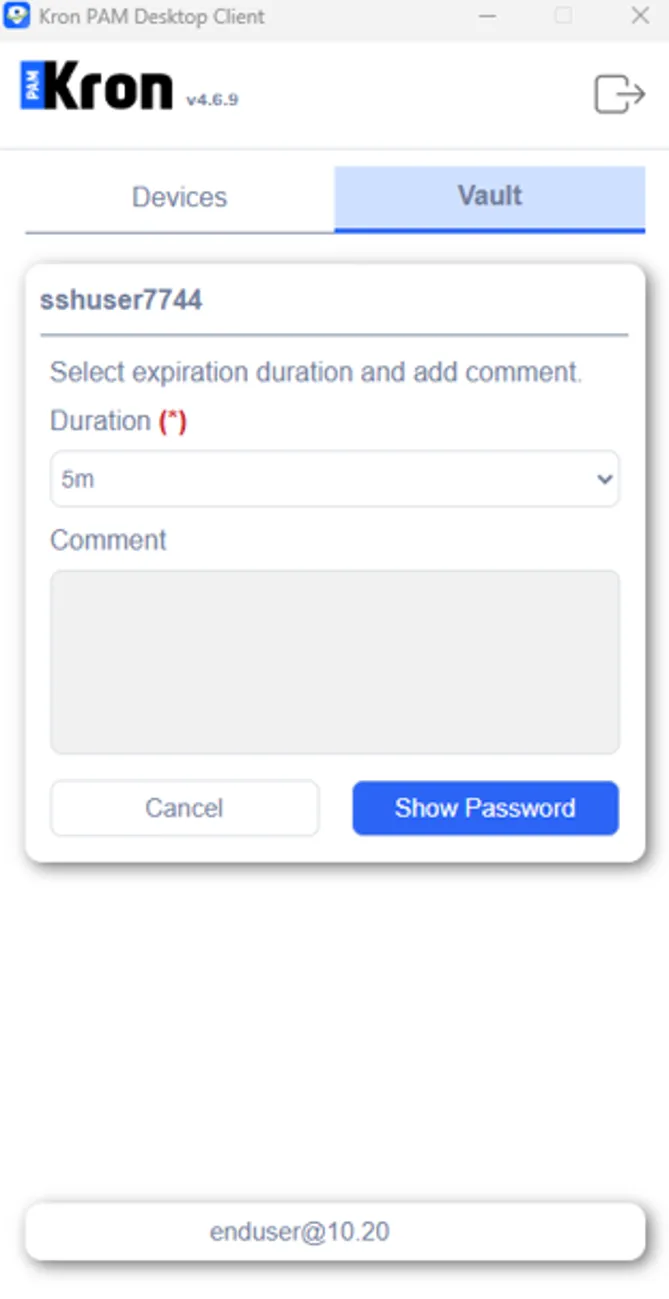
If there is no approval flow for the dynamic vault account, once the user clicks the Check out button, they should select the duration and write a comment before checking the password out.
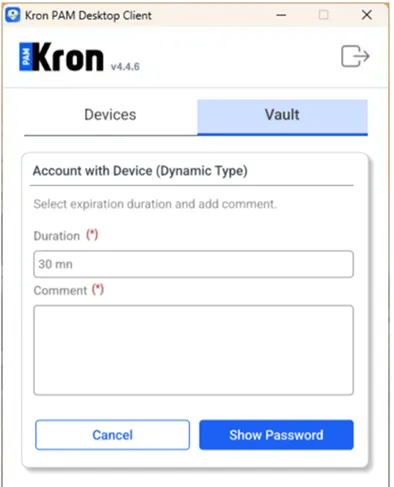
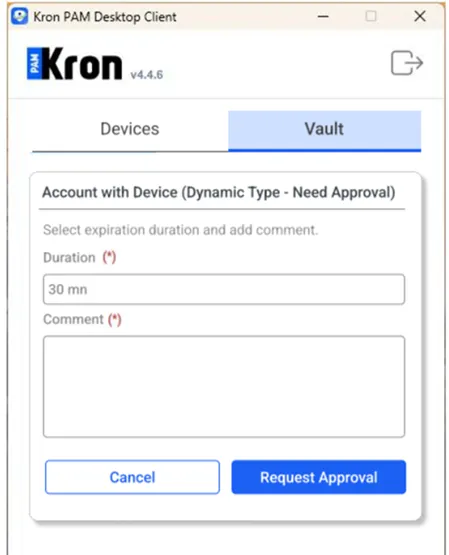
If there is an approval flow for the dynamic or static vault account, before checking the password out, the requestee should send an approval request. To do so, the user should click the Check out button. This time, it leads to another screen, and after the user enters duration and comments on this screen, the user should click the Request Approval button.
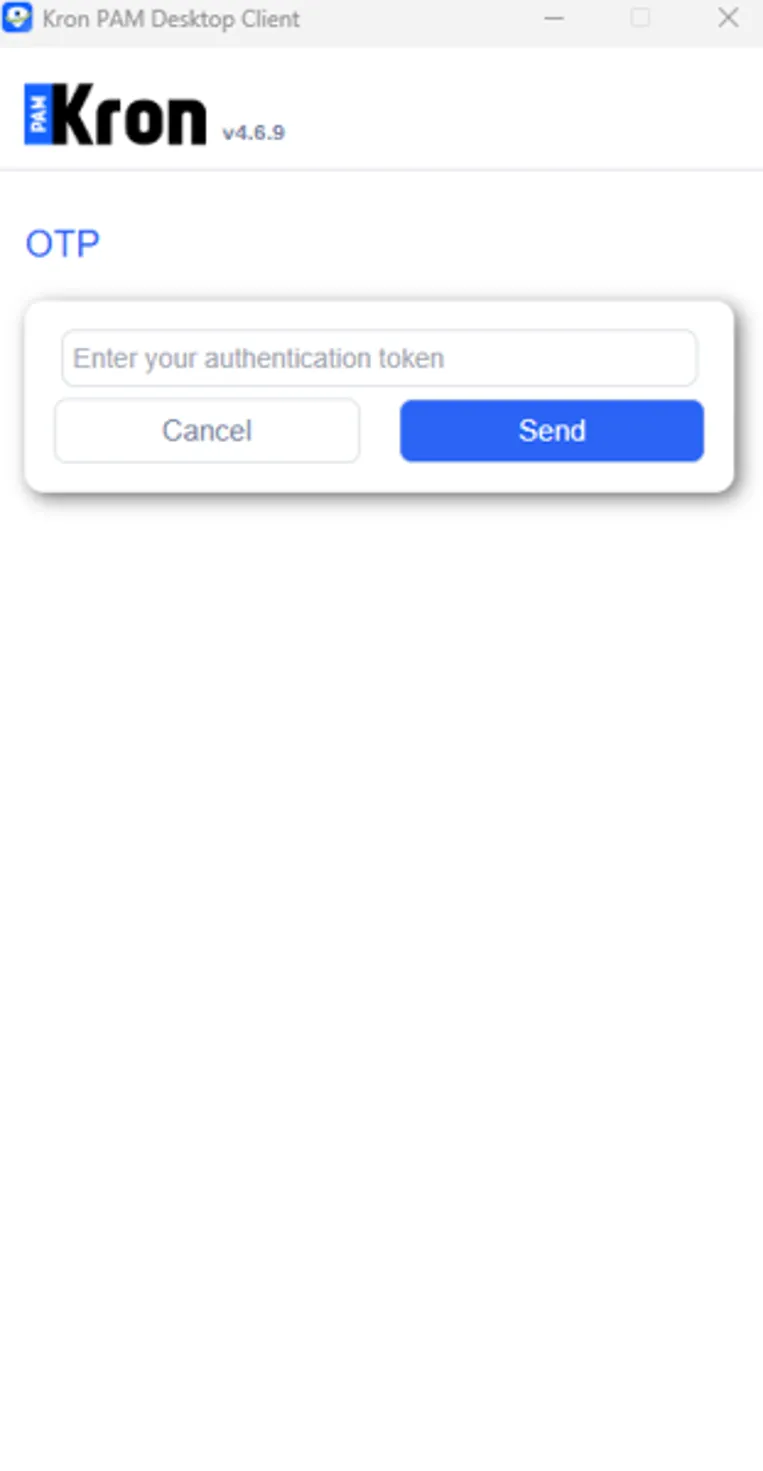
If the duallock feature is enabled for the vault account (see, Figure 24),the user might check out/ or reset the password by entering OTP code:
- If the user is not the owner of the account, the Kron PAM Desktop Client Application asks for an OTP from the user, and after the user enters his/her OTP, the password can be checked out/reset. On the Kron PAM Desktop Client Application, there is a countdown (300 seconds) for a new OTP requirement. If the countdown is zero, the Kron PAM Desktop Client Application shows a pop-up message and redirect to the OTP screen again.
- If the approval process is active for the vault account, firstly, the user sends an approval request, and once the request is accepted, the user might try to check the password out. At that time, the Kron PAM Desktop Client Application asks for an OTP from the user, and the rest of the flow is similar as explained in the previous paragraph.
- If the user is already the owner of the account, the Kron PAM Desktop Client Application continues its own process without asking for an OTP from the owner user.
Lastly, if the duallock feature has been used by the user, this information is added to the Desktop Client Application logs.