Approval Management
Kron PAM Mobile Client Application allows users to manage all passwords and approvals using a single Kron PAM Mobile Client Application, so the user doesn’t need to open his/her email to approve/reject any command, connection, or password request.
To use approval management in the Kron PAM Mobile Client Application, the user should first log in to the Kron PAM server and then follow the steps below:
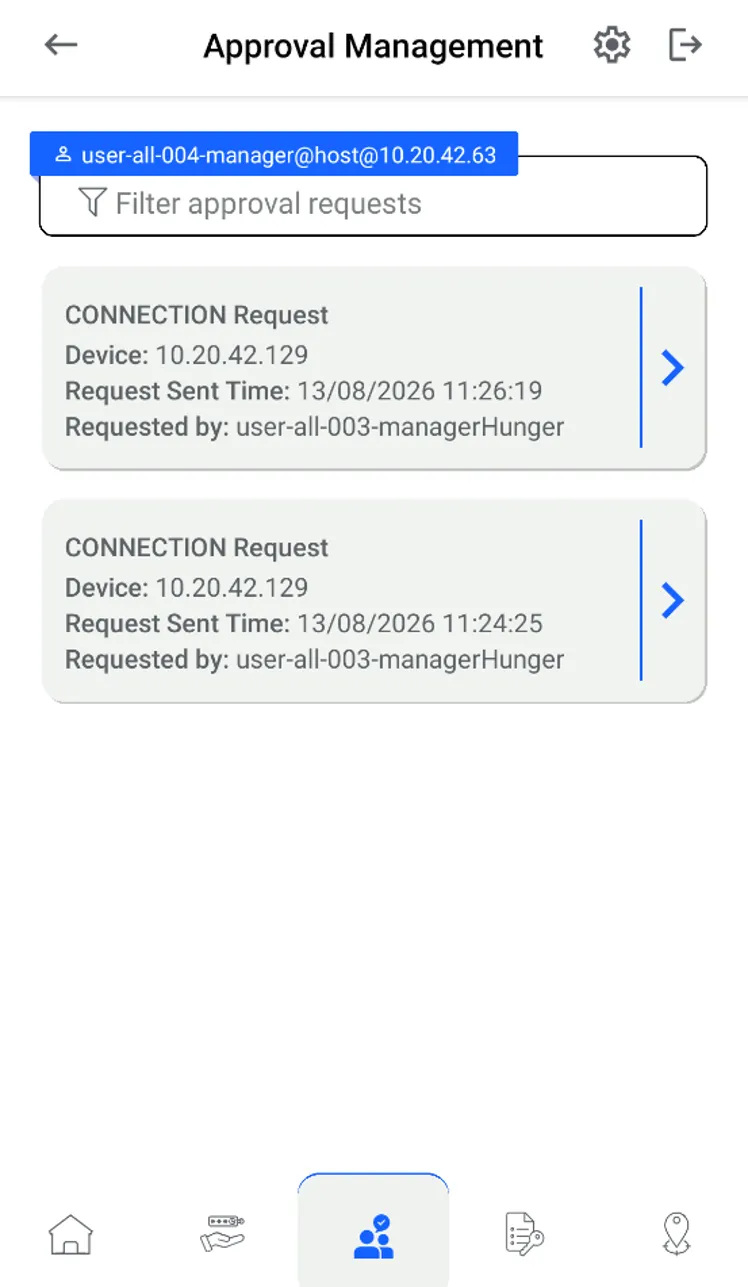
- Open the Approval Management tab on the Kron PAM Mobile Client Application. A few search options will appear. The user can filter:
- by the keyword such as IP, hostname, and the requester’s name,
- by the type of approval request (COMMAND, CONNECTION and VAULT)
- By the time interval (LAST 1 DAY, LAST 7 DAYS, LAST 15 DAYS and LAST 30 DAYS)
- Once the user gets the search results, the user should click the Details button, which is located to the right of the approval request.
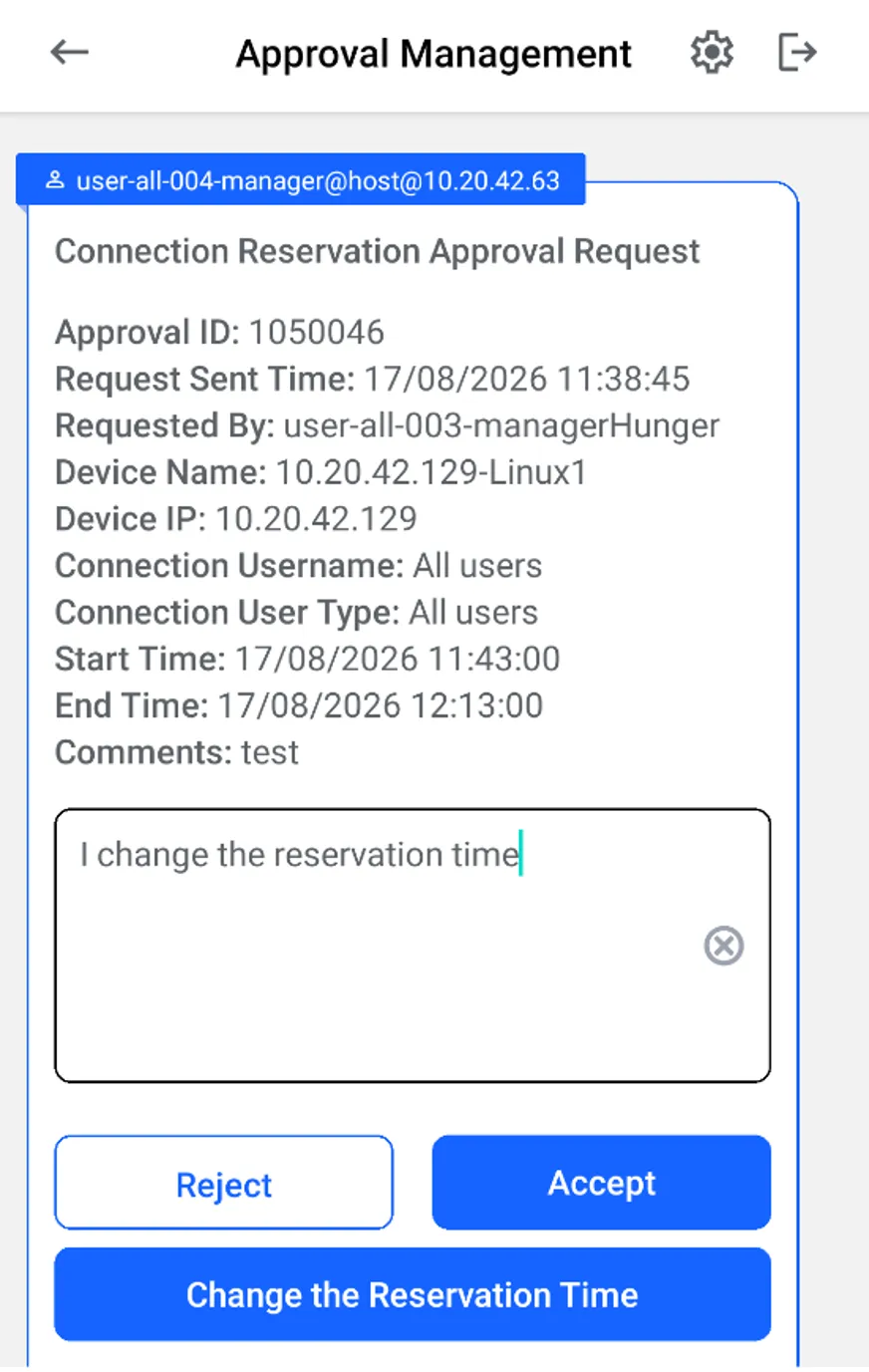
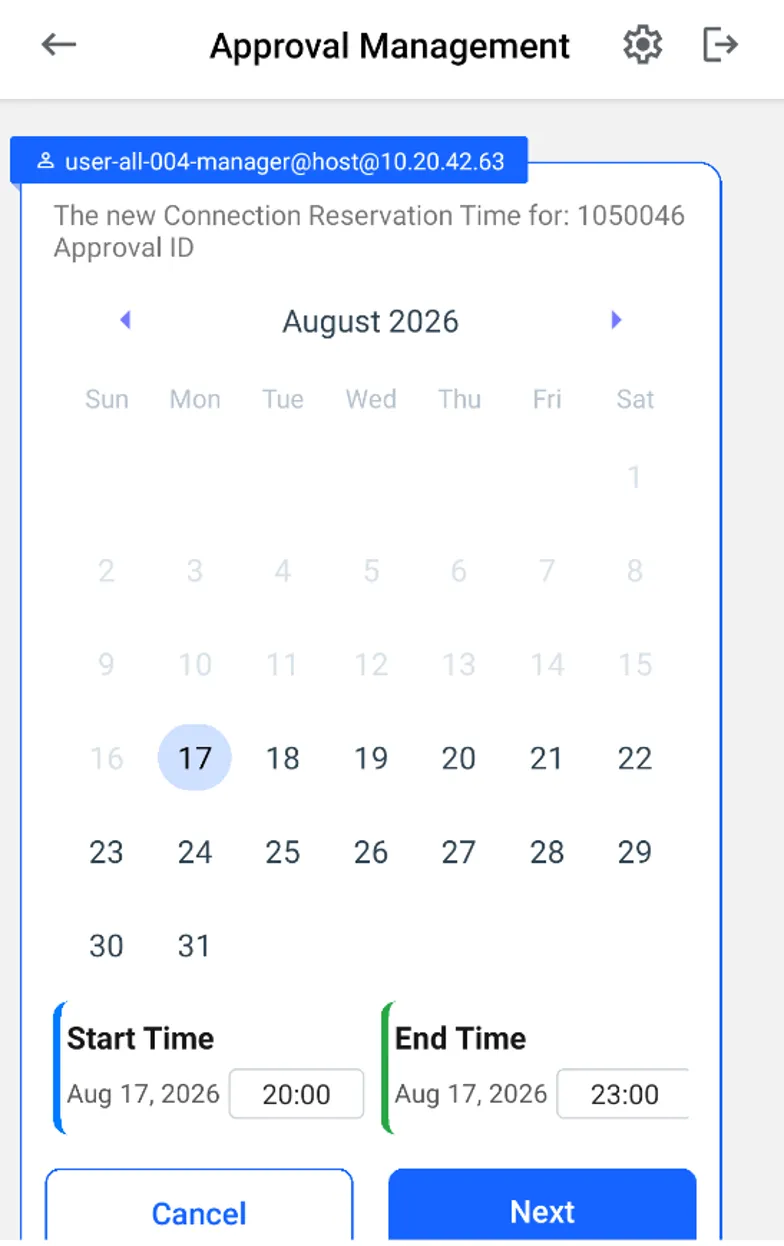
Note that, if the request type is reservation-based, there is a new option to change the time of the reservation request by the approver. To allow approvers to be able to change the reservation time, the system config parameter called allow.changing.reservation.time.by.approver should be set to true. If this parameter is not defined, or is set as false, the approver can’t change the reservation time.
The notifications related to approval requests are sent to smartphones via the Firebase service. On supported devices, notifications are shown regardless of app state — in foreground, background, or when the device is locked.
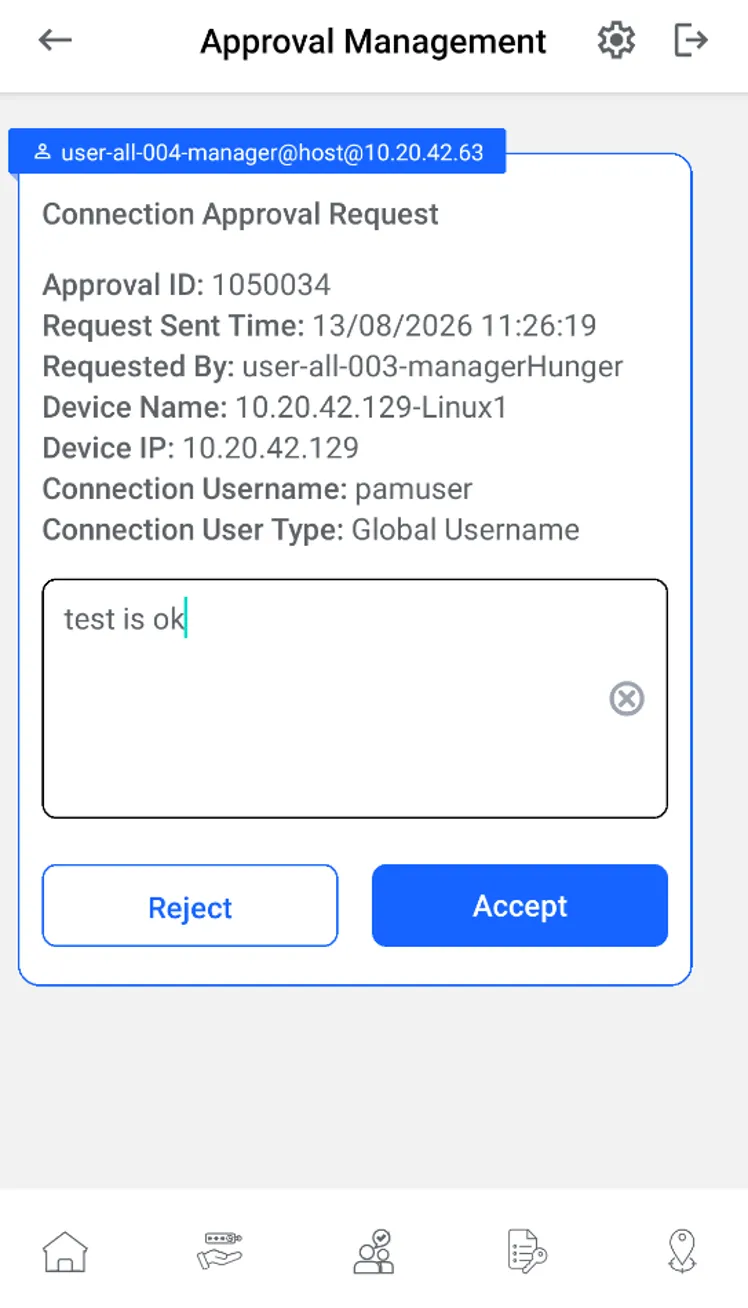
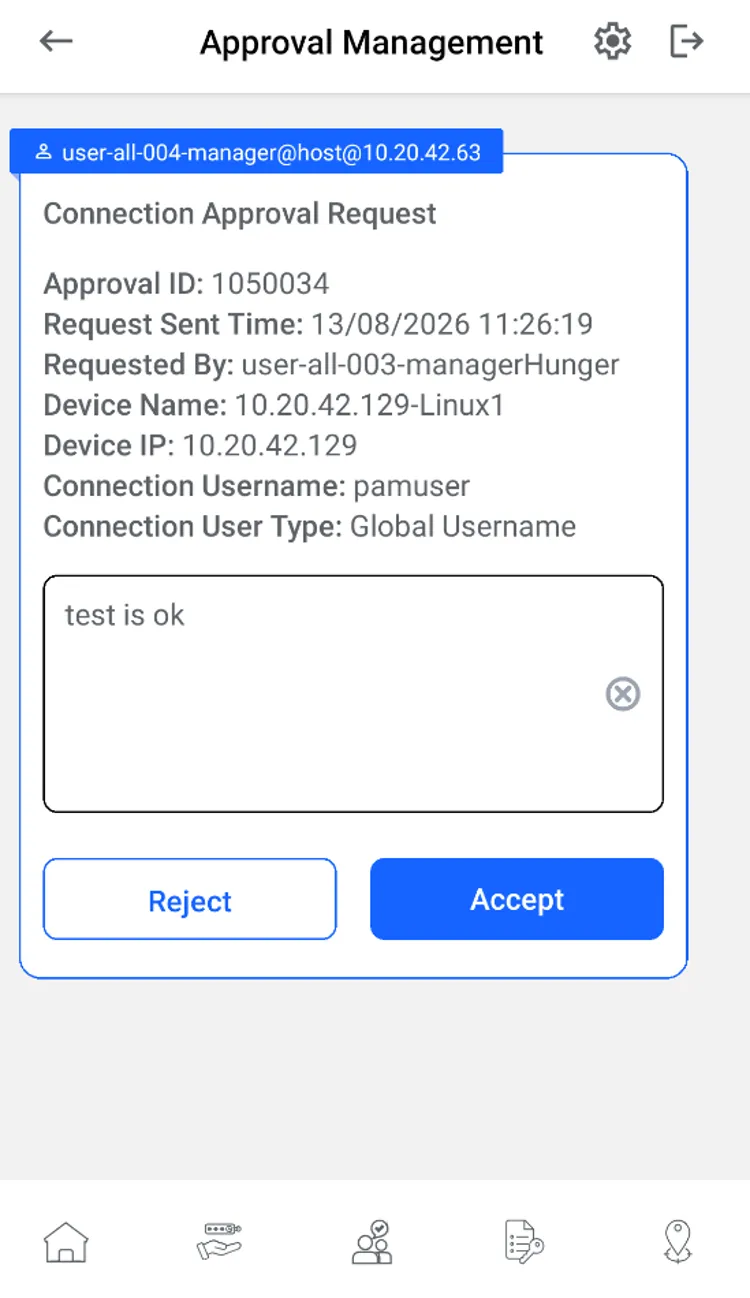
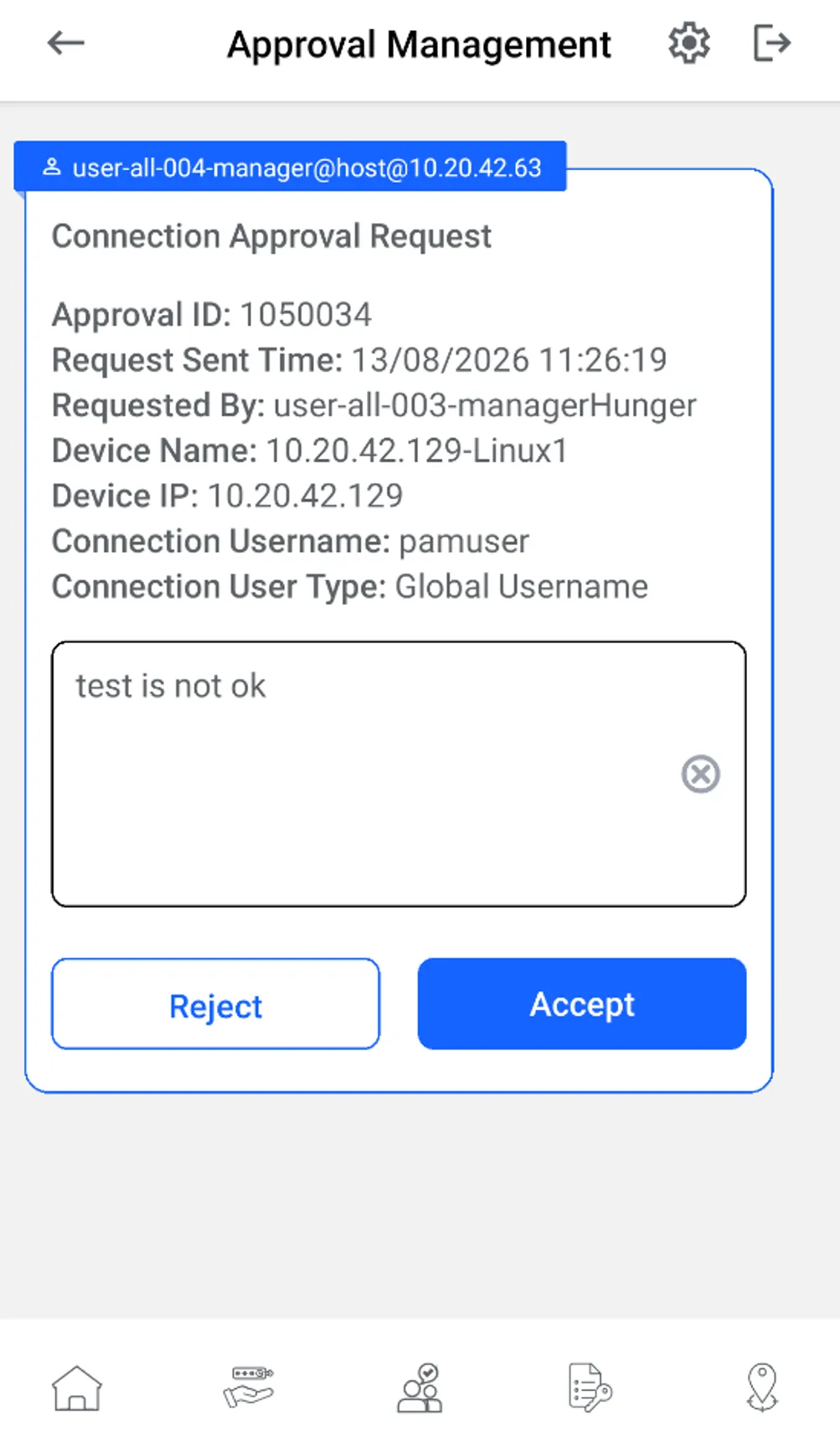
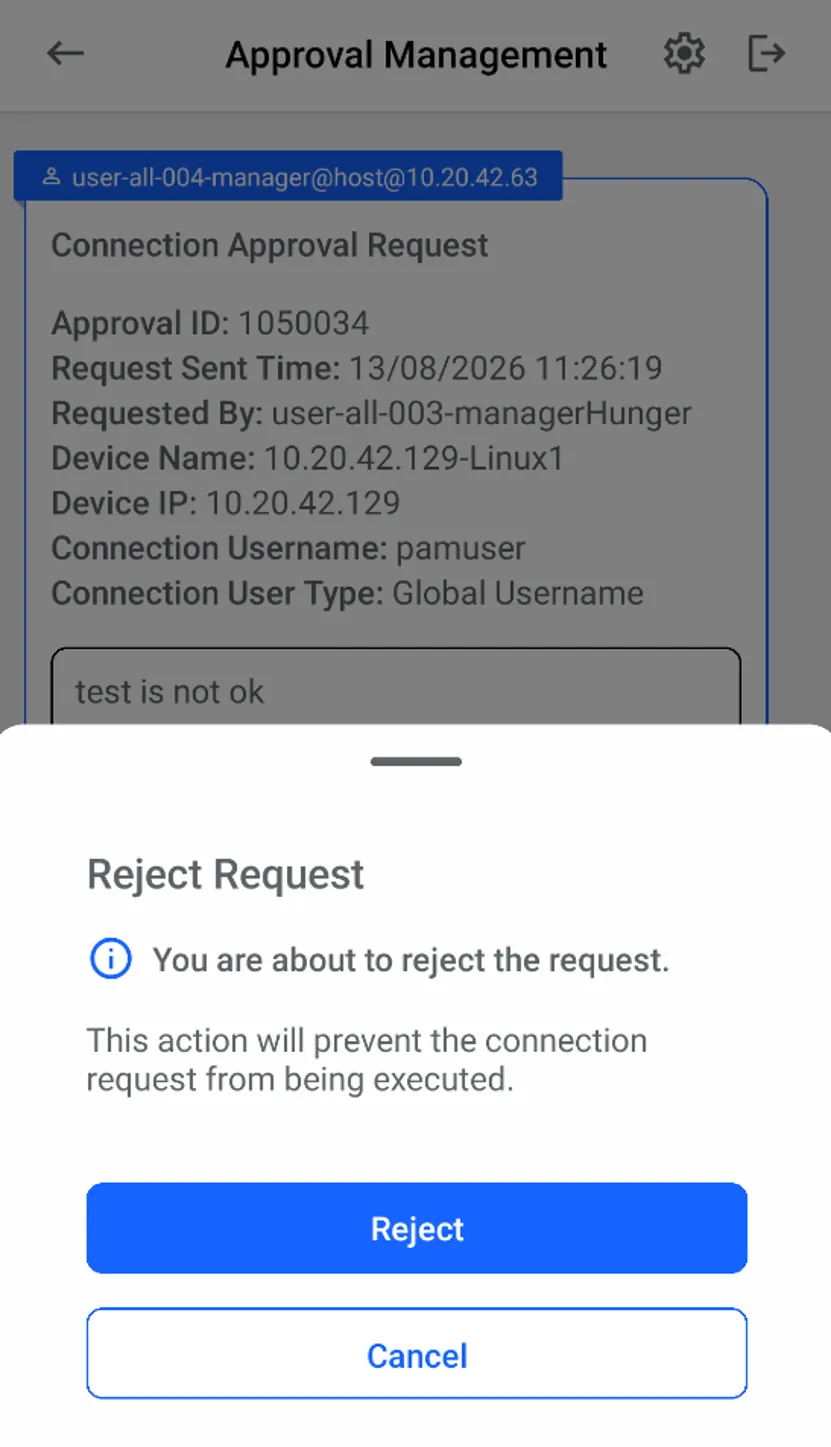
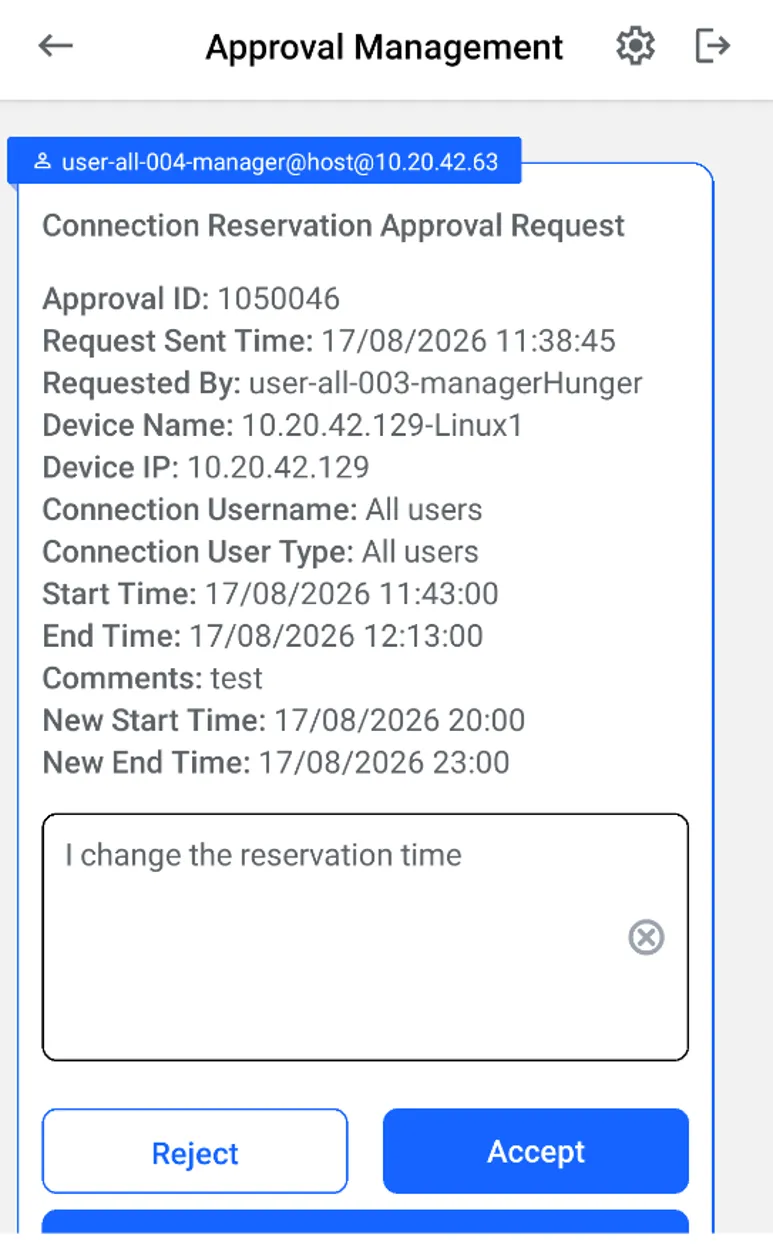
Select the desired option for the approval request. On the request details screen, tap the Accept button to begin the approval process, or tap the Reject button to begin the rejection process. A new window will then open at the bottom of the screen, where the user can finalize their decision to approve or reject by tapping the Accept or Reject button. Lastly, if the request is a connection reservation and if the allow.changing.reservation.time.by.approver is set to true, it allows user to change the reservation time before accepting the reservation by tapping Change the Reservation Time & Accept button.