Protecting Tokens with MFA (Register Token)
Kron PAM’s built-in MFA can be used as a secondary layer of authentication for logging into the Kron PAM Mobile Client Application for its online features (Approval Management, Geo-Fencing, and Password Management).
To enable MFA for Kron PAM Mobile Client Application:
- Admin and user must install the Kron PAM Mobile Client Application and register a token to receive Offline Tokens with the Kron PAM Mobile Client Application. (You get the tokens from the Offline Token > + > Add New Token > Register Token menu).
- OTP must be enabled for the user group that will be using MFA for Kron PAM Mobile Client Application connections. (See section Multi-Factor Authentication in Kron PAM Reference Guide)
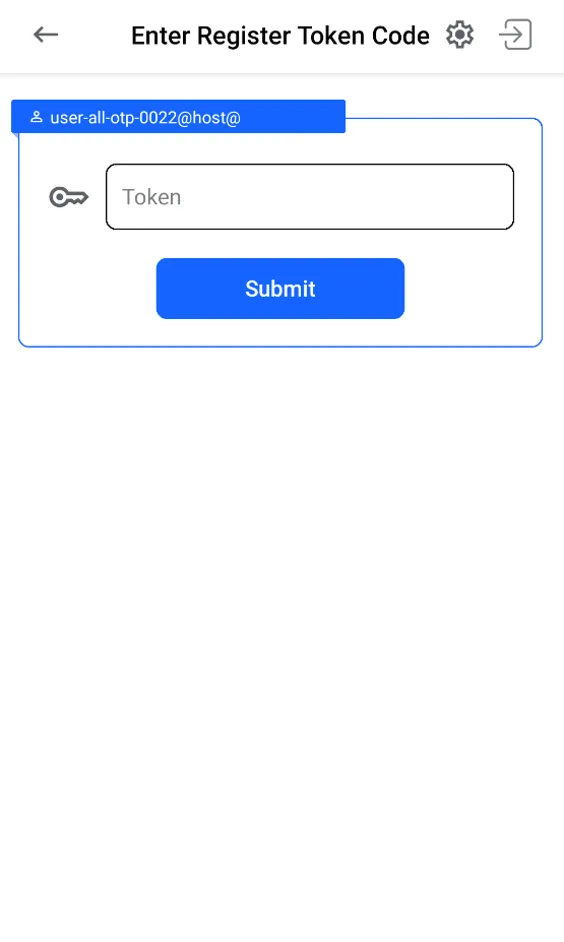
After these settings were done and a login operation was started on the Kron PAM Mobile Client Application, the Kron PAM Mobile Client Application will automatically look for a Registered Token in its Offline Tokens with the name that matches the tfa.otp.issuer parameter. If there is a registered token with another name (the value of tfa.otp.issuer), the Kron PAM Mobile Client Application will prompt the user to change the registered token. The user taps Yes, and the page forwards to the token page for entering a new token. If the token is matched with the six-digit value sent to the user, the user can log in. The current six-digit value of the Offline Token is validated with the Kron PAM server, login will be successful.
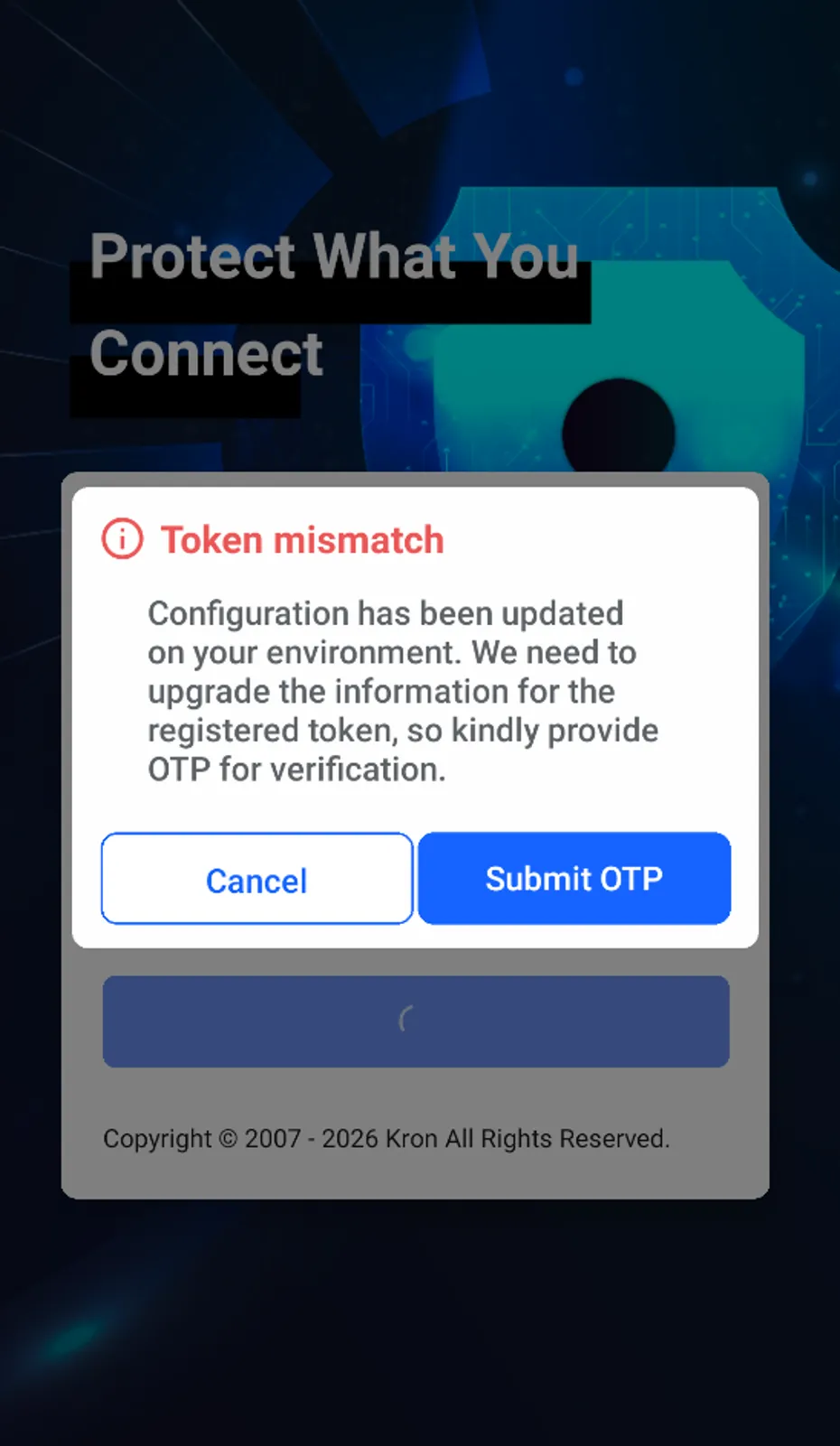
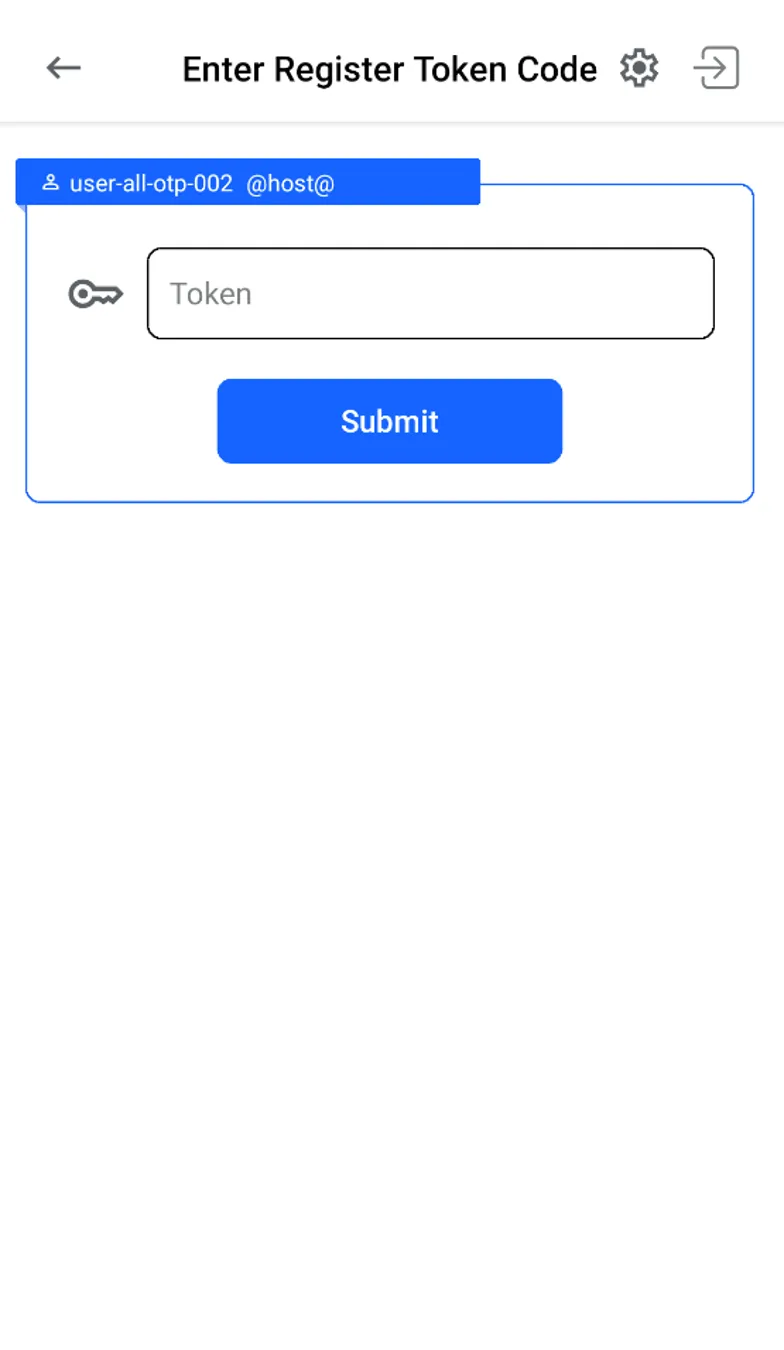
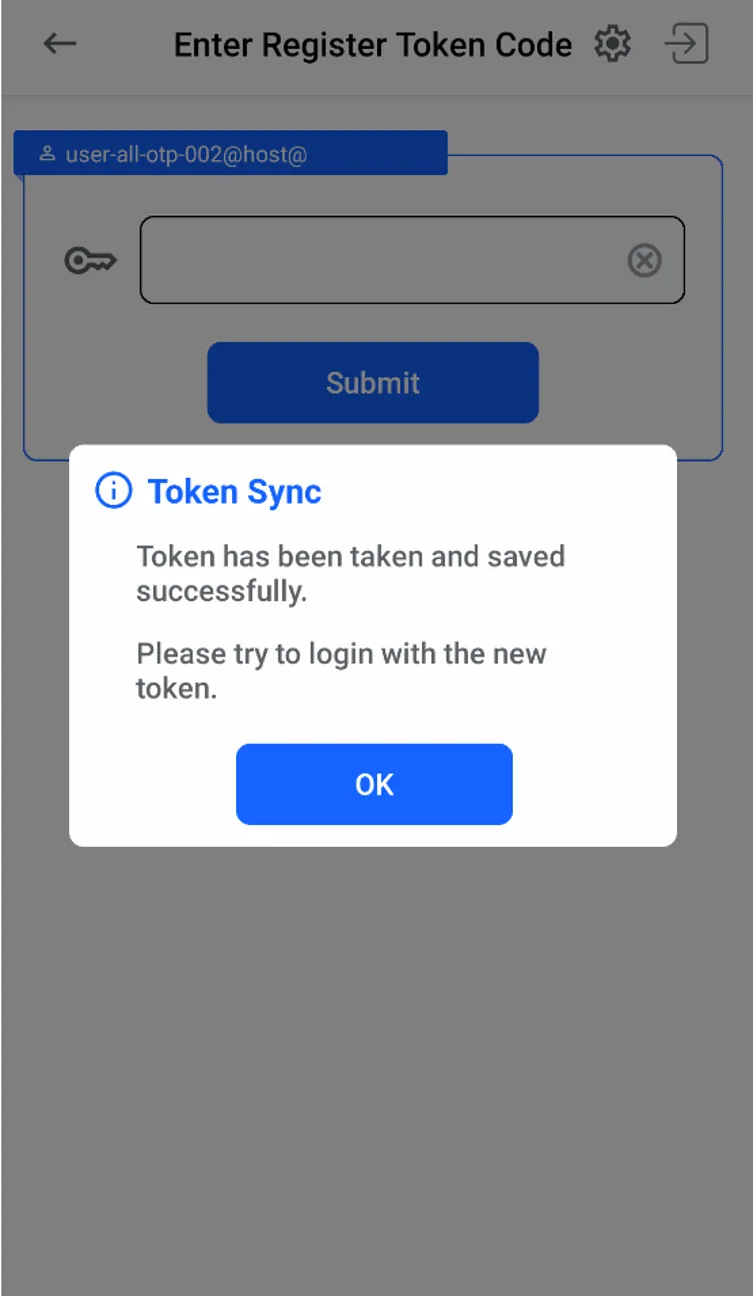
If there’s no Registered Token in the Kron PAM Mobile Client Application and MFA is enabled with the parameter above, registering a token also requires Multi-Factor Authentication. The system will send a one-time password (OTP) user’s phone number. The user will be asked to enter the OTP on the Kron PAM Mobile Client Application.
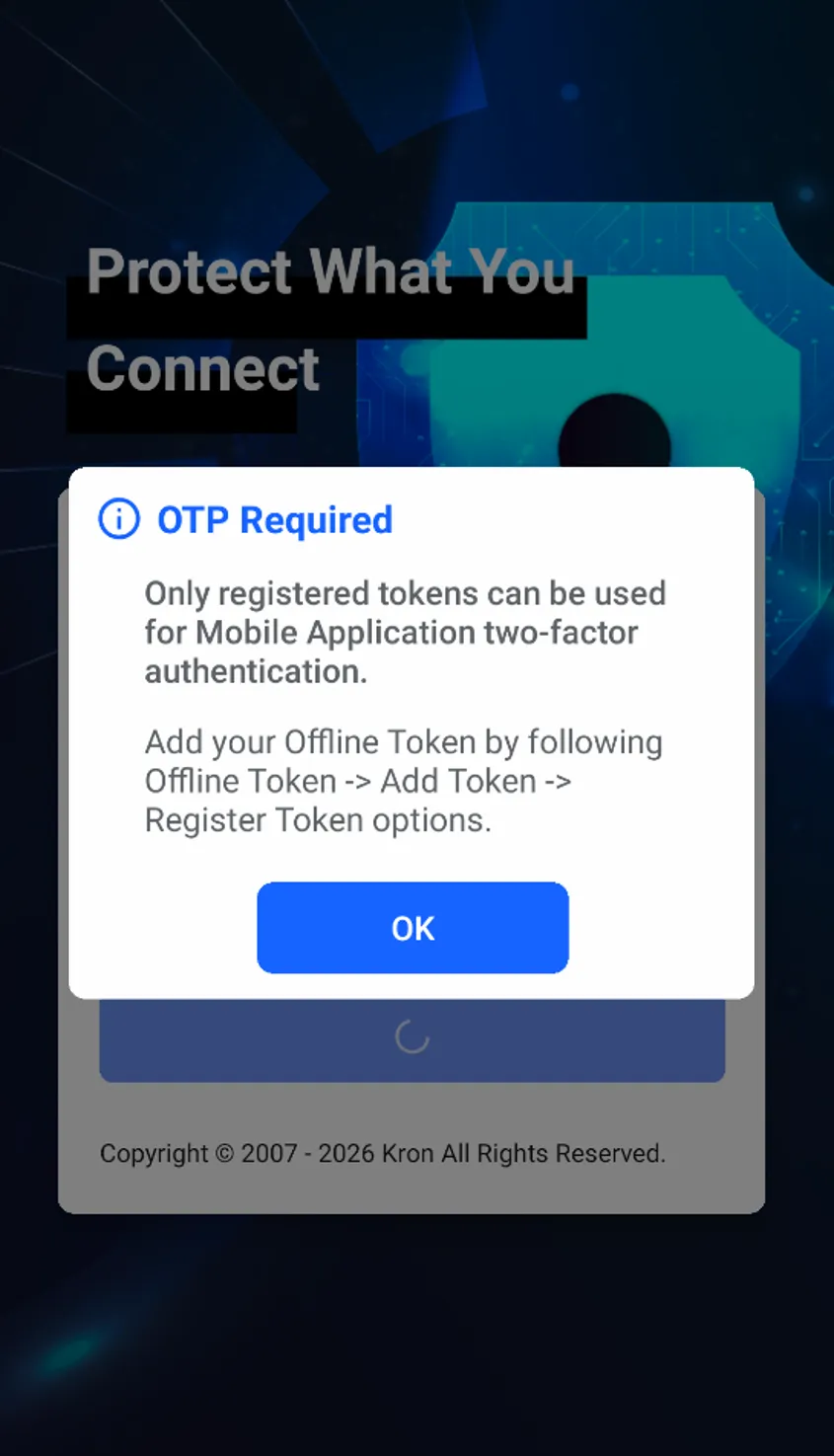
The Kron PAM Mobile Client Application's MFA functionality works only with the registered tokens to ensure that the offline tokens are only working in one Kron PAM Mobile Client at a time.