Setting Up Kron PAM Desktop Client Application
Step 1: Download the Kron PAM Desktop Client Application.
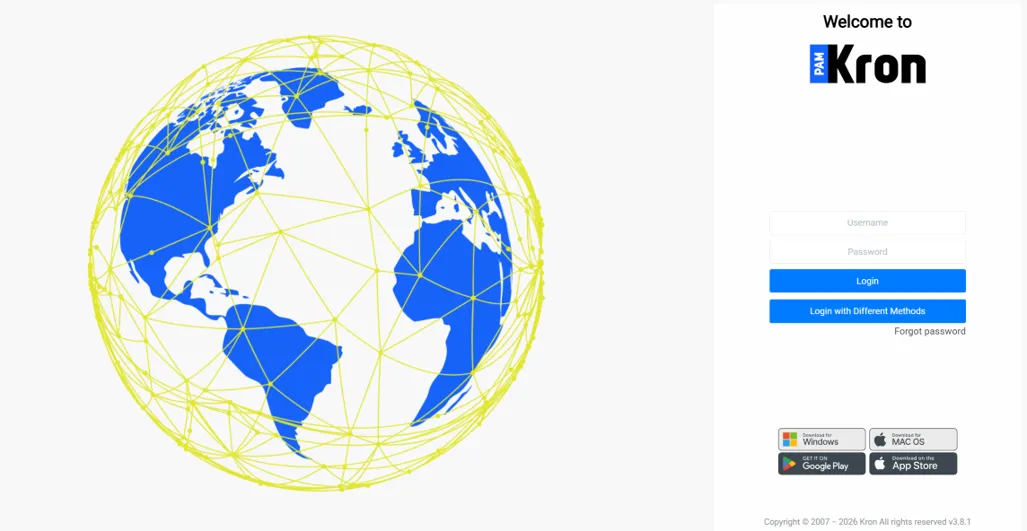
- Open the Kron PAM Web GUI in a browser.
- Click the Download for Windows, for Mac OS, or Linux button depending on the operating system (Download for Linux button only becomes visible on Linux OS).
Step 2: Set up the Kron PAM Desktop Client Application.
- Execute the installer file depending on the operating system (for Windows OS, the installer file is Krtsc_sc_4.x.xxx.exe, for macOS, the installer file is Krtsc_sc_4.x.xxx.pkg, and lastly for Linux OS, the installer file is Krtsc_sc_4.x.xxx.deb).
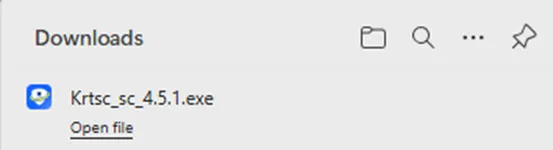
- If the existing Kron PAM Desktop Client Application version is older than 4.2.7, the warning pops up and asks permission to remove the old version before the new installation.
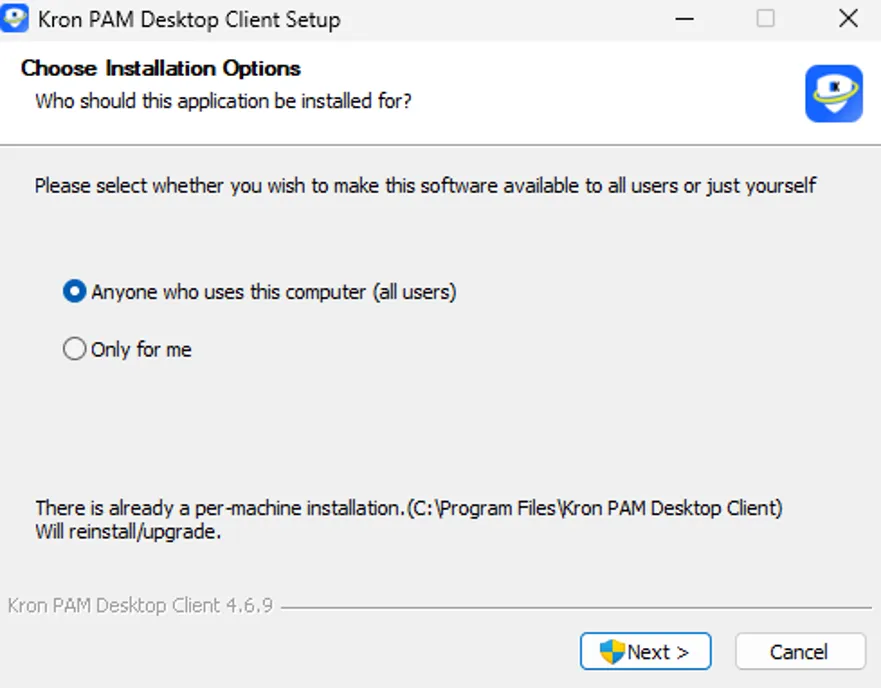
- The installer asks which users will be allowed to use the Kron PAM Desktop Client Application. Either all users or current users can be selected, and after that, press the Next button.
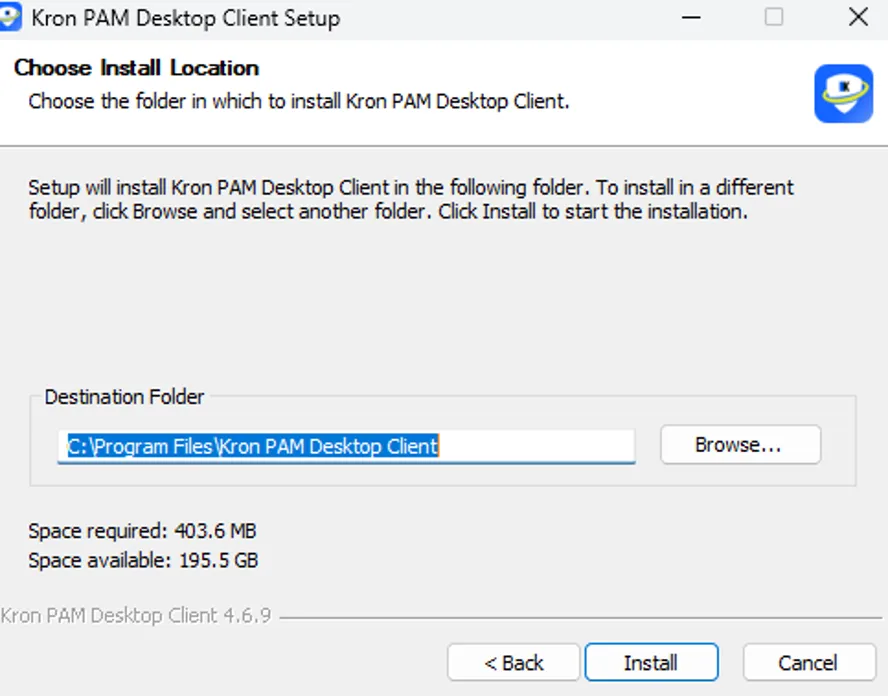
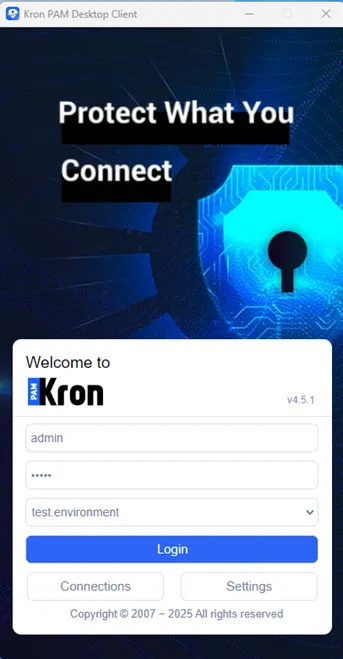
- The Kron Pam Desktop Client Application is ready to be used when the installation is completed.
Installing and Running Kron PAM Desktop Client Application from a Network Share
Alternatively, Kron PAM Desktop Client Applicaiton might run from a network share instead of a local disk. Starting with version 3.9.0, you can select a custom installation destination, such as a network share, during setup. The setup steps and requirements differ by operating system.
1. Windows: Use one of the following methods to install Kron PAM Desktop Client Application on a network share:
· Connect the network share to a drive letter, and then run the installer from that drive.
· Install Kron PAM Desktop Client Application locally once, and then copy the installation folder to the network share.
To run Kron PAM Desktop Client Application from a network share on Windows:
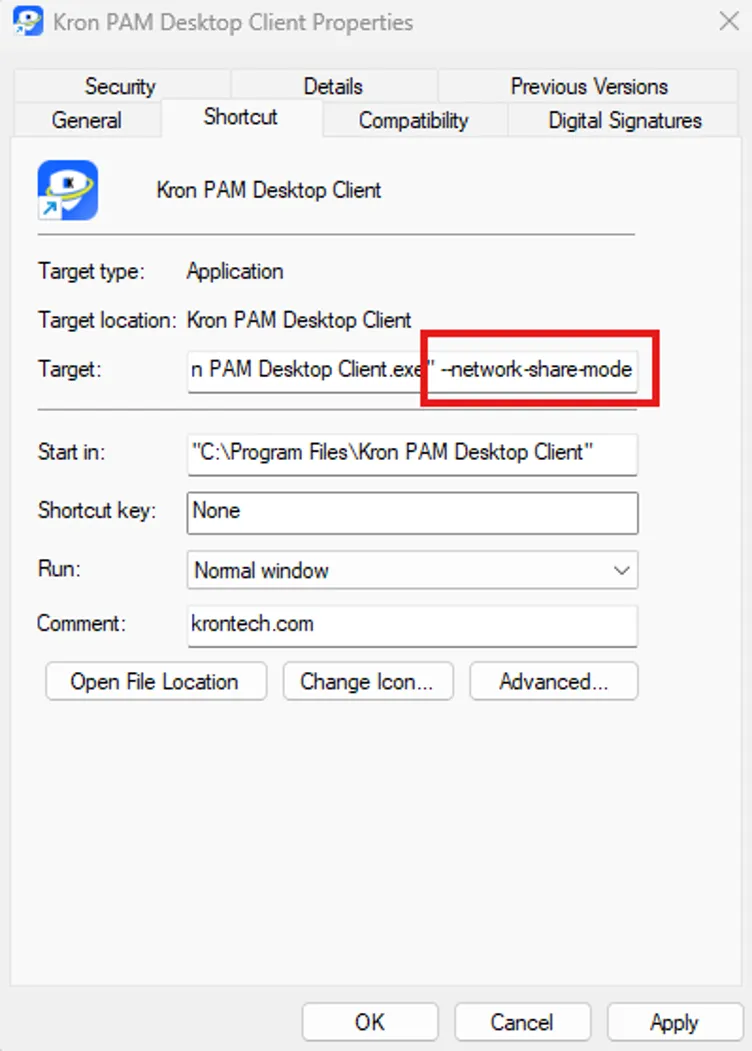
· Create a shortcut for Kron PAM Desktop Client.exe on your desktop.
· Add the --network-share-mode argument to the shortcut's Target field. Launching Kron PAM Desktop Client.exe directly from the network share, without the --network-share-mode argument, causes a GPU error.
· Use this shortcut, or the same argument from a terminal, to start Kron PAM Desktop Client Application.

On Windows 11, Smart App Control might block Kron PAM Desktop Client Applicaiton from launching from a network location through a shortcut. To resolve this, add the network share as a trusted site under the local intranet zone: open Internet Options > Security > Local intranet > Sites > Advanced, and select the Include all network paths (UNCs) option.
2. macOS: You cannot install Kron PAM Desktop Client Application directly on a network share on macOS. Instead, install Kron PAM Desktop Client Application locally once, and then copy the Kron PAM Desktop Client.app file to the network share. No additional steps are required to run Kron PAM Desktop Client from the share.
3. Linux:You cannot install Kron PAM Desktop Client Application directly on a network share on Linux. Instead, install Kron PAM Desktop Client Application locally once, and then copy the /opt/kron-pam-desktop-client/ installation directory to the network share. No additional steps are required to run Kron PAM Desktop Client Application from the share.
Connect the network share using the NFS protocol. The SMB protocol does not preserve UNIX file permissions and overrides them. Perform the copy operation as the root user, or by using the sudo command, because the installation directory and all subfolders and files must be owned by root on the mounted share. You can copy the directory with the cp command, or compress it into a .tar.gz file, copy the archive to the share, and extract it there as the root user.