Using the Tabbed View for Multiple Connections
1 min
Kron PAM Desktop Client instance
1. OpentheKron PAMDesktopClientandclickSettingsontheLogin Screen.
2. Set the Use tabbed view for connection windows option to On.
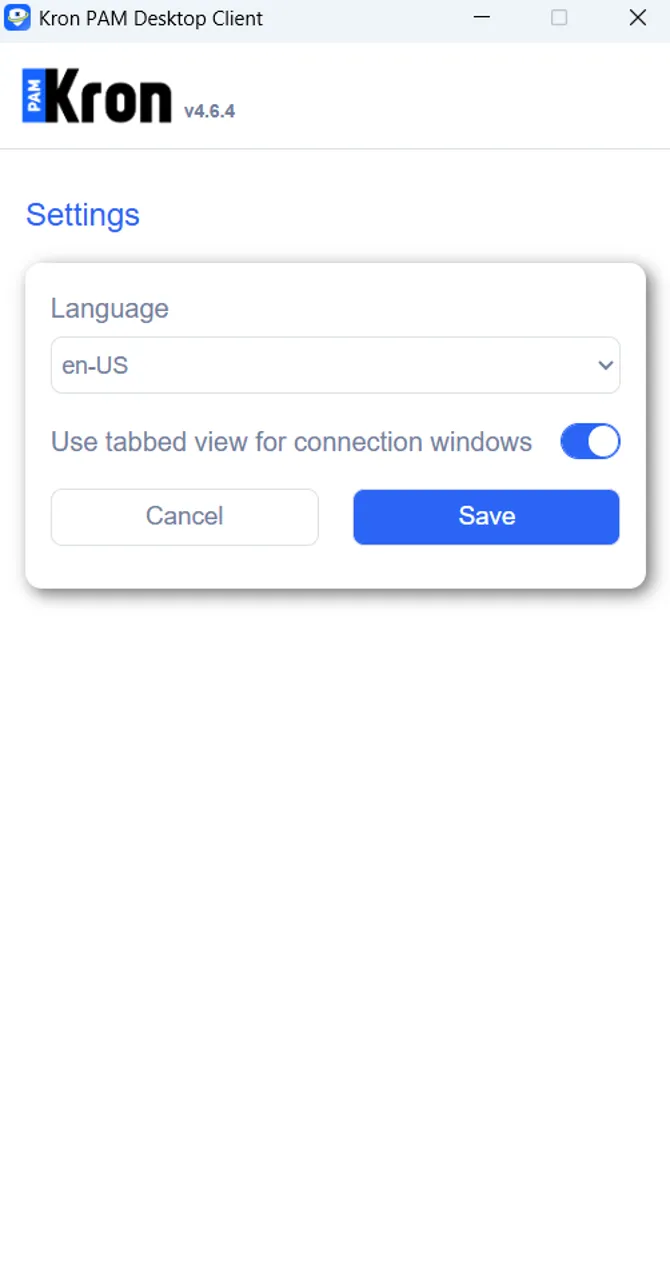
Configure the tabbed view for connections option
Kron PAM Desktop Client displays a confirmation prompt when you close the client window while multiple connections are active in the tabbed view. This prevents you from closing all active sessions by accident.
This prompt appears for RDP, SSH, and HTTP sessions, and is available on Windows, macOS, and Ubuntu.
To close active connections:
- Click the close button (X) on the Kron PAM Desktop Client window.
- Click Yes to close all active connections or click No to return to the client.

Warning message regarding closing all tabbed connections