Using a Shared Connection Profile
Kron PAM Desktop Client Application can use a shared connection profile to provide the same default connection settings, such as server address, language, and preferences, to multiple installations without requiring each user to configure them manually.
If your installation includes a shared connection profile and you have no local connection settings yet, Kron PAM Desktop Client Application automatically applies the shared profile the first time you start the client. After that, you can personalize your own settings; personalizing your settings does not change the shared profile.
Preparing a Shared Connection Profile
Before installing Kron PAM Desktop Client Application, create a folder named shared_profile in the same location as the installer file (for example, C:\Downloads\shared_profile). In this folder, add the connection settings to share as the following template files:
- addresses-template.json
- language-template.json
- preferences-template.json
- serverKronPAMVersion-template.json
The template file names must match exactly. For example, naming the file address.json instead of addresses-template.json causes Kron PAM Desktop Client Application to ignore the file.
During installation, Kron PAM Desktop Client Application copies these files, without the -template suffix, to the storage folder of the new installation (for example, C:\Users{username}\AppData\Roaming\Krontech Single-Connect\storage on Windows):
- addresses-template.json→ addresses.json
- language-template.json→ language.json
- preferences-template.json→ preferences.json
- serverKronPAMVersion-template.json→ serverKronPAMVersion.json
Changing the Shared Profile Path
- Open Kron PAM Desktop Client and click the Settings button on the Login screen.
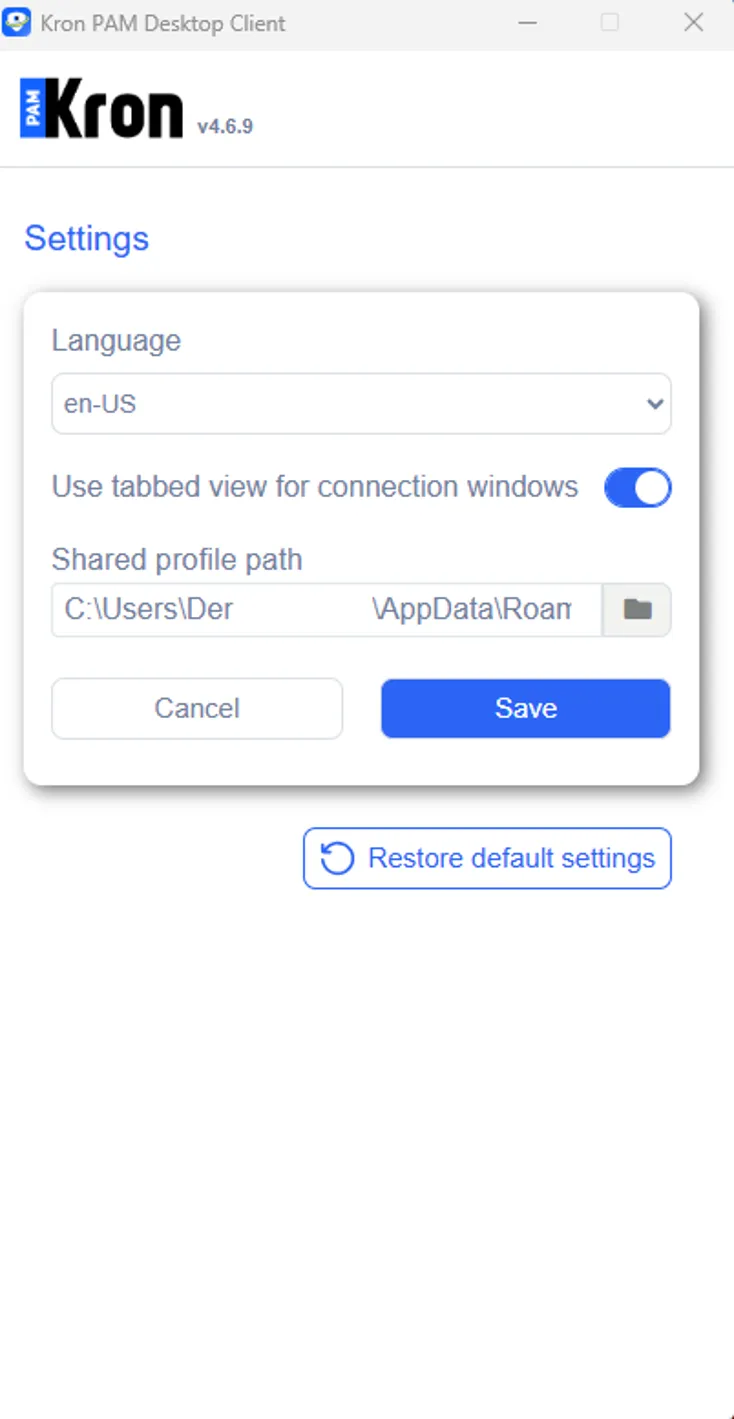
- Select the shared profile folder path in the Shared profile path field.
- Click the Save button.
If the folder set in Shared profile path contains configuration files, Kron PAM Desktop Client Application copies these files to the storage (e.g., C:\Users{username}\AppData\Roaming\Krontech Single-Connect\storage) folder. After that, the shared profile can be used on the Kron PAM Desktop Client Application.
Restoring Default Settings
To reset your connection settings to the shared connection profile:
- Open Kron PAM Desktop Client and click the Settings button on the Login screen.
- Click the Restore default settings button.
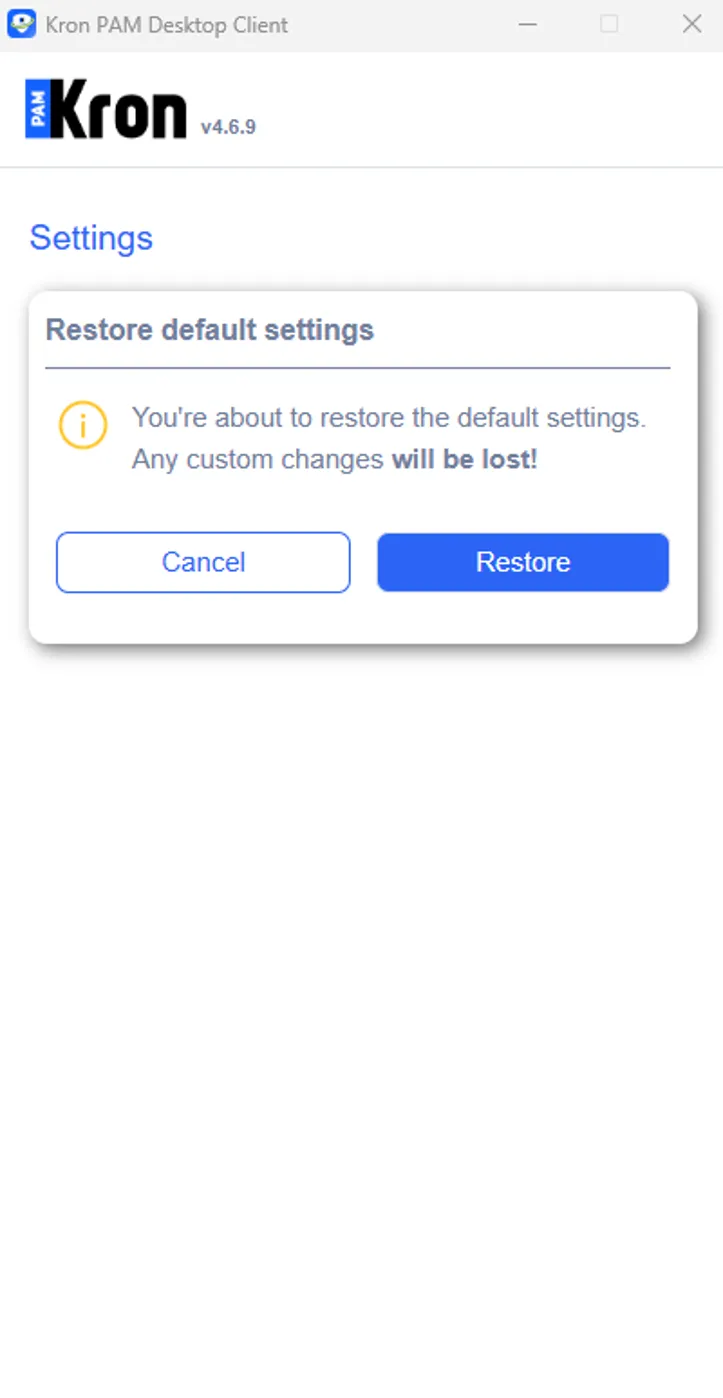
- Click the Restore button to confirm or click the Cancel button to keep your current settings.
If the folder set in Shared profile path contains no configuration files, Kron PAM Desktop Client Application places empty configuration files in the storage (e.g., C:\Users\{username}\AppData\Roaming\Krontech Single-Connect\storage) folder. If the folder set in Shared profile path contains configuration files, Kron PAM Desktop Client Application copies these files to the storage (e.g., C:\Users\{username}\AppData\Roaming\Krontech Single-Connect\storage) folder. After that, the shared profile can be used on the Kron PAM Desktop Client Application.