Connecting to SSH Proxy via Kron PAM Desktop Client
2 min
- Open the Kron PAM Desktop Client.
- If this is the first time you download the Kron PAM Desktop Client, you will be directed to the Connections interface. Otherwise, click the Connections button on the Login screen.
- Click the Add button to add the Kron PAM server to the Kron PAM Desktop Client. Enter your server information and then click Save.
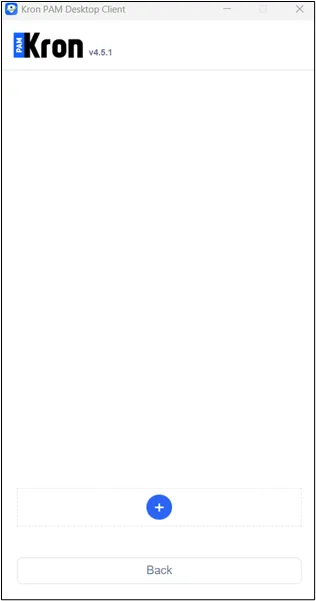
Add your server information
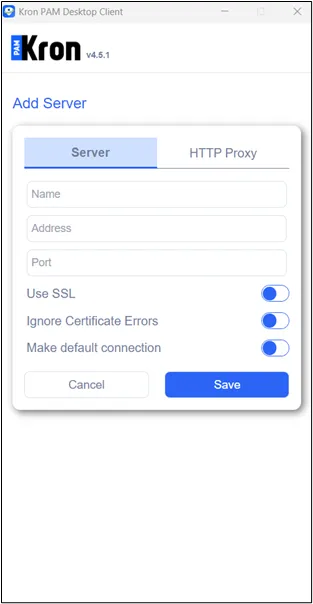
Save
- Click Return to go back to the login interface.
- Enter the username and password. Click Login.
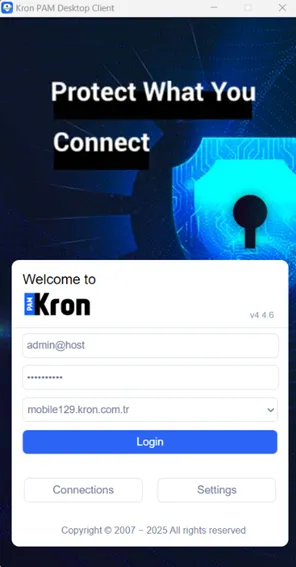
Enter your credentials and log in.
- Once you log in, the device groups are listed. Double-click on the desired device and a pop-up with a session to your selected device will open.
- The SSH session is established using the pop-up window of the session to the selected device.