Connecting to Devices with Managerial Approval via RDP
2 min
Admins can configure devices to allow access only after managerial approval. This section describes how to proceed with the approval process in RDP sessions for such devices.
- When you attempt to access a device configured with managerial approval, you will receive a confirmation message in the RDP session. Proceed with one of the following options:
- To avoid starting an approval process, click No.
- To start the approval process to connect to the device, click Yes. The system will send the approval email to the assigned manager, and you will see the following message which has an Approval ID. You can use this approval ID to follow up on the approval status. See Approval Management for End Users
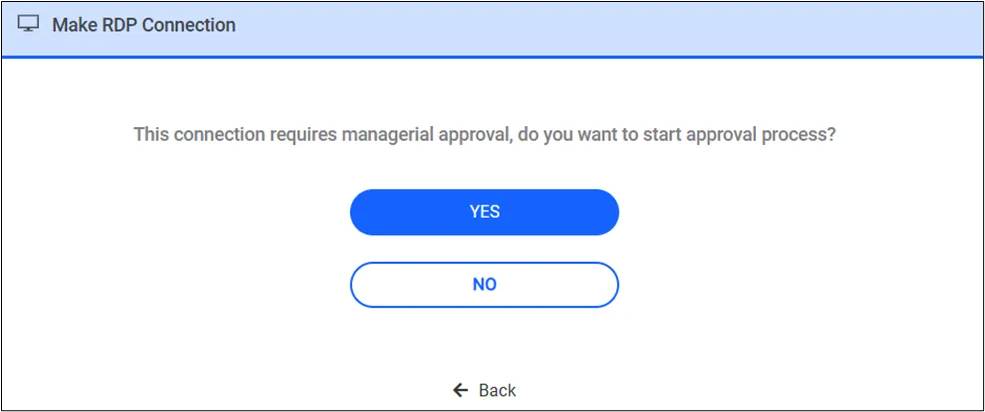
Start (Yes) or Reject (No) the managerial approval process for RDP.
- After clicking Yes, check the approval status in the My Approvals section. If it is approved, the RDP session starts; if failed, a rejection message appears.
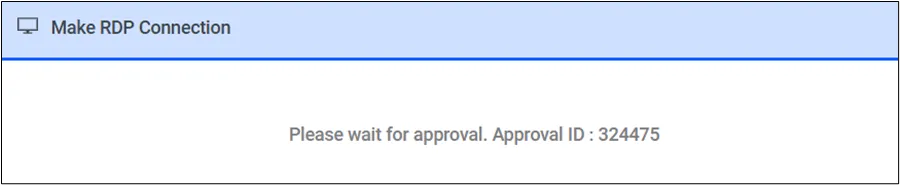
Approval ID