Connecting to SSH Proxy via Kron PAM Desktop Client Application
2 min
- Open the Kron PAM Desktop Client Application.
- If this is the first time you download the Kron PAM Desktop Client Application, click the Connections button on the Login screen.
- Click the Add button to add the Kron PAM server to the Kron PAM Desktop Client Application. Enter your server information and then click Save.
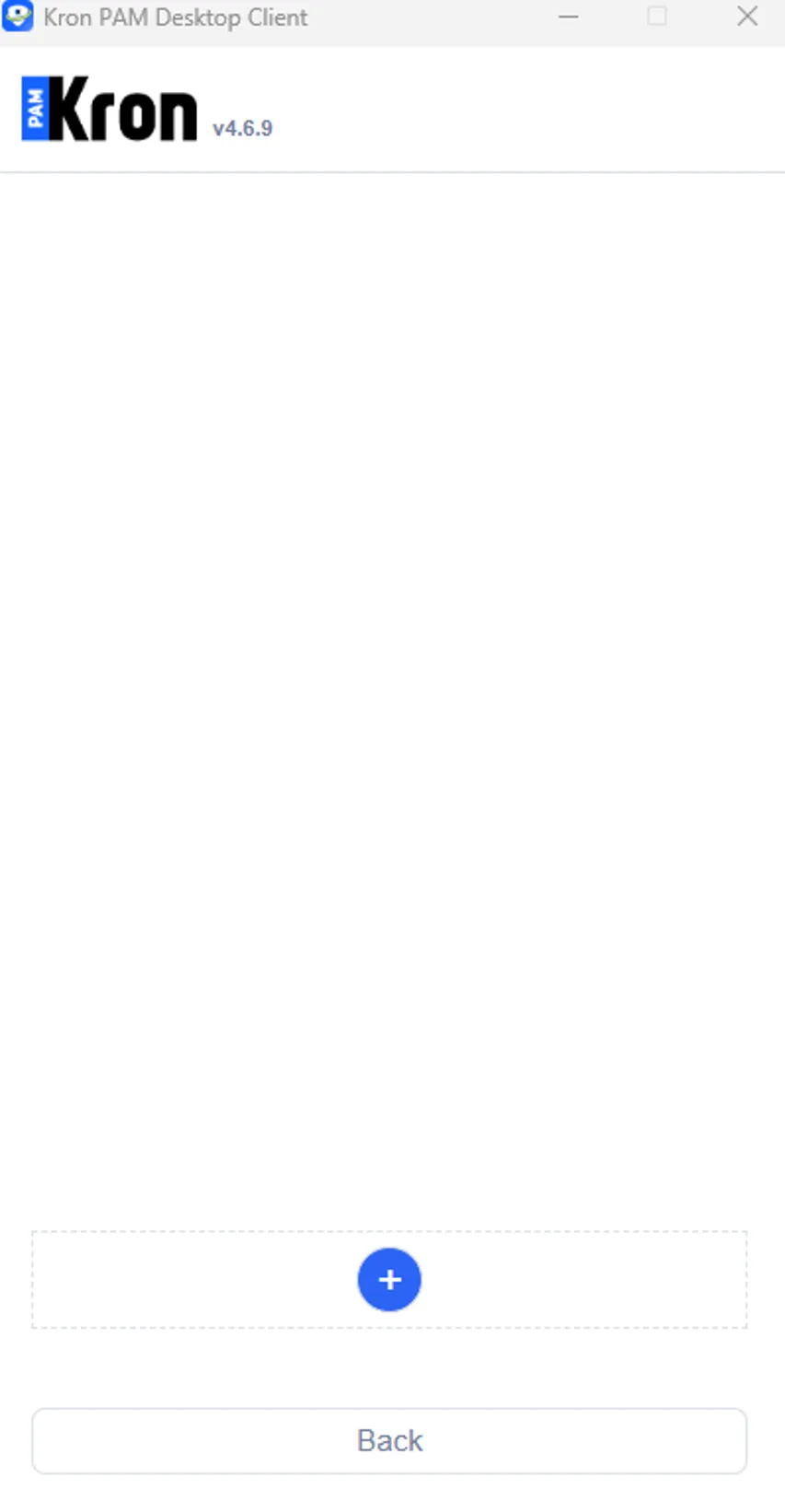
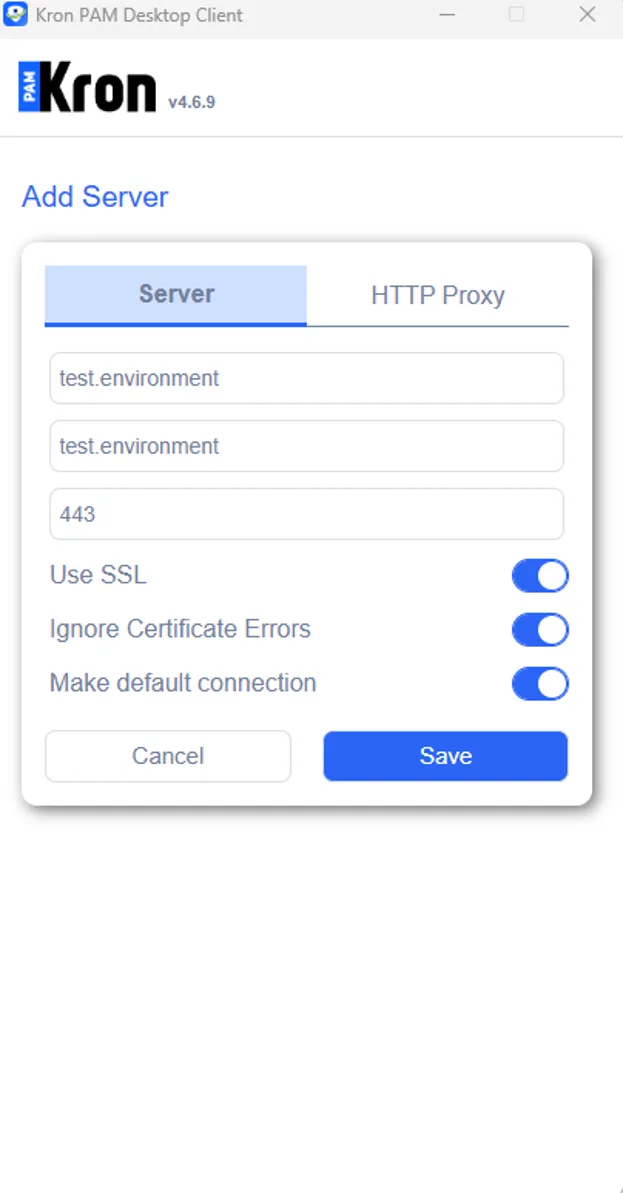
Add your server information and Save.
- On the Kron PAM Desktop Client Application's login interface, enter the username and password. Click Login.
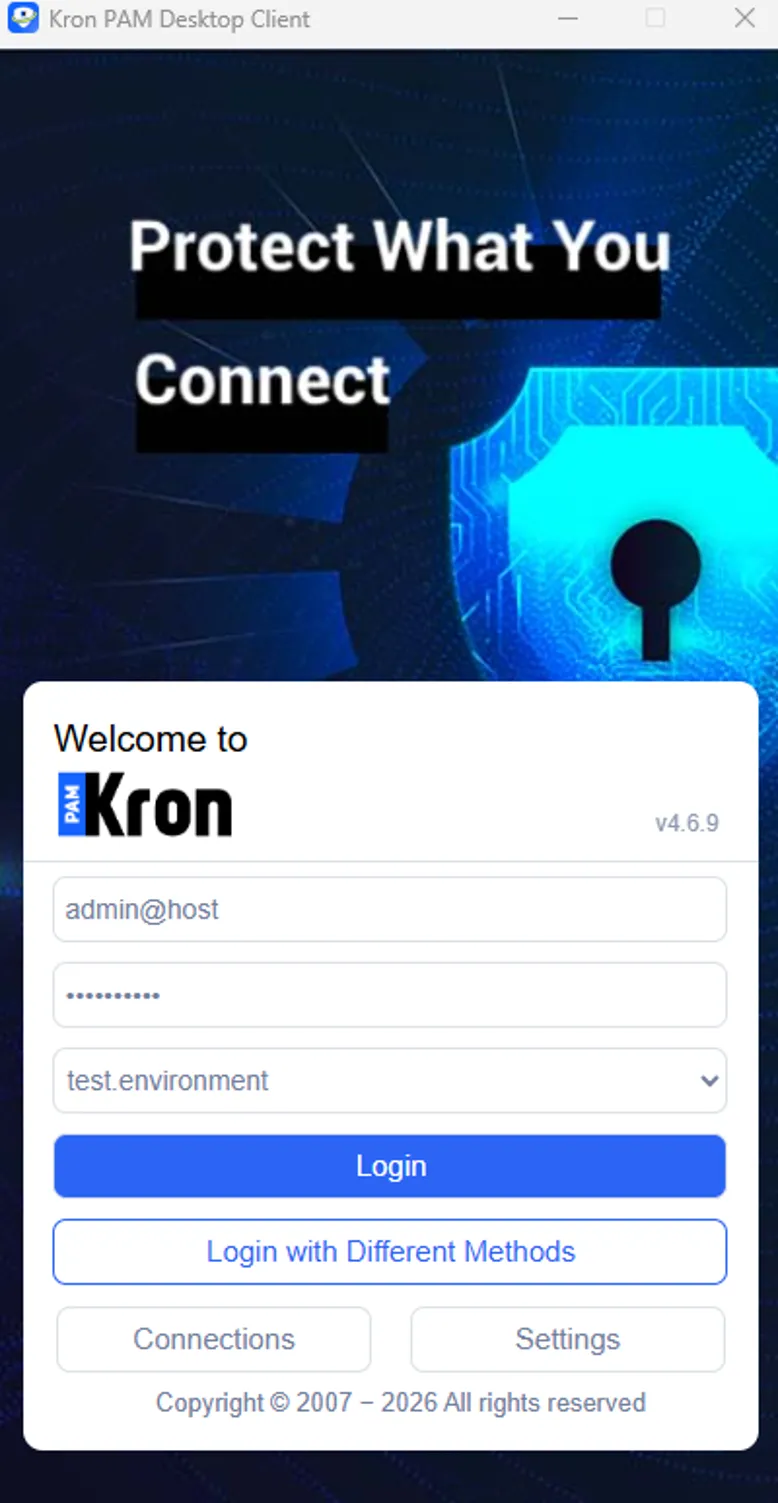
Enter your credentials and log in
- Once you log in, the device groups are listed. Double-click on the desired device and a pop-up with a session to your selected device will open.
- The SSH session is established using the pop-up window of the session to the selected device.
Within an active SSH session, text copy-paste operations can be performed on Kron PAM Desktop Client. To paste text copied from the local machine to the target SSH server, users can press Shift + Insert within the Kron PAM Desktop Client. Similarly, within an SSH session, users can copy text from the target server by pressing Ctrl + Insert within the Kron PAM Desktop Client.