Connecting to RDP/VNC Proxy via Kron PAM Desktop Client Application
1 min
- Open the Kron PAM Desktop Client Application.
- If this is the first time you download the Kron PAM Desktop Client Application, click the Connections button on the Login screen.
- Click the Add button to add Kron PAM to your Desktop Client. Enter your server information and then click Save.
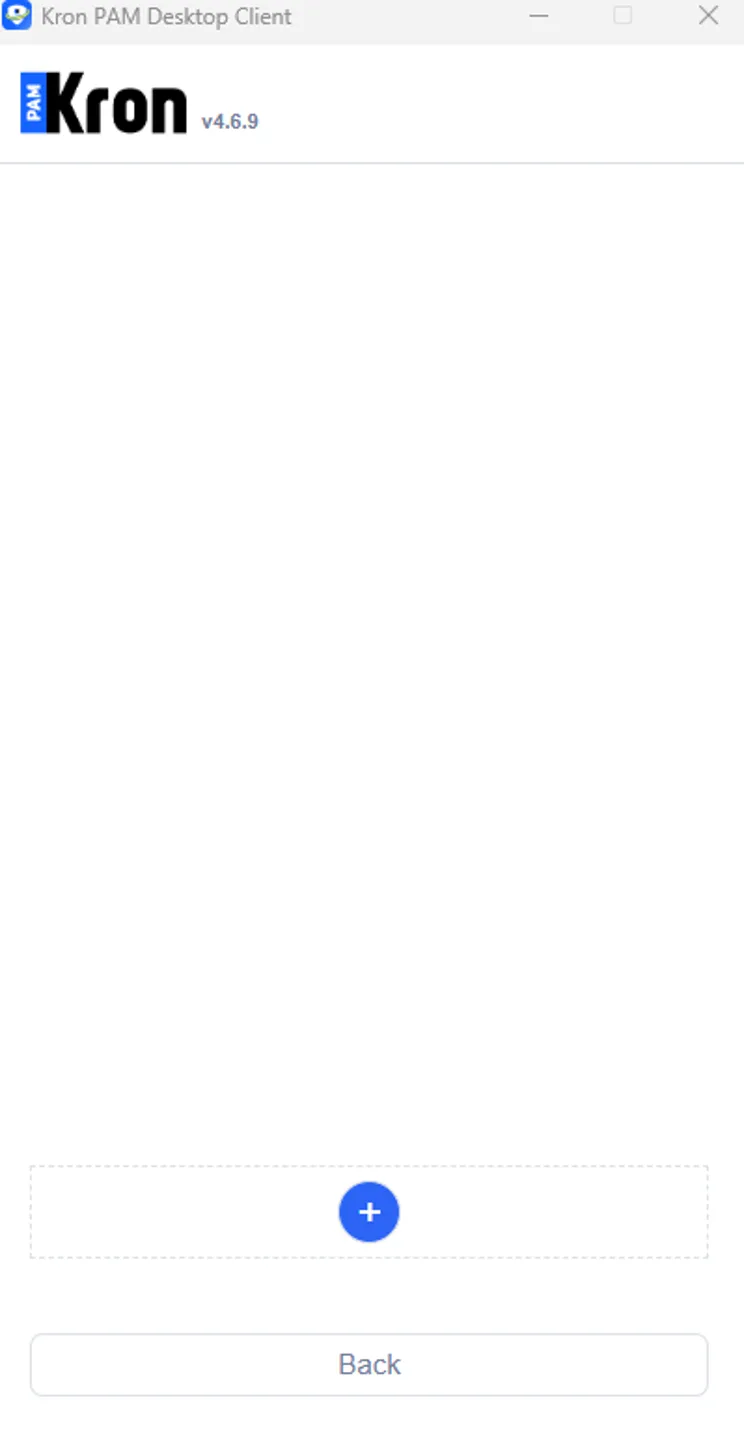
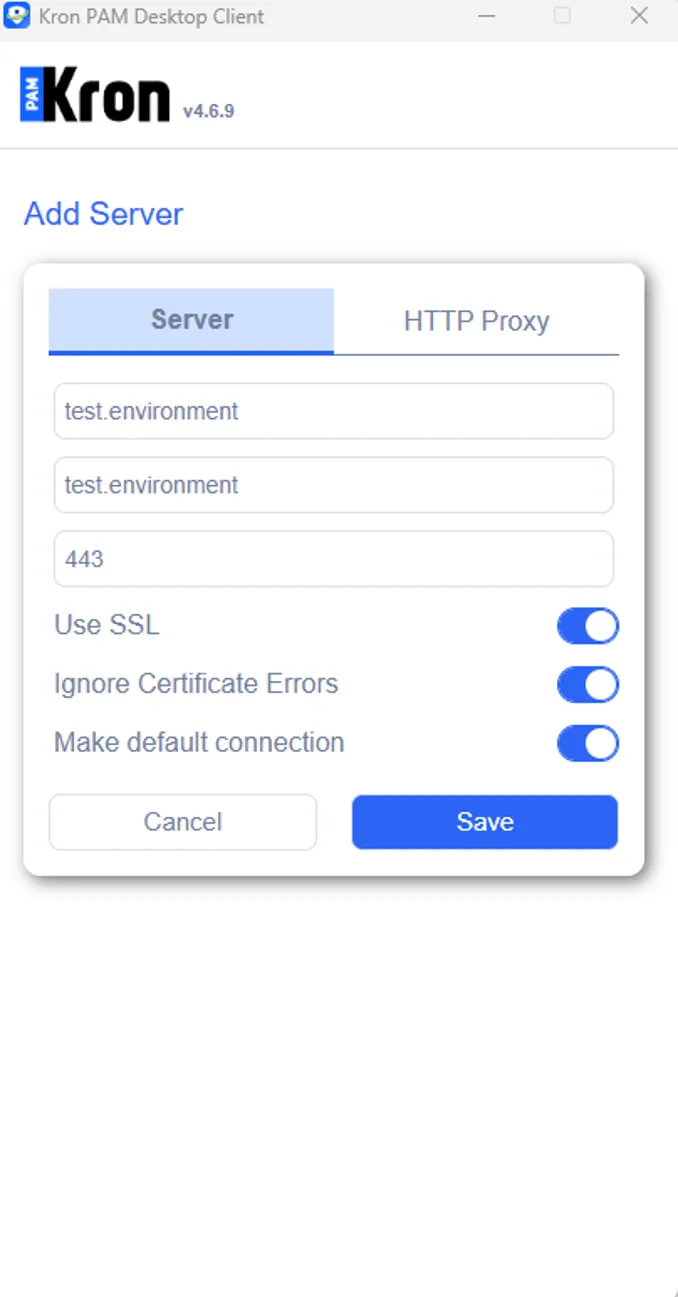
Add your server information and Save
- On the Kron PAM Desktop Client’s Login interface, enter the username and password And then click the Login button.
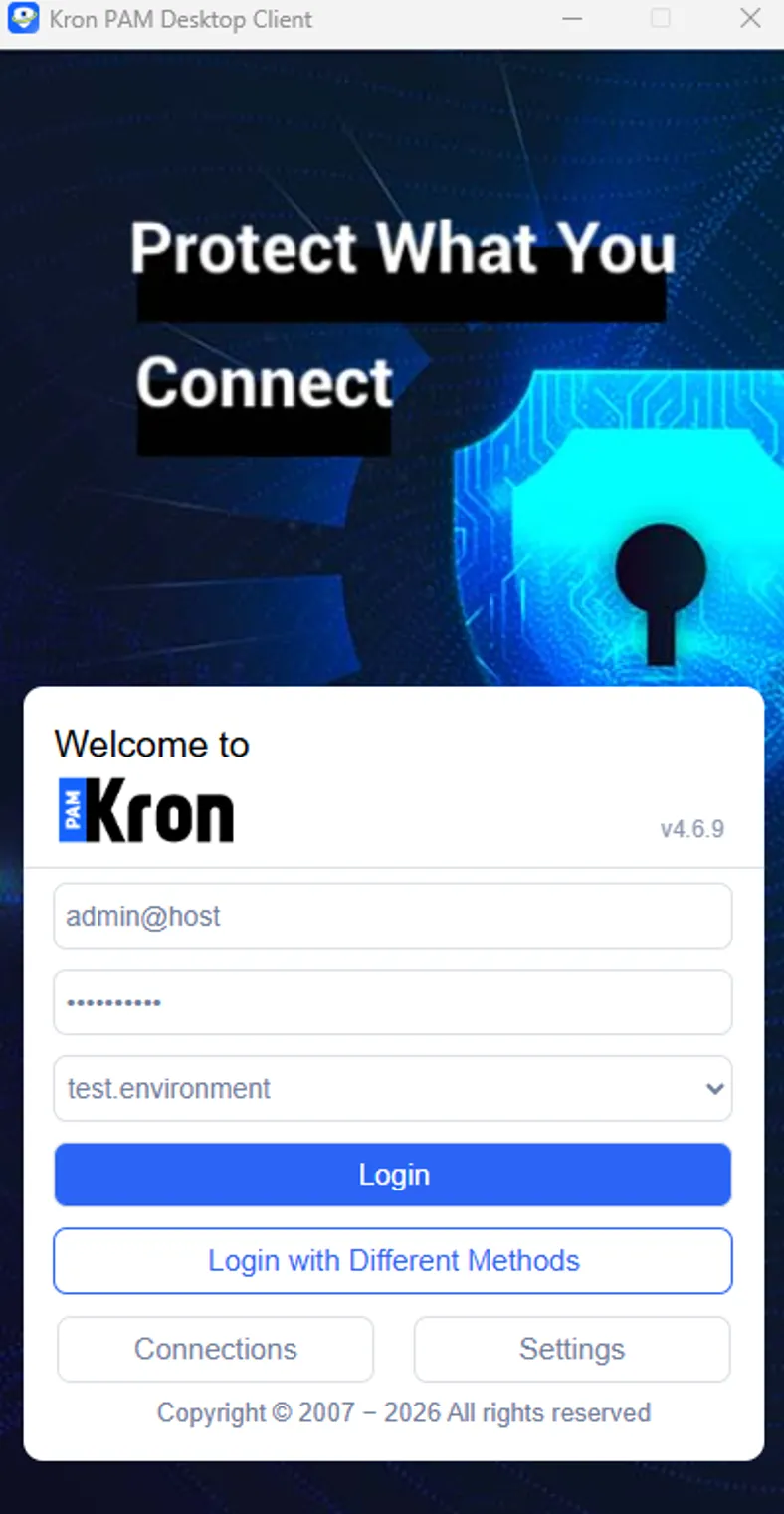
Enter your credentials and log in.
- Once you log in, the device groups are listed. Double-click on the desired device and a pop-up with a session to your selected device will open.
- The RDP for Windows or VNC for Linux/Unix server’s session is established using the pop-up window of the session to the selected device.