Configuring Kron PAM Desktop Client Application
1 min
One way to use the HTTP Proxy for a web page is to simply use the Kron PAM Desktop Client without changing any browser or computer proxy settings. The Kron PAM Desktop Client can be downloaded from the Kron PAM Web GUI login page.
- Open the Kron PAM Desktop Client Applcation, and click Connections on the Login Screen.
- Click the Add (+) button. The Add Server window opens. Configure Kron PAM Server’s settings:
a. EnterKron PAM’s ServerIP address/hostname into the Address text field.
b. Click the HTTP Proxy tab and fill the Address and Port text fields. The default Port value is 7080.
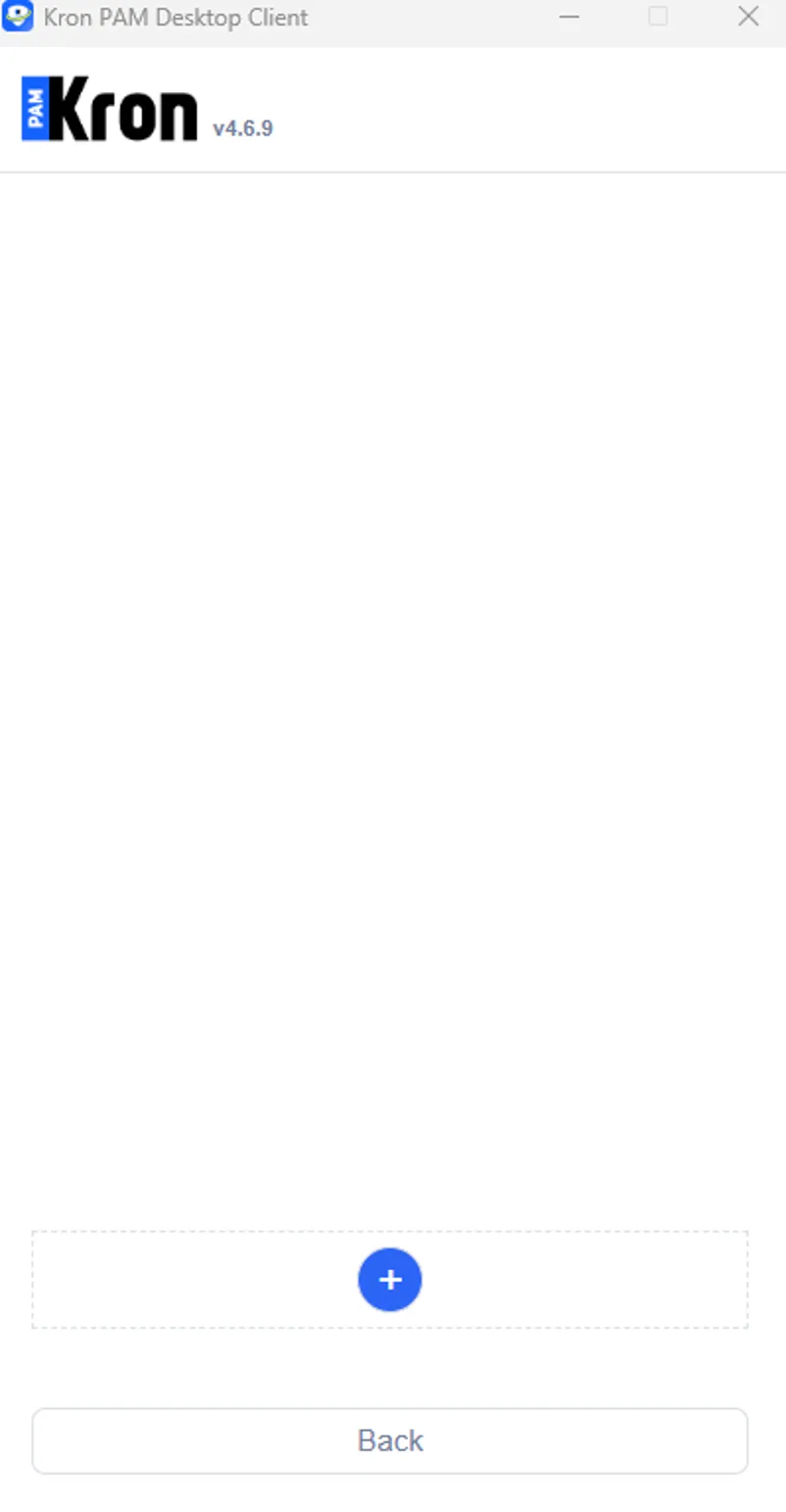
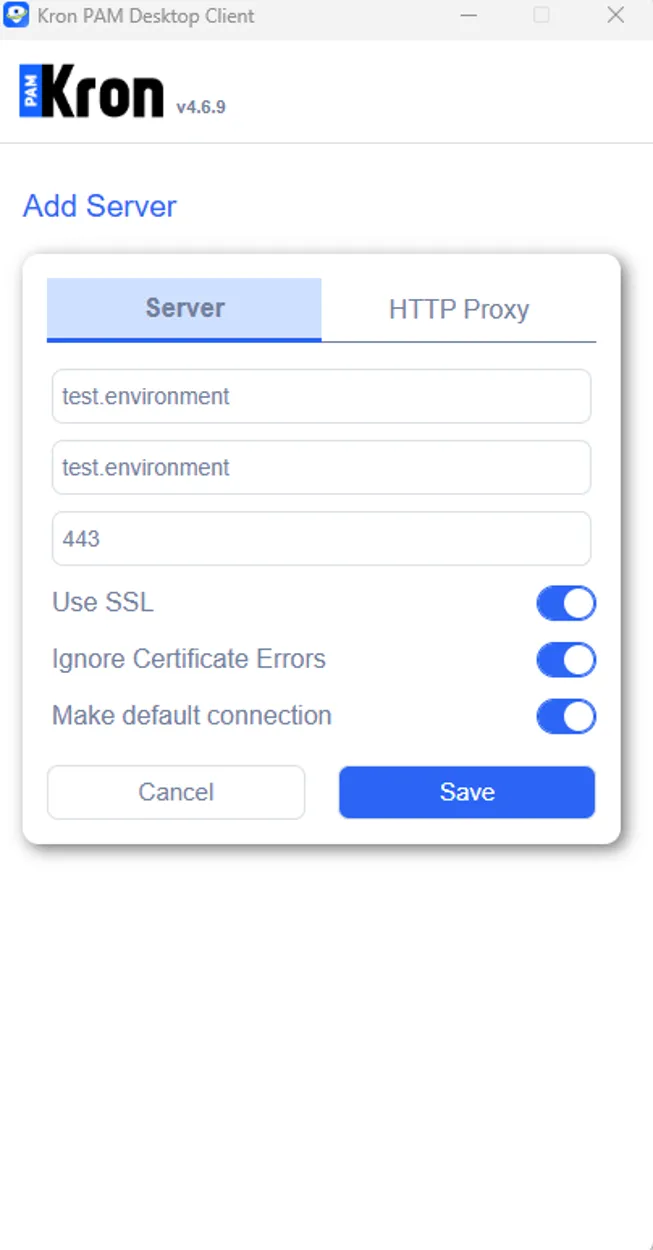
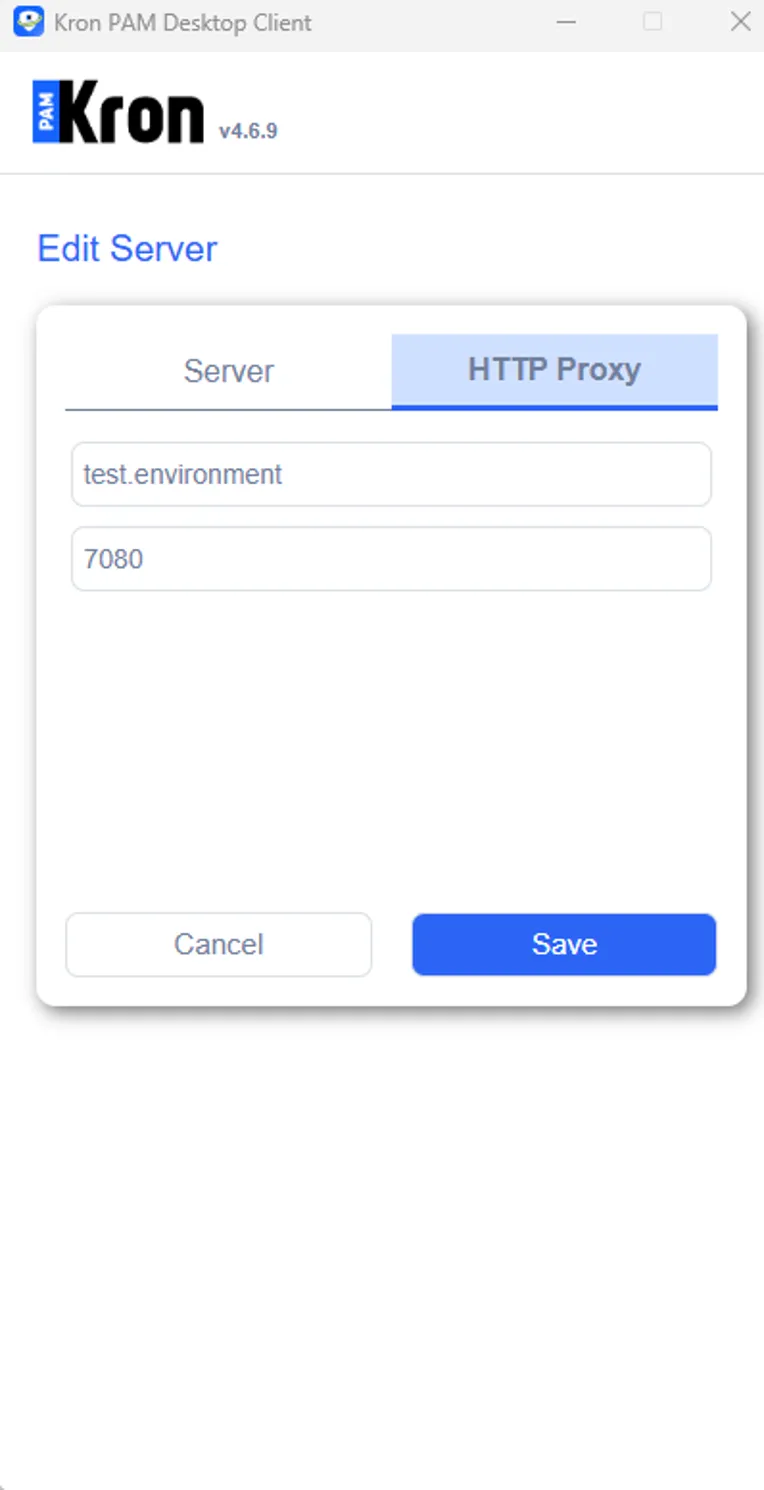
Add A Server on Kron PAM Desktop Client
- On the Kron PAM Desktop Client’s Login interface, enter the username and password and then click the Login button.
- Enter the username and password. Click Login.
- The Device Group tab opens, and all device groups and allowed devices for your user are listed. Choose an HTTP/HTTPS device and double-click to open an HTTP or HTTPS session.