Alarm Configuration
While the agent capabilities of Kron TP are still under development, they already allow full data processing and forwarding to target systems directly on edge servers. In addition, alarms can be generated directly on these edge servers, effectively moving your alerting infrastructure to the edge and reducing latency in alarm delivery.
These alarms are part of an agent composed of three components. This system uses Prometheus and Prometheus Alertmanager, so it inherits all the alerting capabilities they offer. It's also designed to be lightweight. Moreover, all data processing features available in the main application can also be executed directly within the agent.
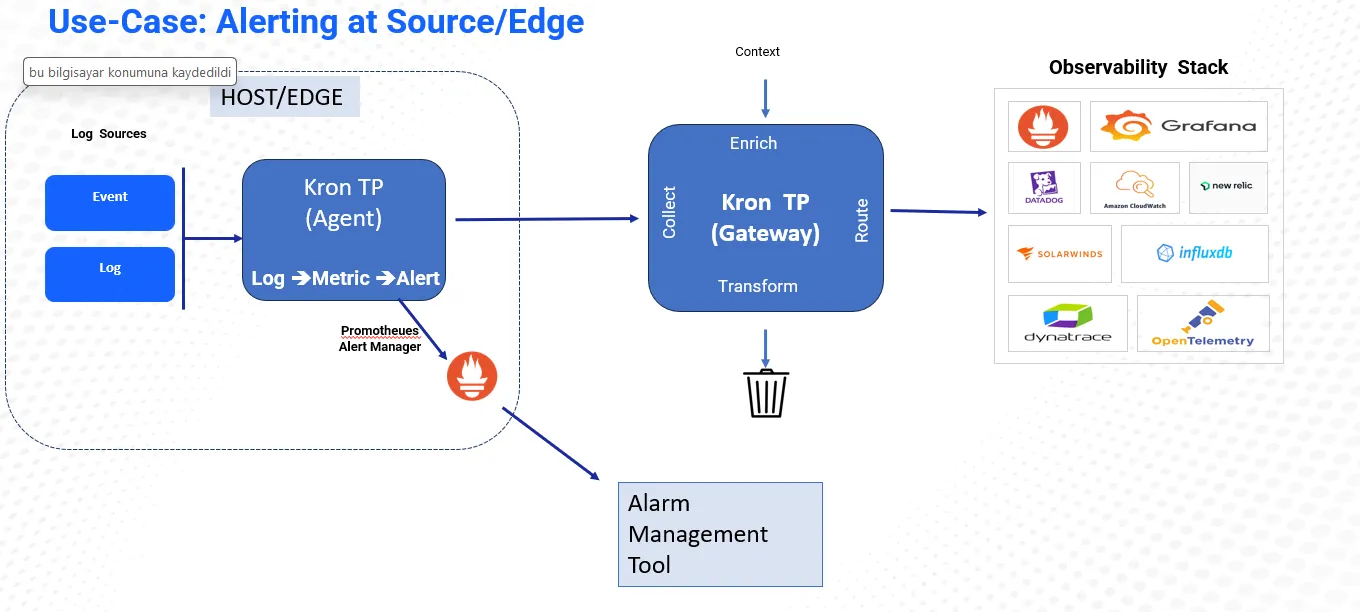
Before these steps the alarm enabled agent should be deployed on your servers for more help connect with support.
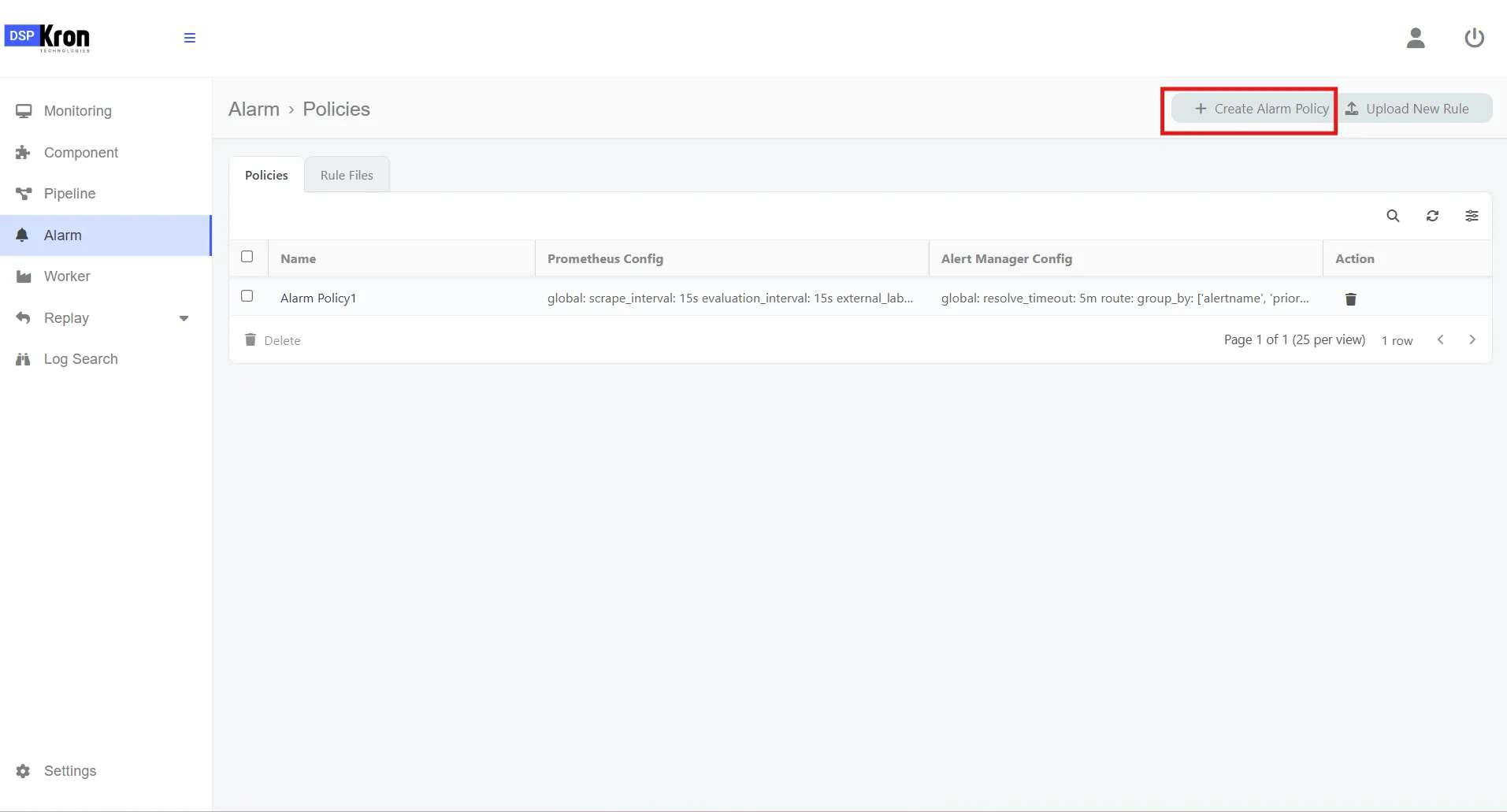
- Navigate the alarm menu and click Create Alarm Policy.
- Then Upload the rule files that will be used in prometheus config.
- Then click on Create Alarm Policy.
Configuring an Alarm
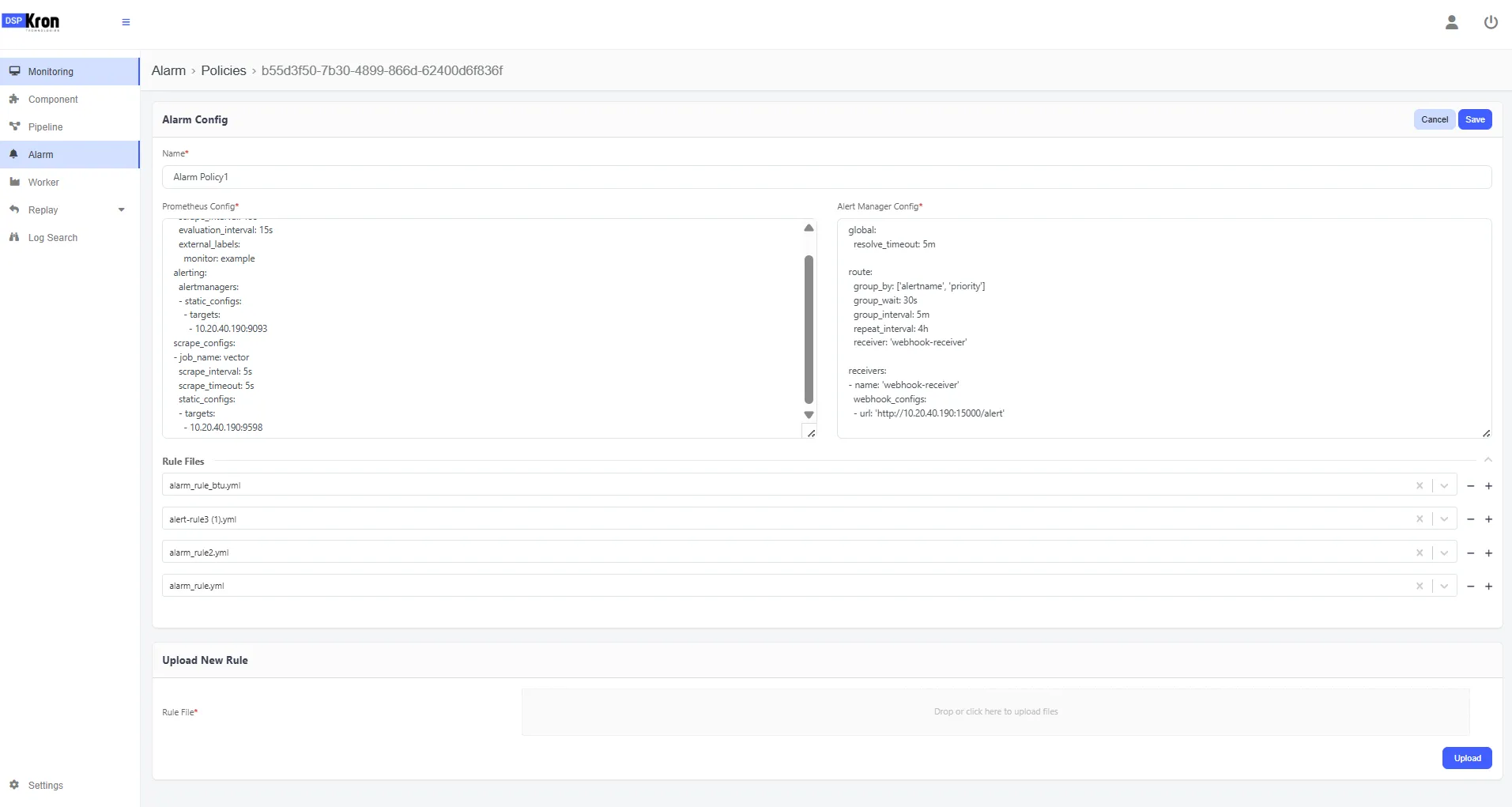
These Parameters should be filled in order to system to work.
Field | Purpose |
|---|---|
Name | The unique name of the alarm configuration. Helps you identify and manage different alarm setups. |
Prometheus Config | Configuration for the Prometheus instance that will evaluate rules and monitor metrics. This usually includes scrape targets and other Prometheus settings. |
Alert Manager Config | Configuration for the Alertmanager instance, which handles alert delivery (e.g., sending emails, Slack messages, or webhook notifications). |
Rule Files | A list of alert rule files. You can add multiple rule files that define alerting logic in Prometheus’s alerting rule format. |
Upload New Rule | Allows you to upload a new alert rule file directly from your machine. Helpful for updating or adding rules without editing YAML manually. |
| |
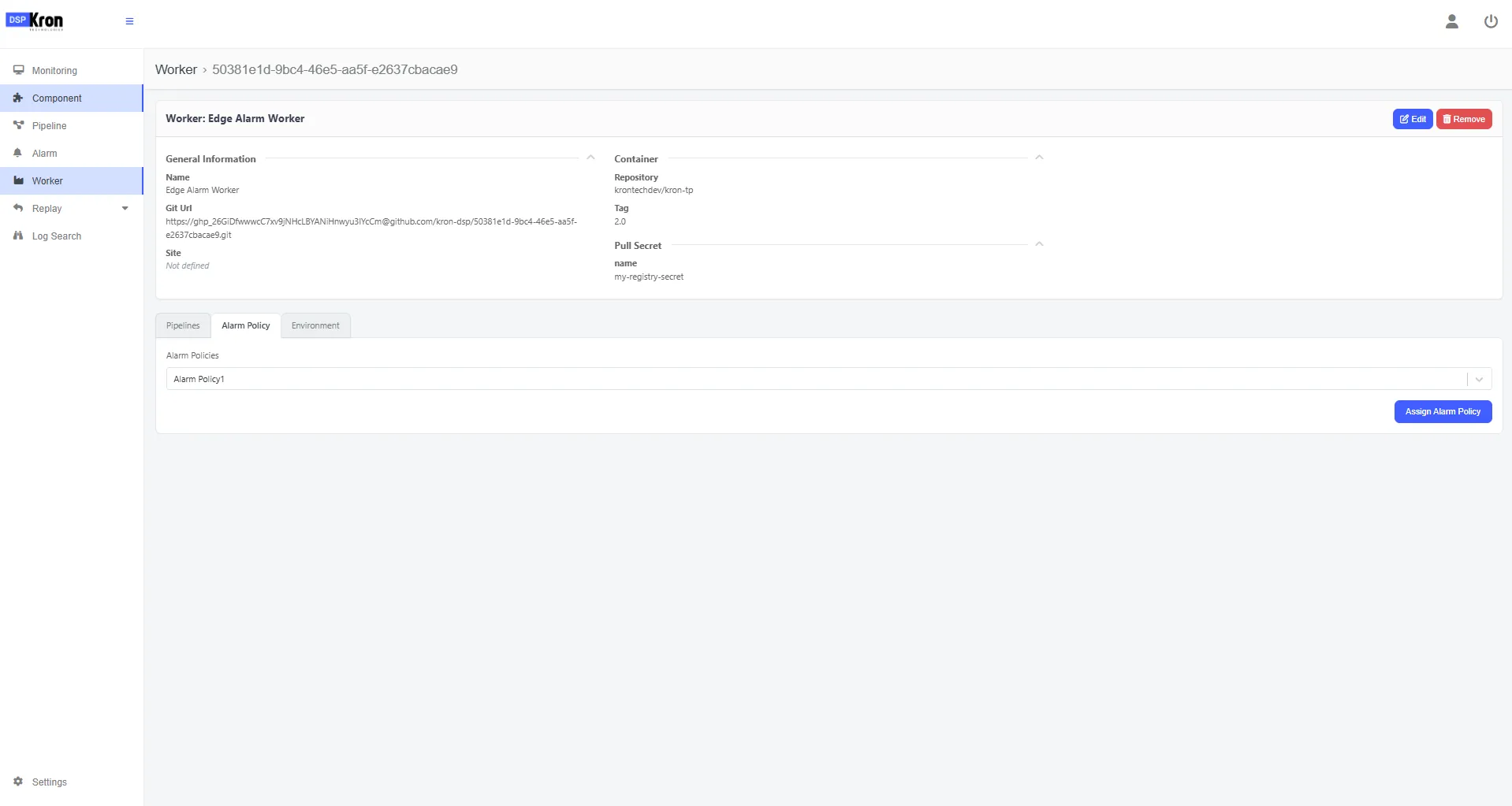
Save the rule and navigate to the worker that is created for the alarm enabled agent. You can run pipelines in this worker aswell.
- Navigate the alarm policy which is next to the pipelines.
- Select the Alarm Policy.
- Click Assign Alarm policy.
- Push the worker configuration.