Adding Zookeeper as a Device
4 min
Firstly, add the Zookeeper database to Kron PAM as a device:
- Navigate to Devices > Inventory.
- Click the blue Add button and select Add Device.
- In the Information section, enter all the information below. Then enter the SQL Proxy Bind Port (last section in ‘add device’)
- IP Address: It is the equivalent of an IP address in etc/hosts file.
- Device Name: A unique name for the Hive node. It is not required
- Port: The port number used by Hive (if not specified, the default port is used).
- Access Protocol: Choose Hive.
- Element Type: Choose Hive.
- Enter SQL Proxy Bind Port (in this case, 1019)
- Save.
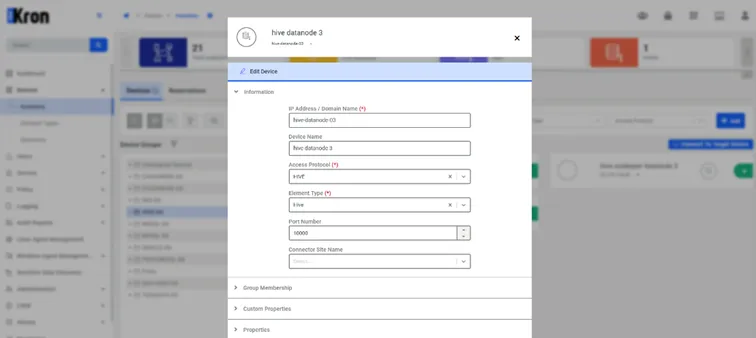
Device Addition Screen with Hive Details
In the Information section, enter the required details:
- IP Address: The IP address of the Zookeeper database.
- Device Name: A unique name for the Zookeeper device.
- Port: The port number used by Zookeeper
- Access Protocol: Select the protocol appropriate for the Zookeeper.
- Element Type: Choose Database.
- Enter SQL Proxy Bind Port (in this case 1022)
- Save.
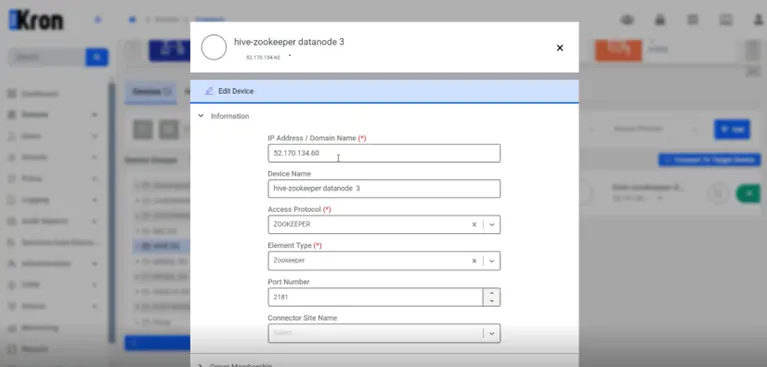
Device Addition Screen with Hive Details
Then return to the Hive node that you need to connect; (in this case, this will be our first defined Hive db named Hive datanode 3). Zookeeper requires specific properties to be set in Kron DAM to enable proper communication and metadata management:
- Click the Edit Device button.
- Click the Edit Database button.
- Enter your Information on this screen.
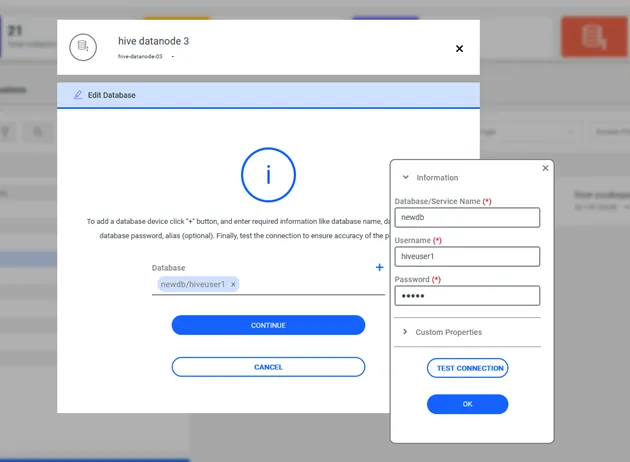
Properties Section with Hive-Zookeeper Credentials
- In the device's Properties section, add the following parameters (the properties that not wrote with bold are examples):
- external.metastore.vendor mysql
- external.metastore.host 40.114.55.184
- external.metastore.port 3306
- external.metastore.username hiveusr
- external.metastore.name metastore_db
- external.metastore.password.enc hivepassword
- (Ensure the password is encrypted)
- metadata.type EXTERNAL
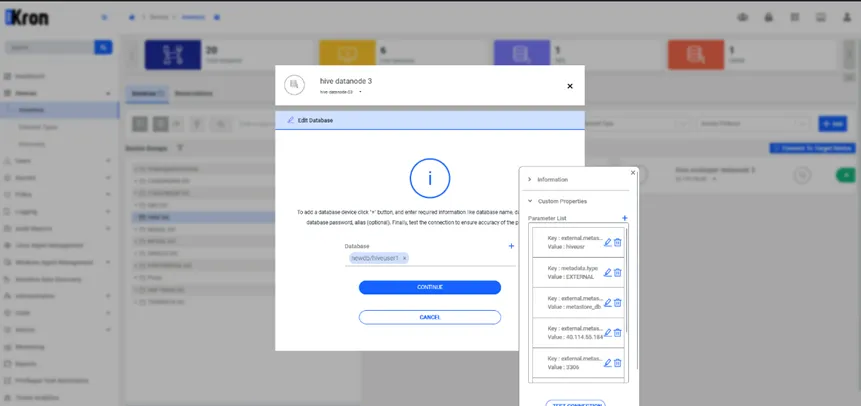
Properties Section with Hive-Zookeeper Parameters
After these configurations user should be define user groups, device groups and policy groups like any other SQL Proxy. In this case this document assumes prior knowledge of the process; check the section SQL Proxy for a refresher if needed.