Multi-Factor Authentication (MFA)
4 min
Single Connect can be leveraged for Multi-Factor Authentication. The definitions for Multi-Factor Authentication are configured and tested by the system admin during deployment.
Single Connect’s MFA is available in online/offline modes with the mobile application and SMS verification.
Offline Mode
- Download the Single Connect Mobile Application from the App Store or Google Play Store.
- Log in to the Single Connect Web GUI.
- Navigate to Administration > 2FA Provisioning. A QR code and activation code will be displayed. A new QR code and activation code can be generated by clicking the Generate New One button.
- Open the Single Connect Mobile Application. Navigate to Offline Token > QR Code or Manual.
- Scan the QR code or enter the activation code manually on the mobile application.
- A Multi-Factor Authentication code will be generated for a predefined time interval on the mobile application.
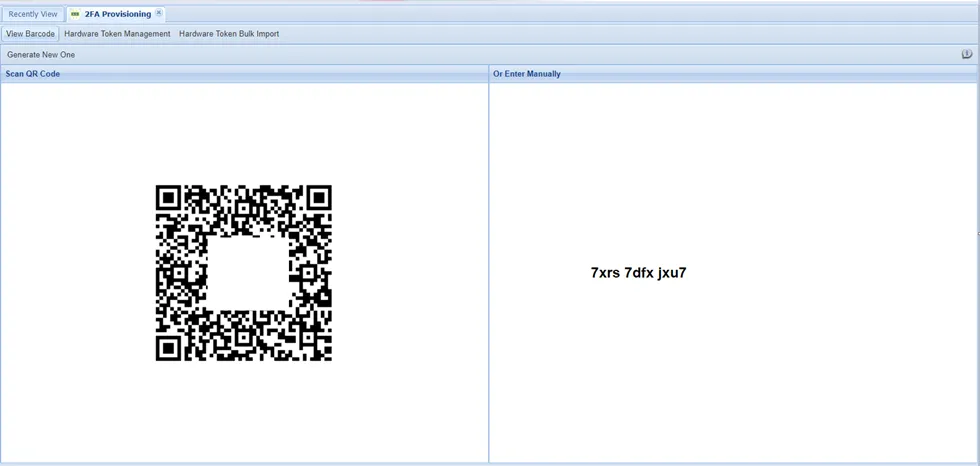
Multi-Factor Authentication (MFA) Activation Menu
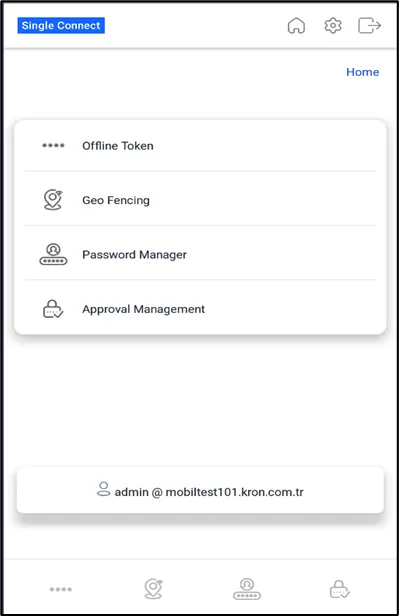
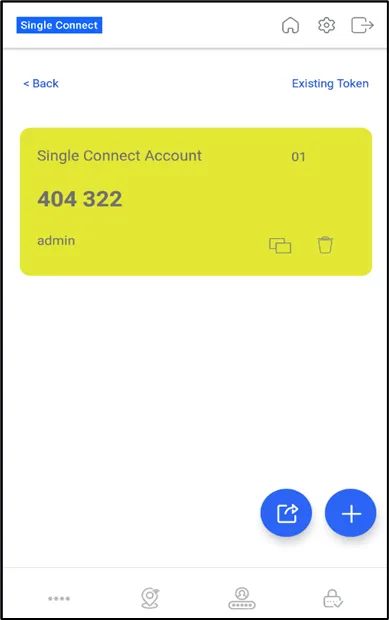
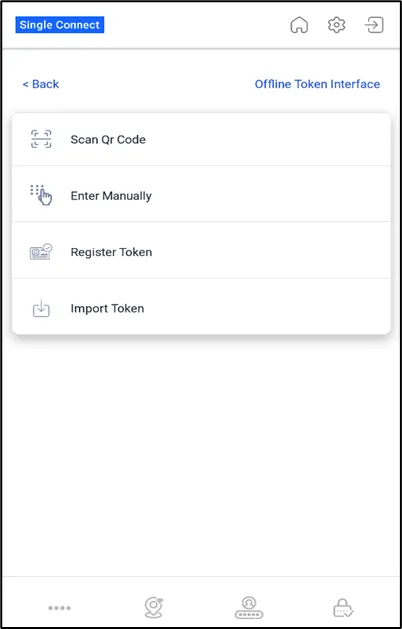
SMS Verification
When a new token is generated by Single Connect, it will be sent to the user via SMS.
Assign Hardware Token
The hardware token provided to the users can be stored on Single Connect.
- Navigate to 2FA Provisioning.
- Open the Assign Hardware Token tab.
- Enter the serial number of the device to which the hardware token is assigned.
- Click Assign.
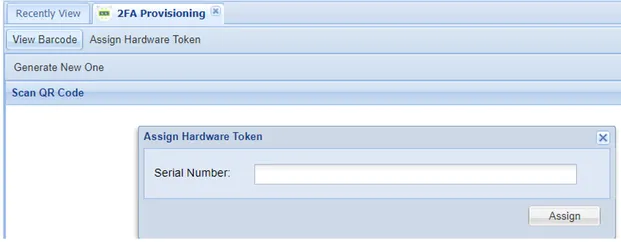
Assign Hardware Token