Getting Started with Mobile Client
6 min
Downloading the App
Download theSingle Connect Mobile Application from App Store or Google Play Store.
Connection Settings
If you downloaded Mobile Client for the first time, you should add Single Connect to your Mobile Client and log in with your user.
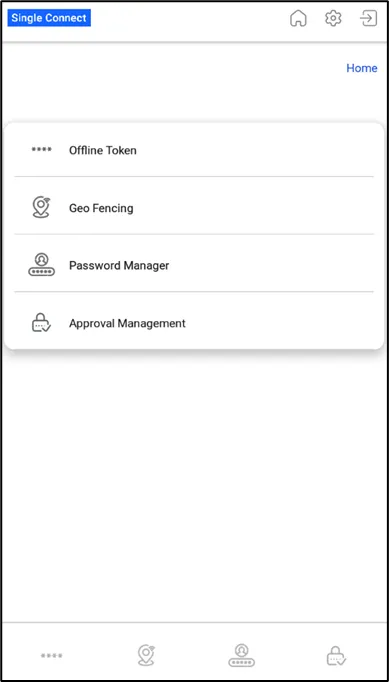
Single Connect Mobile App
To Single Connect to your mobile client:
- Tap on Settings and then Connection Settings
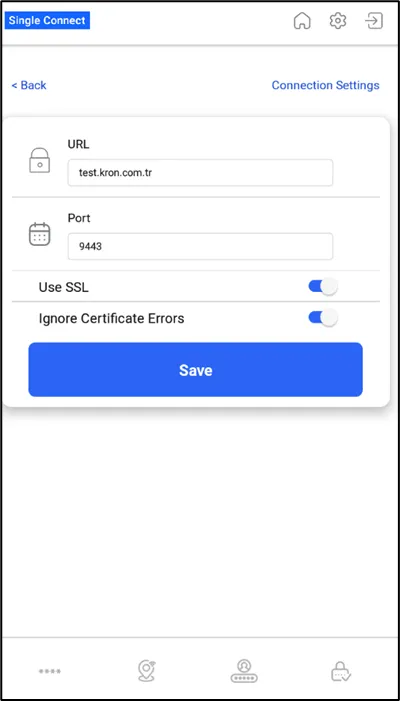
- Enter your Single Connect’s IP address (e.g.,10.10.10.10) in Single Connect URL and add the Port (e.g., for HTTP the port could be 9080 or for HTTPS the port could be 9443 and make sure to toggle the Use SSL option on).
- If you have a self-certificate on Single Connect server, you can enable Ignore Certificate Errors.
- Save.
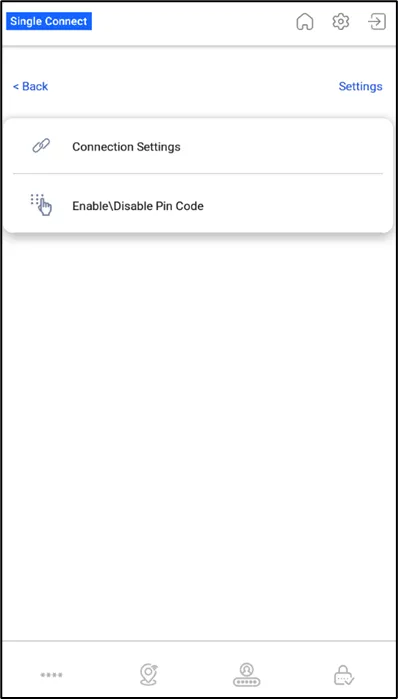
Connection Settings
Enabling and Disabling Pin Code
Enabling a pin code helps you to protect your tokens from others.
To secure your mobile client with a pin code:
- Tap on Settings and then on Enable Pin Code.
- Enter your desired pin code twice, and the mobile client will save it.
Now you will need to enter your pin code to open and use the Single Connect Mobile Client.
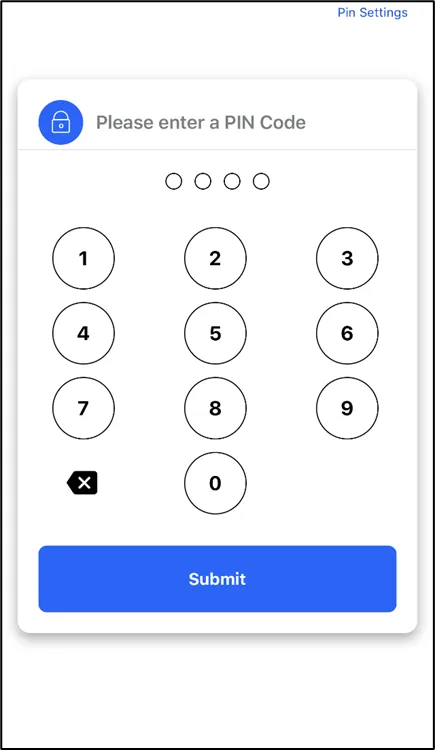
Set and use your pin code.
To disable the pin code:
- Tap on Settings and then on Disable Pin Code.
- Enter the pin code you created, and it will disable your pin code.
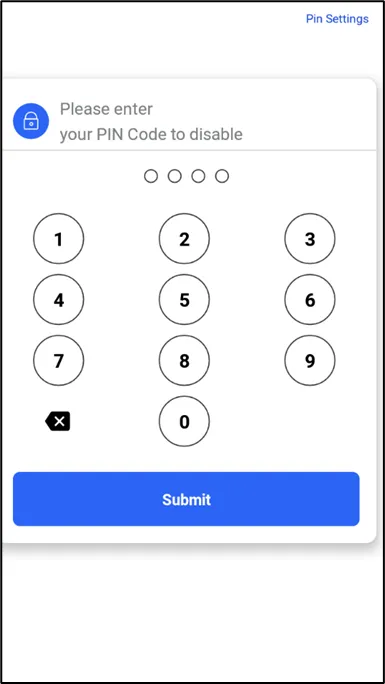
Disable your pin code
Logging in with Single Connect User
To access or create tokens, give approval or authorize your users, you need to log in with your Single Connect user.
- Open the Single Connect Mobile Client and tap on the Password Manager or Approval Management screen. It will direct you to the login page.
- Enter your username and password – both are set on the Connection Settings.
- Click Login.
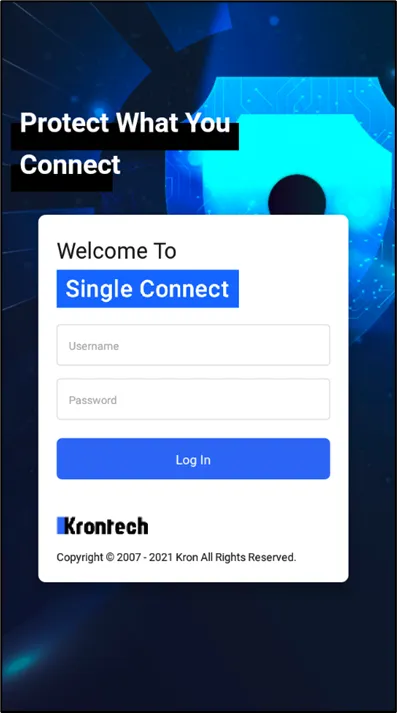
Login Page