Logging in with SSH Key
4 min
You can use an SSH key instead of the Single Connect user password to log in to the Single Connect SSH proxy and SFTP Proxy by using an SSH and SFTP client.
To enable this feature, you need to open the SSH Key Manager screen and generate a new public and private key.
Option 1: To generate a new public and private key, follow the steps below:
- Navigate to User Management > SSH Key Manager > SSH Key Management. Your public key will appear on the screen.
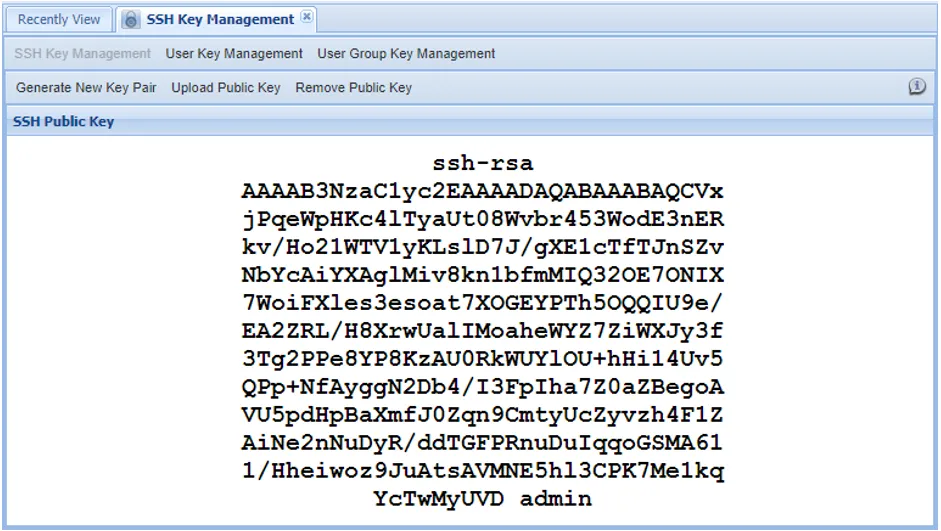
SSH Key Management
- To generate a new public and private key, click Generate New Key Pair. Confirm the information message by choosing Yes.
- Select an option from the pop-up window: a) Download Public Key, b) Download Private Key or c) Copy to Clipboard.
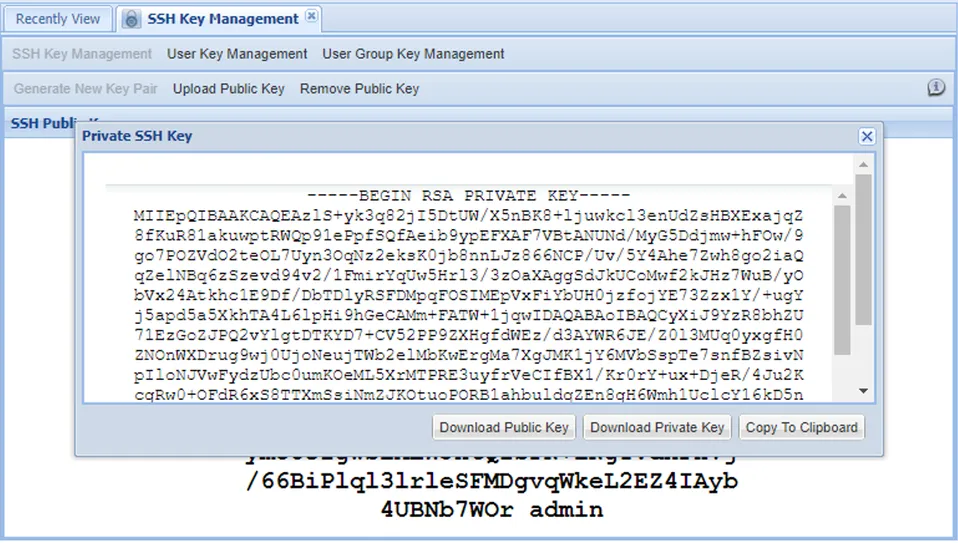
Private SSH Key
You must add the SSH key to the SSH/SFTP Client used to connect to the Single Connect SSH/SFTP Proxy.
Option 2: Instead of generating a new key pair, you can use your own public key.
To upload the public key:
- Navigate to User Management > SSH Key Manager.
- Open the Upload Public Key tab.
- Import the public key into the open window and click Save.
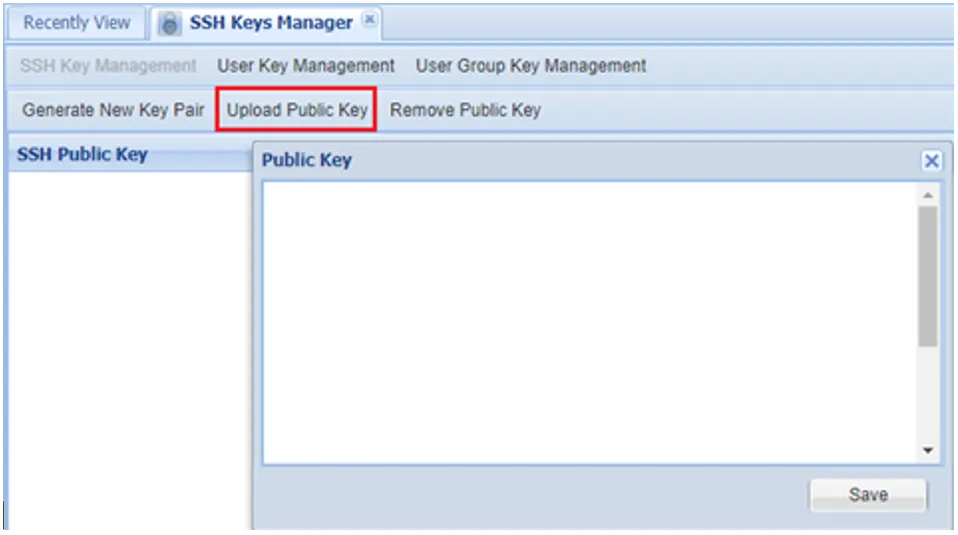
Upload Public Key
If an SSH Key is not used for logging in to the Single Connect SSH Proxy, the uploaded public key must be deleted by following the steps below:
- Navigate to User Management > SSH Key Manager.
- Click the Remove Public Key tab.