Configuring a Server
2 min
Follow the steps below to configure a server to connect to:
- Open the Single Connect Desktop Client, click Connections on the Login screen and then Add. This is also the page where you’ll land if this is the first time you use the Desktop Client.
- The Add Server window opens. Configure Single Connect server settings:
- Enter Single Connect’s server IP in the Address.
- Change the Port value according to the server type. For Single Connect servers with HTTP web GUI, the port should be 80. For HTTPS web GUI, the port is 443, and make sure to toggle the Use SSL option on.
- (Optional) Toggle the Make Default Connection on if you want this server selected by default in the Login screen.
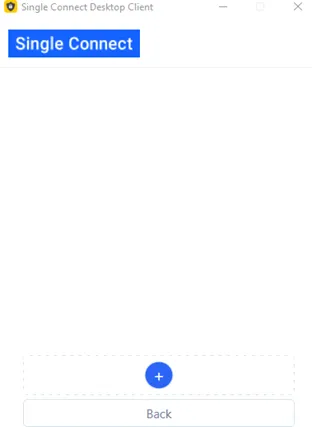
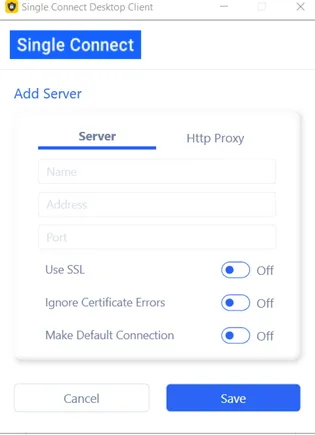
- Click Save. After you add the server successfully, it will show in the servers list. Click Return to go back to the Login screen.
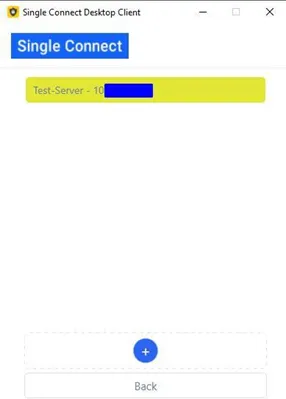
You can now enter your credentials, select the device the connect from the Login screen and connect to your device.