Adding VRL Transform Templates
Parameter-Driven Transform Templates
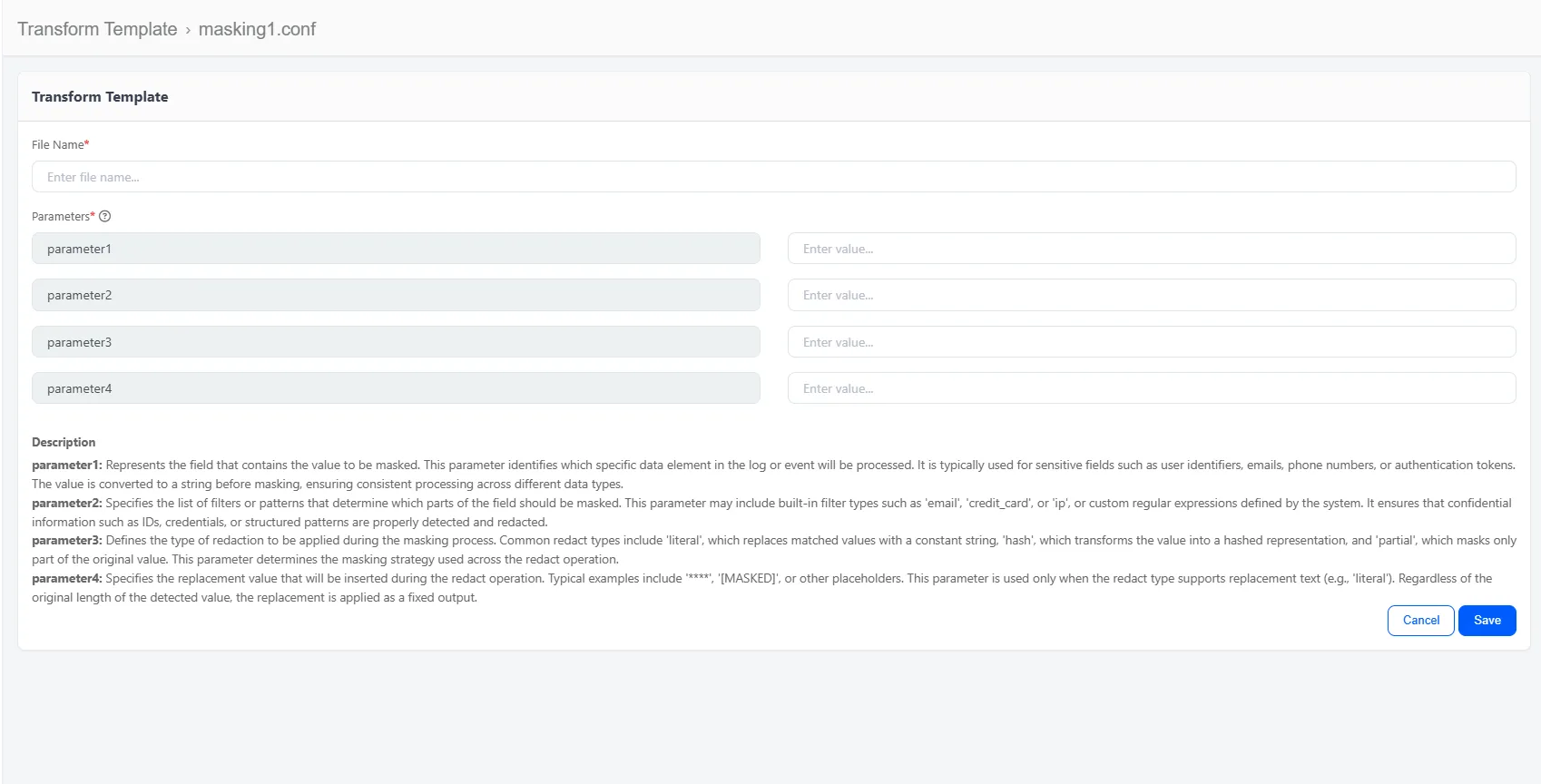
The platform allows you to convert any transform function into a reusable, parameter-driven template. Instead of requiring users to write or understand the transform syntax, you can define dynamic parameters using the $parameterN$ format. Each parameter you define is automatically converted into a form field in the UI, enabling users to configure complex transforms simply by filling out values.
There is no limit to the number of parameters you can create. For example:
- $parameter1$
- $parameter2$
- $parameter3$
Each of these becomes an editable input field when the template is used.
You can also add descriptions for each parameter by defining inline comments under the template using the #parameterN format. These explanations appear in the UI to guide the user when filling out the form fields. For example:
By combining parameter placeholders and descriptive comments, you can create fully dynamic, user-friendly transform templates. Once created, templates can be saved in the library and reused across pipelines without requiring any knowledge of the underlying syntax.
Uploaded files must have a .conf extension. Only configuration files ending with this extension are accepted by the system to ensure correct parsing and format consistency.
Files may be uploaded even if they contain no parameters. Empty or placeholder configuration files are supported and do not require predefined content.
Multiple configuration files can be uploaded at once. This allows batch loading and streamlined configuration management during deployment or updates.
To Upload a file:
- Navigate to Library.
- Click Template.
- Click the Add Template button on the right hand corner.
- Select Transform Template.
- Drop the .conf file in to the grey zone or click on the zone to browse and select the conf file(s).
- Click Upload.
Example Template
This example should look like this in a text editor:

This uploaded file will look like this: