Containerization of Web Browser
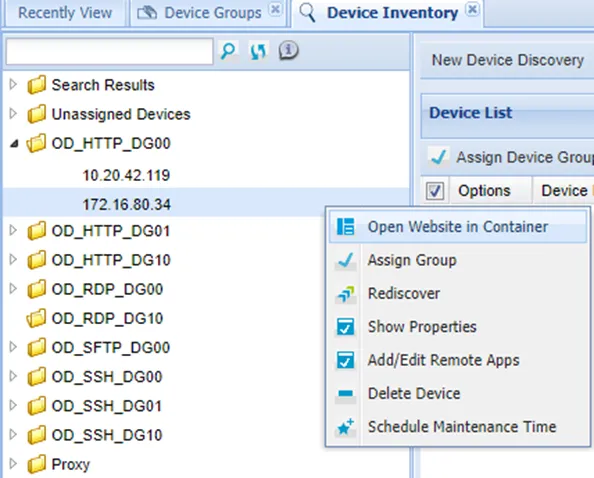
In order to be able to record videos of the HTTP sessions, the HTTP session must be initiated with a different method than the one outlined previously. To enable the containerization feature, the corresponding licenses are required. In this section, we only address the required configurations. More details about the containerization feature can be found in our user manual How to Reach HTTP Devices Through Containers To set the resources for the containers to be created:
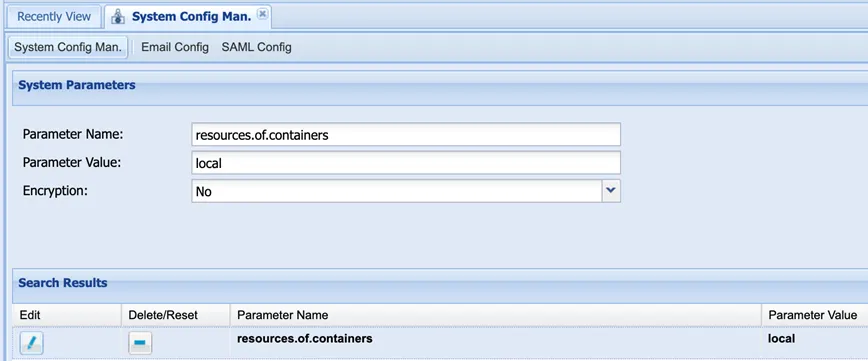
- Navigate to Administration > System Config Man.
- Set the resources.of.containers parameter with one of these values: local, remote, or all. These values define which kind of resources will be used by the container manager.
To define which user(/s) should reach HTTP devices through containers:
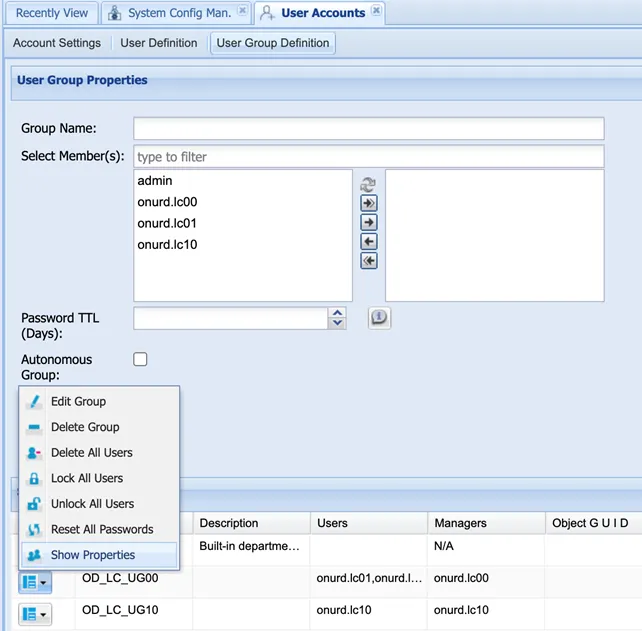
- Navigate to User Accounts > User Group Definition > Device Group Properties.
- Set the accessOverContainer property key as true.
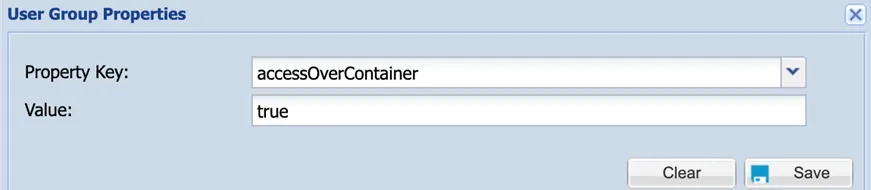
To specify which HTTP device access to use containerization:
- Navigate to Device Inventory > Device Properties.
- Set the accessOverContainer value as true.
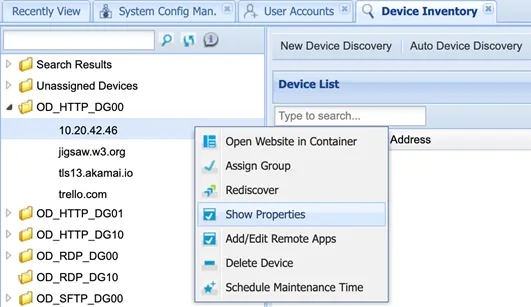
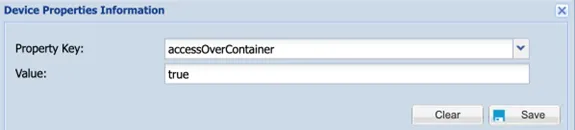
After saving this setting couple, some of the additional properties will be loaded automatically. Those automatically set Property Keys can be found on the below screen below.
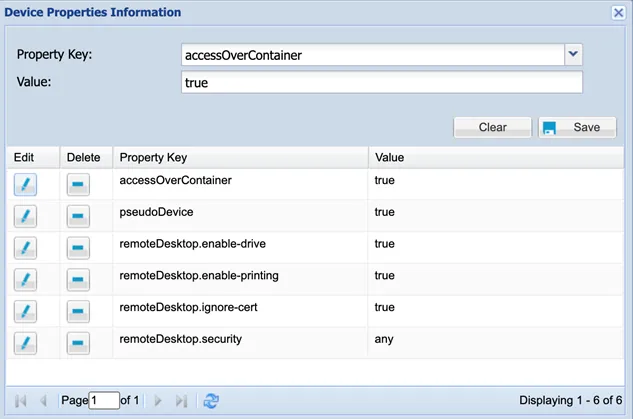
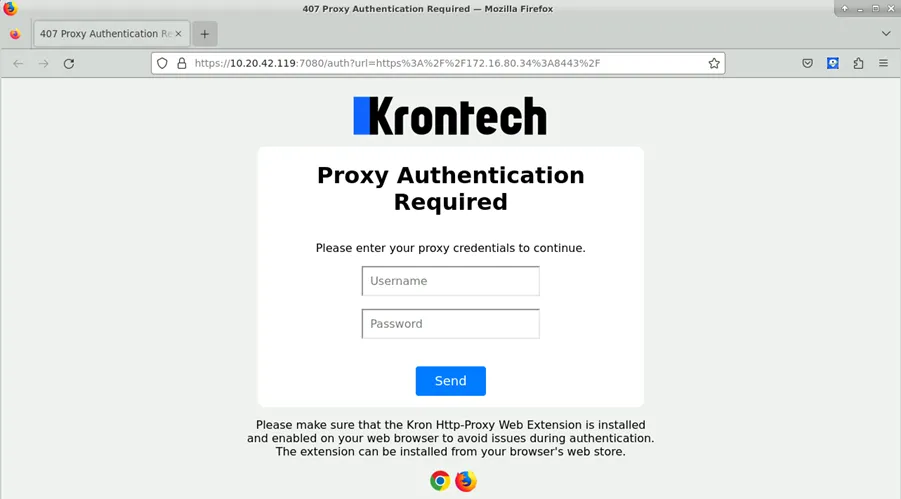
The HTTP Proxy CA certificate and Kron extension need to be installed after reaching the container for the first time. Then the browser profile needs to be copied to the container volume to be used by newly created containers in the future. There is no need for Proxy Settings on the browser. The process is the same for AS-IS HTTP Proxy use through a native browser. To Copy the CA certificate from the PAM instance to the shared volume and complete the initial setup:
- Open the containerized browser through the PAM Management UI or Desktop Client.
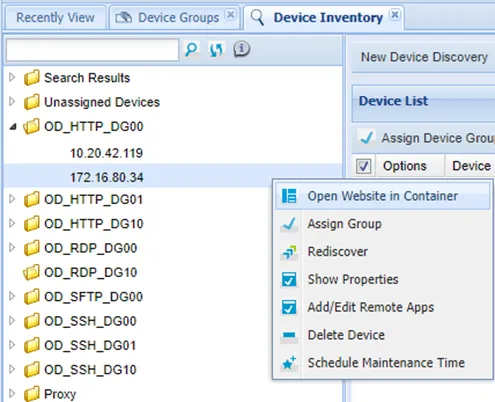
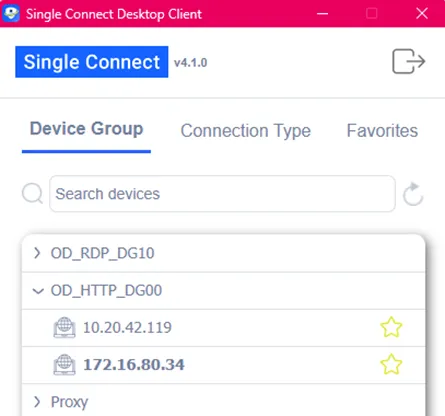
- Open an SSH session to the PAM instance. Get the running container id from the session window that opened on the first step. $ docker ps --format {{.ID}}
- Use the docker id to copy the CA certificate to the container $ docker cp /u01/http-proxy/assets/ca.crt :/home/ubuntu/Desktop
The CA certificate can be found on the Desktop and it needs to be added and trusted by the browser. The same procedure needs to be followed for HTTP Proxy native web browser usage.
To install the Firefox extension:
- The same procedure should be used for native browser usage.
- It would be useful to pin the extension onto the toolbar.
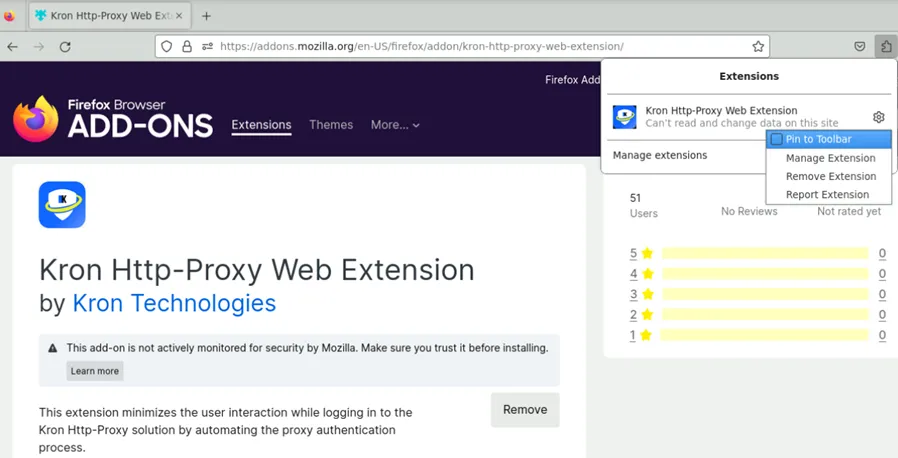
- Activate the extension and close the Firefox app.
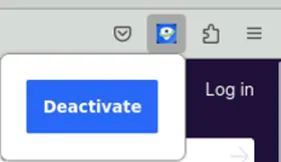
To copy current settings to the shared volume:
- It is important to close the Firefox app, otherwise, open tabs will be prompted at every single container.
- Run the command below on the container’s terminal:
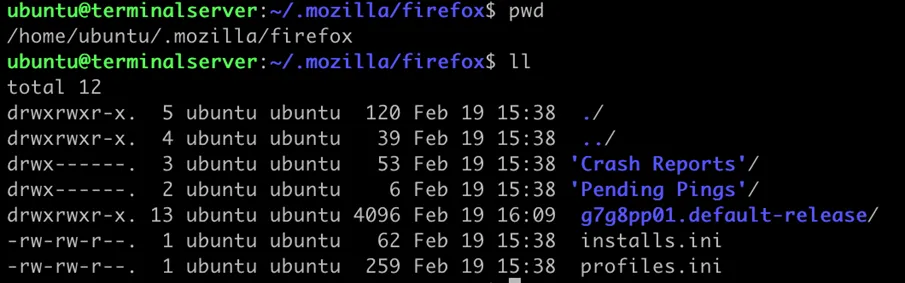
mkdir -p /shared_volume/mozilla/firefox_orig && cp -a ~/.mozilla/firefox/*.default-release /shared_volume/mozilla/firefox_orig && cp -a ~/.mozilla/firefox/profiles.ini /shared_volume/mozilla/firefox_orig
This step needs to be completed only once before end users start using containers daily. From now on, that HTTP device can be reached only from the PAM Management UI and Desktop Client App by the defined individual accounts.