Check Out Account Password
Users with the necessary rights to see account passwords can check out the password.
To check out the password:
- Navigate to Secrets > Vault.
- Open the Vault tab.
- Search the Account from the Advanced Search Box.
- Select Check Out Password from the Actions menu for the desired account.
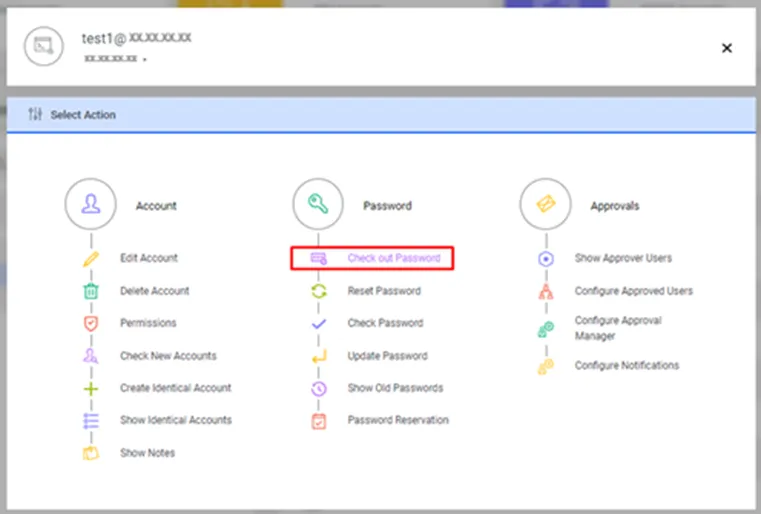
Show Password action in the Password Vault Account Actions menu
- Enter expiration time and comments. Kron PAM automatically changes the account's password upon expiration. Existing sessions which were signed into with the old password can continue or be terminated during the password change process. To terminate sessions upon password change, post-command scripts can be utilized.
- Click the Show button.
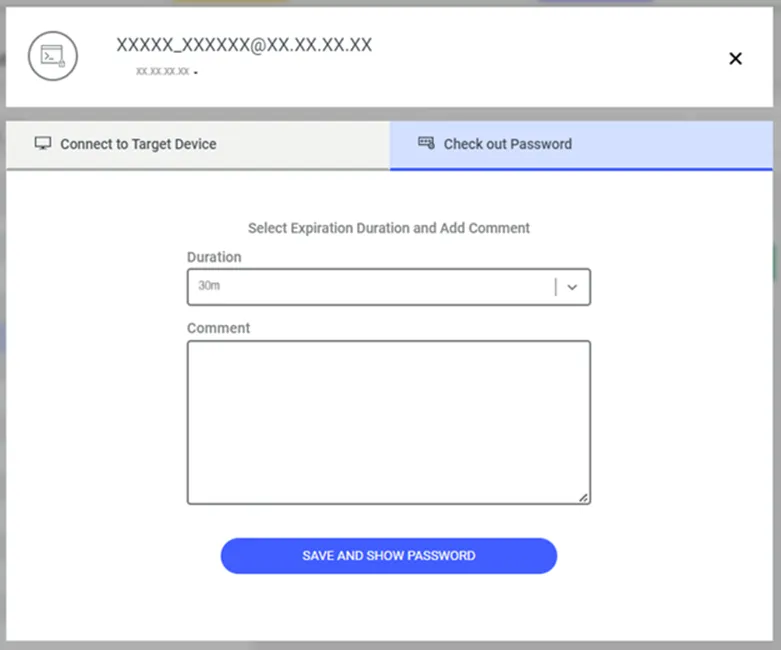
Check Out Password
- The password is shown in a hidden format in the Password pop-up window.
- Click the eye icon to see the password, click the Password text box to copy the password to the clipboard, or click the Send Mail button to send it via email.
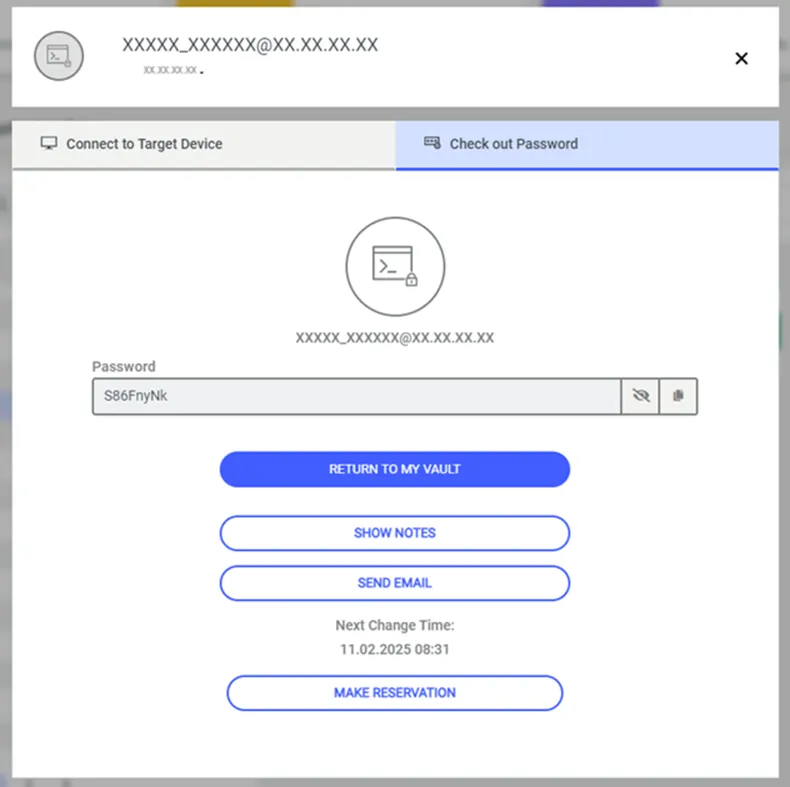
Pop-up check-out password
SSH_KEY values can also be shown via the same method, but the key itself will not be masked like regular passwords.
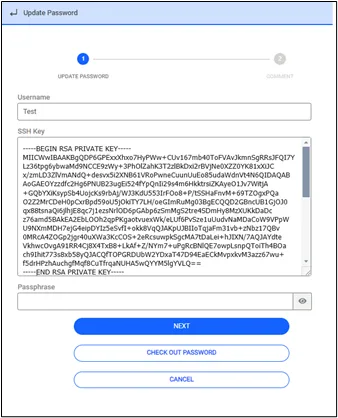
Check Out Vault with SSH_KEY configuration
- Possible values for the Expiration Time combobox are configured with the sapm.show.password.expiration.time.values property from the System Config. Manager. The default value is “5m,30m,2h,24h”. Options are separated with commas, “m” stands for minutes, and “h” stands for hours.
- The minimum length of the comment (in characters) that should be entered during password check-out is configured with the sapm.show.password.comment.min.length property from the System Config. Manager.
- The Send Mail button that appears in the Check Out Password popup can be removed, by configuring the sapm.account.password.send.mail.button parameter as false in the System Config. Manager.