Two-Factor Authentication (2FA)
2 min
Single Connect can be leveraged for Two-Factor Authentication. System admins configure and test 2FA definitions during deployment.
Single Connect's 2FA is available in online/offline modes with the mobile application and SMS verification.
To generate a 2FA code in online and offline modes with the Single Connect Mobile Client application, see the Two-Factor Authentication topic in the Mobile Client User Guide.
SMS Verification
When a new token is generated by Single Connect, it will be sent to the user via SMS.
Assign Hardware Token
The hardware token provided to the users can be stored on Single Connect.
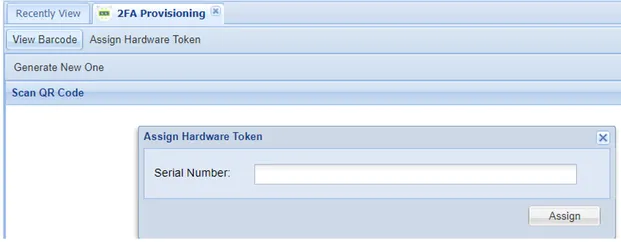
- Navigate to 2FA Provisioning.
- Open the Assign Hardware Token tab.
- Enter the serial number of the device to which the hardware token is assigned.
- Click Assign.
When a new token is generated by Single Connect, it will be sent to the user via SMS.