Pipeline Configuration
The pipeline configuration is essentially the space where all other components of the application serve and come together. After selecting the desired sources here, the data from the sources will be processed through transformation functions in a downstream flow, and the required operations on the data will be performed before sending it to the desired destinations. Input parameters for the transform functions necessary to manage the behaviors of the applied transformation functions will also be entered here.
A user-friendly pipeline configuration screen has been provided here, allowing users to configure it easily with drag-and-drop interfaces. The user first selects the sinks, sources, and destinations they want to use, and then, in the order of the flow, they link these components. The data coming from the sources should enter user-specific configured transform functions in the desired order and quantity, and after the last transform function, the data should be linked to the desired destination.
Adding a Pipeline
- Navigate to “Pipelines” from the main menu.
- From the top right corner, click on Add Pipeline.
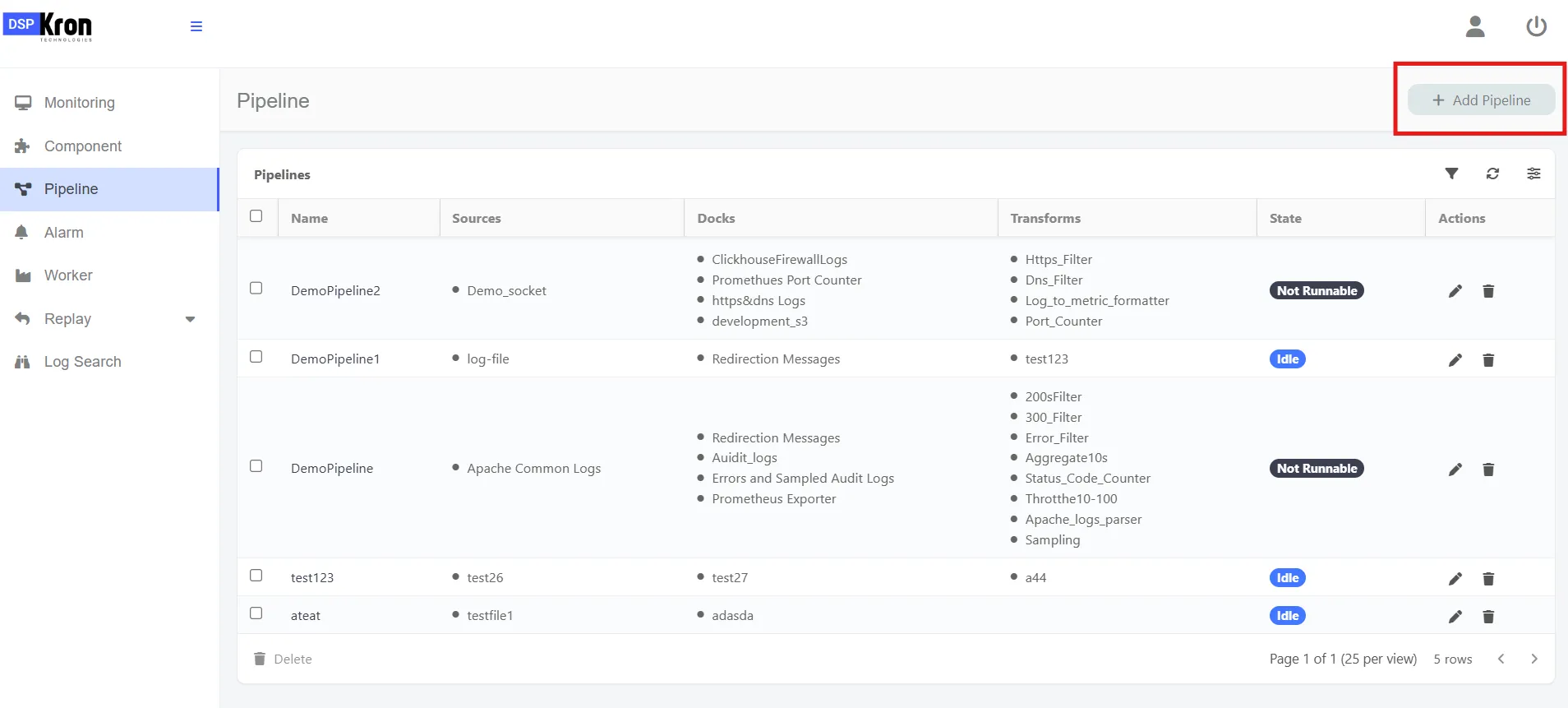
- Enter a name for the pipeline.
- There are three options below for adding components: source, transform type, and destination. You can select a relevant component by choosing one of these options.
Adding a Source
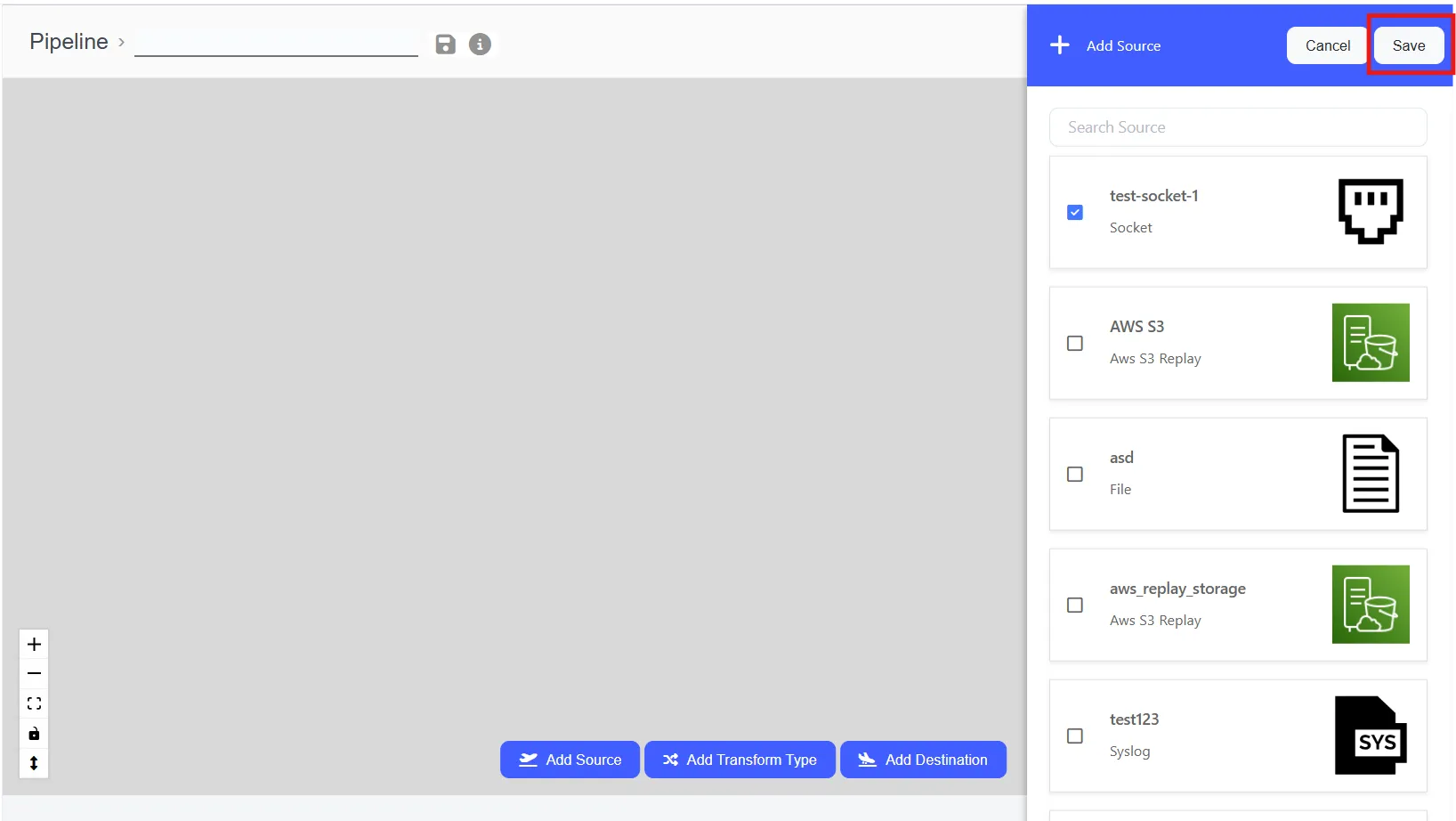
- Click add source.
- Select the source(s) that will be in the pipeline.
- Click save.
- The source(s) selected should be listed in the pipeline panel.
Adding a Destination
- Click add destination.
- Select the destination(s) that will be in the pipeline.
- Click save.
- The destination(s) should appear in the pipeline panel.
Editing Sources and Destinations
- Click on the edit button
Make the changes and save.
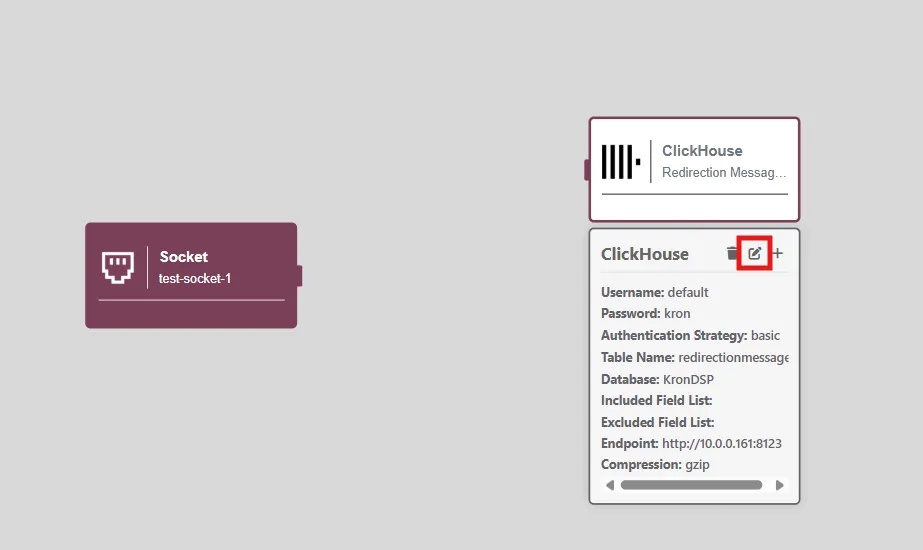
Sources and destinations are preconfigured, so once added to the UI, they require no additional setup. However, transform functions need to be configured manually through the UI. Preconfigured sources and destinations can also be edited within the UI if needed.
Adding Transform Types
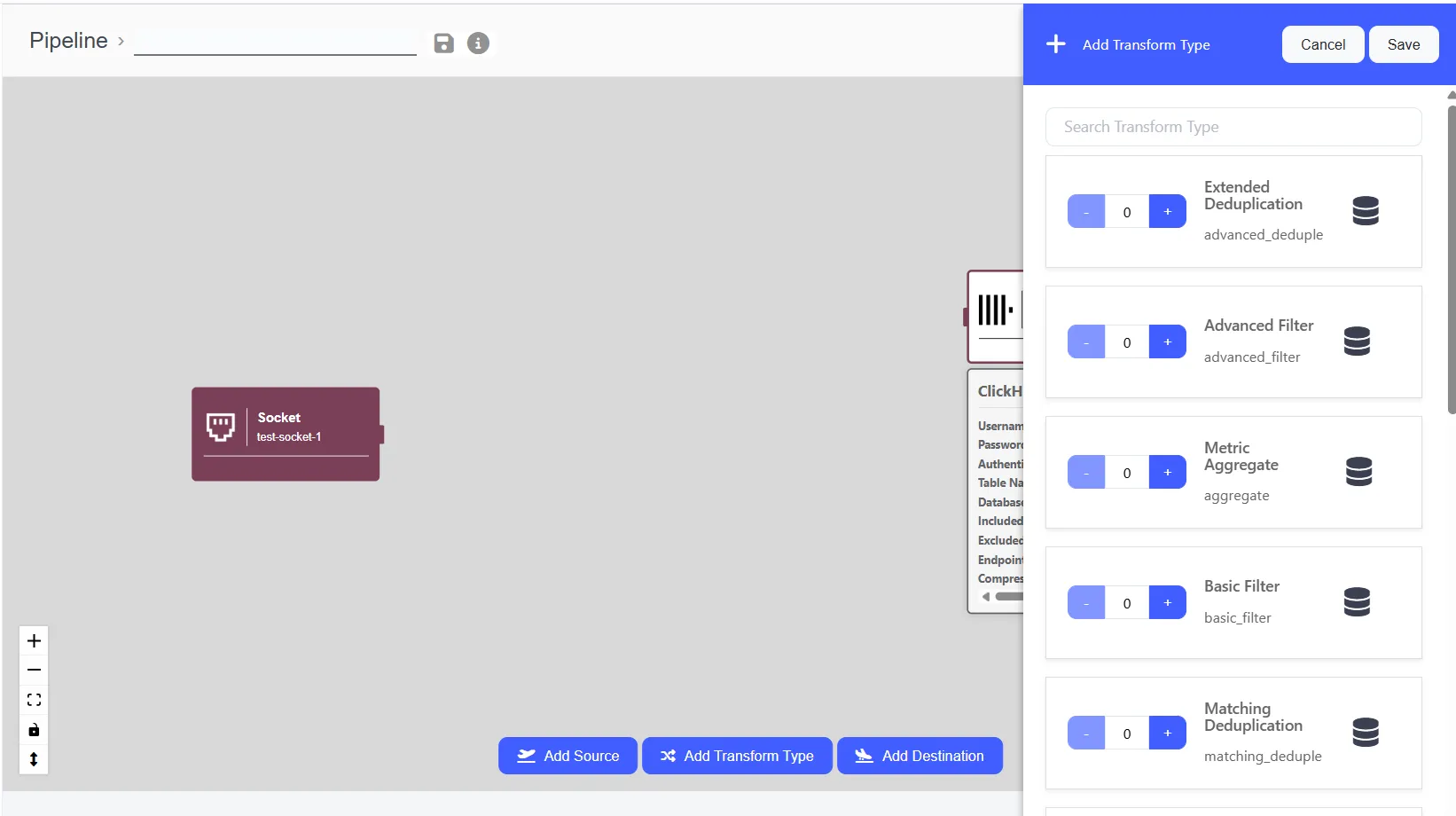
- Click add Transform Types.
- Select the type that will be in the pipeline by clicking the "+" button next to the each type.
- Click save.
- The transform type(s) should appear in the pipeline panel.
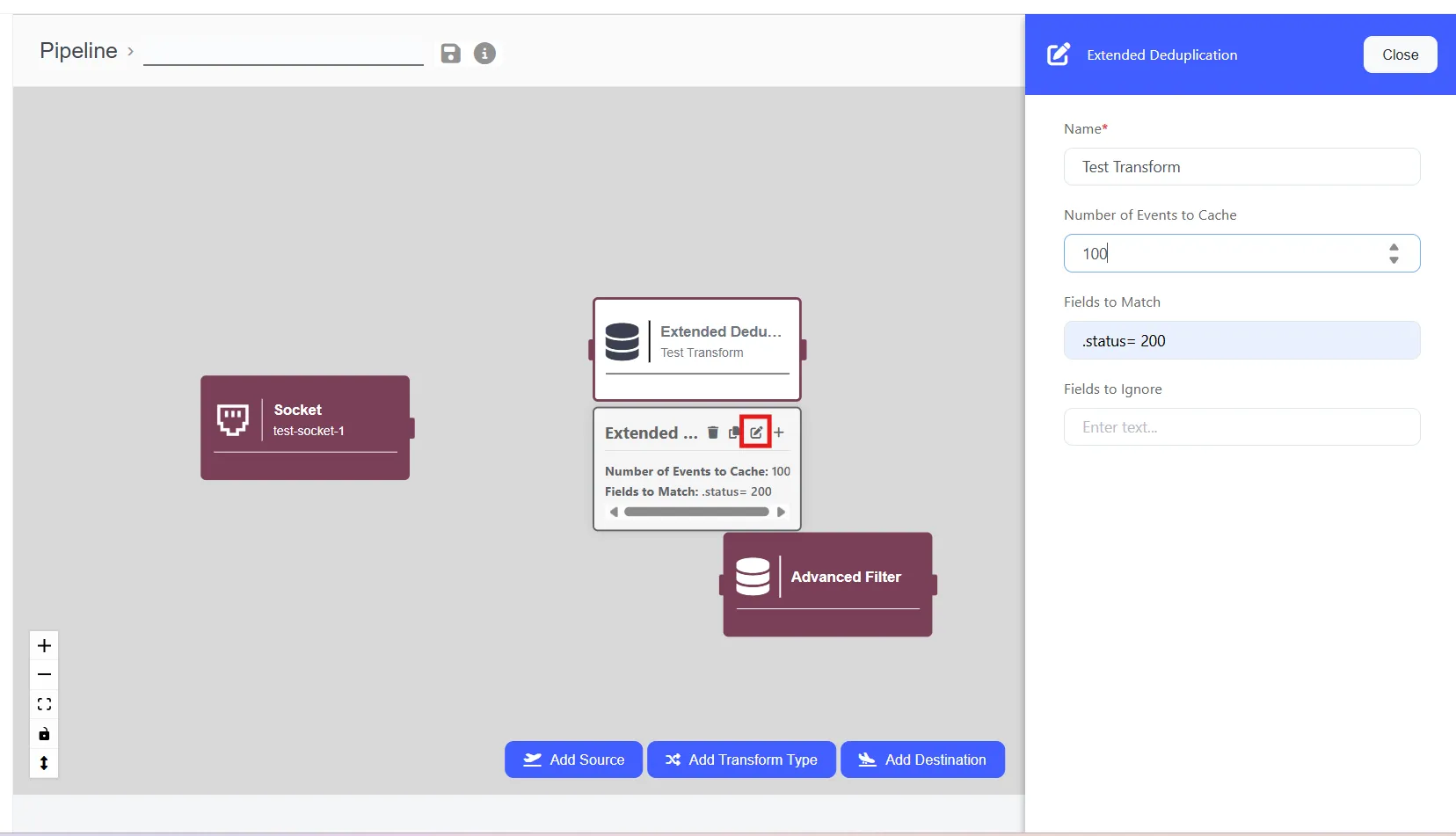
Configuring the Transform Type
- Each transform type should be configured.
- Click the edit button for the transform types added.
- Enter the required and optinal parameters.
- Click close or click on the grey panel.
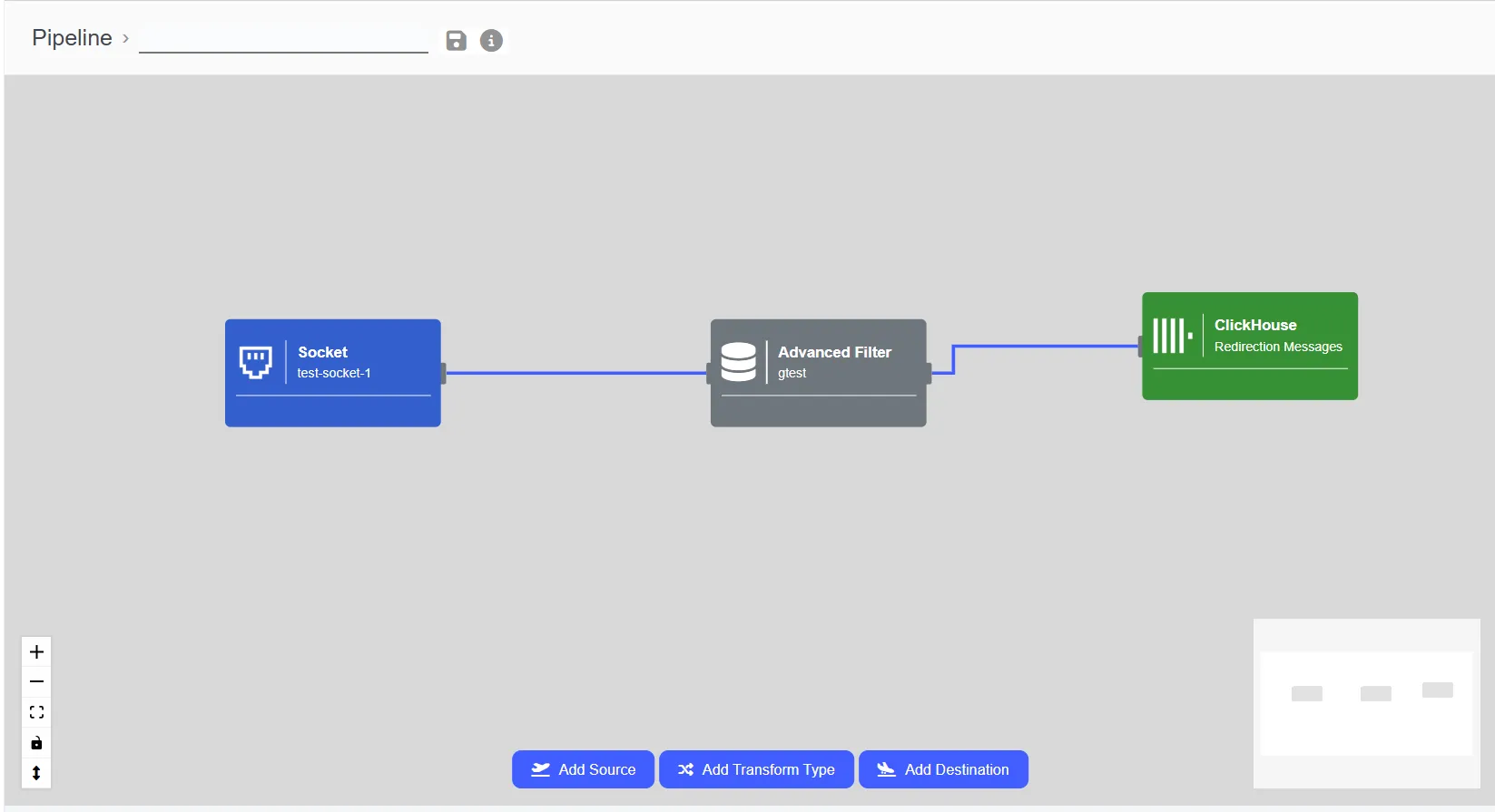
Linking Components
You can link components to each other using the connection points (ports) located on their sides.
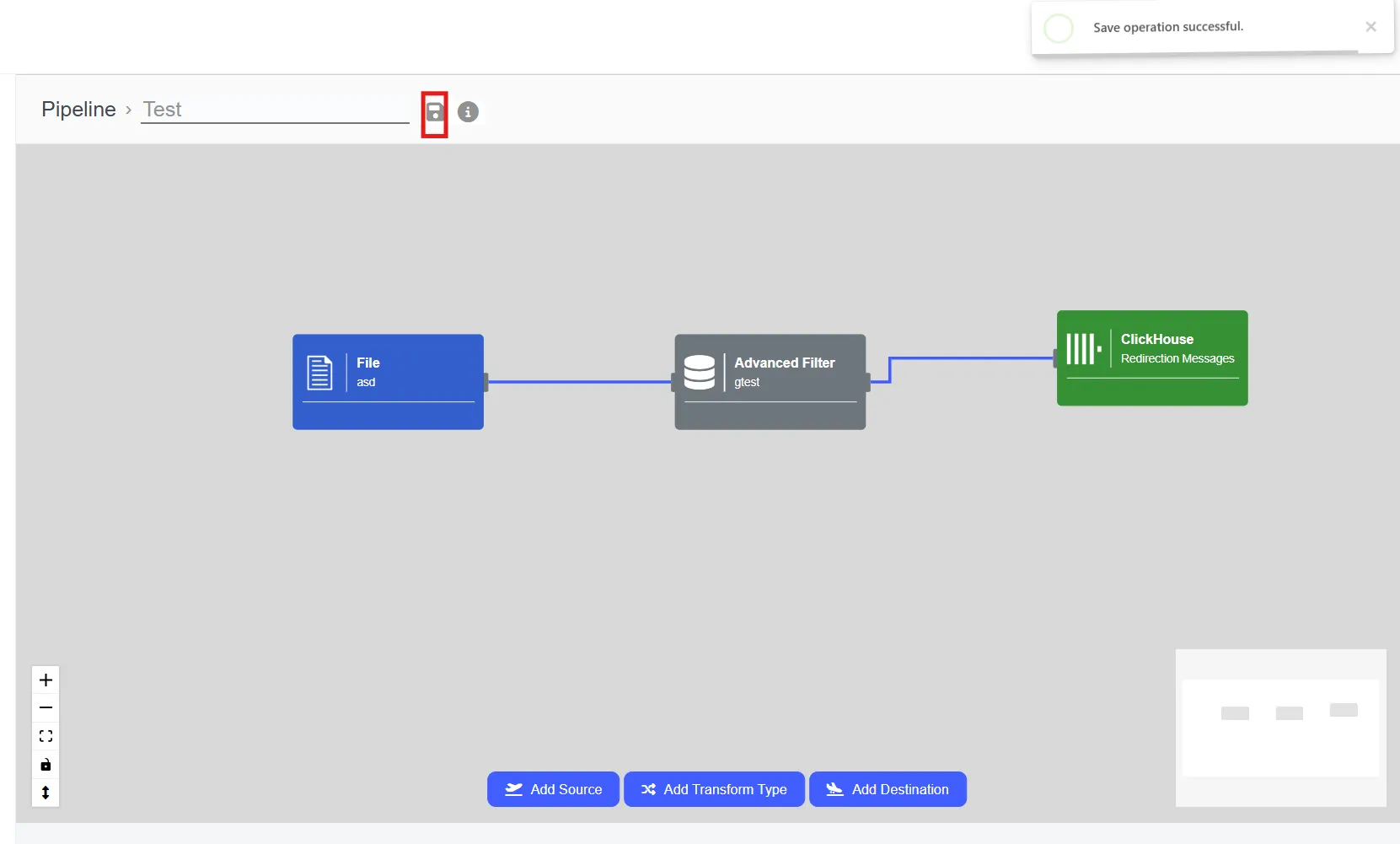
Saving and validating the pipeline
If the pipeline configuration is defined correctly, pressing the save button will trigger a validation process. If no errors are found, the pipeline will be saved successfully. If there is an error, it will be displayed in the top-right corner of the screen.
Successful Creation will be displayed with the notification "Save operation Successful".
Errors can be listed by clicking the exclamation mark icon located in the top right corner.
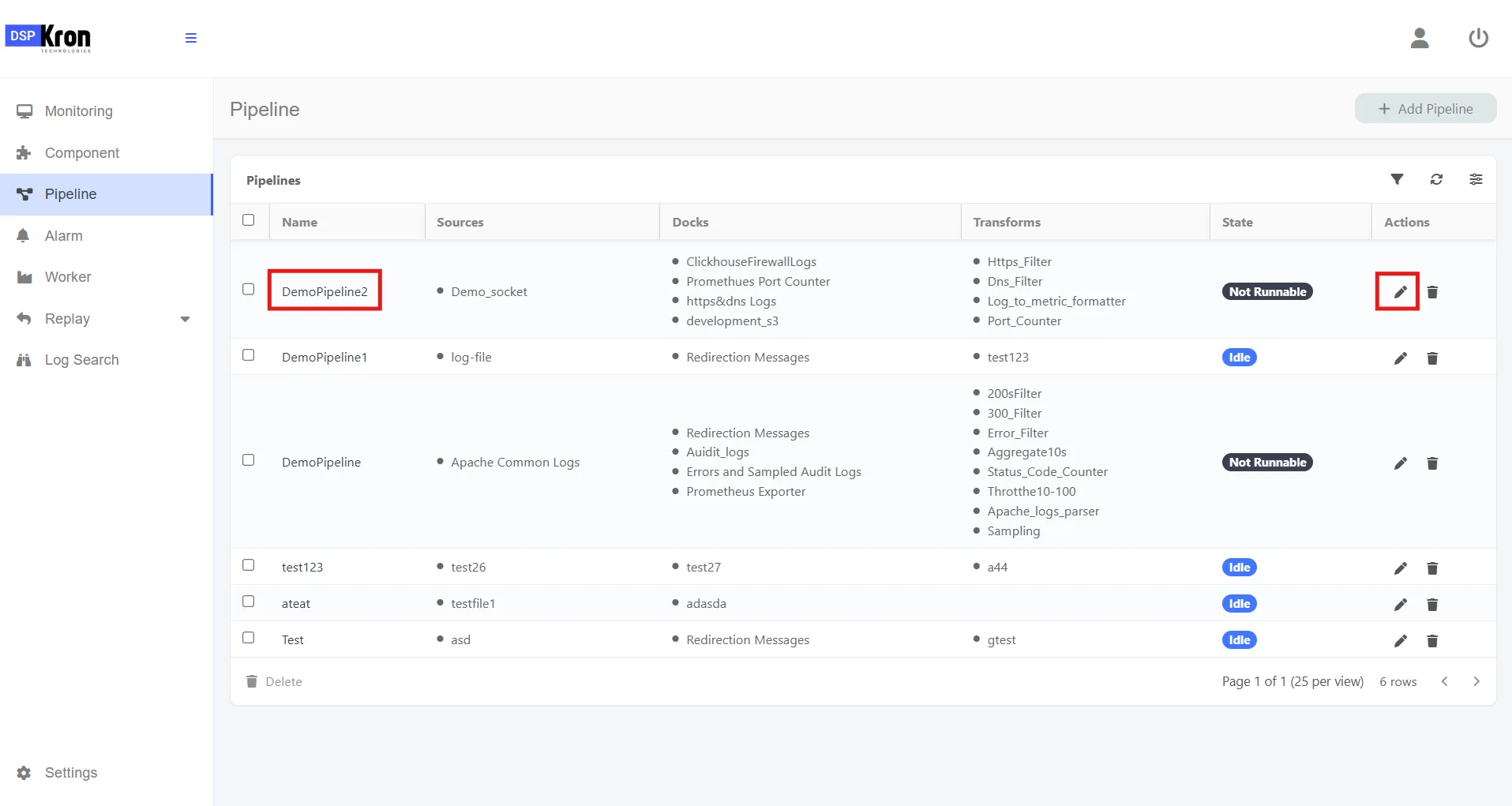
Editting an added pipeline
Added pipelines should be listed under the pipeline menu. You can edit a pipeline either by simply clicking the edit button or by clicking on the pipeline's name.
Good to know:
This screen is built with drag-and-drop features, but first, the components that will be used must be selected. There is no limit to the number of nodes that can be selected. İt is crucial that, right after a source, a parser be linked before linking other transform functions such as sampling, filtering, or tagging. First, a source will be linked to a parser. Then, from that parser, transform functions can be added back-to-back, symbolizing the downstream. (If there will be no advanced functions, then adding a parser is optinal.) There could be any number of transform functions between a source and destination. Transform functions can be linked to each other. However, after the last transform function, there must be a destination so that logs can be shipped to the correct place without getting lost. Outputs from sources and transforms can be replicated so that logs coming from the same source can be shipped to many destinations. To do this on the UI, just link a source or a transform's output to more than one transform or destination. Also, it’s an option to directly link a source to a sink without having any parser or transform functions to ship full-fidelity data to a destination.