Virtualization
12 min
Virtualization
Viewing Virtual Device Information
For viewing Virtual Device Information, fallow the steps bellow.
- Login to Single Monitor Web GUI.
- Navigate to Monitoring Virtualization.
- Click on the IP address to view detailed information.

Virtual Device Information
Adding New Virtualization Servers
To add a new virtual machine, fallow the steps bellow.
- Login to Single Monitor Web GUI.
- Navigate to Monitoring Virtualization.
- Click on the New Virtualization Server from the top right corner.
- Fill required fields click save.

Adding New Virtualization Servers
##Selecting Collector
To change Collector of a device, fallow the steps bellow.
- Login to Single Monitor Web GUI.
- Navigate to Monitoring Virtualization.
- Click on the IP address of the device that’s collector will be changed.
- Click on the edit button next to the device detail header.
- Select Collector and click save.
Figure : 118 Changing Collector
Filtering Virtual Devices
For filtering Virtual Devices fallow the steps bellow.
- Login to Single Monitor Web GUI.
- Navigate to Monitoring Virtualization.
- Click on the filter button on the right to enable filtering options.

Filtering Virtual Devices
Deleting Virtual Devices
To delete a Virtual Device, fallow the steps bellow.
- Login to Single Monitor Web GUI.
- Navigate to Monitoring Virtualization.
- Check the device that will be deleted from the check box next to its IP address.
- Scroll down to bulk actions.
- Select Delete and click apply.
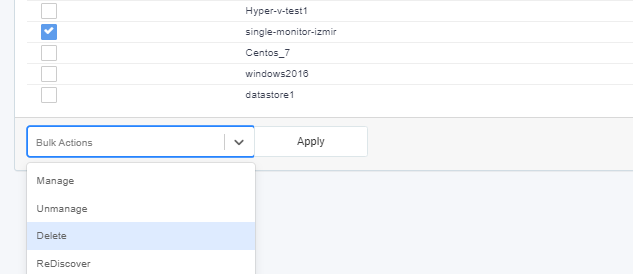
Deleting Virtual
Managing and Unmanaging Virtual Devices
To manage and unmanage a device without deleting it fallow the steps bellow.
- Login to Single Monitor Web GUI.
- Navigate to Monitoring Virtualization.
- Check the device that will be managed or unmanaged from the check box next to its IP address.
- Scroll down to bulk actions.
- Select Unmanage or Manage apply.
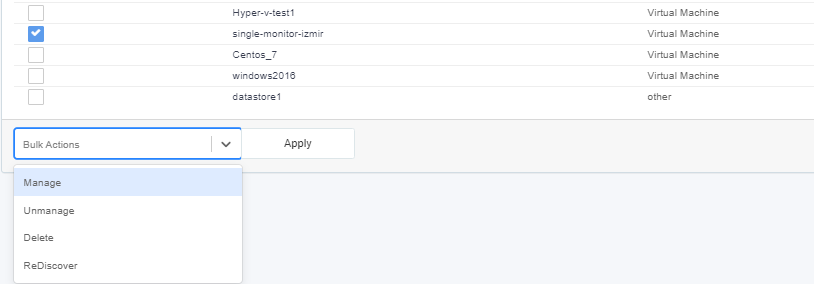
Managing and Unmanaging Virtual
Rediscovering Devices
To rediscover a device, fallow the steps bellow.
- Login to Single Monitor Web GUI.
- Navigate to Monitoring Virtualization.
- Check the device that will rediscovered from the check box next to its IP address.
- Scroll down to bulk actions.
- Select Rediscover and apply.
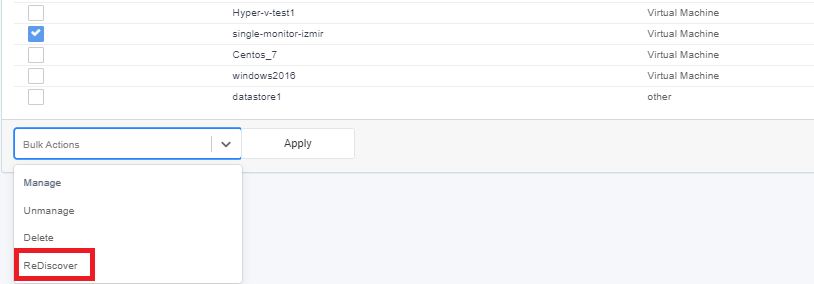
Rediscovering Devices
Summary Screens
To view the summary screens for virtualization, fallow the steps bellow.
- Login to Single Monitor Web GUI.
- Navigate to Monitoring Virtualization.
- From top right corner select Summary.

Summary Screen
Viewing in Tree View
To view all devices in Tree View, fallow the steps bellow.
- Login to Single Monitor Web GUI.
- Navigate to Monitoring Virtualization.
- For tree view the button located on the right side of the pie chart’s header.
- Click on the button shown below on the screen shot and tree view should open.

Viewing in Tree View
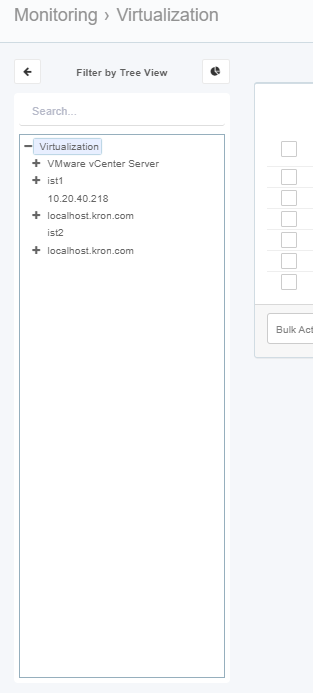
Viewing in Tree View