Alarm & Event Management
Alarm Action Template
Here how to create Alarm Action Template will be showed. This is essential to create because with Action Templates you set a rule to SM for what to do when an Alarm occurs. For example, you can set action templates as sending mail, SMS, trap and script.
- Login to Single Monitor Web GUI
- Navigate to Settings – Alarm
- Select Add from top right corner and click on Add Monitoring Template.
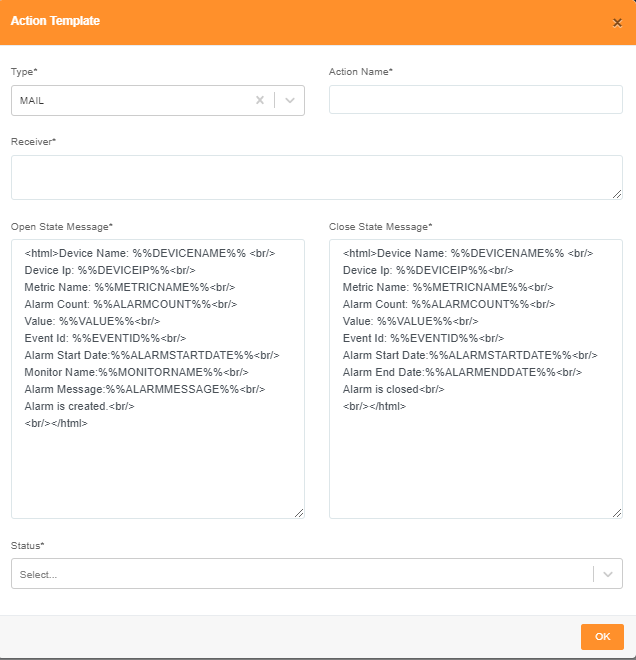
Alarm Action Template
Here disabling an Alarm Action Template will be showed.
- Login to Single Monitor Web GUI
- Navigate to Settings – Alarm
- Select Action Templates from top right corner.
- Select the action template you would like to disable from the check box next to the Action Name.
- After selecting select disable from bulk actions.
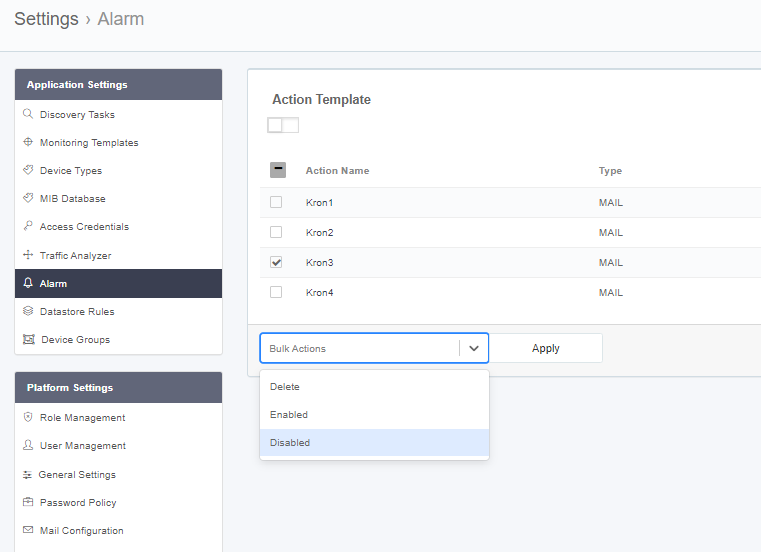
Alarm Action Template
Here Deleting an Alarm Action Template will be showed.
- Login to Single Monitor Web GUI
- Navigate to Settings – Alarm
- Select Action Templates from top right corner.
- Select the action template you would like to delete from the check box next to the Action Name.
- After selecting select delete from bulk actions.
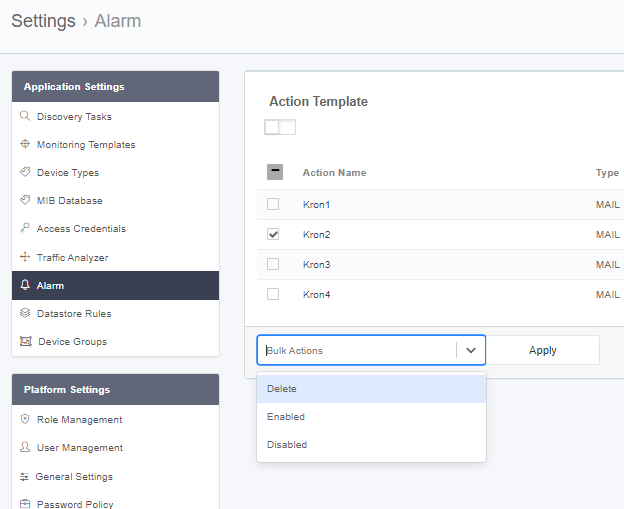
Delete Alarm Template
Policy Management
Add Policy
Here Adding an Alarm policy for devices or to device groups will be showed. For specific devices this is how you should set alarm policies. Also, it’s possible to set the alarm policies on monitoring templates section which lets you set alarm policies according to device types and sets alarm policy to all devices that uses that monitor.
- Login to Single Monitor Web GUI
- Navigate to Settings – Alarm
- Select Add Policy from right top corner.
- Fill the required information set which type of Policy will be used.
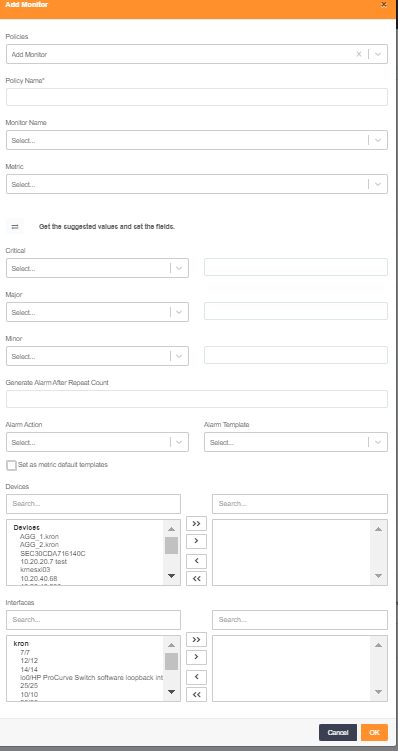
Add Policy
Delete Policy
Here Deleting a Policy will be showed.
- Login to Single Monitor Web GUI
- Navigate to Settings – Alarm
- Select Policies from top right corner.
- Select the Policy you would like to delete from the check box next to the Action Name.
- After selecting select delete from bulk actions.
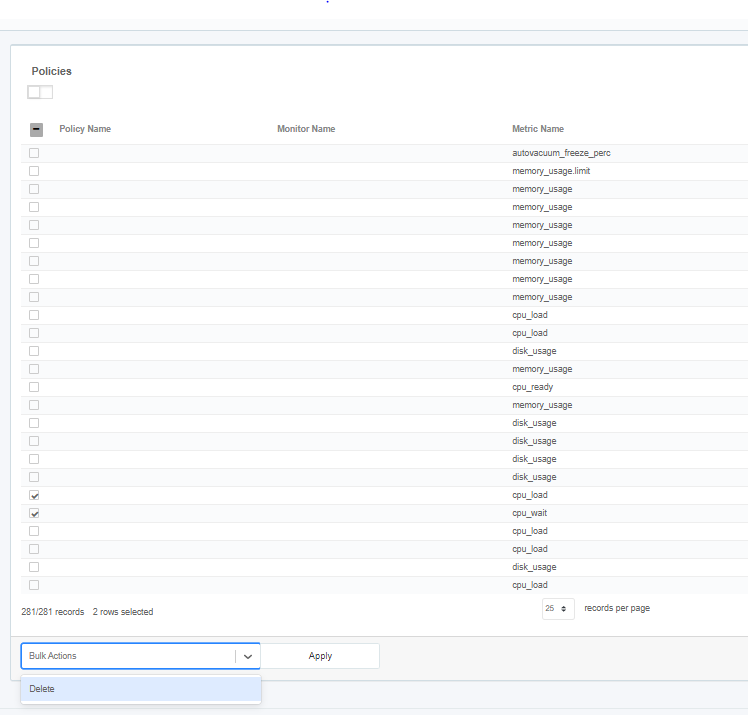
Delete Policy
Event Source Management
Add Event Source
Here adding an Event Source will be showed.
- Login to Single Monitor Web GUI
- Navigate to Settings – Alarm
- Select Add Event Source from right top corner.
- Fill the required information set which type of Event Source will be used.
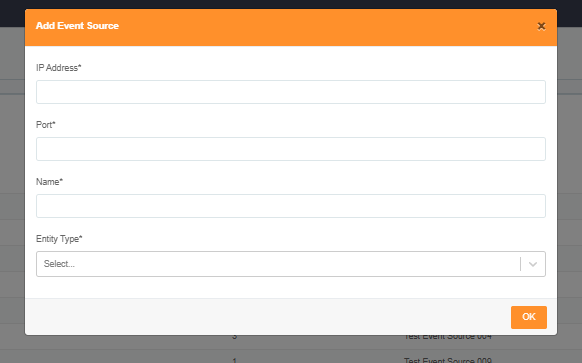
Add Policy
Delete Event Source
Here Deleting an Event Source will be showed.
- Login to Single Monitor Web GUI
- Navigate to Settings – Alarm
- Select Event Source from top right corner.
- Select the Event Source you would like to delete from the check box next to the Action Name.
- Then select Delete from bulk actions.
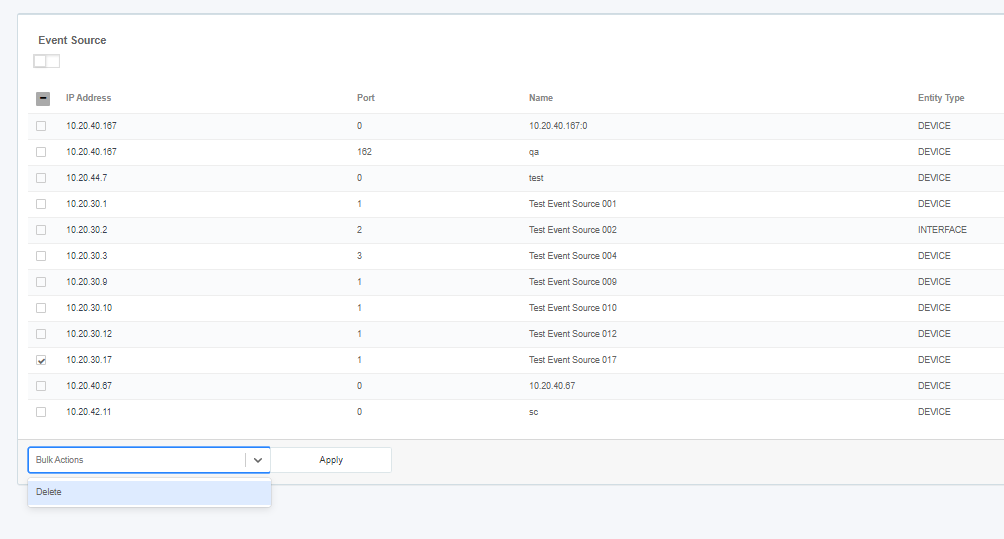
Delete Event Source
Alarms
Opening The Source Device
To Open the source device of the alarm, fallow the steps bellow.
- Login to Single Monitor Web GUI.
- Navigate to Alarms and Active Alarms or All Alarms screen.
- For opening the source device detail click on the Device name under the Source column.
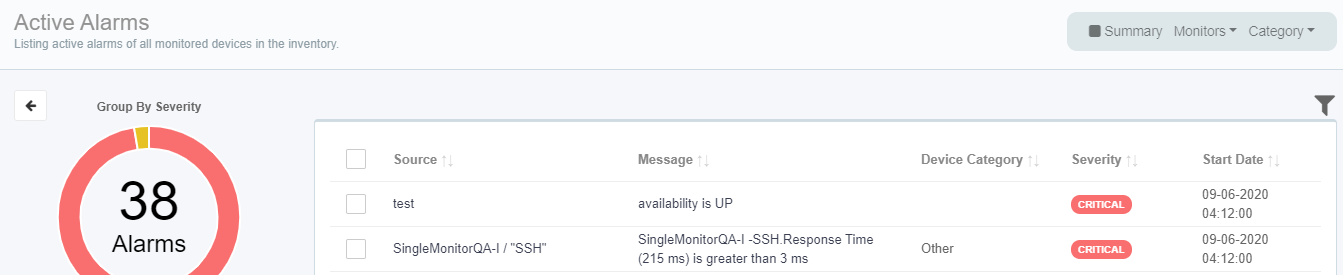
Viewing Alarm Details
To Open the alarm details, fallow the steps bellow.
- Login to Single Monitor Web GUI.
- Navigate to Alarms and Active Alarms or All Alarms screen.
- For opening alarm details click on the Message under the Message column.
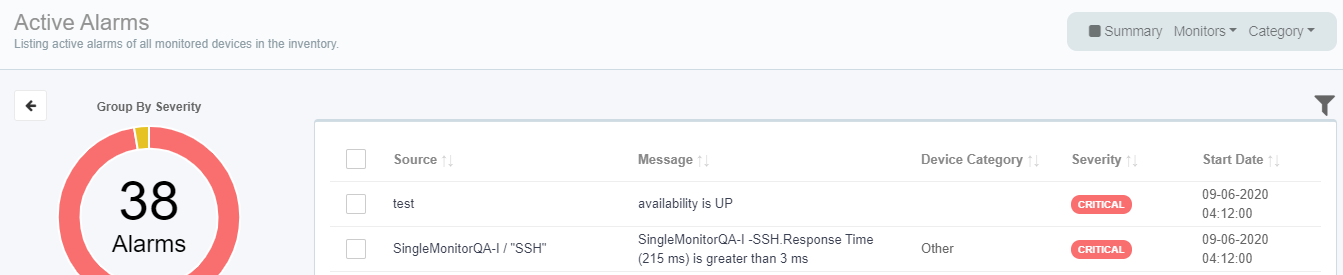
Categorizing Alarms According to Modules
To categorize alarm according to their Module Category, follow the steps bellow.
- Login to Single Monitor Web GUI.
- Navigate to Alarms and Active Alarms or All Alarms screen.
- Use the Category button on the top right corner and select a category to filter the alarms.
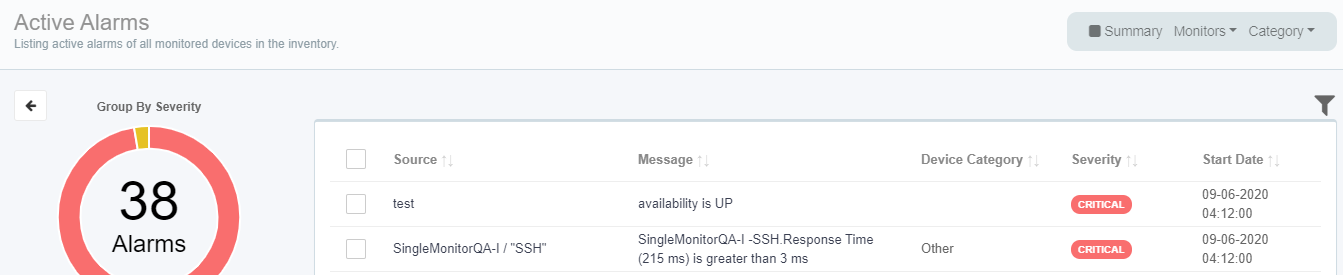
Categorizing Alarms According to Monitors
To categorize alarm according to their Monitor Category, follow the steps bellow.
- Login to Single Monitor Web GUI.
- Navigate to Alarms and Active Alarms or All Alarms screen.
- Use the Monitors button on the top right corner and select a Monitor type to filter the alarms.
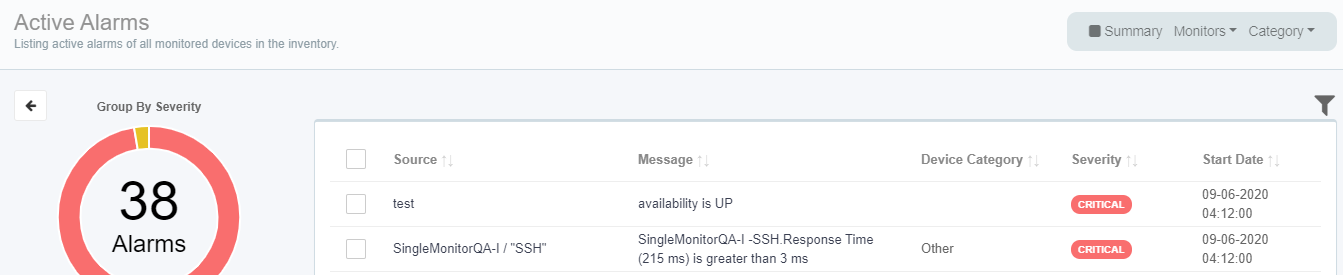
Summary Screen
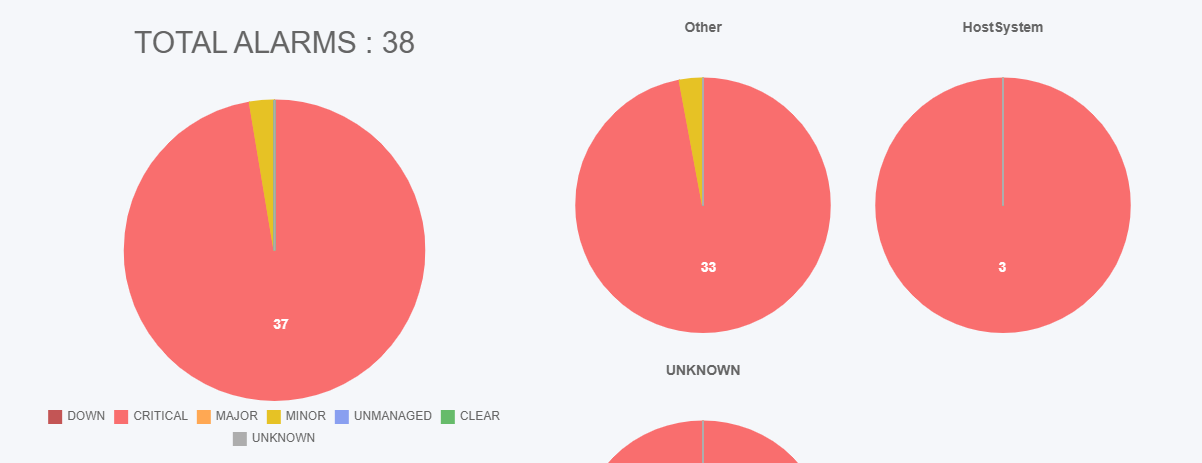
For opening the Summary Screen follow the steps bellow.
- Login to Single Monitor Web GUI.
- Navigate to Alarms and Active Alarms.
- Click on the Summary button located on the top right corner.
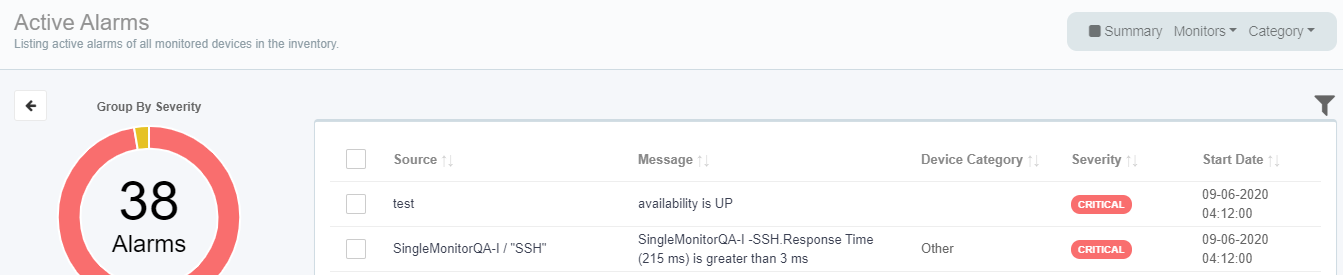
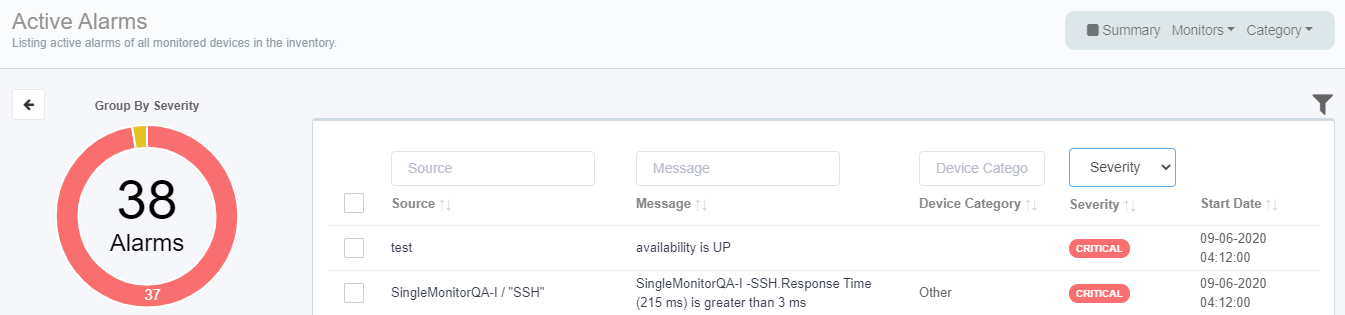
Filtering Alarms
To filter Alarms, follow the steps bellow.
- Login to Single Monitor Web GUI.
- Navigate to Alarms and Active Alarms or All Alarms.
- Use the filter button to enable filtering options.
Acknowledging Alarms
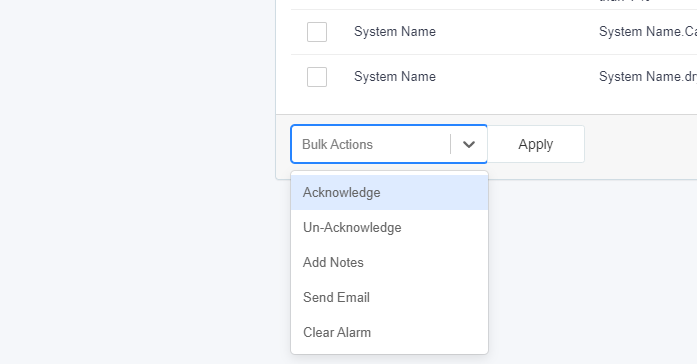
To Acknowledge an alarm, fallow the steps bellow. Acknowledging an alarm removes it from active alarms however the alarm can be found on all alarms tab.
- Login to Single Monitor Web GUI.
- Navigate to Alarms and Active Alarms.
- Check the check box for the alarm that will be Acknowledged.
- Scroll down to bulk actions.
- Select Acknowledge and then apply.
Unacknowledging Alarms
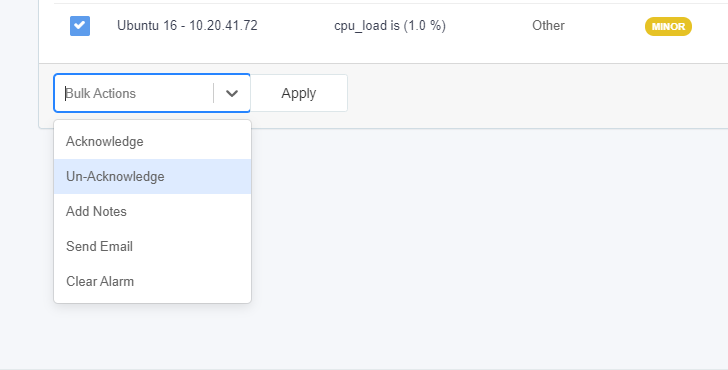
To unacknowledge an alarm, fallow the steps bellow. This would move an alarm on all alarms to active alarms if its acknowledged before.
- Login to Single Monitor Web GUI.
- Navigate to Alarms and All Alarms.
- Check the check box for the alarm that will be Acknowledged.
- Scroll down to bulk actions.
- Select Unacknowledge and then apply.
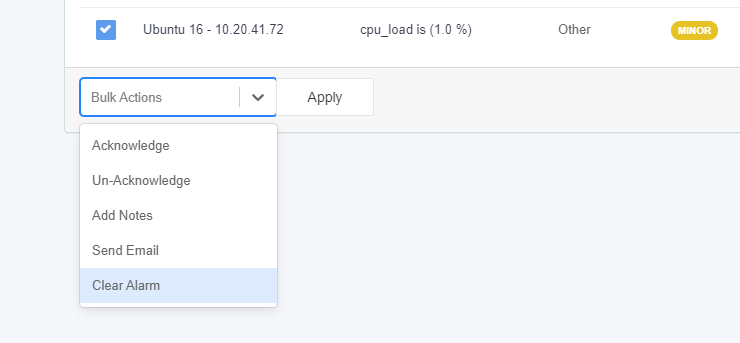
Clearing Alarms
To clear an alarm from Single Monitor, fallow the steps bellow.
- Login to Single Monitor Web GUI.
- Navigate to Alarms and All Alarms.
- Check the check box for the alarm that will be removed.
- Scroll down to bulk actions.
- Select Clear alarm and then apply.
Sending Alarms as Emails
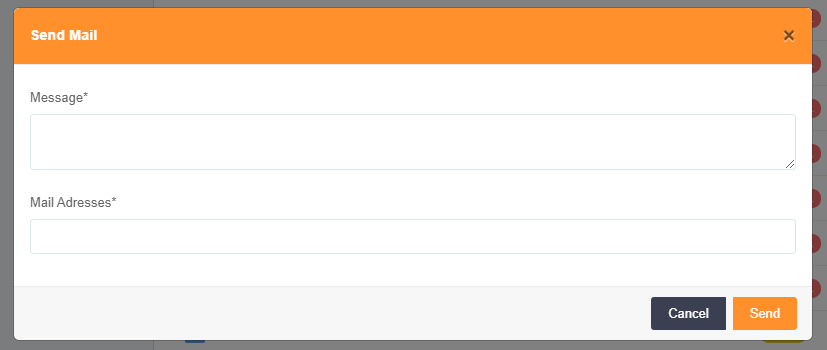
To send an alarm as an Email fallow the steps bellow.
- Login to Single Monitor Web GUI.
- Navigate to Alarms and All Alarms or Active Alarms.
- Check the check box for the alarm that will be send as an Email.
- Scroll down to bulk actions.
- Select Send Email and then apply.
- Fill the fields and click send.
Adding Notes to Alarms
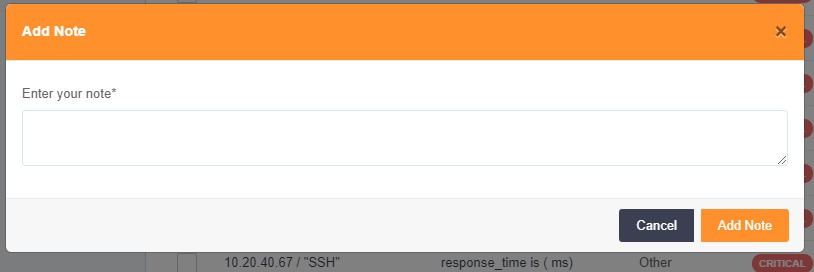
To add a note to an Alarm, fallow the steps bellow.
- Login to Single Monitor Web GUI.
- Navigate to Alarms and All Alarms or Active Alarms.
- Check the check box for the alarm that will the note added.
- Scroll down to bulk actions.
- Select Add Notes and then apply.
- Add your note on the blank space and click Add-Note.
Tracking Events
To track Events, fallow to steps bellow.
- Login to Single Monitor Web GUI.
- Navigate to Events.
- Events will be listed here if correct trap polices are set.