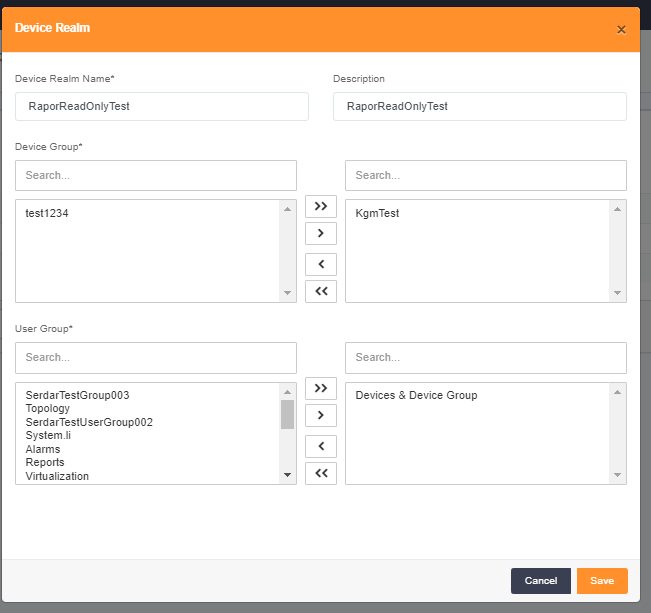
Traffic Analyzer Settings
Add Application
To add an application to monitor from traffic analyzer fallow the steps bellow.
- Login to Single Monitor Web GUI.
- Navigate to settings Traffic Analyzer.
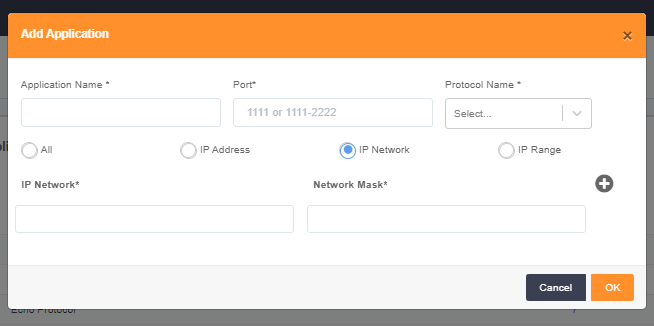
- From top right corner click on add button, a screen should pop up for entering application details.
- Fill required parameters, click save.
Delete Application
For deleting applications fallow the steps bellow.
- Login to Single Monitor Web GUI.
- Navigate to settings Traffic Analyzer.
- Select Application Map from top right corner.
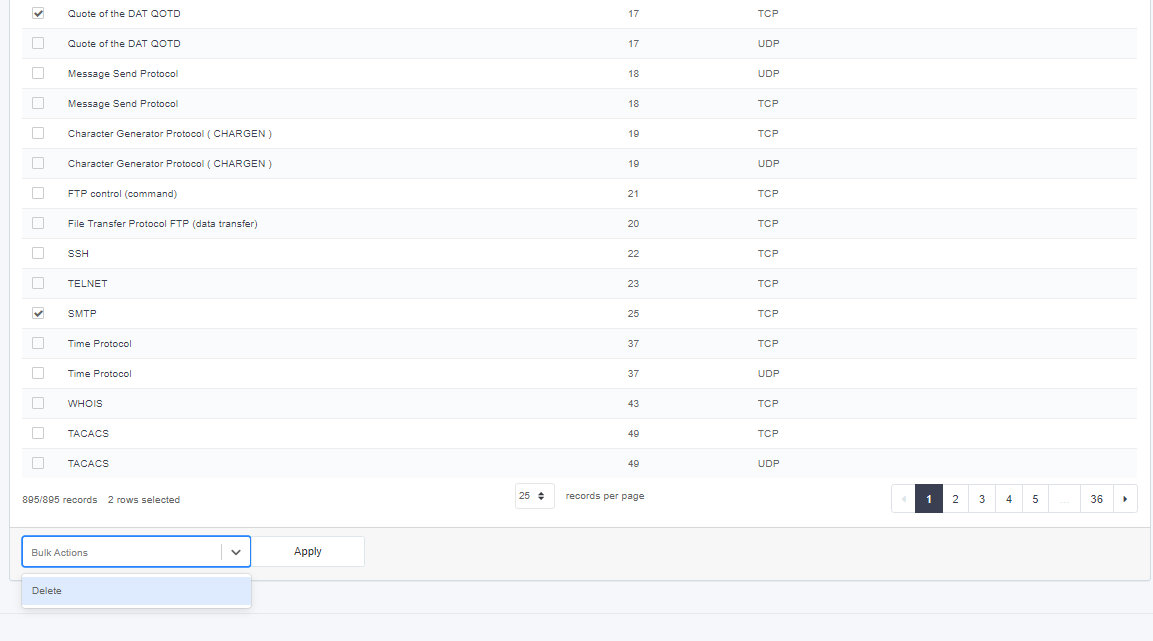
- Select the application that you want to delete from the check box next to Application Name column.
- Scroll down to bulk actions which is located on the bottom of the screen and select delete from bulk actions.
- Click ok for conformation screen.
Edit Application
For editing an application fallow the steps bellow.
- Login to Single Monitor Web GUI.
- Navigate to settings Traffic Analyzer.
- Select Application Map from top right corner.
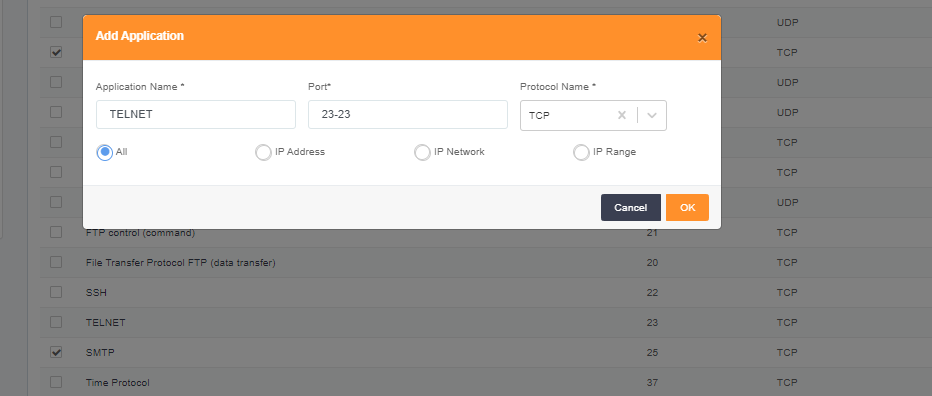
- Click on the application name that you want to edit, and a pop-up screen should come up.
- Make the changes and click save.
Add Group
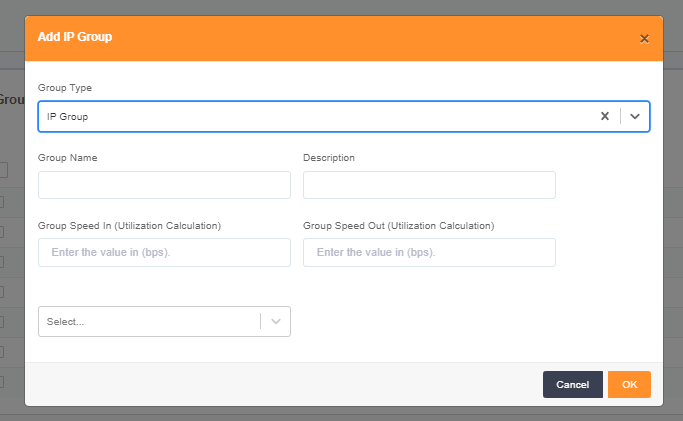
To add an IP Group or an Interface Group to monitor from traffic analyzer fallow the steps bellow.
- Login to Single Monitor Web GUI.
- Navigate to settings Traffic Analyzer.
- From top right corner click on add Group button, a screen should pop up for entering Group details.
- Select Interface Group or IP group according to your needs and fill the required fields.
- Click save.
Delete Group
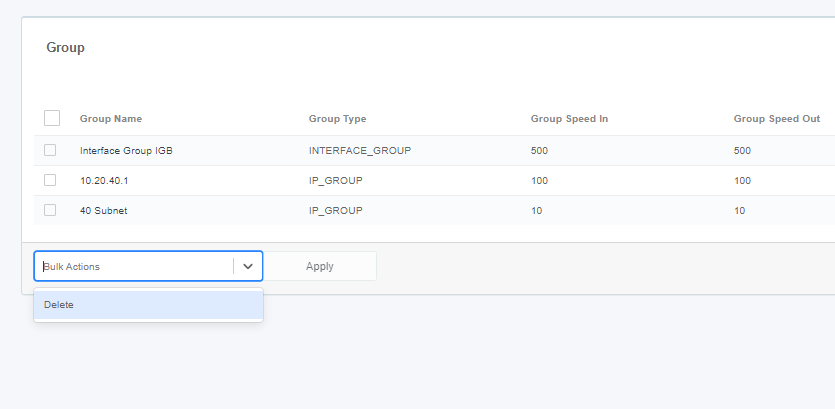
To Delete a Traffic Analyzer Group fallow the steps bellow.
- Login to Single Monitor Web GUI.
- Navigate to settings Traffic Analyzer.
- From the top right corner click on Group.
- Select the group that you want to delete from the check box next to the group name.
- Scroll down to bulk actions select delete from there and confirm.
Edit Group
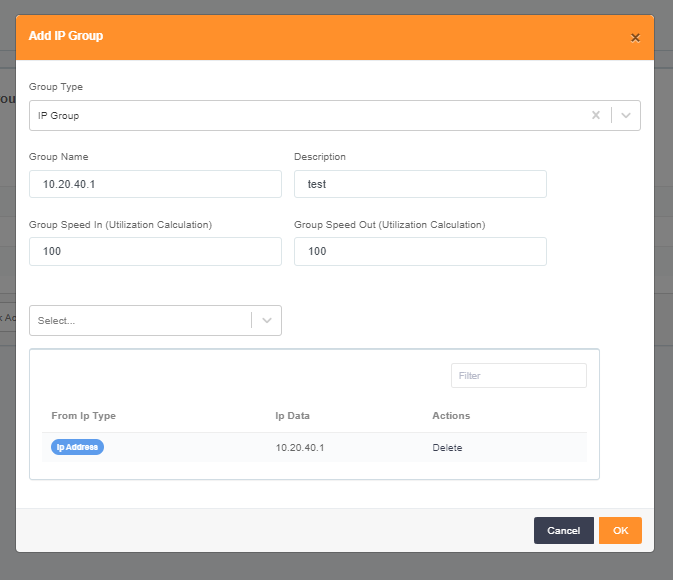
For editing a Traffic Analyzer Group fallow the steps bellow.
- Login to Single Monitor Web GUI.
- Navigate to settings Traffic Analyzer.
- Select Group from top right corner.
- Click on the device name that will be edited.
- Editing screen should come up, make the changes, and click ok.
Add Alarm Policy
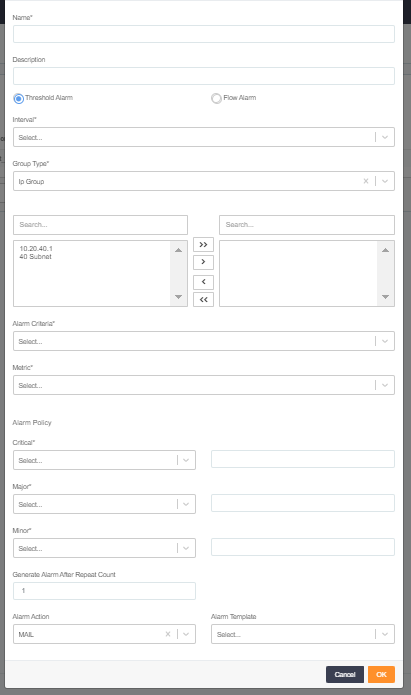
To set an Alarm policy for Traffic Analyzer fallow the steps bellow.
- Login to Single Monitor Web GUI.
- Navigate to settings Traffic Analyzer.
- From top right corner click on add Alarm Policy button, a screen should pop up for entering Alarm Policy details.
- Fill required fields and click ok.
Delete Alarm Policy
To Delete a Policy from Traffic Analyzer fallow the steps bellow.
- Login to Single Monitor Web GUI.
- Navigate to settings Traffic Analyzer.
- From the top right corner click on Alarm.
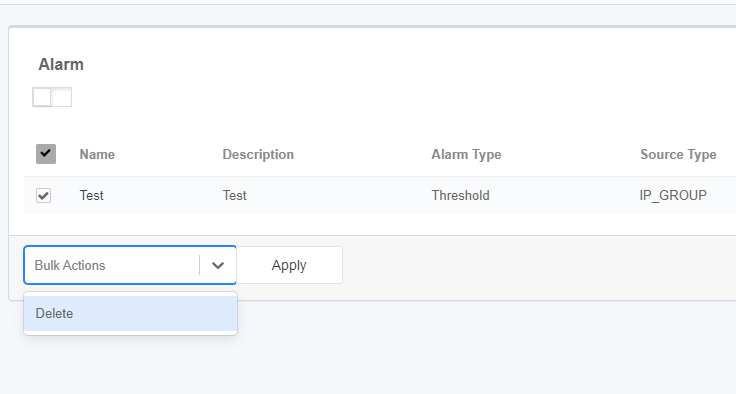
- Select the Alarm Policy that you want to delete from the check box next to the Policy name.
- Scroll down to bulk actions select delete from there and confirm.
Edit Alarm Policy
For editing an Alarm Policy fallow the steps bellow.
- Login to Single Monitor Web GUI.
- Navigate to settings Traffic Analyzer.
- Select Alarm from top right corner.
- Click on the policy name that will be edited.
- Editing screen should come up, make the changes, and click ok.
Device Group
Add Device Group
To add a Device Group, fallow the steps bellow.
- Login to Single Monitor Web GUI.
- Navigate to settings Device Groups.
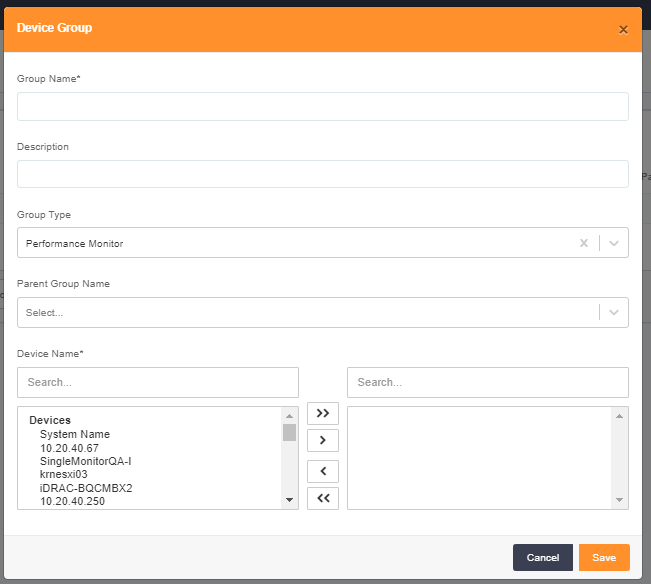
- From Top right corner click on Add Device Group.
- Fill the required fields on the pop-up screen.
- Click ok.
Delete Device Group
For Deleting Device Groups fallow the steps bellow.
- Login to Single Monitor Web GUI.
- Navigate to settings Device Groups.
- From the top right corner click on Device Groups.
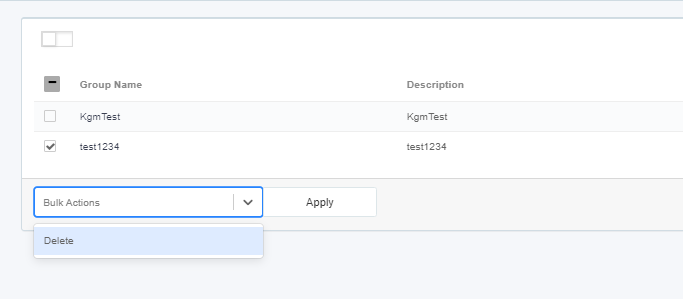
- Select the Group that you want to delete from the check box next to the Group name.
- Scroll down to bulk actions select delete from there and confirm.
Edit Device Group
For Deleting Device Groups fallow the steps bellow
- Login to Single Monitor Web GUI.
- Navigate to settings Device Groups.
- From the top right corner click on Device Groups.
- Click on the Name of the device group that will be edited.
- Click ok after making the changes.
Add Device Realm
To add a Device Realm, fallow the steps bellow.
- Login to Single Monitor Web GUI.
- Navigate to settings Device Groups.
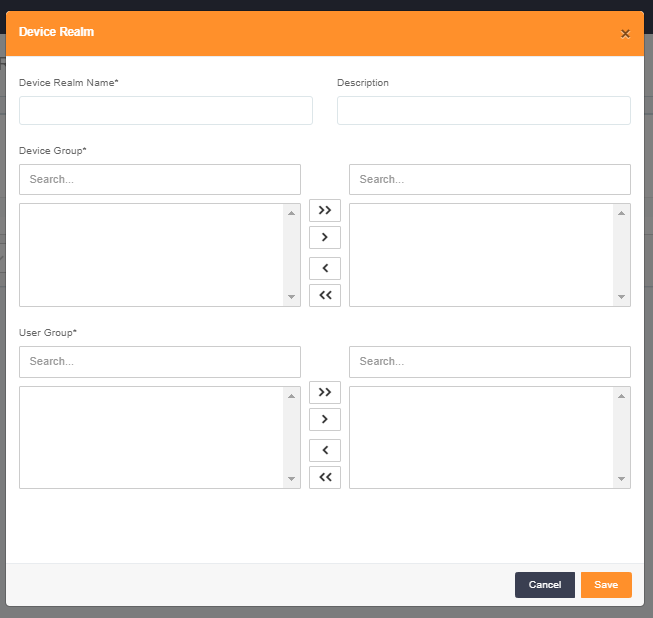
- From Top right corner click on Add Device Realm.
- Fill the required fields on the pop-up screen.
- Click ok.
Delete Device Realm
For Deleting Device Groups fallow the steps bellow.
- Login to Single Monitor Web GUI.
- Navigate to settings Device Groups.
- From the top right corner click on Device Realm.
- Select the Realm that you want to delete from the check box next to the Realm name.
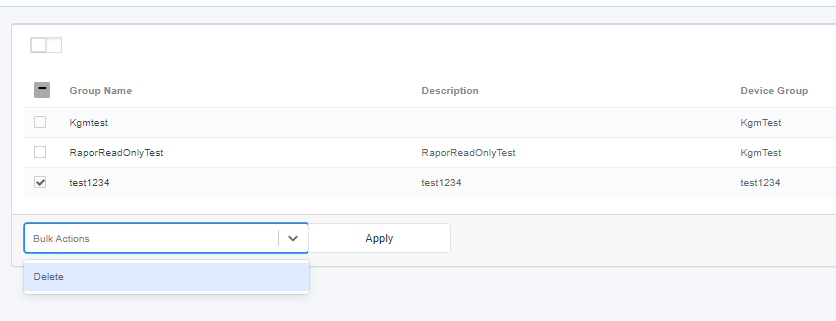
- Scroll down to bulk actions select delete from there and confirm.
Editing Device Realms
To edit Device Realms fallow steps bellow.
- Login to Single Monitor Web GUI.
- Navigate to settings Device Groups.
- From the top right corner click on Device Realm.
- Click on the Name of the device realm that will be edited.
- Click ok after making the changes.