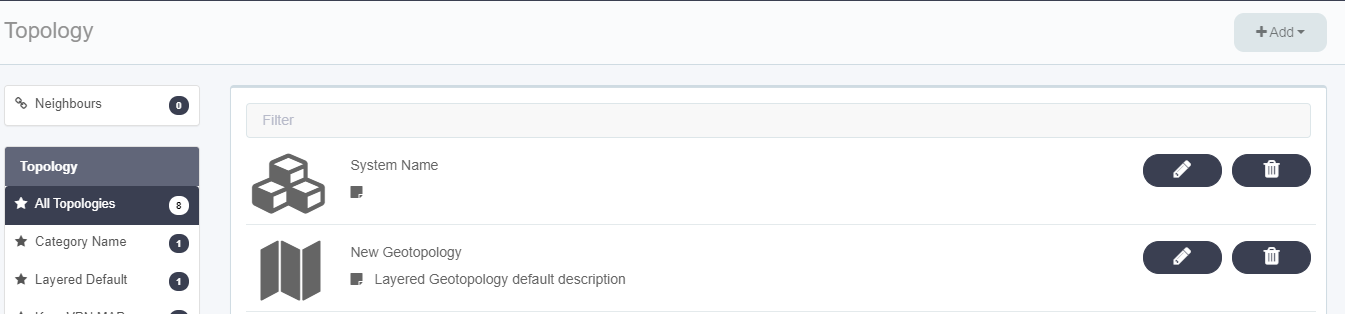
Topology
Topology
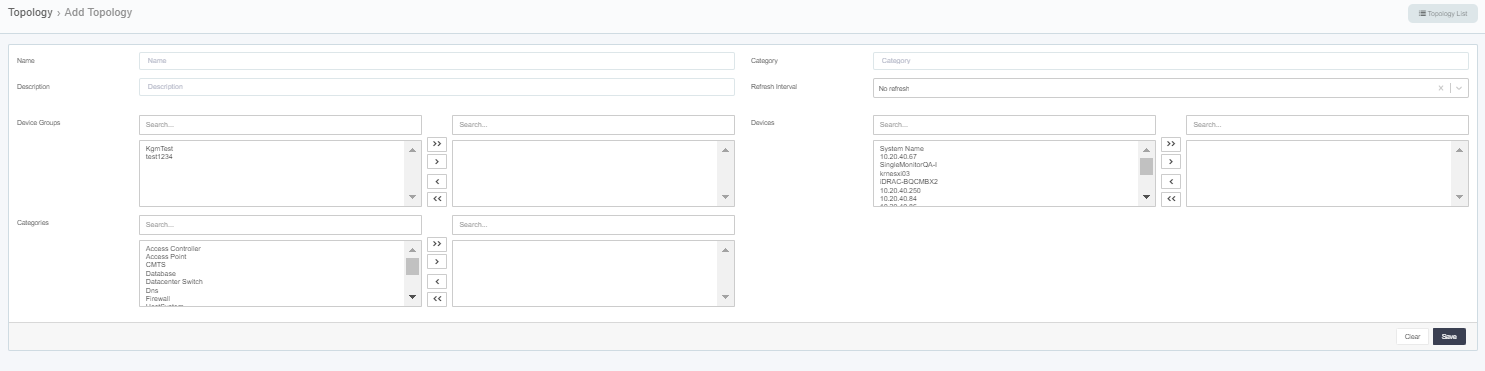
Adding Network Topology
To add a Network Topology, fallow the steps bellow.
- Login to Single Monitor Web GUI.
- Navigate to Topology.
- Click on add button which is located on the top right corner.
- Select Add Network Topology.
- After filling required fields click save.
Adding Geographical Network
To add a Geographical Topology, fallow the steps bellow.
1.Login to Single Monitor Web GUI. 2.Navigate to Topology. 3.Click on add button which is located on the top right corner. 4.Select Add Geographical Topology. 5.Here topology name and similar stuff can be edited from the left top corner 6.Use the wheel button to upload a GeoJSON for layering the map.
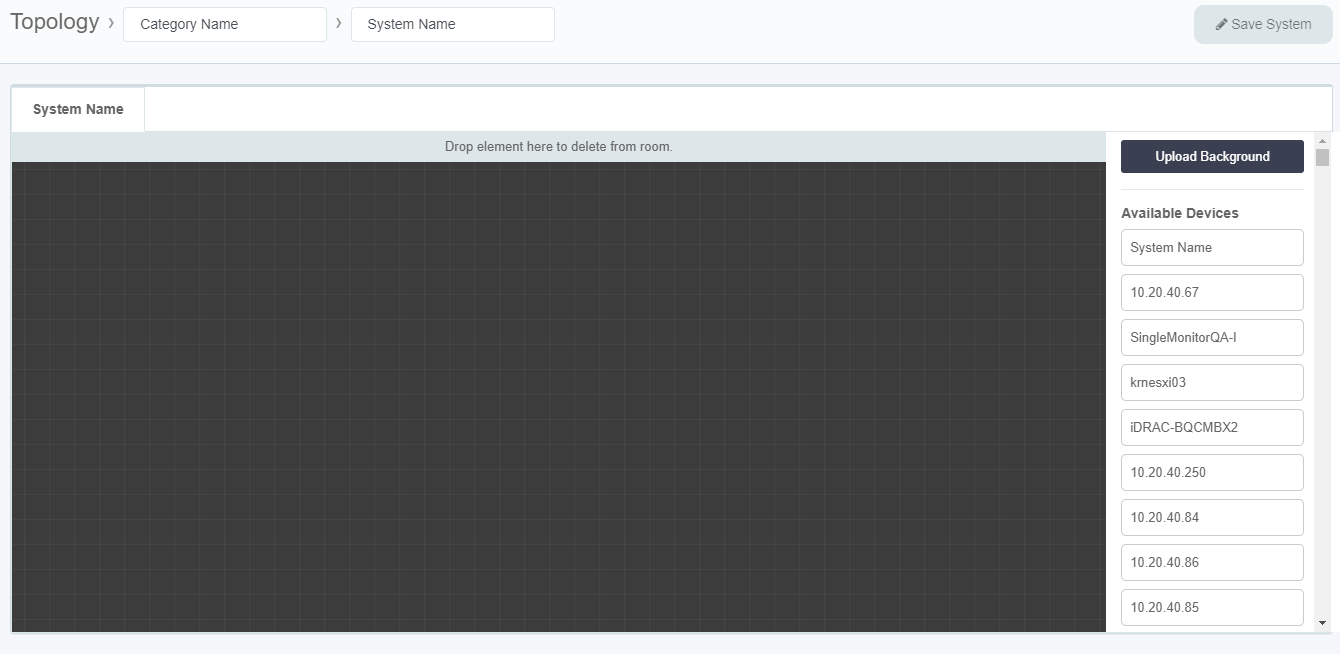
Adding System Room
To add a System Room, fallow the steps bellow.
- Login to Single Monitor Web GUI.
- Navigate to Topology.
- Click on add button which is located on the top right corner.
- Select Add System Room.
- For uploading a Background use the button on the top left corner.
- Move devices that will be displayed in the system room.
- Edit System Name and Category Name.
- Click Save system from the top right corner.
Adding Link Topology
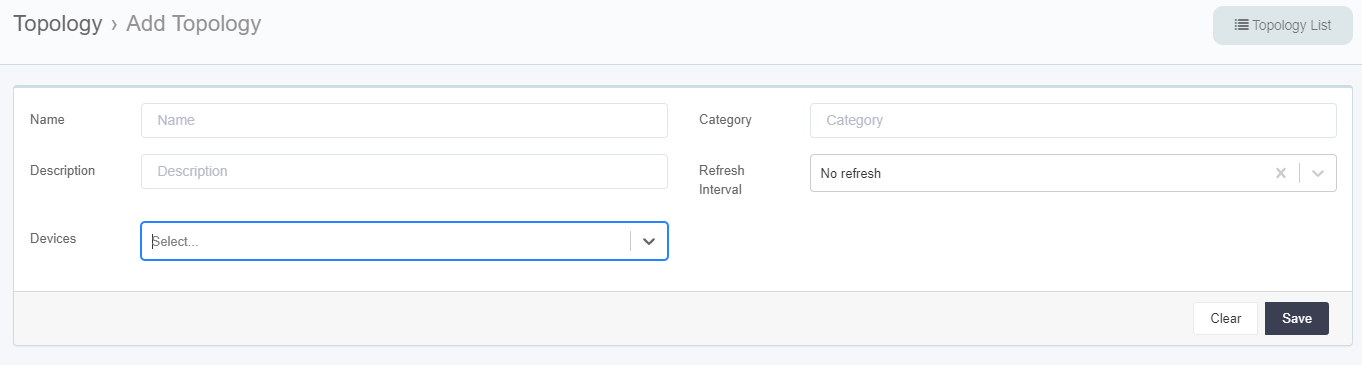
To add a Link Topology, fallow the steps bellow.
- Login to Single Monitor Web GUI.
- Navigate to Topology.
- Click on add button which is located on the top right corner.
- Select Add Link Topology.
- Add the devices and SM will automatically create the linked topology.
- After filling required fields click save.
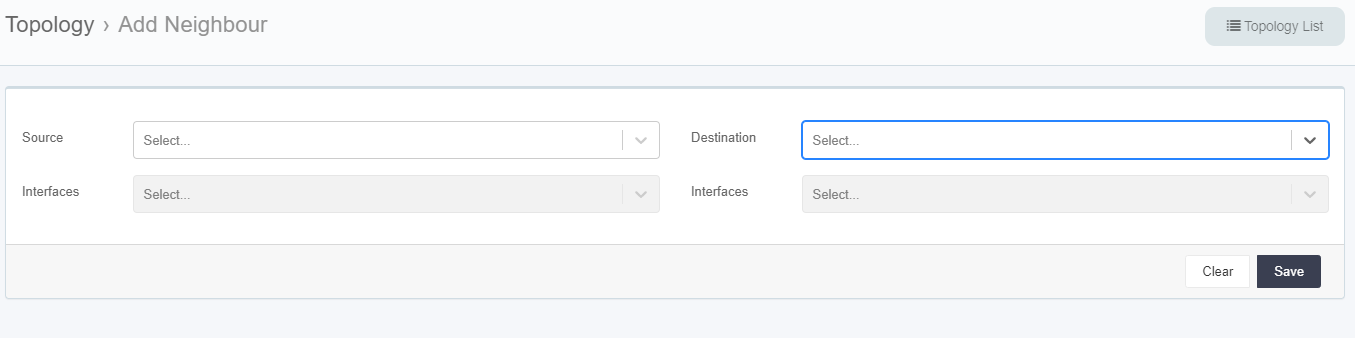
Adding Neighbor Topology
To add a Link Topology, fallow the steps bellow.
1.Login to Single Monitor Web GUI. 2.Navigate to Topology. 3.Click on add button which is located on the top right corner. 4.Select Add Neighbor Topology. 5.Add the devices that are linked. 6.After filling required fields click save.
##Editing Topologies
To??
- To edit a Topology, fallow the steps bellow.
- Login to Single Monitor Web GUI.
- Navigate to Topology.
- Click on All Topologies.
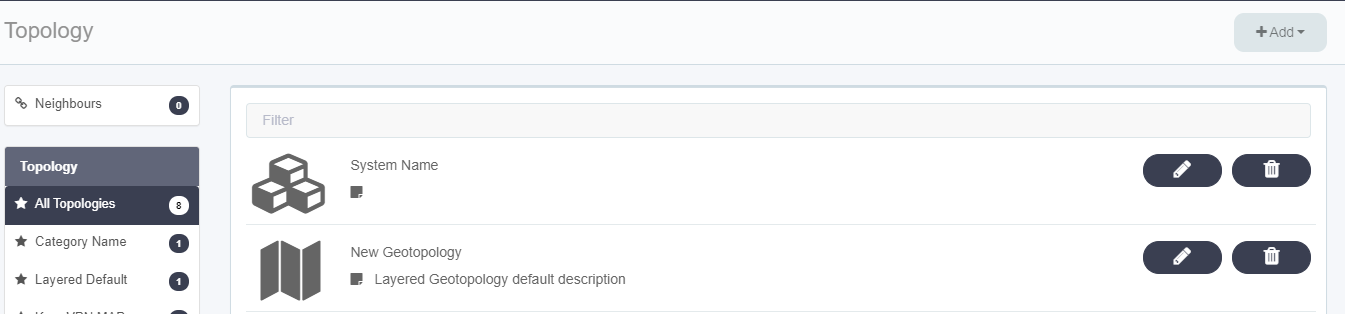
- Locate the topology that will be edited and use the pen icon to edit the Topology.
Deleting Topology’s
To delete a Topology, fallow the steps bellow.
- Login to Single Monitor Web GUI.
- Navigate to Topology.
- Click on All Topologies.
- Locate the topology that will be deleted and use the garbage icon to remove the Topology.