Reports
6 min
Reports
Generating Reports
For generating a report, fallow the Steps bellow.
- Login to Single Monitor Web GUI.
- Navigate to Reports.
- From top right corner click on the Generate Report.
- After filling required fields there are two options from here.
- First Generating the report which will not save this template.
- Second, saving the report template.
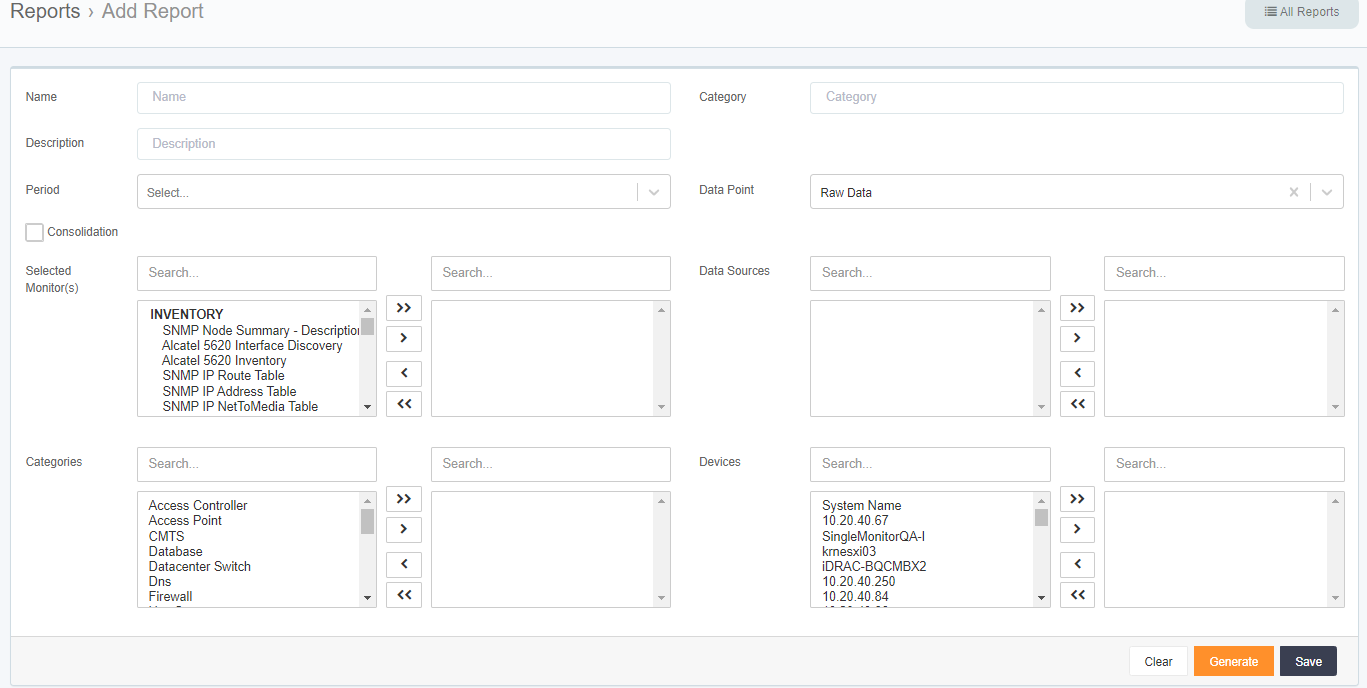
Report
Adding Reports to Favorites
For adding Reports to Favorites for managing reports easier fallow the steps bellow.
- Login to Single Monitor Web GUI.
- Navigate to Reports.
- Click on All reports. Locate the report that you would like to add to favorites.
- Click on the start shaped button for adding the report to the favorites.
- For listing favorite reports Click on Favorites from the left menu which has the Built in Reports header.
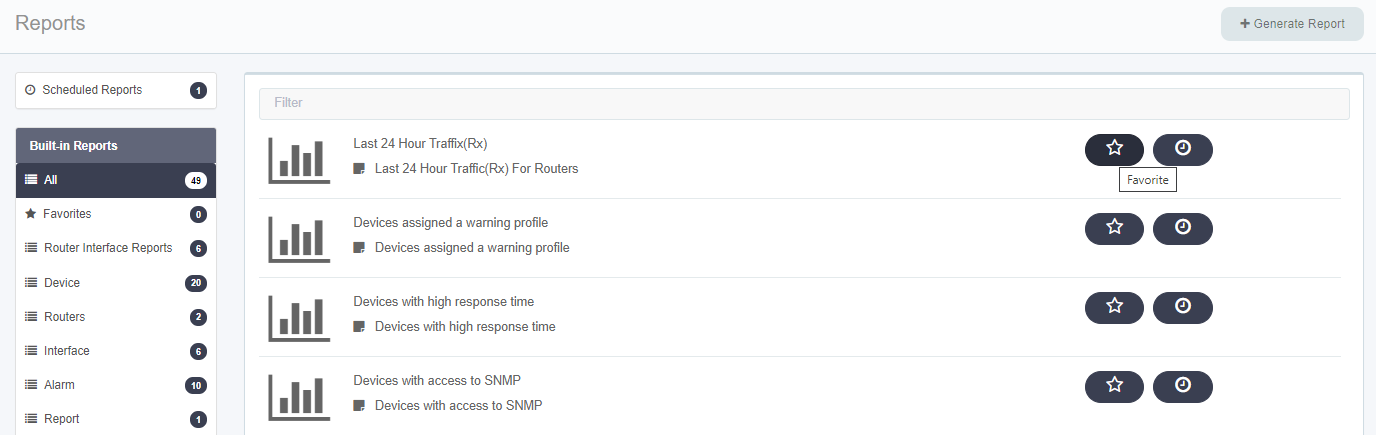
Favorite Report
Scheduling Reports
Scheduling Reports is a multi-functional option that can be used for exporting reports and sending them as e-mails.
- Login to Single Monitor Web GUI.
- Navigate to Reports.
- Click on All reports. Locate the report that you would like to add a schedule.
- Click on the clock icon and click on New Schedule.
- Fill required fields click ok.
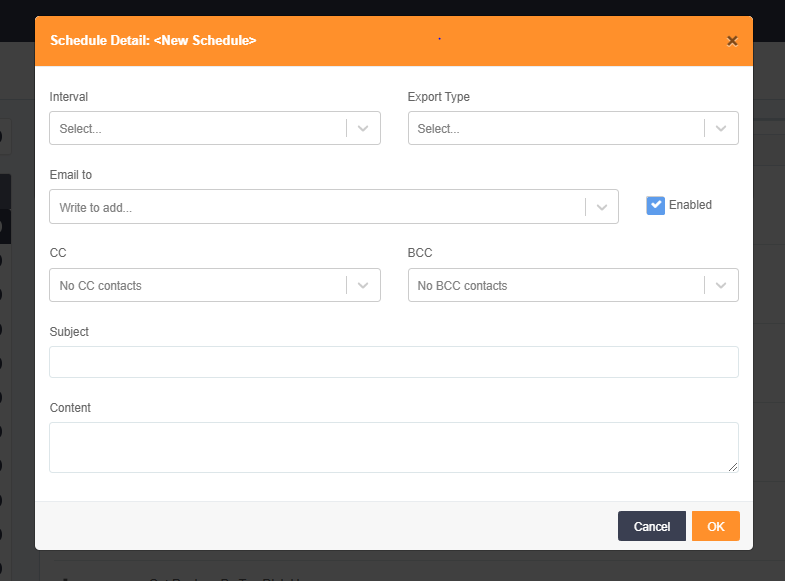
Schedule Report
Exporting Reports
For exporting reports fallow the steps bellow.
- Login to Single Monitor Web GUI.
- Navigate to Reports.
- Click to the report that will be exported.
- On the top right corner there are five options to choose from for exporting.
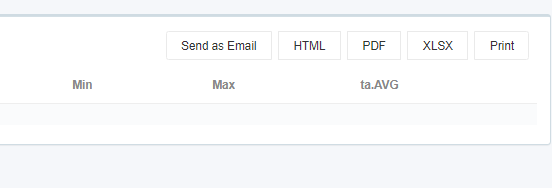
Export Report