SSH Key Configuration for AWS Devices
By default, AWS instances are created with an SSH key in the AWS Console Management screen. If devices imported from AWS are configured to log in with an SSH key, Single Connect can provide a seamless connection to those devices, otherwise, the global username and password need to be defined for each device group.
To use an SSH key for AWS devices:
- Get the SSH key name stored in the device properties of each device:
- Navigate to Device Management > Device Inventory.
- Right-click an AWS Device and select Show Properties (The SSH Key name of the device is stored in the sshKeyName property)
- Write down the value of this property to be used for the SAPM module.
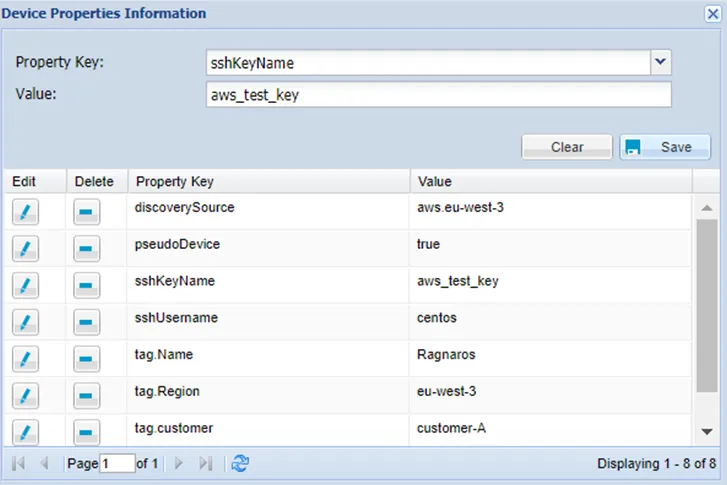
Enable SSH Key Connection to Device Groups:
- Navigate to Device Management > Device Groups.
- Right-click the Device Group the AWS devices are imported to and select Show Properties.
Select the addDeviceSshKeyToUserSelection property and set the value as true.
Uploading an SSH key to Single Connect will enable connections to the device:
- Navigate to SAPM > SAPM Accounts.
- Fill in the required fields.
- The Name field must be exactly equal to the value of the Device Property “sshKeyName”.
- Select SSH Key in the Type field.
- Copy the contents of your SSH key into the Secret Data field.
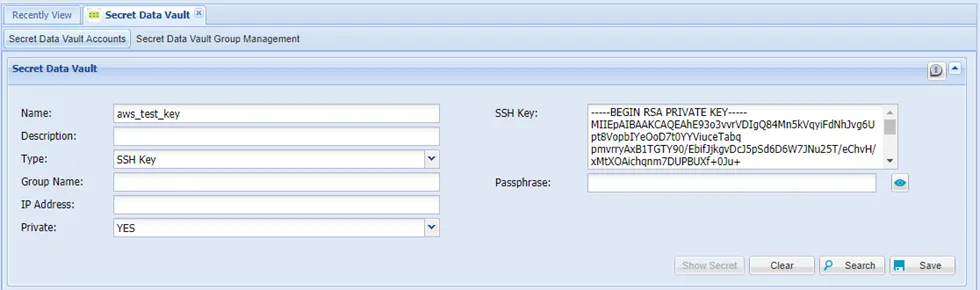
SSH keys must be in an OpenSSH key format. This means that the value put into the Secret Data field should: start with the “---- BEGIN SSH2 PUBLIC KEY ----” and end with the “---- END SSH2 PUBLIC KEY ----” indicators.