6 TACACS+ Access Manager
This section describes how to configure Single Connect and devices to use the RADIUS/TACACS+ AAA service through Single Connect.
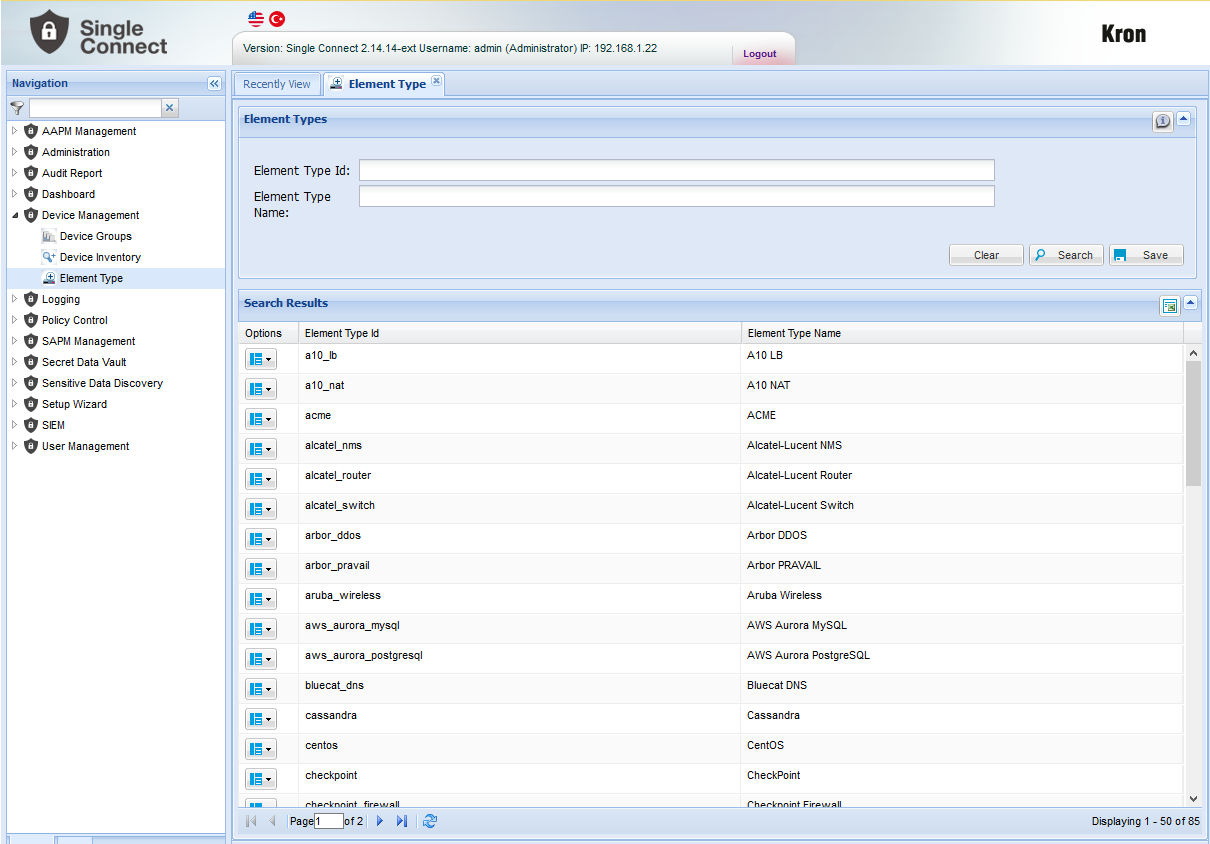
Adding a New Element Type 1. Log in to Single Connect 2. Navigate to Device Management > Element Type 3. Type in the Element Type ID and Element Type Name 4. Save
Adding a New Device Group
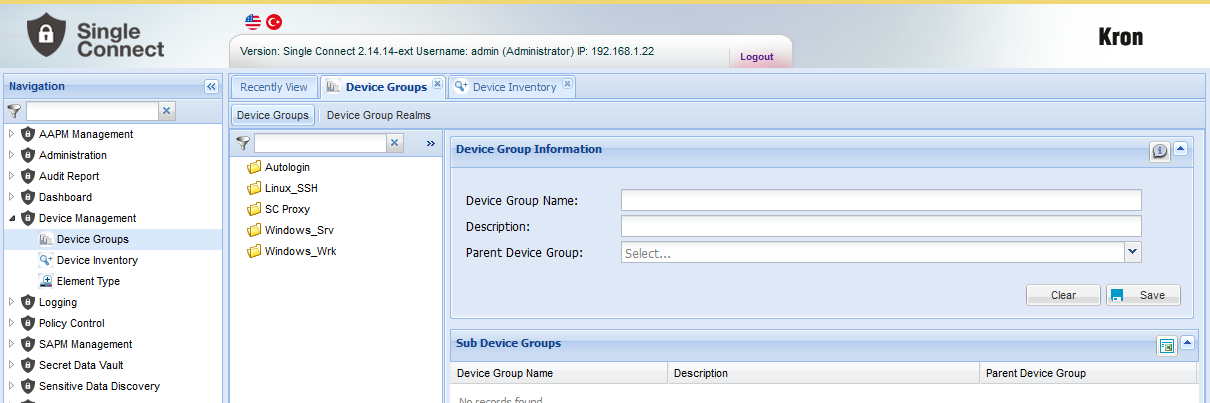
1. Log in to Single Connect 2. Navigate to Device Management > Device Group 3. Type in device group name and description. 4. Select the Parent Device Group (Optional) 5. Save
Adding Device Group Properties
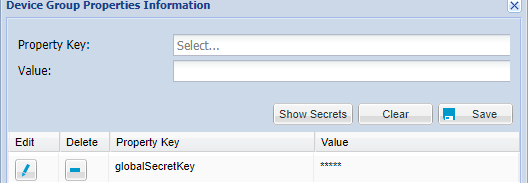
1. Log in to Single Connect 2. Navigate to Device Management > Device Group 3. Right-click the selected group 4. Click the “Show Properties” button 5. Set RADIUS/TACACS+ secret as “globalSecretKey” 6. Save
Adding Common Enable Password
Bot/script user groups need to use a common password for enable password in scripts. The "globalEnabledPassword" property allows to set a common password for a device group to be used when prompted for enable password.
1. Log in to Single Connect 2. Navigate to Device Management > Device Group 3. Right-click the selected group 4. Click the “Show Properties” button 5. Set Common Enable Password as “globalEnablePassword” 6. Save
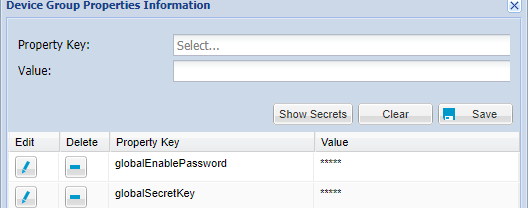
Adding a Subnet
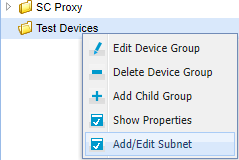
1. Log in to the Single Connect Web GUI 2. Navigate to Device Management > Device Groups 3. Right-click on the device group to be discovered and select “Add/Edit Subnet”
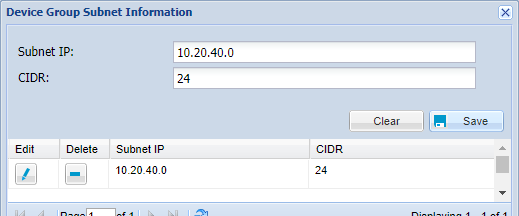
4. Set subnet information
Adding Devices with IP Regex
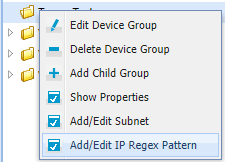
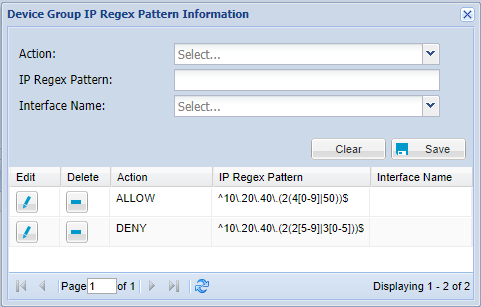
1. Log in to the Single Connect Web GUI 2. Navigate to Device Management > Device Groups 3. Right-click on the device group to be discovered and select Add/Edit Ip Regex Pattern
4. Set allowed/denied IP regex
Adding a New Device
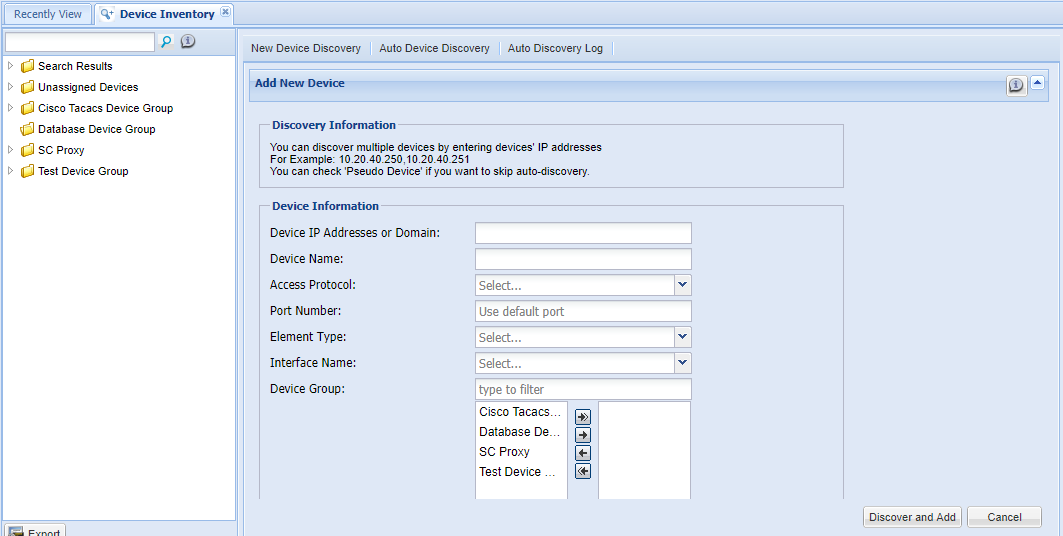
1. Log in to Single Connect 2. Navigate to Device Management > Device Inventory 3. Go to the “New Device Discovery” tab 4. Type device IP address 5. Select Access Protocol. SSHv2 can be selected to add devices which use RADIUS/TACACS+ Server for AAA. The default port number can be used, or an admin can define the port number. 6. Select the Element Type and the Device Group to be assigned 7. Click “Discover and Add”
Adding a Device Realm
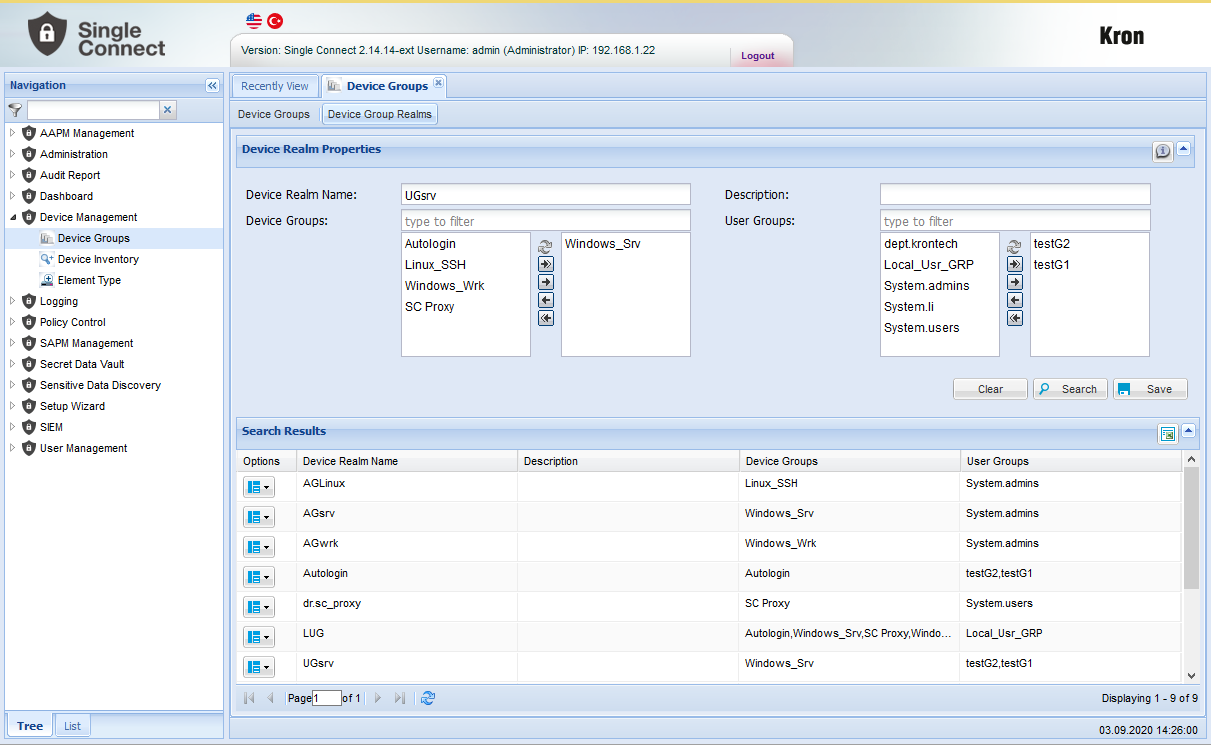
1. Log in to Single Connect 2. Navigate to Device Management > Device Group 3. Open the "Device Group Realms" tab 4. Type in the Device Realm Name and select the device Group(s) 5. Save
Adding RADIUS/TACACS+ Attribute
1. Log in to Single Connect 2. Navigate to Policy Control > Session Policy 3. Type in Key (Text before the first space is considered as attribute key. Text between the first and second space is considered as an operand. Text after the second space is considered as the attribute value.) and Description 4. Select “RADIUS/TACACS+ Attribute” as the Type. 5. Select element types to add the attribute. 6. Save
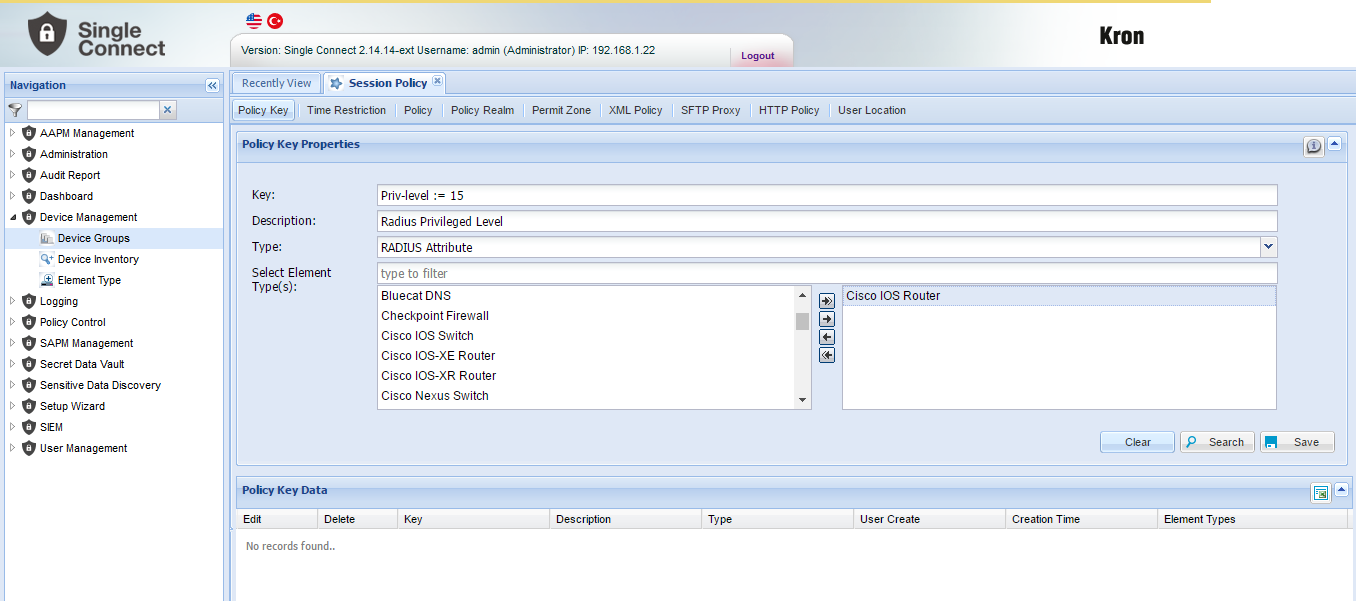
Example
CISCO IOS Example AVPs
cisco-avpair := shell:priv-lvl=1
Service-Type := NAS-Prompt-User
Adding RADIUS/TACACS+ Policy Key
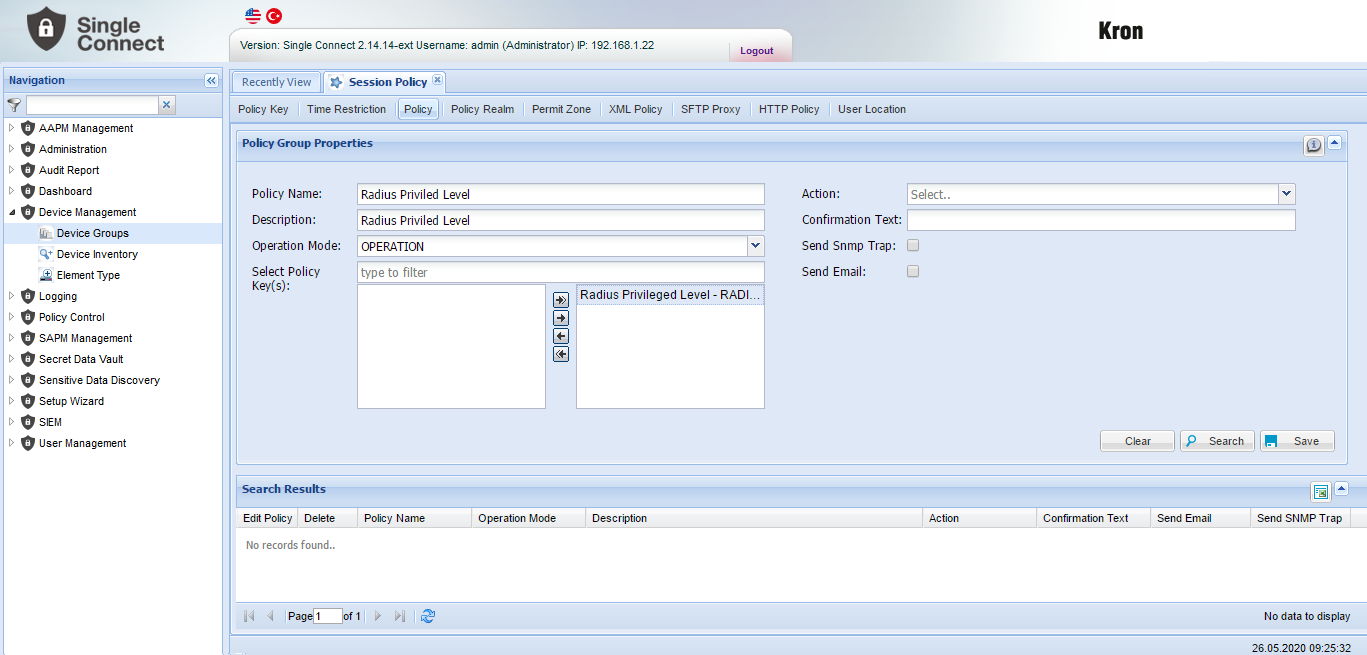
1. Log in to Single Connect 2. Navigate to Policy Control > Session Policy 3. Open the "Policy" tab 4. Type in the Policy Name and Description 5. Select the "Operation" as Operation Mode 6. Select the policy key(s) to apply 7. Save
Adding a Policy Realm
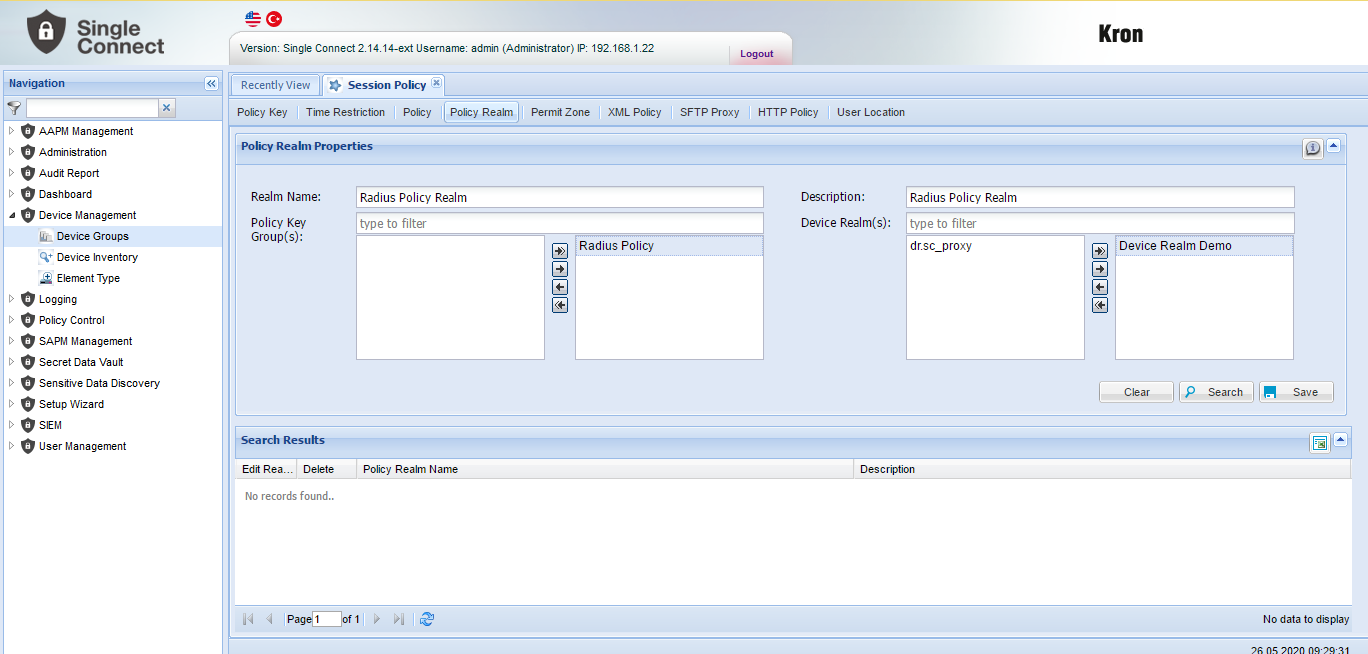
1. Log in to Single Connect 2. Navigate to Policy Control > Session Policy 3. Open the "Policy Realm" tab 4. Type in Realm Name and Description 5. Select the Policy Key Group(s) and the Device Realm(s) 6. Save
MSCAHPv2 Radius Configuration
Please ask consultation from Kron Technical Support [email protected]
Single Connect Server Configurations
Please ask consultation from Kron Technical Support [email protected]
Single Connect GUI Configurations
Single Connect admin should follow the steps below:
1. Log in to the Single Connect Web GUI. 2. Create a user and user group. (See also: Managing User and Managing User Group sections in Admin Guide) 3. Create a device group and add the new device to device group. (See also: Managing Devices) 4. Create a Device Group Realm with the user group defined at step 2 and the device group defined at step 3 (See also: Managing Devices) 5. Define the authenticating secret key as, “globalSecretKey” in the device group properties. (See also: Adding Device Group Properties in Managing Devices) 6. Navigate to Administration > Radius 802.1x Config. 7. Choose an EAP Type (for now only PEAP is available as an EAP type.) 8. Fill in the Certificate Authority PEM, Certificate Private Key PEM and Certificate Private Key
Password fields. (It is not necessary for the information to be correct)
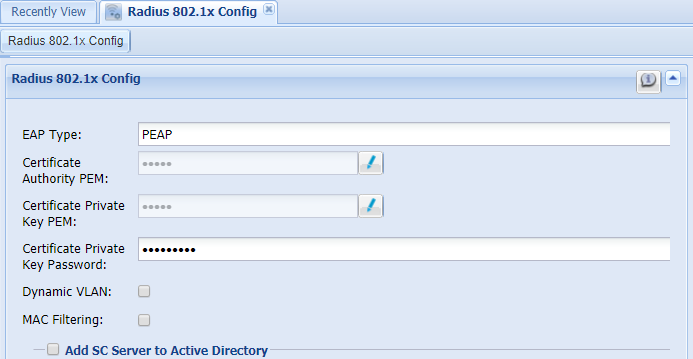
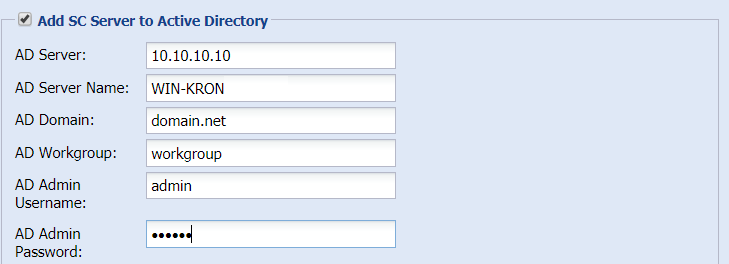
9. Tick the “Add SC Server to Active Directory” and fill in the necessary fields