5 Two-Factor Authentication
This section describes how to configure Two-Factor Authentication.
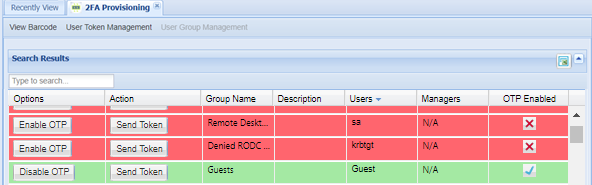
Enable OTP
To active 2FA feature on a user group, follow the steps below
- Log in to the Single Connect Web GUI
- Navigate to Administration > 2FA Provisioning
- Open the “User Group Management” tab
- Click the “Enable OTP” button of user group
Hardware Token Management
Single Connect users can use a hardware token besides SMS and mobile application for 2FA. In this case, system admins should import the hardware token seeds to Single Connect.
To import hardware token seeds and assign hardware token to users
- Log in to Single Connect Web GUI
- Navigate to Administration > 2FA Provisioning > Hardware Token Management
- Enter serial number and base32 seed number of hardware token, username of who is assigned, TOTP algorithm.
- Save configuration to activate hardware token.
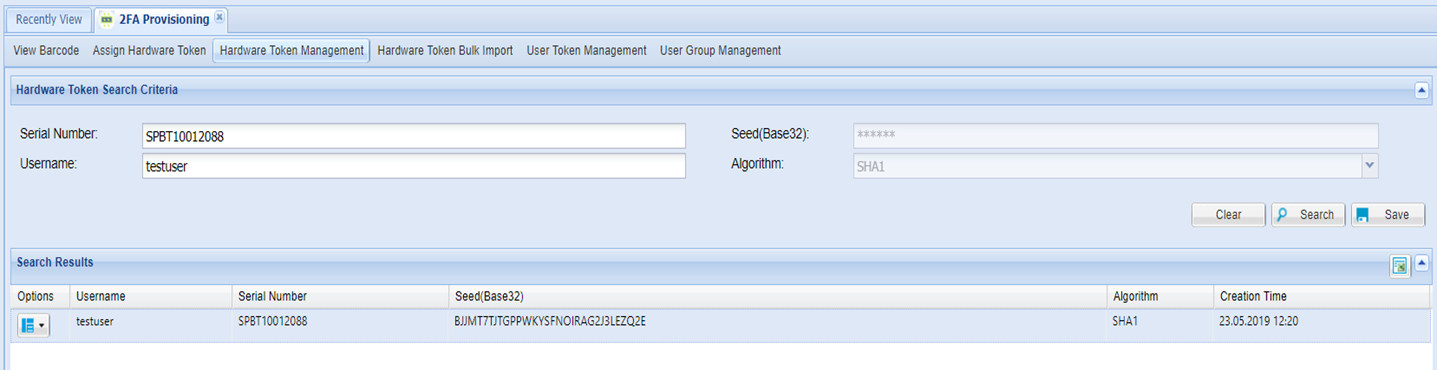
System admins can delete assignment of an existing hardware token and delete hardware token from inventory.
Hardware Token Bulk Import
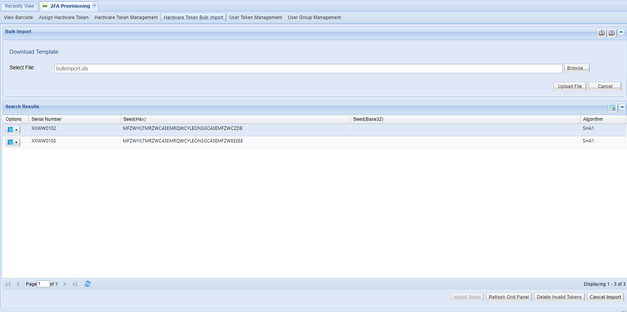
To bulk import hardware tokens into the Single Connect inventory, follow the steps below:
- Log in to Single Connect Web GUI
- Navigate to Administration > 2FA Provisioning > Hardware Token Management
- Download the template and fill the downloaded form.
- Upload the file to Single Connect. Click “Import Token” button to import the hardware tokens.
Assign Hardware Token
Users can assign tokens that have not been assigned to someone before. User access to this menu should be restricted by the portal functions rules.
To assign hardware tokens, users should follow the steps below:
- Log in to the Single Connect Web GUI
- Navigate to Administration > 2FA Provisioning > Assign Hardware Token
- Enter serial number of hardware token
- Save configuration.
OTP System Configuration for Single Connect Web GUI
To activate OTP for the Single Connect GUI login, follow the steps below:
- Log in to the Single Connect Web GUI
- Navigate to Administration > System Config Man.
- Set the required parameters
sc.portal.otp.enabled=true (one time password enabled for GUI Login) otp.rest.url= http://127.0.0.1

Note |
|---|
The rest URL should be set as Single Connect Public IP and port. |
OTP System Configuration for SSH Proxy
Please ask consultation from Kron Technical Support [email protected]
OTP System Configuration for RDP Proxy
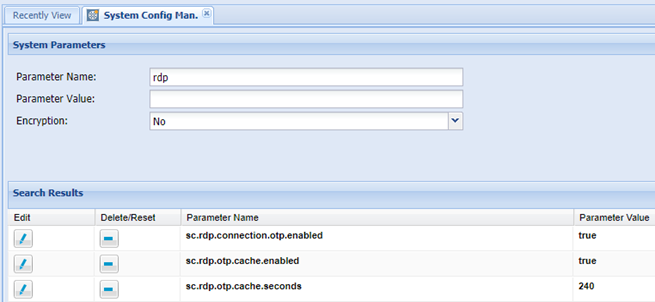
To activate OTP for an RDP connection to target device, follow the steps below:
- Log in to the Single Connect Web GUI
- Navigate to Administration > System Config Man.
- Set the required parameters as;
sc.rdp.connection.otp.enabled=true | one time password enabled for RDP connections |
|---|---|
sc.rdp.otp.cache.enabled=true | If cache parameter activated, user will not be asked for OTP during the cache duration after entering OTP |
sc.rdp.otp.cache.seconds=240 | cache time in seconds |
| |
Offline/Online Mode Settings
To adjust 2FA Offline/Online Settings, follow the steps below;
- Log in to the Single Connect Web GUI
- Navigate to Administration > System Config Man.
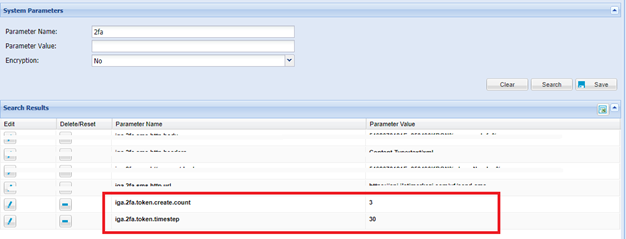
- Enter in the “Parameter Name” as “2fa” and click the search button
- Set the value of the “iga.2fa.token.create.count, iga.2fa.token.timestep” parameters
SMS Settings
To adjust 2FA SMS Settings, follow the steps below;
- Log in to the Single Connect Web GUI
- Navigate to Administration > System Config Man.
- Enter in the “Parameter Name” as “2fa” and click the search button
- Set the value of the “iga.2fa.sms.http.body, iga.2fa.sms.http.headers, iga.2fa.sms.http.secret.body, iga.2fa.sms.http.url, iga.2fa.token.create.count, iga.2fa.token.timestep” parameters
2FA Configuration for VPN Services
Two options available for the VPN 2fa support.
1. Both the first authentication (with username and password) and the secondary authentication (with OTP) are provided via Single Connect. To activate this feature,
- Define the VPN device according to
- Enable OTP on the User Group (Navigate to Administration > 2FA Provisioning > User Group Management)
2. Only the second authentication with OTP is provided via Single Connect. To activate this feature,
- Define the VPN device in Single Connect and define the Device Group Realm with related users (See:
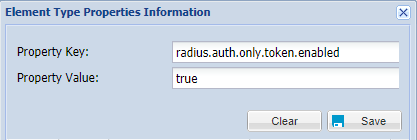
- Define element type property in the element type of the VPN device i. Log in to the Single Connect Web GUI ii. Navigate to Device Management > Element Type iii. Click the Options button of the element type and select Show Properties iv. Set the “radius.auth.only.token.enabled” property with value, “true”