4.2 Managing AAPM (Application to Application Password Management) Accounts
Note |
|---|
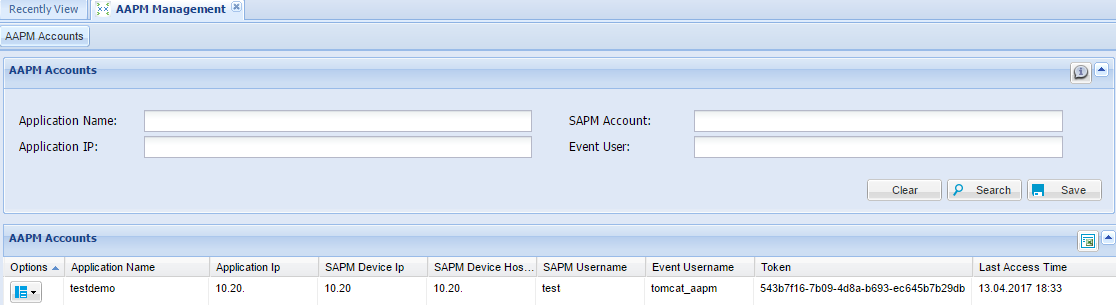
Before configuring AAPM accounts, an SAPM account should be created. |
Adding Accounts in AAPM
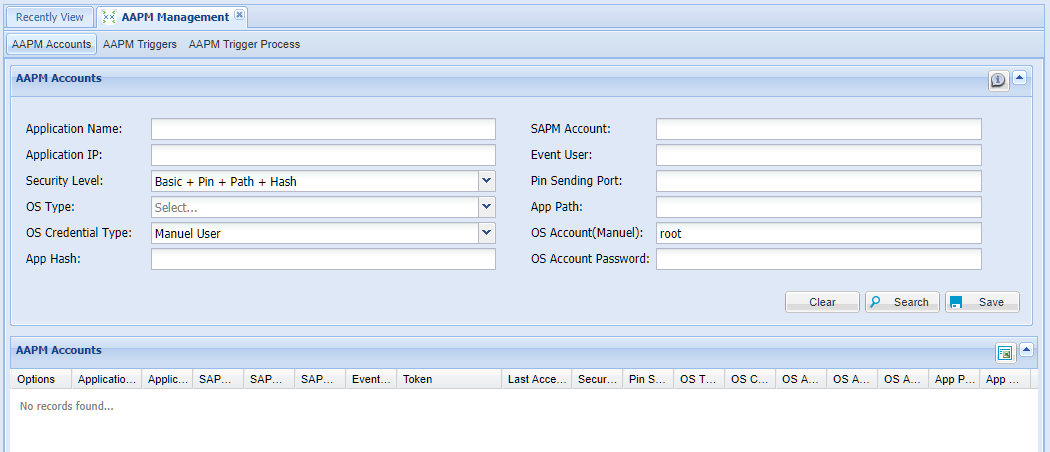
1. Log in to the Single Connect Web GUI 2. Navigate to AAPM Management > AAPM Accounts 3. Enter Application Name, Application IP Address (requester source IP address), SAPM Account, Event User and Security Level 4. Enter optional parameters that appear according to your Security Level choice. Details are described below. 5. Save
Parameter Name | Parameter Value |
|---|---|
Application Name | Name of the application that will request AAPM passwords |
SAPM Account | The SAPM account that will be used in AAPM |
Application IP | IP Address of the requester application |
Event User | The user using the password. (This value is logged in the SAPM logs as the user of the password) |
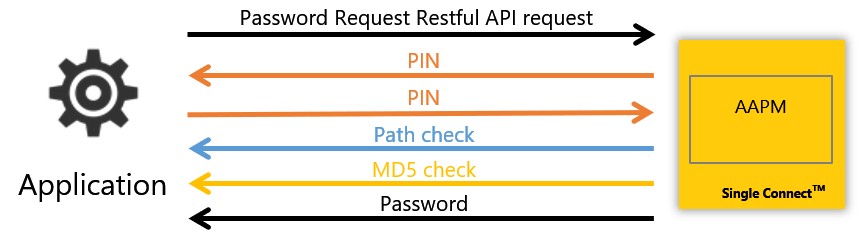
Security Level | The Security Level for the AAPM process. The possible values are; Basic: Default, basic AAPM Flow. The application requests password via API. Single Connect checks application token and source IP, sends the password as the response if everything is OK, Basic + Pin: Application requests password via API, Single Connect checks application token and source IP, if everything is connected it sends the PIN to a specific port. Application sends a second request with the PIN code and gets it. Basic + Pin + Path: Application requests password via API, Single Connect checks application token and source IP, if everything is connected it sends the PIN to a specific port. Application sends a second request with the PIN code, Single Connect checks the path and name of the application and sends the password if it is true. Basic + Pin + Path + Hash: Application requests password via API, Single Connect checks application token and source IP, if everything is connected it sends PIN to a specific port. Application sends a second request with the PIN code, Single Connect checks the path and name of the application, checks the MD5SUM of the application and sends the password if it is true. |
PIN Sending Port | The port of the application that is listened. Single Connect sends the PINto this port. (Used for all Security Levels except Basic level) |
OS Type | The operating system type of the server that hosts the application.Possible values: Windows / Linux / Mac OS (Used for all Security Levels including Path) |
App Path | The path of the application that is using AAPM (Used for all Security Levels including Path) |
OS Credential Type | The credential type that will be used by Single Connect while connectingand checking the path.Possible values: SAPM / Secret Data Vault / Manuel User(Used for all Security Levels including Path) |
OS Account | The name of the account that will be used by Single Connect whileconnecting and checking the path.(Used for all Security Levels including Path) |
OS Account Password | The password of the account that will be used by Single Connect whileconnecting and checking the path.(Used for all Security Levels including Path and applicable for ManualUser OS Credential Type only) |
App Hash | The MD5SUM value of the executable file of the application.(Used for Basic + Pin + Path + Hash Security Level) |
Removing Accounts from AAPM
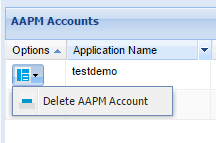
1. Log in to the Single Connect Web GUI 2. Navigate to AAPM Management > AAPM Accounts 3. Click the Options button for the account to be removed 4. Select “Delete AAPM Account”
Requesting Password from AAPM
For requesting a password, Single Connect AAPM Restful API should be used. Each application added to AAPM has a token. AAPM tokens can be displayed on the AAPM Management page.
Restful API Values
token: AAPM Account token passwordExpirationInMinute: Password expiration time comment: Password request comment passwordChangeRequired: Optional parameter with default value set as “false”. If “true”, the password is changed before retrieval, otherwise password is changed after retrieval. pin: The PIN code sent to the application for PIN authentication.
Example AAPM Restful API Request
The first request:
- http://single_connect_url:8080/sc-aapm-ui/rest/aapm/password?token=543b7f16-7b09-4d8a-b693- ec645b7b29db&passwordExpirationInMinute=10&comment=api%20test%20comment
The second request (which is applicable for all Security Levels that require PIN authentication):
http://single_connect_url:8080/sc-aapm-ui/rest/aapm/password?token=543b7f16-7b09-4d8a-b693- ec645b7b29db&passwordExpirationInMinute=10&comment=api%20test%20comment&pin=123456
Example AAPM Restful API Response
x5#OKLE5 (the password)
AAPM Triggers
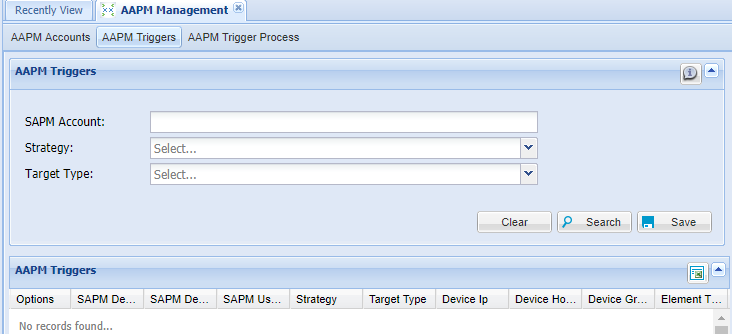
Triggers that are run after an SAPM account password has been changed can be defined at this screen.
1. Log in to the Single Connect Web GUI 2. Navigate to AAPM Management > AAPM Triggers 3. Select the SAPM account that will be used to trigger a strategy after the password change of the SAPM account 4. Select the Strategy (for now only Windows Service Account Password Change is available as a Strategy) 5. Select a target type as either “Single Device” or “Bulk”
AAPM Trigger Process
When an SAPM account’s password changes, an "AAPM Trigger Process" record is created for each matching device, referring to the relevant "AAPM Trigger" definitions. To search for these process records:
1. Log in to the Single Connect Web GUI 2. Navigate to AAPM Management > AAPM Trigger Process 3. Fill in the related fields and Search
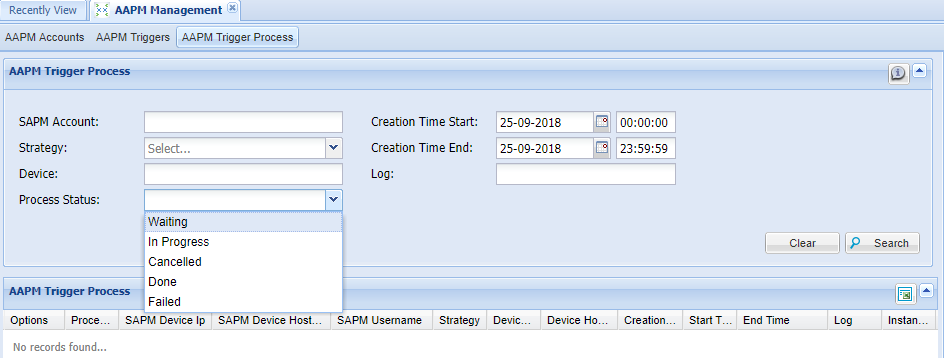
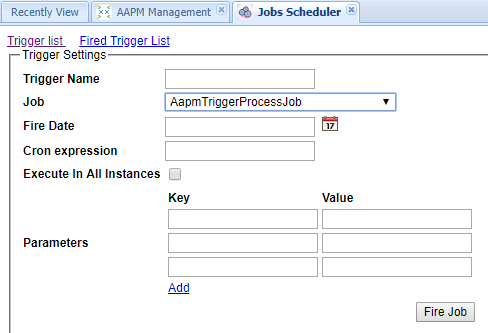
The first step of this process status is “Waiting”. To trigger this process at a requested time, “AapmTriggerProcessJob” must be defined in the Job Scheduler.
1. Log in to the Single Connect Web GUI 2. Navigate to Administration > Jobs Scheduler 3. Click on, "Fire Job" 4. Choose “AapmTriggerProcessJob” and fill in the related areas 5. Click on, “Fire Job”