4.1 Managing SAPM (Shared Accounts Password Management) Accounts
Adding SAPM Configuration
Authorized users can create SAPM accounts. To add an account:
- Log in to Single Connect GUI
- Navigate to SAPM Management > SAPM Management
- Open the Configuration tab
- Enter in name, strategy and description and save
- Click the Search button to see saved configurations
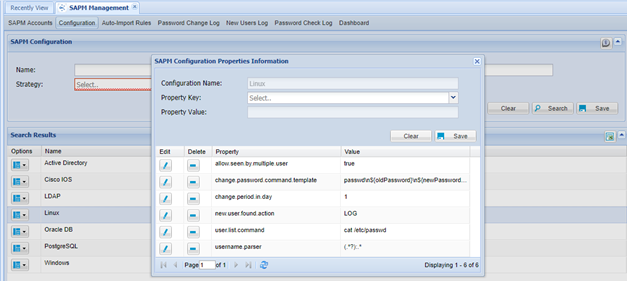
- Click the Option drop-down menu and select Show Properties
- Type related parameters and save
SAPM Configuration Property Key | Description | Pool Value |
|---|---|---|
allow.seen.by.multiple user | When it is set “true”, SAPM password can be seen by other users that are in same user group. As Default, the SAPM password can be seen only by user who get password last. | true/false |
change.password.after.session.login | When set as “true”, SAPM password will be changed just after an RDP session has started by the SingleConnect Session Manager using this SAPM account. As Default, the SAPM password is not changed after being used by the Session Manager. | true/false |
change.password.command.template | Change Password Command Set | Device Type Specific Ex: For a Cisco device; en\n${superPassword}\nconf t\nline con 0\npassword ${newPassword}\nline vty 0 4\npassword ${newPassword}\nline vty 5 15\npassword ${newPassword}\nenable secret ${newPassword}\nend\nwr me\nexit |
change.password.failure.pattern | When “Change Password” execution failed, output message can be set. | Device Type Specific Ex: For Cisco device; % Invalid input detected.* |
change.password.only.at.change.period | When set as “true”, no duration information is requested from the user, only comments will be requested, the password will not be changed after checkout, others will be able to checkout the same password until next periodic change As Default, the duration is requested from the user and password is changed after the checkout. | true/false |
change.password.script.template | The expect script which is used for changing the password | Expect script |
change.password.success.pattern | When “Change Password” execution is successful, output message can be set. | Device Type Specific |
change.password.with.domain | When it is set “true”, domain name is included in the command sent to AD servers for AD user password changes. As Default, it is false, and the domain name is not included in the command sent to AD servers for AD user password change. | true/false |
change.period.in.day | Period to change password (unit:day) If “Change Period (day)”is not set at SAPM Accounts Tab, “change.period.in.day” Parameter value at Configuration tab is used for changing password. If both “Change Period” at SAPM Account and “change.period.in.day” Parameter value at Configuration are not set, error is occurred when changing password. | Integer (unit:day) |
change.period.in.minute.on.fail | Period to attempt to change password again when periodic password change is failed | Integer (unit:minutes) |
check.new.users.with.super.user | Discovering New Users (that is created in the sapm device) with Administrative user | true/false |
check.password.command.template | Command Set for Checking Password validity | Device Type Specific |
check.password.success.pattern | When “Check Password” execution is successful, output message can be set. |
|
check.password.validation | Enable/Disable Password validity check | true/false |
check.password.with.super.user | Checking Password validity with Administrative user | true/false |
connection.timeout | Timeout duration for connection | Integer (unit:second) |
database.driver | Database driver to manage password for database | Oracle/Postgresql/MsSQLServer/MySQL/Cassandra Driver oracle.jdbc.driver.OracleDriver/org.postgresql.Driver/me=TestDB com.microsoft.sqlserver.jdbc.SQLServerDriver/ com.mysql.jdbc.Driver/org.apache.cassandra.cql.jdbc.CassandraDriver |
delete.list.script.template | The expect script which is used for deleting the users | Expect script |
delete.user.command.template | Command Set for Deleting User | Device Type Specific |
execute.post.command.with.super.user | Executing "post.command" that is defined in a property with Administrative user | true/false |
file.path | when "FILE" is chosen as strategy, target file path must be defined to change password Both "file.regex.to.match" and "file.regex.to.replace" parameters are required. | Device Type Specific |
file.regex.to.match | Define a regex to match password field Both "file.path" and "file.regex.to.replace" parameters are required |
|
file.regex.to.match | When the "file.regex.to.match" matches password field, replace it with this property value Both "file.regex.to.match" and "file.path" parameters are required |
|
http.change.password.body | Password change body for http request |
|
http.change.password.headers | Password change headers for http request |
|
http.change.password.method | Password change method for http request |
|
http.change.password.url | Password change URL for http request |
|
http.check.password.body | Password check body for http request |
|
http.check.password.headers | Password check headers for http request |
|
http.check.password.method | Password check method for http request |
|
http.check.password.url | Password check URL for http request |
|
http.delete.user.body | user deleting body for http request |
|
http.delete.user.headers | user deleting header for http request |
|
http.delete.user.method | user deleting method for http request |
|
http.delete.user.success.pattern | When “Deleting user” execution is successful, output message can be set for http request |
|
http.delete.user.url | user deleting URL for http request |
|
http.user.list.body | user list body for http request |
|
http.user.list.headers | user list headers for http request |
|
http.user.list.method | user list method for http request |
|
http.user.list.url | user list URL for http request |
|
ldap.base.dn | Basic LDAP domain Ex: OU=TestUser,DC=kron,DC=local |
|
ldap.domain | Domain name which will be included in the command sent to AD servers for AD user password changes, when change.password.with.domain property is set as “true” | Domain Name |
ldap.ignore.certificate | Ignore certificate for LDAP/AD setting | true/false |
Ldap.password.attribute.name | Configuration property for LDAP/AD If there is no exception it is "userPassword" |
|
ldap.username.dn.template | Configuration property for LDAP/AD CN=${username},DC=example,DC=com |
|
new.password.encryption.key | Define key when "new.password.encryption.method" is chosen as AES. | Device Specific |
new.password.encryption.method |
| CLEAR/MD5/AES/UNICODE_ENCLOSED_IN_DOUBLE_QUOTES |
new.user.exception.list | Don't list these users at new user list |
|
new.user.found.action | To Enable some functionality when new user is found | LOG/NOTHING/DELETE/LOG_AND_DELETE |
password strength.symbol.chars | To define Symbol Char Pool Value | Custom Ex: !"#$%&'()*+,-./:;<?@[\]^_`{|}~ |
password.strength.lowercase.count | Exact number for Lowercase which must be included in password. | Integer |
password.strength.number.count | Exact number for Lowercase which must be included in password. | Integer |
password.strength.symbol.count | Exact number for Symbol which must be included in password. | Integer |
password.strength.uppercase.count | Exact number for Uppercase which must be included in password. | Integer |
post.command | After successfully password changed, multiple commands separated by \n can be written to execute on the server. | Device Type Specific |
post.command.failure.pattern | If the pattern is found in command results of the “post-command”, the command is accepted as "FAILED". Then, command execution is stopped, and remaining commands are not executed. | Device Type Specific |
post.command.stop.on.fail | When the property value is set as “true”, if any failure is occurred, remaining commands are not executed. Default value is “false” | true/false |
skip.password.validation.after.change | For TACACS device it must be True. | true/false |
ssh.port | Define port number when Strategy value is "SSH" | Device Type Specific |
super.password | Password of super user who has administration grant for other users. The value must be set when one of "****with.superuser" property is set. | Device Specific |
super.username | Username of super user who has administration grant for other users. The value must be set when one of "****with.superuser" property is set. | Device Specific |
target.url.template | Destination AD/LDAP URL for Active Directory user | Device Specific |
user.list.command | Command to pull user list Ex: cat /etc/passwd | (objectClass=user) |
user.list.script.template | The expect script which is used for checking the new users | Expect script |
username.parser | Pattern to find usernames after users listed. | Device Type Specific Ex: (.*?):.* |
Duplicating SAPM Configuration
Users can duplicate an SAPM Configuration with all properties. To duplicate an SAPM Configuration:
- Log in to Single Connect GUI
- Navigate to SAPM Management > SAPM Management
- Open the Configuration tab
- Click the Search button to see saved configurations
- Click the Option drop-down menu and select Duplicate
- Type the new name, select Strategy and save
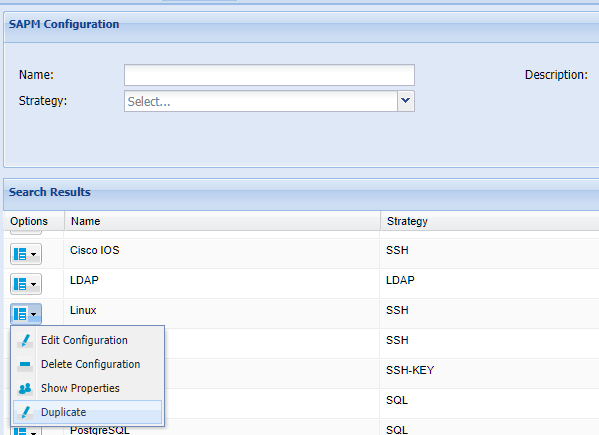
After saving, a duplicate configuration will be created. Users can edit the properties for the new configuration later.
Configuration to Show Password to Multiple Users
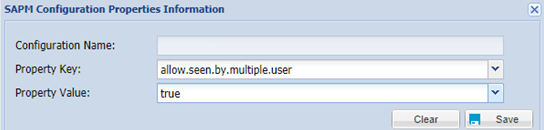
If an SAPM password is to be seen by the same user group at the same time, the "allow.seen.by.multiple.user" property must be set.
Configuration to Execute Commands After Changing Password
After changing passwords, executing some commands may be need. For these commands to be executed, the following properties must be set in SSH and SMB strategy:
post.command | After successfully changing the password, multiple commands separated by “\n” can be written to execute on the server. |
|---|---|
post.command.failure.pattern | If the pattern is found in the command results of the “post-command”, command execution is stopped and the remaining commands are not executed. |
post.command.stop.on.fail | When the property value is set as “true”, if any failure occurs, the remaining commands are not executed. Default value is “false” |
execute.post.command.with.super.user | When the property value is set as “true”, commands are executed by the superuser. Default value is “false” |
Note |
|---|
Last command in the “post.command” property must be a logout command for an “SSH” strategy. |
Example for Windows | Example for Linux | | |
|---|---|---|---|
post.command | net stop Dnscache\nnet start Dnscache | post.command | systemctl restart rsyslog\nlogout |
post.command.failure.pattern | .*invalid.* | post.command.failure.pattern | .*Failed.* |
post.command.stop.on.fail | false | post.command.stop.on.fail | true |
execute.post.command.with.super.user | true | execute.post.command.with.super.user | true |
Configuration to Reminder for Changing Password
A reminder can be set before the password change date arrives. To set a “password change reminder day” follow the steps below;
- Log in to the Single Connect GUI
- Navigate to SAPM Management > SAPM Management
- Open the Configuration tab
- Click the Search button to see saved configurations.
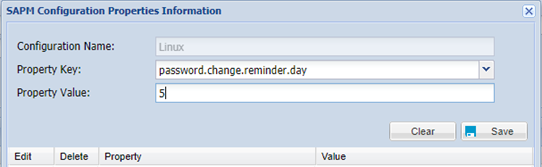
- Click the Option drop-down menu of the related configuration and select Show Properties
- Set the
Note |
|---|
The reminder mail is sent to “SapmMailList” that is defined in the Device Group Properties |
Adding Accounts in SAPM
Authorized users can create SAPM accounts. To add an account:
- Log in to the Single Connect GUI
- Navigate to SAPM Management > SAPM Management
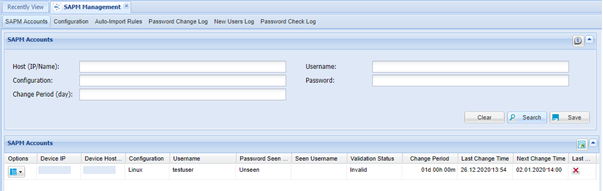
- Open the SAPM Accounts tab
- Enter the host, user name, password, change period and configuration name.
- Save
Note |
|---|
If “Change Period (day)”is not set at the SAPM Accounts Tab, then the “change.period.in.day” parameter value in the Configuration tab is used for changing the password. If both “Change Period” for the SAPM Account and the “change.period.in.day” parameter value are not set at configuration, an error occurs when changing the password. |
Adding Cluster Accounts in SAPM
Firstly, an SAPM account is defined for an active cluster node. Then, other nodes are defined as below;
- Log in to the Single Connect GUI
- Navigate to SAPM Management > SAPM Management
- Open the SAPM Accounts tab
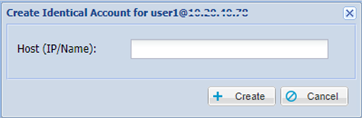
- Select the defined active node SAPM account and click the “Options” button of the account
- Select the “Create Identical SAPM Account” option and enter the other node IP Address of the cluster
Note |
|---|
In this “adding” step, connection to device is not established. Password of the first SAPM Account of the cluster is assigned automatically to the identical accounts. |
Note |
|---|
Proper regular expression is defined for the "change.password.failure.pattern" property in SAPM configuration to prevent password change on passive nodes. |
To search identical accounts:
- Log in to the Single Connect GUI
- Navigate to SAPM Management > SAPM Management section
- Open the SAPM Accounts tab
- Select an SAPM account and click the “Options” button of the account
- Select the “Show Identical SAPM Account” option
SSH Key Rotation by SAPM
SSH Keys can be changed by SAPM module periodically. To add an SSH key:
- Log in to the Single Connect GUI
- Navigate to SAPM Management > SAPM Management
- Open the SAPM Accounts tab
- Enter Host, Change Period and Username.
- Select “Linux SSH Key” as Configuration. This changes the Password field to “RSA Private Key” field.
- Make an SSH session towards the target device and copy the contents of /home/<username>/.ssh/id_rsa (or any other path that includes the RSA Private Key for the user) file.
- Paste into “RSA Private Key” field.
- Click “Save”.
- Confirm the dialog box.
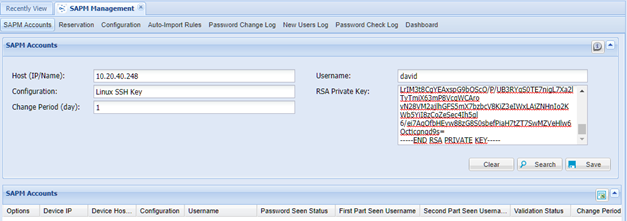
The SAPM account will be saved and listed in the SAPM Accounts part. From this moment on, the SSH Key will be changed periodically.
Checking out and resetting SSH Key works just like the normal SAPM accounts.
Adding Auto Import Rules
If there are a lot of devices that have the same username and password, the function can be used to add SAPM Account.
- Log in to the SingleConnect Web GUI
- Navigate to SAPM Management > SAPM Management
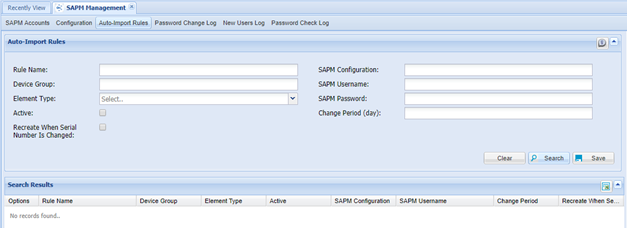
- Open the Auto Import Rules tab
- Enter the rule name, device group, element type, SAPM configuration, SAPM username, password, and change period
- Save
Note |
|---|
To change the number of threads that are running the SAPM Auto Import jobs, the “sapm.job.password.change.thread.count” parameter should be changed in Administration > System Config Man. page. The default value is 5. |
Adding Permissions to SAPM Accounts
Different authorization levels can be defined to SAPM accounts. To set permissions to accounts;
- Log in to the Single Connect Web GUI
- Navigate to SAPM Management > SAPM Management
- Open the SAPM Accounts tab
- Select the account to set permissions, click the Options button, and then click the Permissions button.
- Select the user group and permission.
- Save
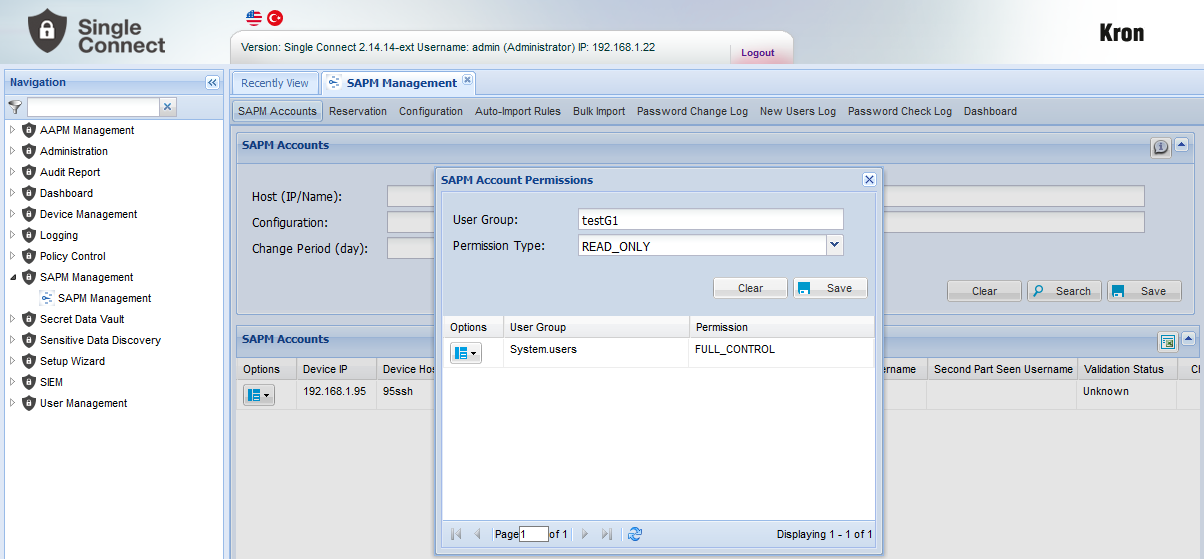
Permission Types: READ_ONLY: These users only have the authority to see the SAPM password.
FULL_CONTROL: Users who have full control permission are admins of this SAPM account. These users have full authority such as resetting, changing the password, and giving permission to users.
READ_ONLY_FIRST_PART: These users have only authority to see the first half of the SAPM password.
READ_ONLY_SECOND_PART: These users have only authority to see the second half of the SAPM password.
One user can be a member of multiple user groups with different rights. In this case following order will be used: FULL_CONTROL > READ_ONLY > READ_ONLY_FIRST_PART > READ_ONLY_SECOND_PART
This means that if a user has FULL_CONTROL and READ_ONLY rights, they will have the FULL_CONTROL right which is superior. If they have the READ_ONLY_FIRST_PART and READ_ONLY_SECOND_PART rights, they will get the first part of the password.
Create a One-Time Password
- Log in to the Single Connect Web GUI
- Navigate to SAPM Management > SAPM Management
- Open the SAPM Accounts tab
- Select the user who will see the one-time password
- Specify the reason for accessing the password (optional)
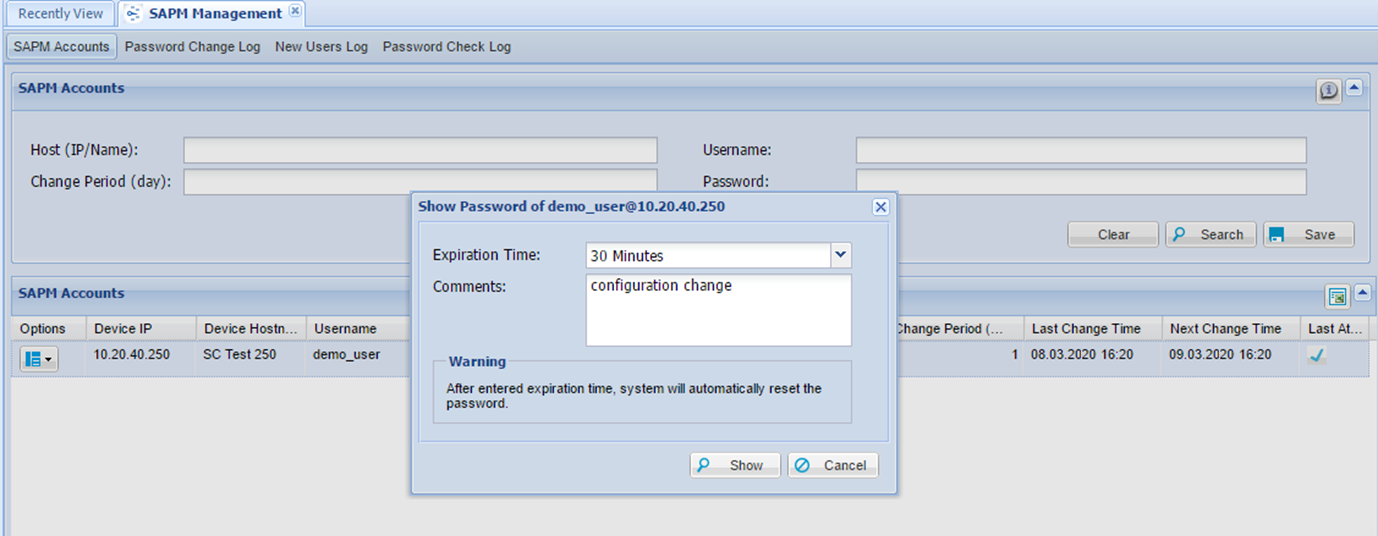
- From the User Options drop-down menu, and select Show Password
- A Pop-up appears to choose the expiration time
Change Account Password Manually
- Log in to the Single Connect Web GUI
- Navigate to SAPM Management > SAPM Management
- Open the SAPM Accounts tab
- Select the user for the password to be changed
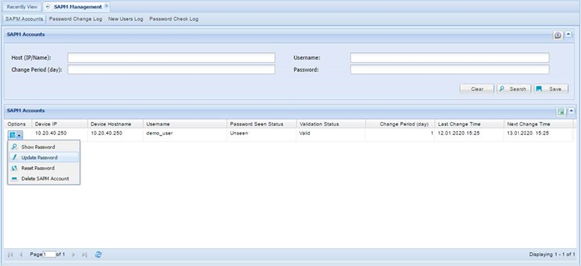
- From the User Options drop-down menu, click Update Password which will open the Update Password window
- Update the password by entering the current and new password, then click update.
Reset Account Password
- Log in to the Single Connect Web GUI
- Navigate to SAPM Management > SAPM Management
- Open the SAPM Accounts tab
- Select the account to reset the password of
- From the Account Options drop-down menu select Reset Password
- Confirm the operation from the dialog box by clicking “Yes”
- Password is reset.
Checking New Users
SAPM can check new users in a server after adding at least one SAPM account in the server. To do this:
- Log in to the Single Connect Web GUI
- Navigate to SAPM Management > SAPM Management
- Click the Search button
- After the accounts are listed, click Options button for one of the accounts
- Click “Check New Users” in the menu
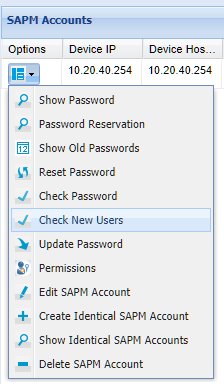
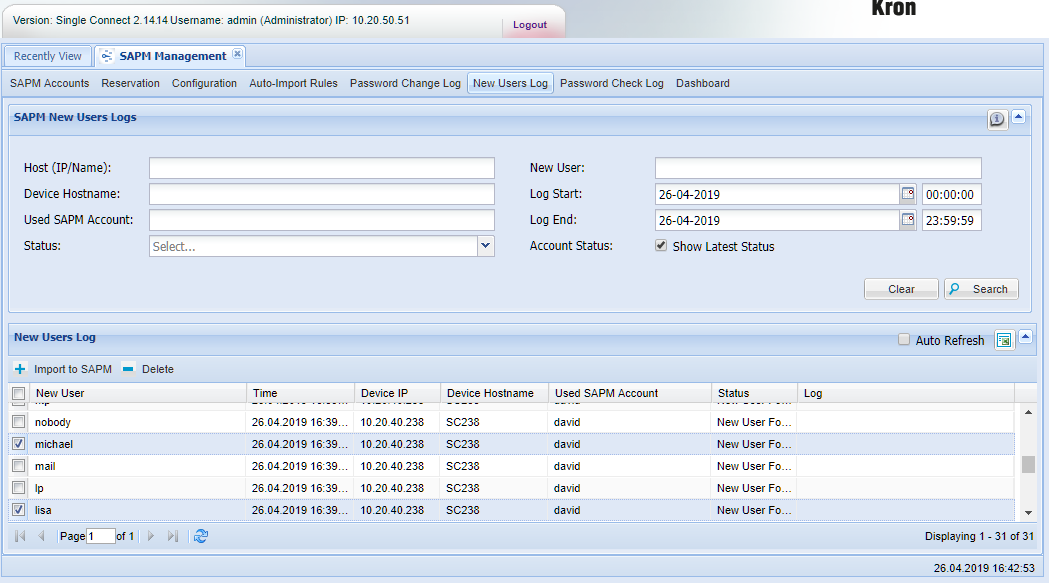
SAPM will check the users and a pop-up will inform the user about the process. After that, the new user list can be viewed:
- Open the New Users Log tab
- Fill in the fields to filter
- Click the Search button
Importing New Users to SAPM
New users can be imported to SAPM using New Users Log screen. To do this:
- Complete Checking New Users steps described above
- Open New Users Log tab
- Fill the search fields and click Search
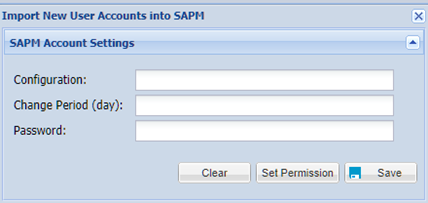
- Select the users to be imported by clicking selection boxes (The users that will be imported together should have the same password)
- Click Import to SAPM button
- Fill Configuration, Change Period and Password fields and Save.
Deleting New Users
New users can be deleted using New Users Log screen. To do this:
- Complete Checking New Users steps described above
- Open New Users Log tab
- Fill the search fields and click Search
- Select the users to be deleted by clicking selection boxes
- Click Delete button
Display Password Check Log
- Log in to the Single Connect Web GUI
- Navigate to SAPM Management > SAPM Management
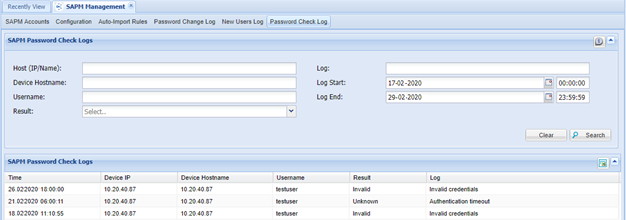
- Open the Password Check Log tab
- Fill in the fields to filter
- Click the Search button
Display Password Change Log
- Log in to the Single Connect Web GUI
- Navigate to SAPM Management > SAPM Management
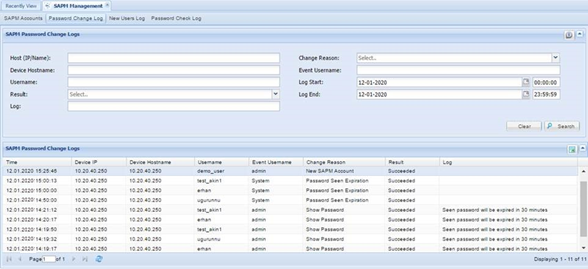
- Open the Password Change Log tab
- Fill in the fields to filter
- Click the Search button
Display Password History Log
- Log in to the Single Connect Web GUI
- Navigate to SAPM Management
- Open the SAPM Accounts tab
- Select the account to see the password history of
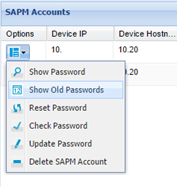
- Click the Options button and select Show Old Passwords
SAPM Dashboard
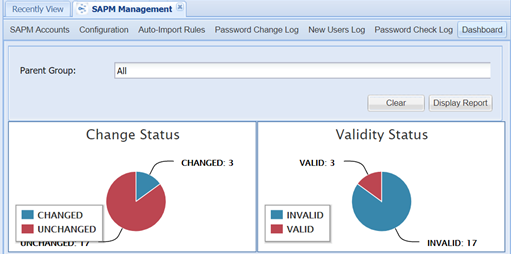
The SAPM Dashboard shows a graphical report of validity and the change status of the password of SAPM Accounts in a Parent device group. Managers can only access reports of device groups which they are authorized to see.
- Log in to the Single Connect Web GUI
- Navigate to SAPM Management > SAPM Accounts
- Open the SAPM Dashboard tab
- Choose the Parent Group to show the graphical report for
Managing Passwords in a File
The Single Connect SAPM Module can change passwords in a specific file.
- Log in to the Single Connect Web GUI
- Navigate to Device Management > Element Type
- Create a new element type or edit one of the existing types.
- Set the element properties described below, then create an SAPM account
sapm.password.change.strategy
sapm.change.password.with.super.user
sapm.super.username
sapm.super.password
sapm.file.path
sapm.file.regex.to.match
sapm.file.regex.to.replace
SAPM Notifications Settings
SAPM Mail List Notifications
- Log in to the Single Connect Web GUI
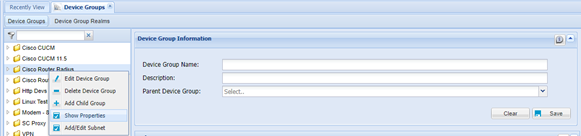
- Navigate to Device Management > Device Groups
- Right-click the device group containing the device of interest and select “Show Properties”
4.On the “Device Group Properties Information” screen, select the “sapmMailList” as the “Property Key” and enter the e-mail information
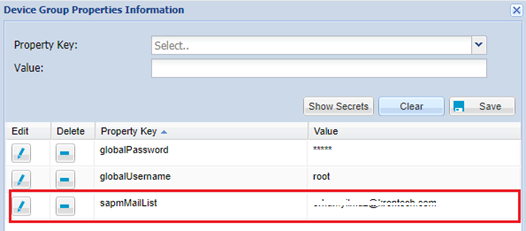
- When a user retrieves a password for an SAPM account, “sapmMailList” is notified.
- If an error occurs during resetting the password of an SAPM account, a "Password Reset Failed" e-mail is sent to “sapmMailList”.
- If the password cannot be verified while checking the password of an SAPM account periodically, a "Password Check Problem" e-mail is sent to “sapmMailList”.
- If a new user is detected on a device that has an SAPM account, a "New user(s) found" e-mail is sent to “sapmMailList”. (The new user detection feature depends on the configuration there for It can be disabled for specific accounts.)
Password Retrieval Approval Notifications
- Log in to the Single Connect Web GUI
- Navigate to Policy Control > Portal Functions
- Open the Function Group Definition tab.
- Enter the Function Group Name then select Function as,
- Open the “Realm Definition” Tab
- Set the realm for the user group and the SAPM approval function.
When a user (who retrieves a password with only administrator approval) requests to retrieve the SAPM password, a "SAPM Password Approval Request" e-mail is sent to the below list:
- User groups that has the “single.connect.sapm.admin” and the “single.connect.sapm.network.admin” portal functions
single.connect.sapm.admin | Grants rights to manage all SAPM accounts and view all logs |
|---|---|
single.connect.sapm.network.admin | Grants rights to manage and view all accounts of devices defined to the user |
- User groups with the FULL_CONTROL permission for the SAPM Account that requested the approval
Password Retrieval Second-Level Approval Notifications
The users whose password retrieval requests need two-level approvals should have an “SAPM Second Level Approval Requirement” function group defined in their Portal Functions Realm. To do so, these steps should be followed:
- Log in to the Single Connect Web GUI as an admin
- Navigate to Policy Control > Portal Functions
- Set the realm between the “SAPM Second Level Approval Requirement” function group and the user group of the user that will need the second-level approval.
When a user, who retrieves a password with two-level approval, requests to retrieve the SAPM password, "SAPM Password Approval Request" e-mail is sent to the list below:
- User groups that have “single.connect.sapm.admin” and “single.connect.sapm.network.admin” portal functions
single.connect.sapm.admin | Grants rights to manage all SAPM accounts and view all logs |
|---|---|
single.connect.sapm.network.admin | Grants rights to manage and view all accounts of devices defined to the user in device group realms |
- User groups with the FULL_CONTROL permission for the SAPM Account that requested the approval
So, the following steps should be followed:
- Log in to the Single Connect Web GUI as an admin
- Navigate to Policy Control > Portal Functions.
- Set the realm between the “SAPM Admin” function group and the user group of the user that will be able to give “first approval” for all password retrieval requests AND/OR Set the realm between the “SAPM Network Admin” function group and the user group of the user that will be able to give “first approval” for all password retrieval requests coming for the devices in their Device Group Realms only.
If a user from these lists approve the initial request, an "SAPM Password Approval Request" e-mail is sent to the second-level approvers, which are provided in the list below:
- User groups that have the “single.connect.sapm.secondlevel.admin” and “single.connect.sapm.network.admin” portal functions
single.connect.sapm.secondlevel.admin | Grants rights to give second level approval for all SAPM accounts and view all logs |
|---|---|
single.connect.sapm.secondlevel.network.admin | Grants rights to give second level approval for all accounts of devices defined to the user device group realms |
So, the following steps should be followed:
- Log in to the Single Connect Web GUI as an admin
- Navigate to Policy Control > Portal Functions.
- Set the realm between the “SAPM Second Level Admin” function group and the user group of the user that will be able to give second approval for all password retrieval requests AND/OR Set the realm between the “SAPM Network Admin” function group and the user group of the user that will be able to give second-level approval for all password retrieval requests coming for the devices in their Device Group Realms only.
If a user from these lists approves the second-level request, the requester receives an e-mail and can proceed to password checkout.
If any of the authorizers deny the request, informational e-mails are sent to all participants, and the request gets terminated.
Future Date Reservation
Password retrieval for an SAPM Account can be reserved for a future date. These steps should be followed for future date reservation:
- Log in to the Single Connect Web GUI
- Navigate to SAPM Management > SAPM Management
- Open the SAPM Accounts tab
- Click the “Search” button to search for the accounts
- Click the “Options” button for the account whose password will be reserved
- Select “Password Reservation” from the drop-down menu
- From the pop-up menu, specify Start Time, Reservation Duration, Reminder, Comments, and First part and Second Part users, if “Split Password” is applied for the account
- Click Reserve
- Reservation will appear in the Search Results
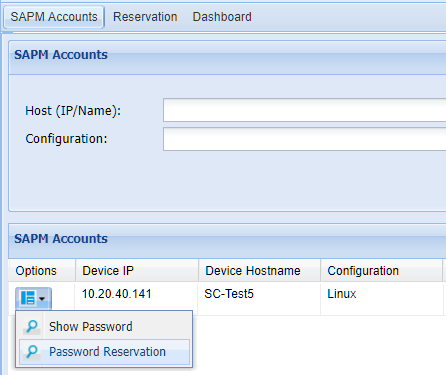
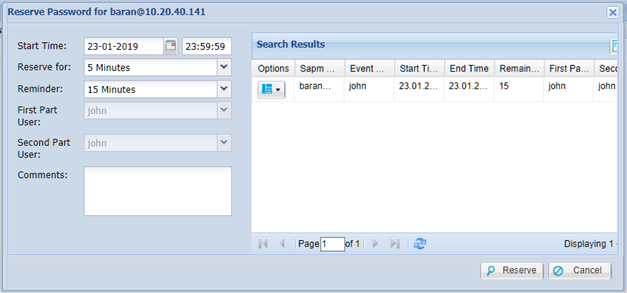
If one or two-level approval is applied for the user, then the approvers should approve reservation before the user gets the password.
If all approvals are completed, the user gets a reminder e-mail at reminder time and gets the password e-mail at reservation time
The past and future reservations can be searched in the “Reservation” tab. In order to delete any of them:
- Click the “Options” button near the reservation.
- Select “Delete reservation”
Note |
|---|
Password Reservation works only when the SAPM_passwordReservation job is triggered periodically. |
Split Password Feature
In order to secure the two-part approval process, the password of an SAPM account can be split in to two and be retrieved by different users. After placing the users in different user groups, these steps should be followed:
- Log in to the Single Connect Web GUI as an admin user
- Navigate to Device Management > Device Groups
- Open the “Device Group Realms” tab
- Create the Device Group Realm between the user groups and the device group containing the target device
- Navigate to SAPM Management > SAPM Management
- Search for the accounts
- Click the “Options” button for the SAPM account
- Select “Permissions” to open the permissions pop-up window
- Define the “READ_ONLY_FIRST_PART” permission type for the user group that will receive the first part of the password
- Define the “READ_ONLY_SECOND_PART” permission type for the user group that will receive the second part of the password
- Close the permissions pop-up window
- Navigate to Policy Control > Portal Functions
- Create a portal realm with the “SAPM Management” function group for both user groups.
After completing these steps, the users log in and retrieve their parts of the password from the SAPM Management section like normal password retrieval. They can log in to the target system using the SAPM username and the password combined in the correct order.
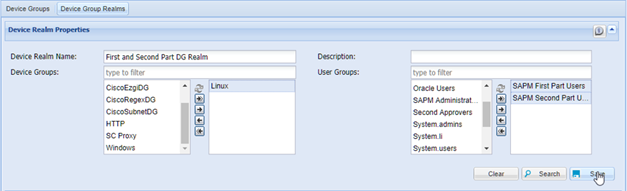
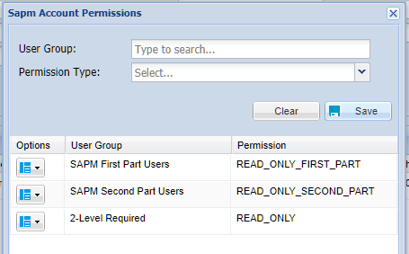
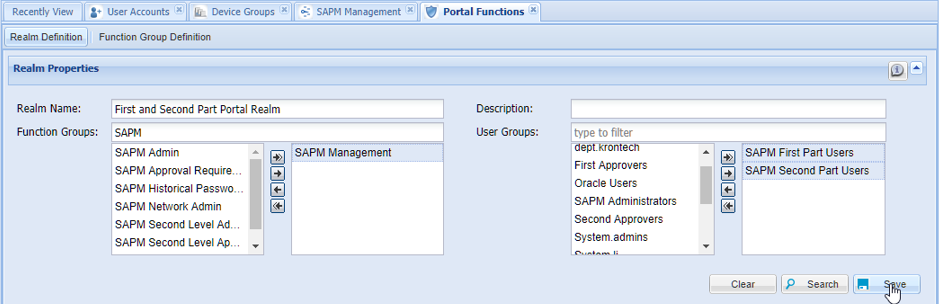
If one or two-level approval is applied for the user, the user will get the related part in the e-mail when the approval process is completed.