3.4.2 Dynamic Data Masking
For dynamic data masking, the database must be defined on Single Connect with credentials to get schema, table and column names.
Creating Datasource
1. Log in to the Single Connect GUI 2. Navigate to Administration > Datasource Manager 3. Enter the Datasource name, description, connection URL, username and password 4. Click on the Test Connection button to test and the Save button to save the connection information
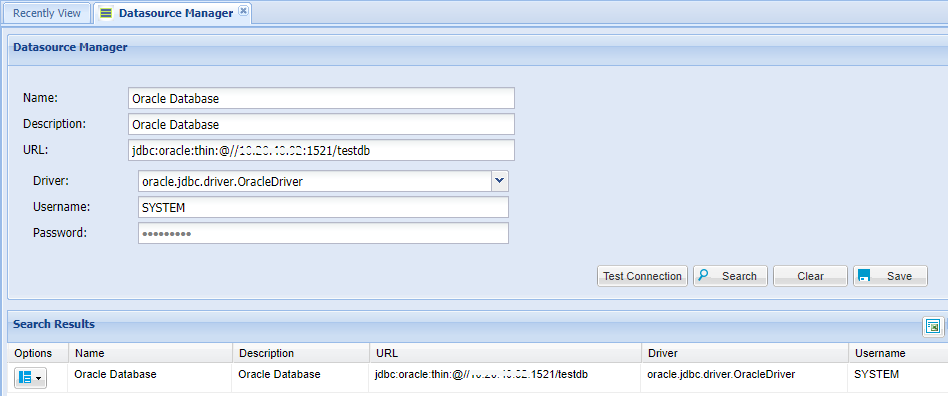
The following system configuration parameter should be set for the driver option;
1. Log in to the Single Connect Web GUI 2. Navigate to the Administration > System Config Man. 3. Set the “aioc.available.jdbc.drivers” parameter with requested database types separating by with a “,” comma
Parameter Name | Parameter Value |
|---|---|
aioc.available.jdbc.drivers | oracle.jdbc.driver.OracleDriver, org.postgresql.Driver, com.microsoft.sqlserver.jdbc.SQLServerDriver, com.mysql.jdbc.Driver, org.apache.cassandra.cql.jdbc.CassandraDriver, com.teradata.jdbc.TeraDriver, org.postgresql.Driver |
URL formats for database types:
• MYSQL
jdbc:mysql://ipaddress:port/dbname
Ex: jdbc:mysql://10.20.30.40:3306/testdb
• CASSANDRA
jdbc:cassandra://ipaddress:port/dbname
Ex: jdbc:cassandra://10.20.30.40:9160/testdb
• ORACLE
jdbc:oracle:thin:@//ipaddress:port/dbname
Ex: jdbc:oracle:thin:@//10.20.30.40:1521/testdb
• MSSQL
jdbc:sqlserver:// ipaddress:port;databaseName=dbname
Ex: jdbc:sqlserver://10.20.30.40:1433;databaseName=testdb
• TERADATA
jdbc:teradata://10.20.30.40/database=testdb
• POSTGRESQL
jdbc:postgresql://10.20.20.40:5432/xdb
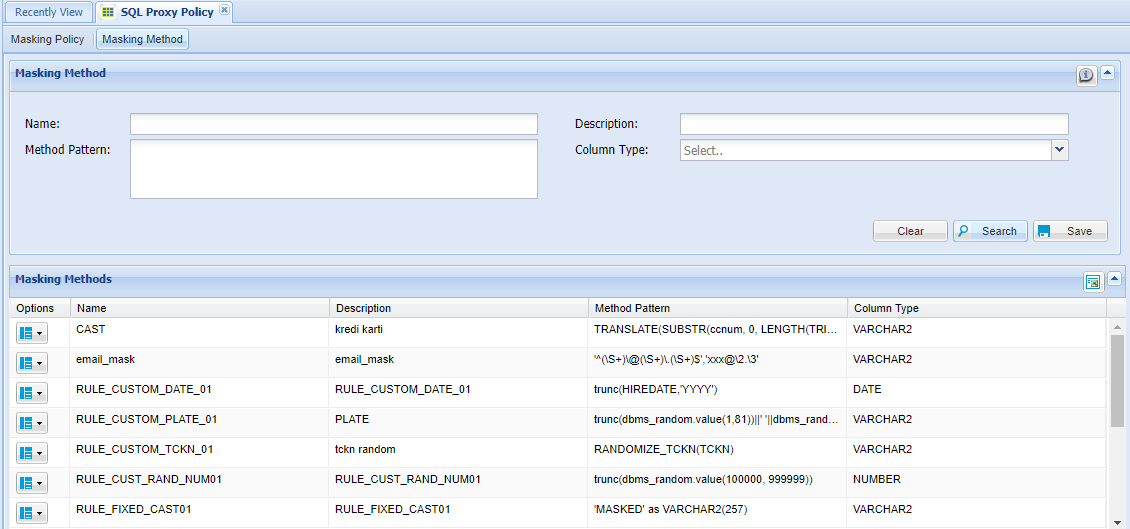
Creating a Masking Method
1. Log in to the Single Connect GUI 2. Navigate to Policy Control > SQL Proxy Policy 3. Open the "Masking Method" tab 4. Enter the masking name, description, column type and masking pattern 5. Save
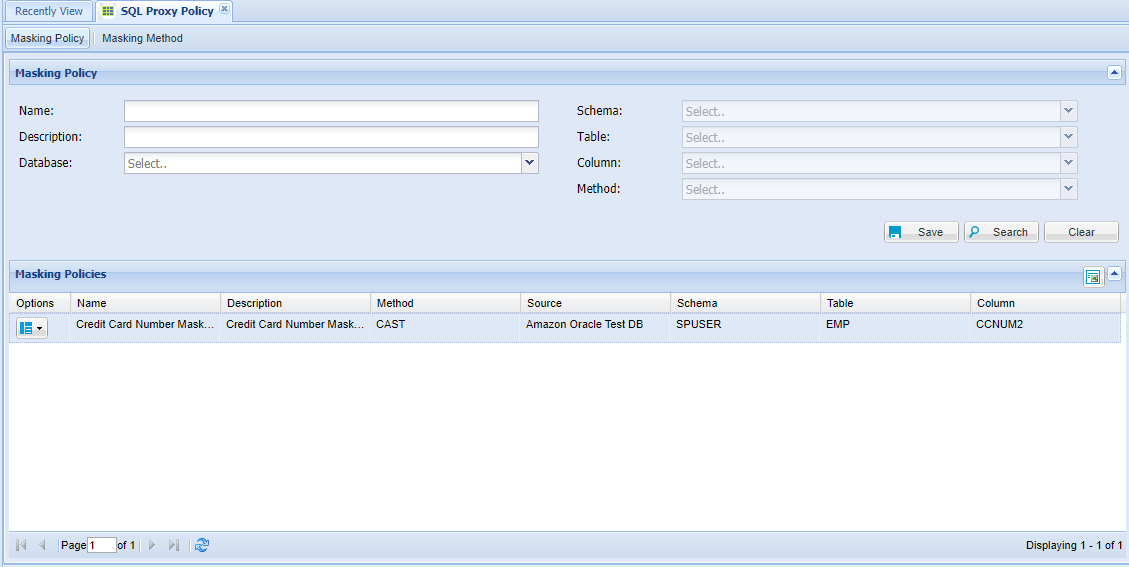
Creating a Masking Policy
1. Log in to the Single Connect GUI 2. Navigate to Policy Control > SQL Proxy Policy 3. Open the "Masking Policy" tab 4. Enter masking name, description, database name, schema, table, column and masking method 5. Save
Creating a Policy Group
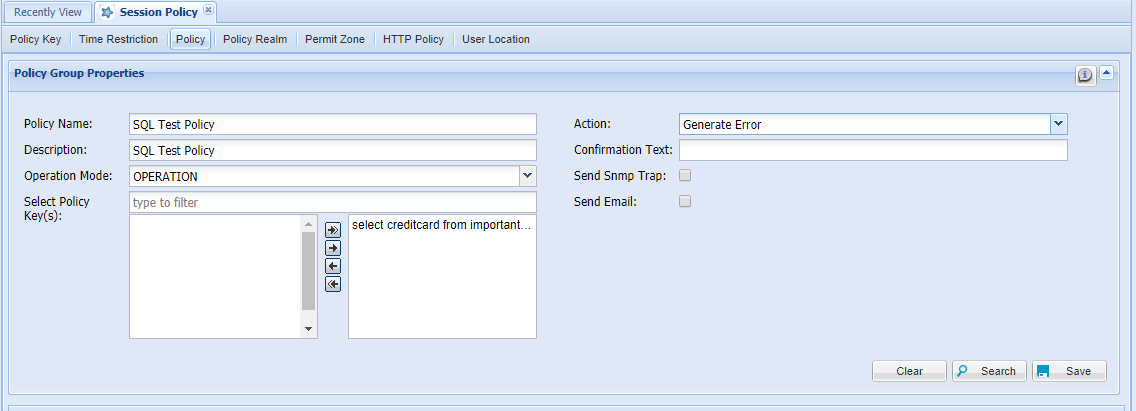
1. Log in to the Single Connect GUI 2. Navigate to Policy Control > Session Policy 3. Open the “Policy Group” tab 4. Enter Policy Group name and select the policy/policies and masking rule(s) 5. Select the operation mode and action type 6. Save
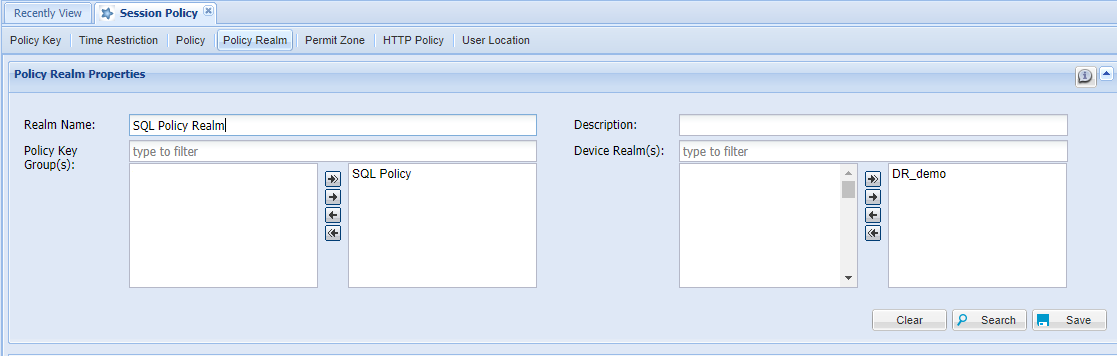
Creating a Policy Realm
1. Log in to the Single Connect GUI 2. Navigate to Policy Control > Session Policy 3. Open the Policy Realm tab 4. Enter the Policy Realm name and select the Policy Group and Device Realm. 5. Save