3.4.1 Defining User/Device/Policy for SQL Proxy
You can use the Single Connect SQL Proxy feature to log and mask Oracle, MSSQL, MySQL and Cassandra sessions. The Single Connect SQL Proxy can also enforce policy rules to SQL queries.
The queries executed by users are indisputably logged.
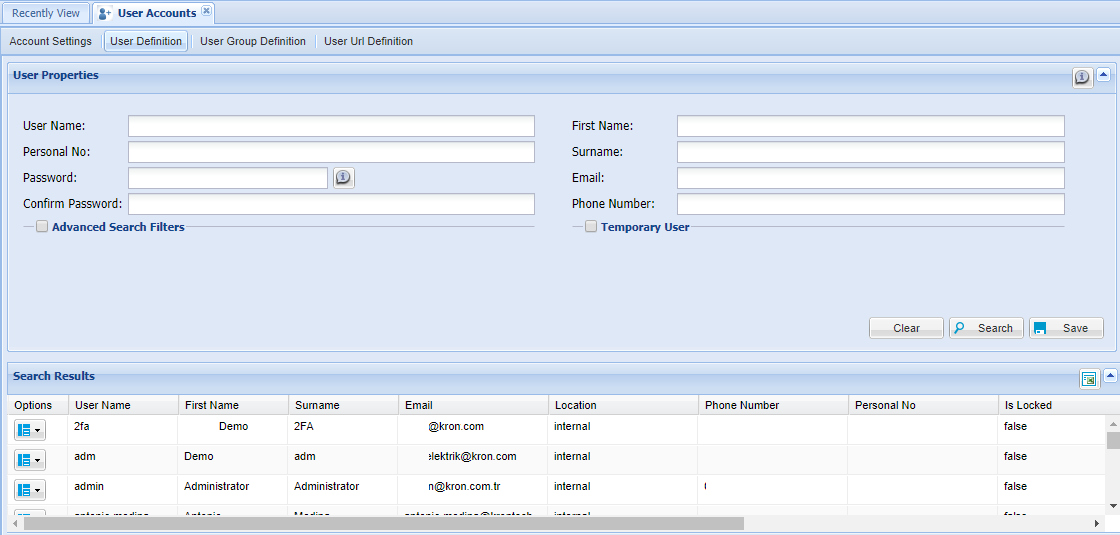
Adding SQL Users
The usernames that will used in the database connection must be created on Single Connect.
1. Log in to the Single Connect GUI 2. Navigate to User Management > User Accounts 3. Open the User Definition Tab. 4. Enter username, password, name and email address. 5. Save
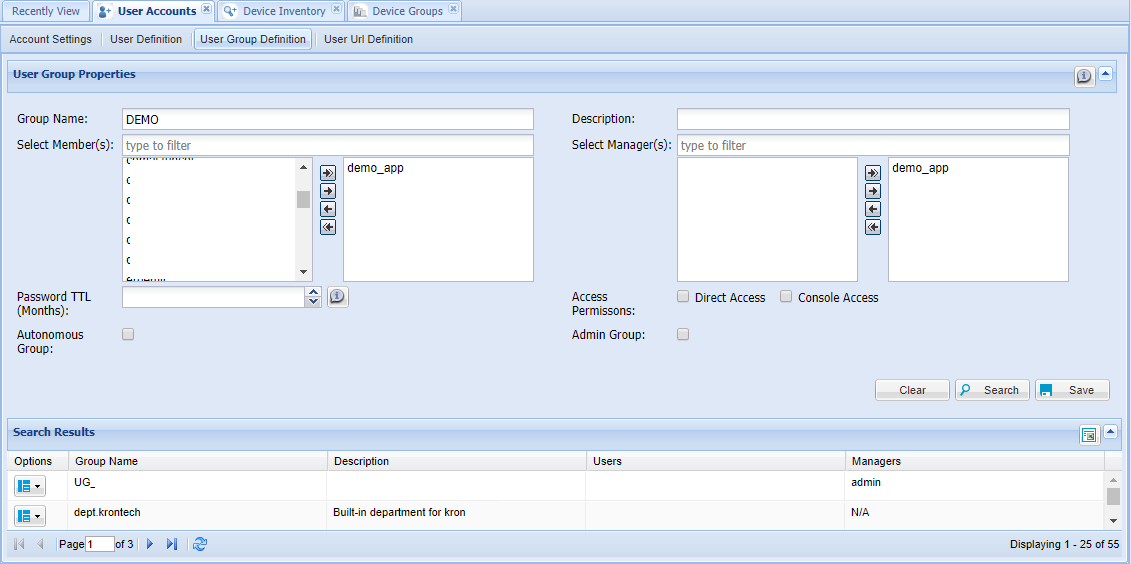
Creating User Group
1. Log in to the Single Connect GUI 2. Navigate to User Management > User Accounts 3. Open the User Group Definition Tab 4. Enter Group Name and select users 5. Save
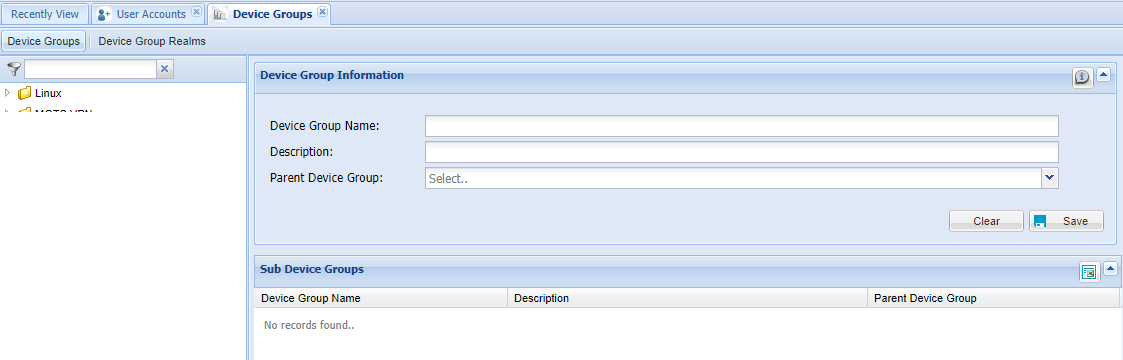
Adding Device Group
1. Log in to the Single Connect GUI 2. Navigate to Device Management > Device Groups 3. Enter Group Name 4. Save
Adding Device Realm
The device realm must be created to determine which user group is authorized to which device group.
1. Log in to the Single Connect GUI 2. Navigate to Device Management > Device Groups 3. Select Device Group Realms. 4. Enter Realm name and, select user group(s) and device group(s) 5. Save
Check Managing Devices chapter for more information on creating Device Group Realms.
Adding Database
1. Log in to the Single Connect GUI 2. Navigate to Device Management > Device Inventory menu 3. Click the New Device Discovery button 4. Enter IP address, port and protocol and select the Device Group for the assigned device to be in. 5. Click the Discover and Add button.
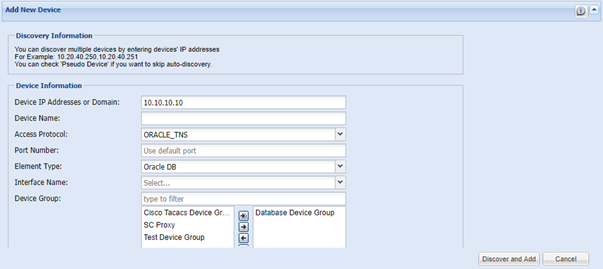
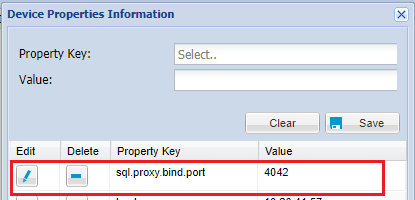
The port number is the identifier of the connection to MSSQL, Casandra, MySQL, Teradata and PostgreSQL Database via an SQL Proxy feature of Single Connect. The port number must be defined from Device Properties for MSSQL, Cassandra, MySQL, Teradata and PostgreSQL database.
1. Log in to the Single Connect Web GUI 2. Navigate to Device Management > Device Inventory 3. Right-click on the defined database device and select Show properties 4. Set the “sql.proxy.bind.port” property
Note |
|---|
Multiple bind ports can be added using the comma “,” separator.For ex: 4042,4141,1313 |
Creating an SQL Policy
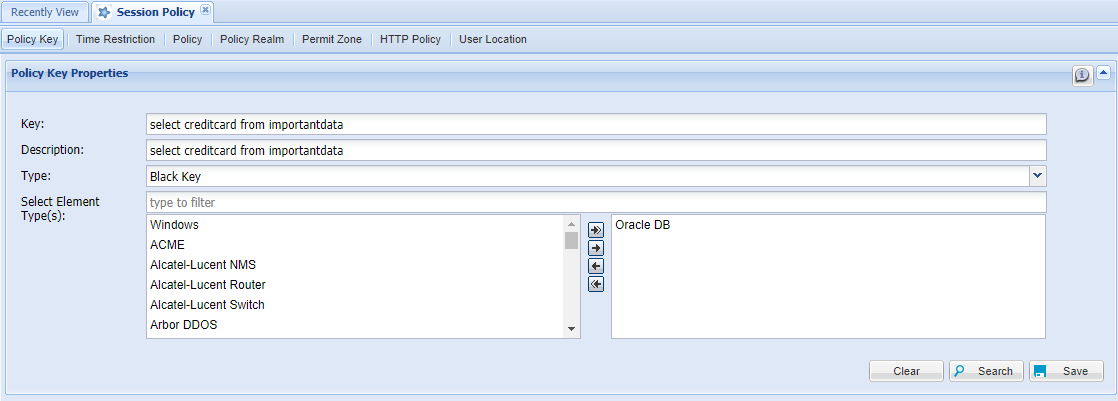
The execution of queries can be prevented or allowed.
1. Log in to the Single Connect GUI 2. Navigate to Policy Control > Session Policy 3. Open the Policy Key tab 4. Enter the query (or regex) to prevent or allow 5. Select the policy type and element type 6. Save
Creating a Policy Group
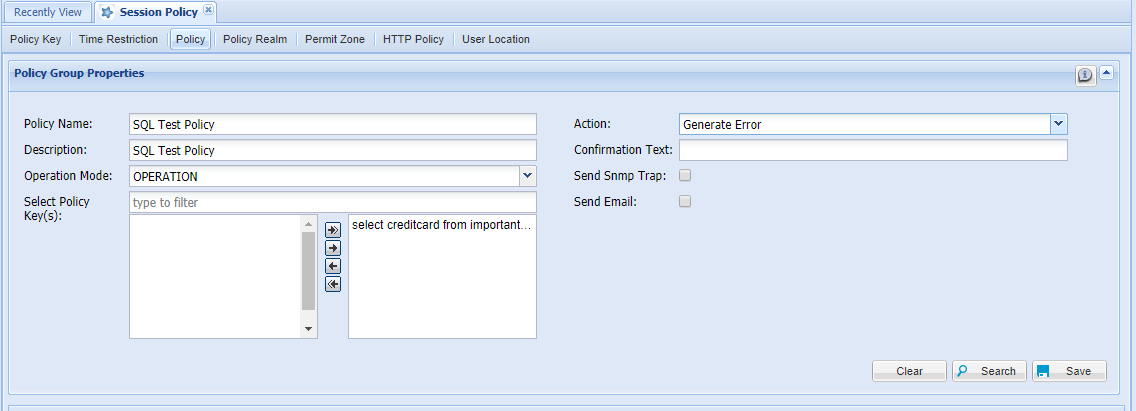
1. Log in to the Single Connect GUI 2. Navigate to Policy Control > Session Policy 3. Open the Policy Group tab 4. Enter the Policy Group name and select the policy/policies and masking rule(s) 5. Select the operation mode and action type 6. Save
Creating a Policy Realm
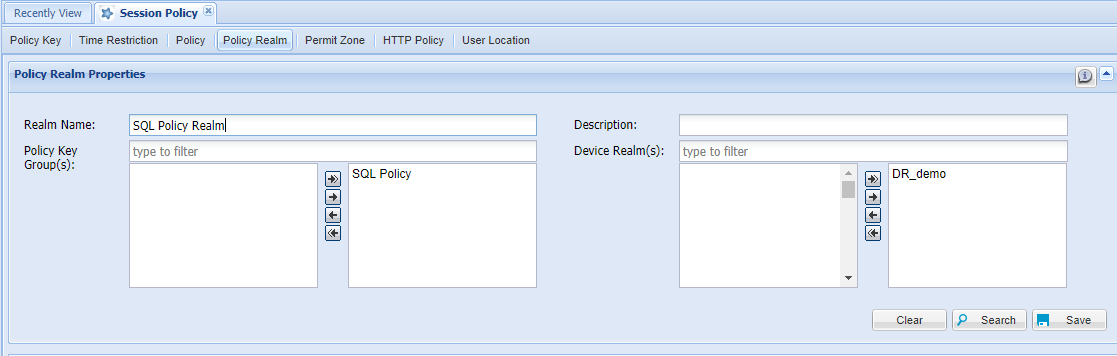
1. Log in to the Single Connect GUI 2. Navigate to Policy Control > Session Policy 3. Open the Policy Realm tab 4. Enter Policy Realm name and select the Policy Group and Device Realm. 5. Save
Note |
|---|
At least one policy key must be assigned to the related realm for the SQL proxy |