Listing Azure Devices
The imported Azure devices are listed in the Device Inventory.
- Navigate to Device Management > Device Inventory.
- Azure Devices with specified tags will appear inside the Device Group recently created.

Azure Instances are automatically synchronized with Single Connect, but the Device Realm and the Policy Realm should be set manually for user accessibility to devices, as well as for policy enforcement (see also sections Device Management, Policy Management and Approval Management.)
Devices can be displayed in the SSH Proxy by using an SSH client. To list the devices with tag info, follow the configuration below.
Define these nssoapp properties, so that the devices can be listed with tags in the SSH Proxy:
- Connect to Single Connect via SSH client as a Single Connect admin user.
- Set the following parameter in “/u01/nssoapp/conf/nsso.properties”: nsso.show.device.tag.names Ex: nsso.show.device.tag.names=office, server-type, owner, customer
- Restart the nssoapp with the command: systemctl restart nssoapp
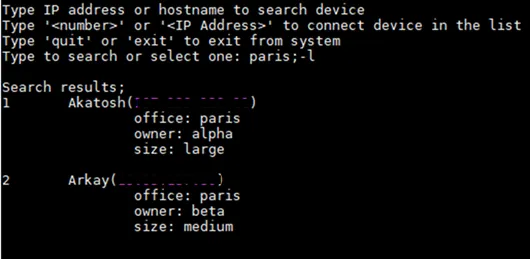
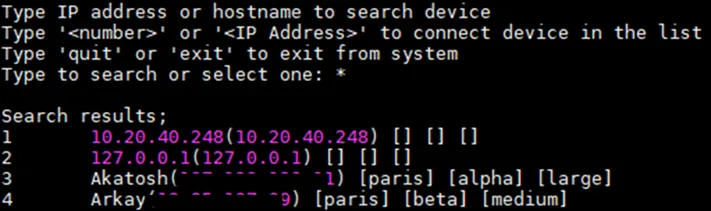
After this configuration, Azure devices in SSH Proxies will be displayed with their tags.
It is also possible to list the devices with more detail. To do this, add “;-l” to the end of the search query.