Adding Dynamic Accounts in Password Vault
To configure the Password Vault for a given system, add a Password Vault account. Authorized users can define target devices' privileged users as Password Vault accounts. When you configure a Password Vault account, Kron PAM connects to the target system and replaces the old password with a random password generated by the Password Vault. The new password is encrypted and stored in the Kron PAM database.
To add a dynamic account:
1. Navigate to Secrets > Vault.
2. Open the Vault tab.
3. Click +Add and select Add Account.
4. Select the Type (Dynamic), Account Subtype (Persistent), Configuration (the type of the target system), Account Group Name, and Owner of Vault. Enter the Account Name, set Private and Enable/Disable Duallock, and complete the Additional Information fields (Description, Secret Notes, Additional Info, and Account Tags).
5. Click Next.
6. Fill in the Host (IP/Name), Change Period, username, and password fields. In the Change Period list, specify when to change the password.
If you select Periodic for Change Period, a Change Period Day field appears. Enter the number of days between password changes in that field.
___Authorized users can define the target devices’ users as Password Vault accounts. When configuring a dynamic Password Vault account, Kron PAM establishes a connection to the target system and changes the old password with a random password generated by the Password Vault. The new password is encrypted and stored on the Kron PAM database. To add a Dynamic account:
- Navigate to Secrets > Vault.
- Open the Vault tab.
- Click the + Add button and select Add Account.
- Select the Type (Dynamic), Configuration (type of the target system), Account Group Name, Owner of Vault, Enter Account Name, Private, Enable/Disable Duallock, and Additional Information (Description, Secret Notes, Additional Info, and Account Tags).
- Click Next.
- Fill in the Host (IP/Name), Change Period, username, and password information. From the combo box Change Period, users can specify when the passwords are to be changed.
- If the change period type is selected as Periodic, the Change Period (Day) textbox appears, and the Password change frequency information (in days) can be entered in that field.
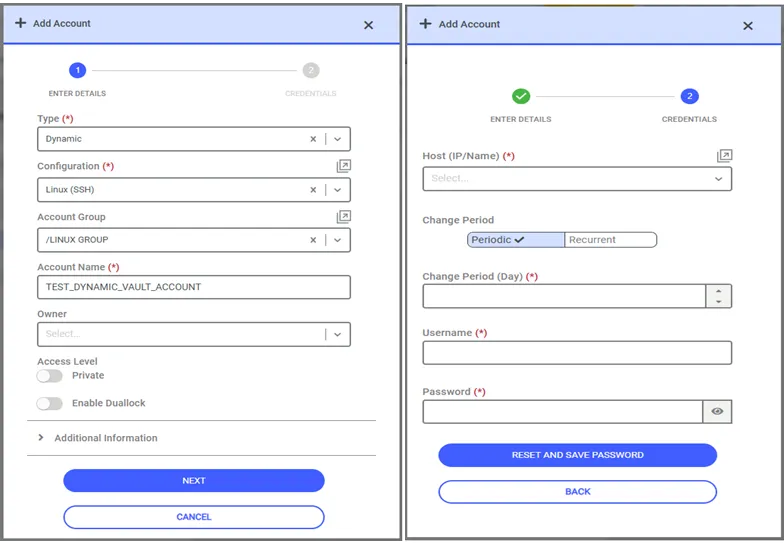
If you select Recurrent for Change Period, the Recurrence Unit list appears with the following options:
- Day
- Week
- Month
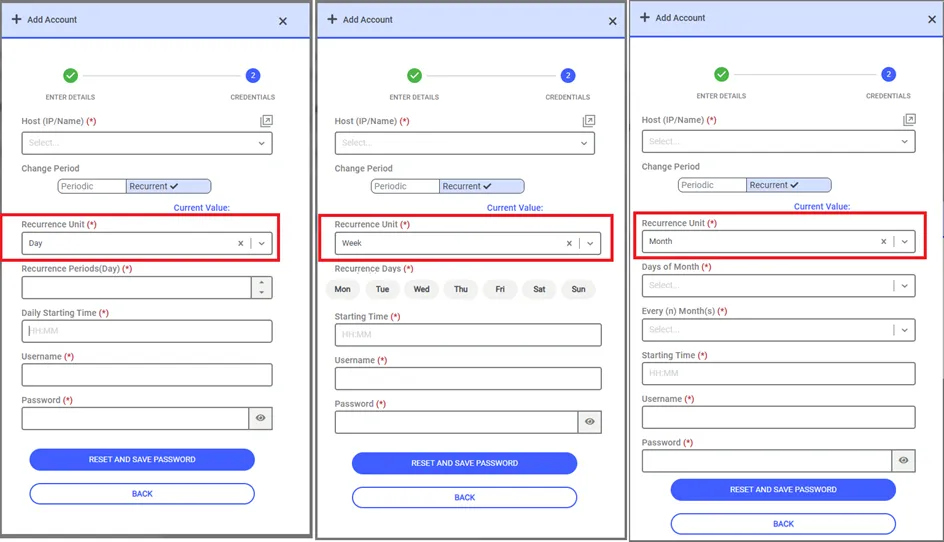
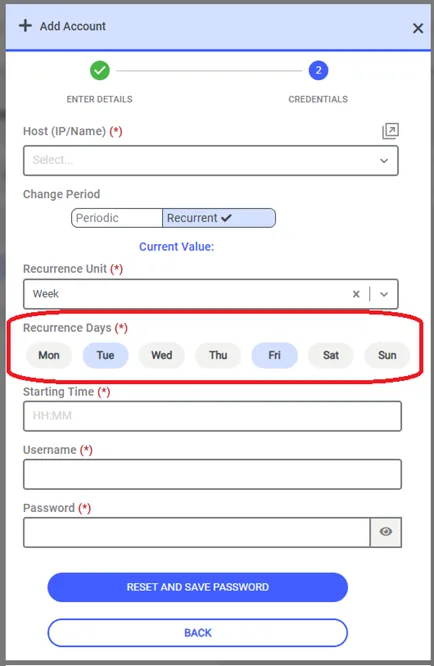
- If the recurrence unit is week, all days of the week appear on the screen, and you can select the days on which to change the password. You can select more than one day. You can also set the time to change the password in the Starting Time field.
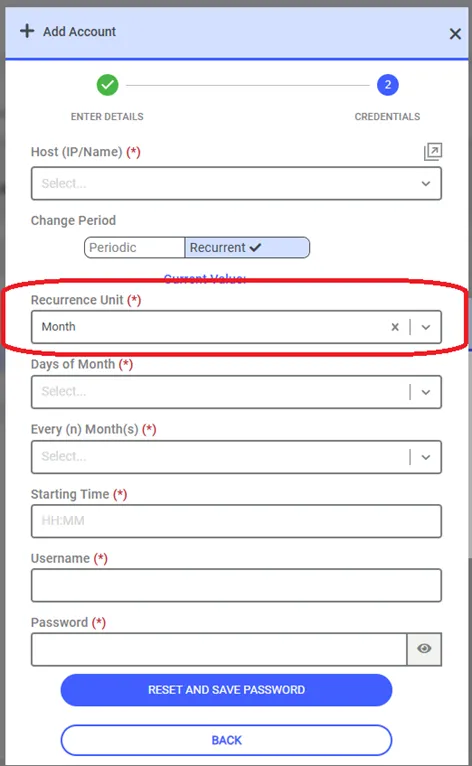
- If the recurrence unit is month, select the day of the month on which to change the password. After you select the Day of Month value, also choose how many months must pass before the next password change triggers automatically.
- Click Save.
- If a Change Period value is defined in the Vault Configurations screen, its parameters appear on the screen when you select that configuration in the Vault account definition screen, and you cannot change them.
- Definitions Configuration's values change, Kron PAM updates the corresponding values of all Vault Accounts that belong to this configuration when the first password change job runs. If a Change Period value is defined in Vault Configuration > Miscellaneous > Account Level Properties > Change Period, this parameter takes priority for new accounts when you select that configuration in the Vault definition screen, and users cannot change it.