Adding Accounts in Password Vault
Kron PAM is flexible in adding and managing accounts. With sufficient portal rights given to users, they can add their accounts, just like admins. In this respect, management rights can be assigned to an admin or authorized user. User rights will be detailed in the Password Vault User Rights section.
To assign Password Vault to users, the sapm.admin.manage.all.accounts parameter must be configured in System Config Manager as false.
Users can mark accounts added to the Password Vault as private by setting the Private field to YES on the form screen. If an account is set as private, other users in the same user group cannot see it.
You can set private accounts as the default preference for Kron PAM by configuring the following parameters in System Configuration Manager:
Parameter Name | Parameter Value |
|---|---|
sapm.private.option.default.value | YES |
sapm.private.option.hide | true |
Each account has one user owner. Users can share the account with their own group or with other groups at any time.
Accounts can be added based on case sensitivity. To make an account name unique, define the following parameter in System Configuration Manager:
Parameter Name | Parameter Value |
|---|---|
sapm.allow.case.insensitive.account.name | false |
In Kron PAM, headers at the top of the screen summarize accounts defined in the Password Vault, based on the strategy type value and configuration.
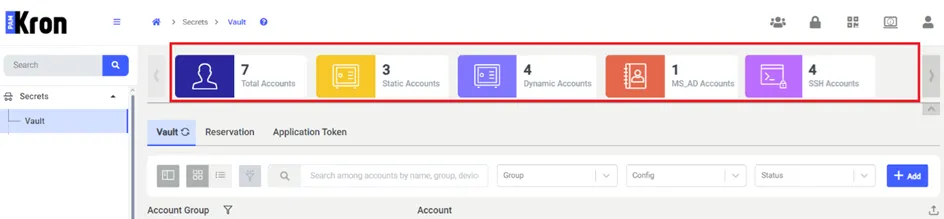
The panel displays the distribution of accounts defined for the Password Vault, each represented by a different icon and color. Kron PAM shows the following separately:
· Total number of Vault Accounts
· Number of dynamic accounts
· Number of static accounts
· Number of Vault Accounts by protocol type (regardless of whether they are dynamic or static), such as Secure Shell (SSH) and MS_Active_Directory
When you click an icon or color object in this summary panel at the top of the Vault screen, the screen lists the corresponding Vault Accounts.