Password Vault
The Password Vault stores shared privileged account passwords used by more than one person. Password Vault stores two types of accounts: dynamic and static.
For dynamic accounts, once you configure an account in the Password Vault, the vault connects to the system where the account exists. It then changes the password, encrypts it, and stores it. During the password lifecycle, the Password Vault changes the password periodically and after each checkout. It logs checkout details such as the user, date, time, and reason, providing accountability for password checkout events.
Static accounts are accounts whose passwords are stored statically in the Password Vault. Before you add a device's local accounts to the Password Vault, the system checks and stores the account passwords. Static accounts saved after this check are called dynamic configured static accounts. Static accounts stored without any device connection are called static configured static accounts.
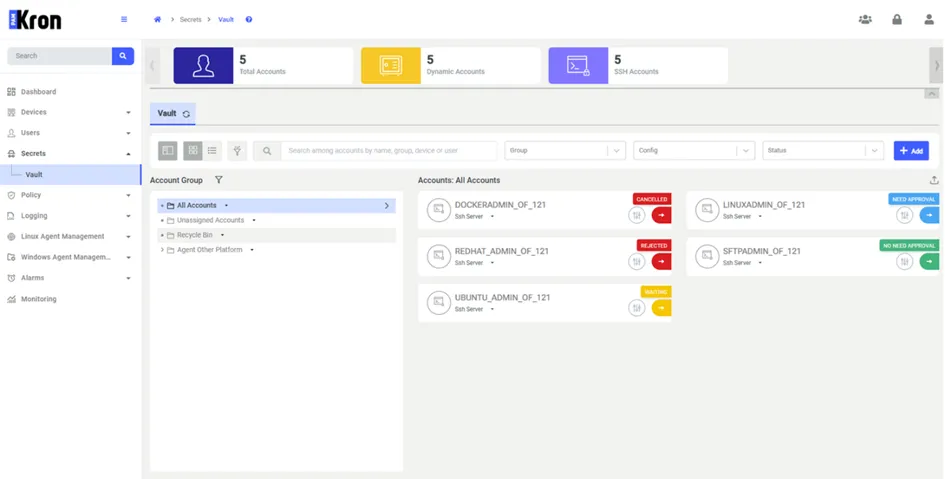
To view the Vault Accounts, navigate to Vault under Secrets in the left-hand pane. Two display styles are available: card view (default) and list view. By default, Vault Accounts appear in card view. To switch to list view, click the list view icon next to the filter icon. This displays the users in a tabular format.
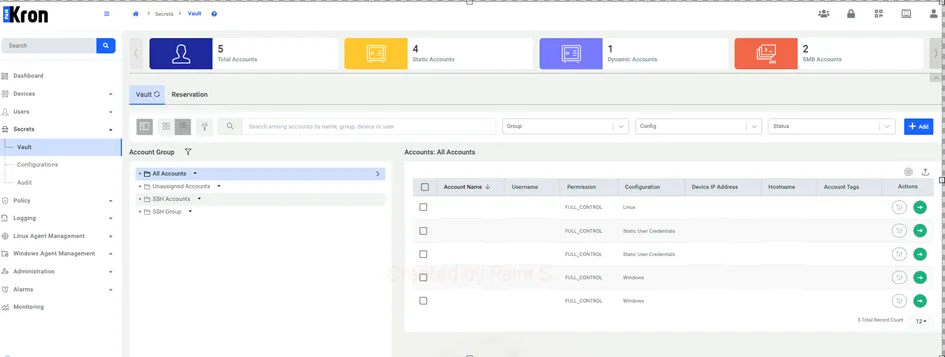
In list view, you can customize the visible columns using the gear icon. When you click the gear icon, a configuration panel appears. From there, select or deselect the Vault Account properties you want to display. You can choose up to eight properties at a time; the interface doesn't allow more. To restore the default settings, choose Restore Default.

If you customize the column settings in the Vault Account list view during an active session, the system remembers your preferences. When you navigate away from the page and return later in the same session, the list view reflects your previously selected configuration.