Device Inventory
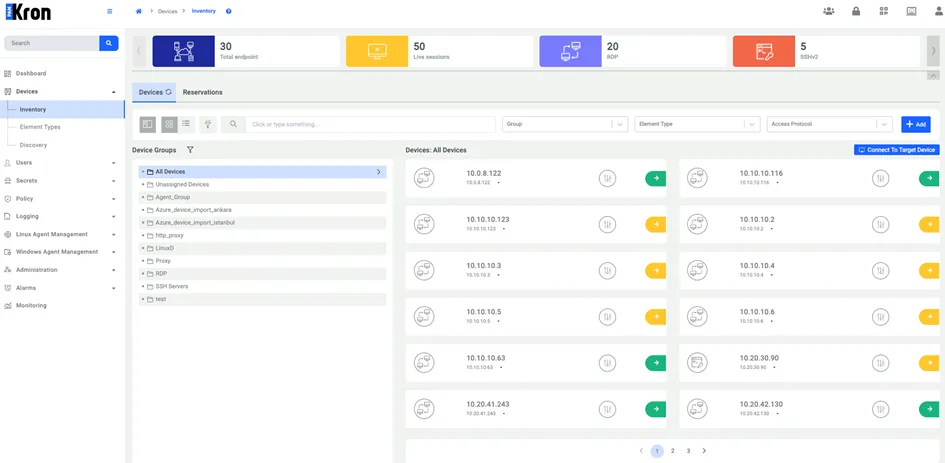
On the inventory, new devices can be added, edited, deleted, and other device management actions can be executed. The Inventory page consists of two parts: on the left-hand side there is a list of device groups; on the right-hand side, there are the devices added to Kron PAM. If you click on the name of a device group, only the devices belonging to that group will be displayed.
To view the devices, navigate to the Inventory section under Devices in the left-hand pane. There are two available display styles: card view (default) and list view. By default, devices are shown in card view. To switch to list view, click the list view icon located next to the filter icon. This will display the users in a tabular format.
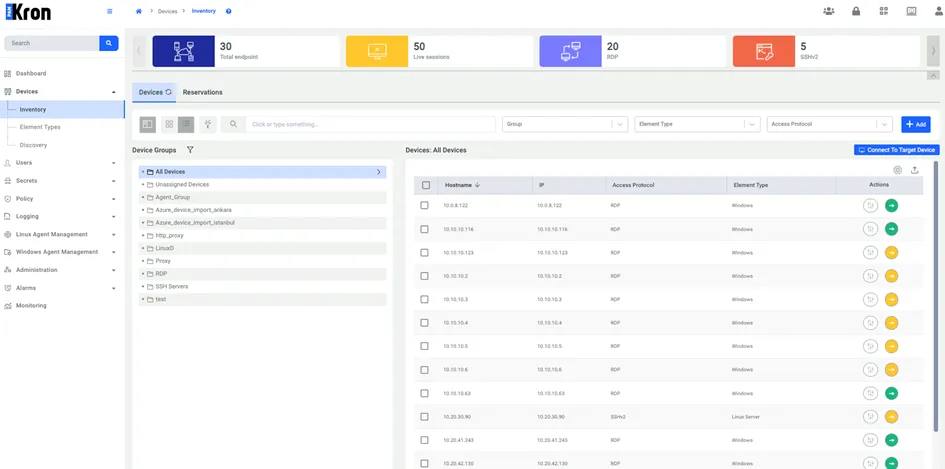
In the list view, you can customize the visible columns using the gear icon. When you click the gear icon, a configuration panel appears as shown below. From here, you can select or deselect the device properties you want to display. You can choose up to eight properties at a time; selecting more is not allowed. Default configs can be applied if “Restore default” option is chosen.
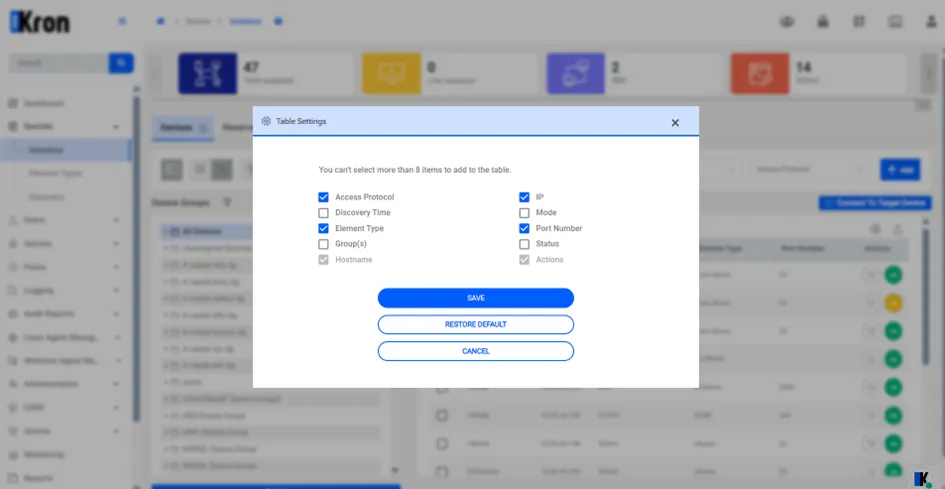
If you customize the column settings in the device list view, your preferences will be remembered for the duration of the session. When you navigate away from the page and return later within the same session, the list view will reflect your previously selected configuration.