Creating Script
Scripts in Privileged Task Automation are commands or tasks to be executed on target devices. Scripts can consist of a single line or multiple lines of commands. This section describes how authorized users can add scripts and configure dynamic fields within commands.
Before adding a script, an existing Script Group must be available. The user must have sufficient permissions to add scripts.
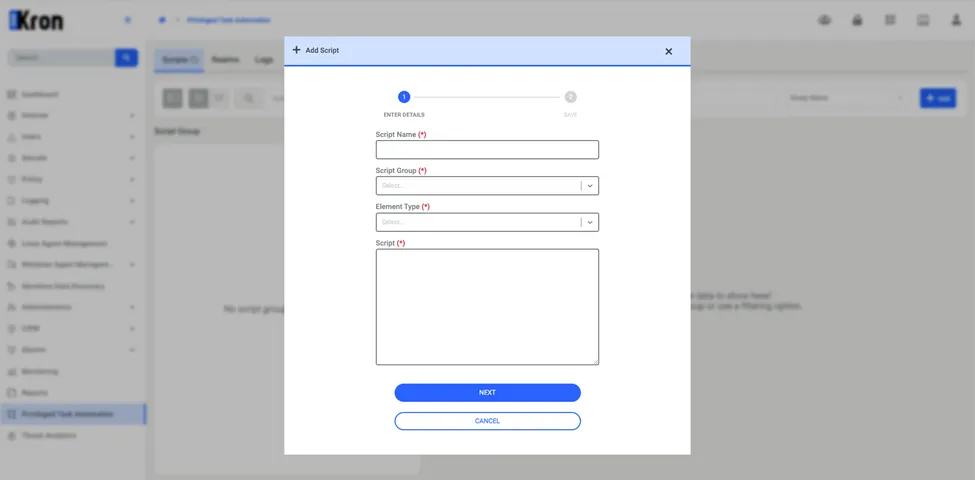
To add a script:
1. Navigate to Privileged Task Automation.
2. On the Scripts tab, click the Add. From the options that appear, select Add Script.
3. In the Add Script window, enter the following details:
- Script Name: Enter a descriptive name for the script.
- Script Group: Select the Script Group to which the script will belong.
- Element Type: Select the target device type for the script (e.g., Linux Server, Windows Server).
- Script: Enter the command(s) to be executed.
Use dynamic fields within commands to allow user input during script execution. A dynamic field is defined using the %value% format. Multiple variables with different names can be defined as well.
Example:
df -kh %partition%
During execution, the user will be prompted to enter a value for %partition%.
4. Once all fields are entered, click Next to proceed.
5. Review the script details and click Save to complete the process.