Windows COM+ Objects Strategy
This section explains how to change the password of the users defined in Windows COM+ and DCOMM+ services using Application Configuration and Trigger.
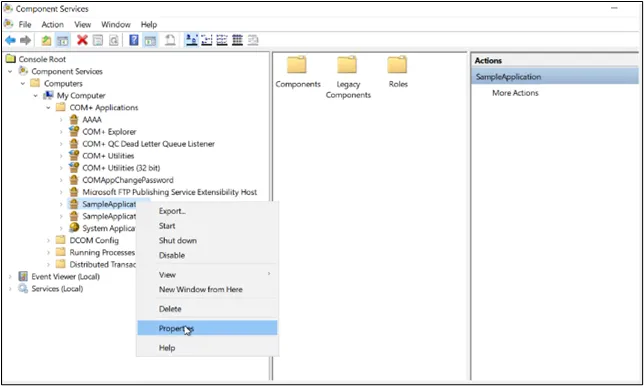
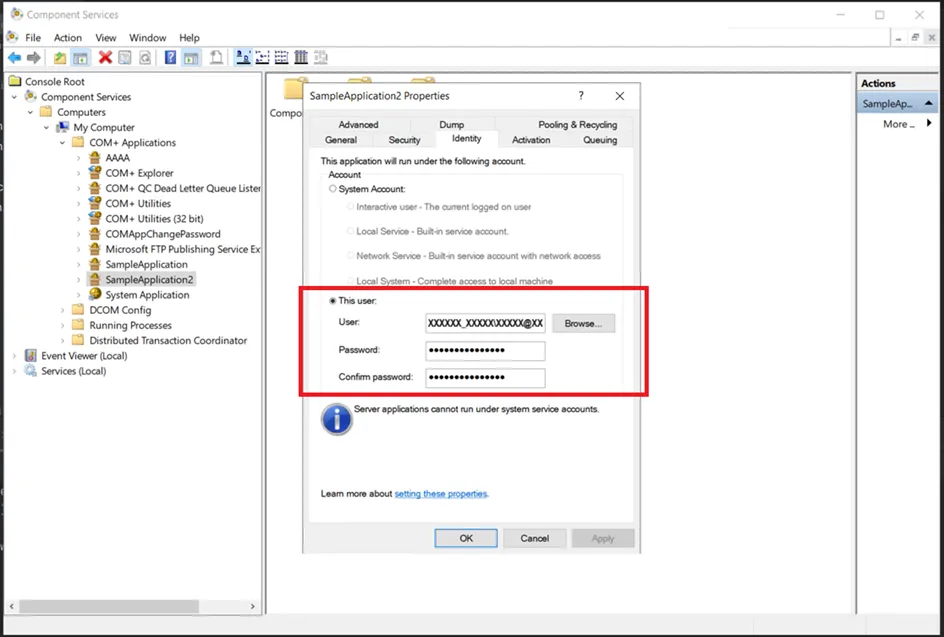
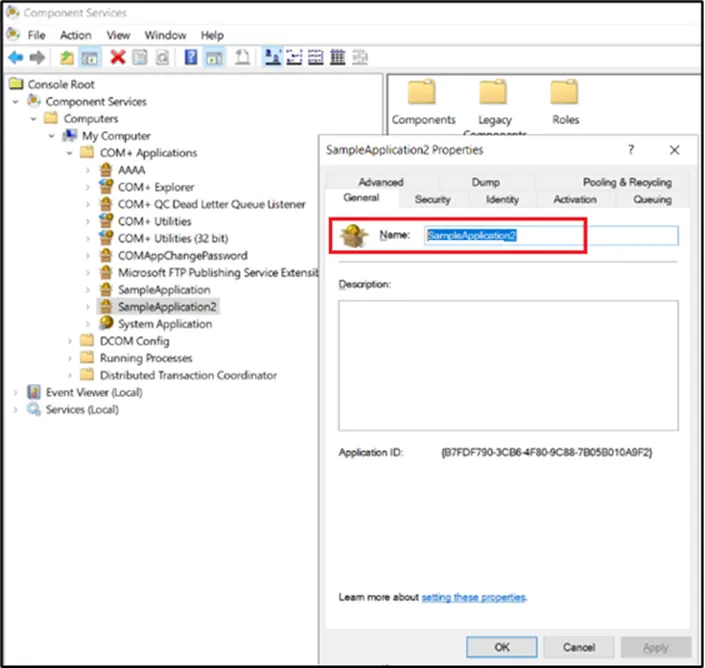
Users need to have configured component services for this option in a similar manner to the example below.
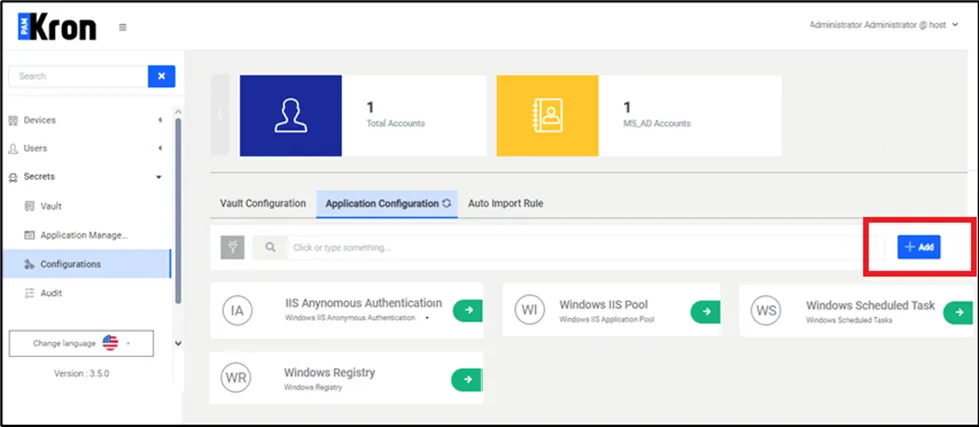
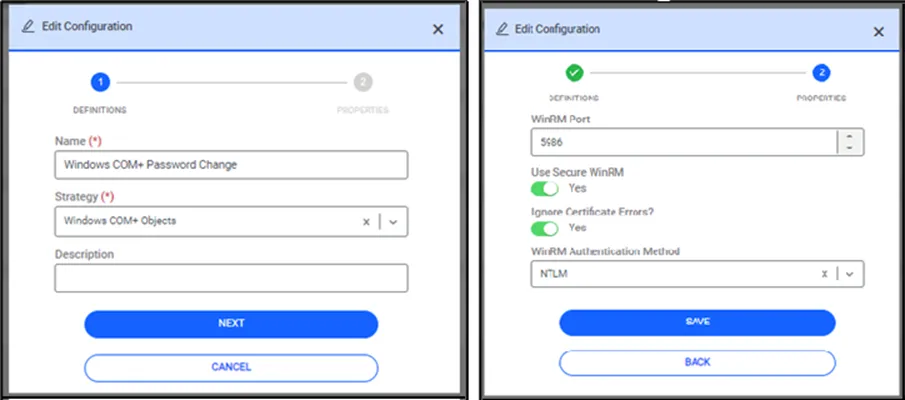
- Navigate to Secrets > Configurations > Application Configuration.
- Click +Add and enter parameters.
When 'Windows COM+ Services' is selected as the Strategy Type for the WinRM method, the WinRM port and authentication method must be entered similarly to the IIS and Scheduled Task definitions.
- Navigate to Secrets > Application Management.
- Add a new trigger by clicking +Add.
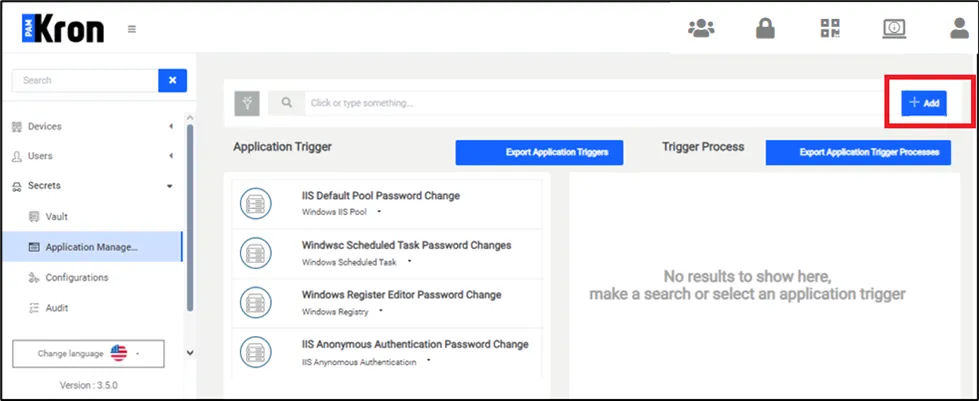
A new popup will appear.
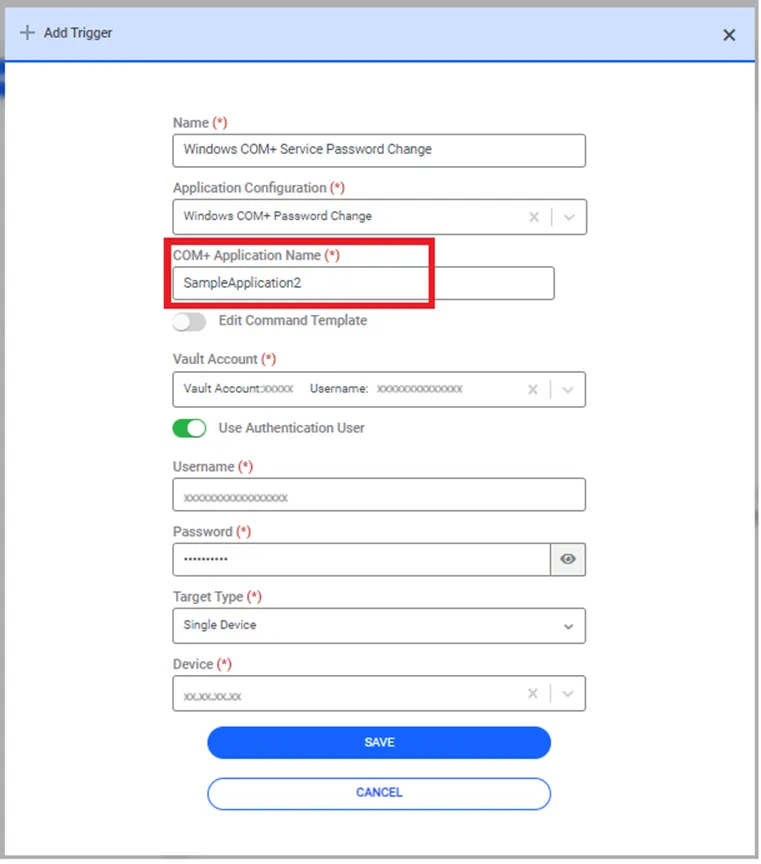
With this definition, when the password of the Vault account is changed, reset, or updated, COM+ Application trigger is defined so that the password defined for the trigger is also changed automatically.
- Enter the name of the trigger in the Name field.
- Select the Application Configuration with the defined name above the definition value like Windows COM + Applications.
- In the COM+ Applications Name field, enter the same application name value defined in COM+ Applications in Windows. Otherwise, the password value will not change because Kron PAM cannot find the relevant application of COM+.
- Select the Vault Account defined in Password Vault, whose password needs to be changed, must be selected.
- If the Vault account is authorized to make changes on COM+ Applications, the Use Authentication User switch box can remain inactive. If it is not an authorized user, the Name and Password information of the Administrator user need to be entered in the relevant fields.
- Select the target type as Single Device.
- Select the device information where COM+ Applications are installed.
- Click Save.
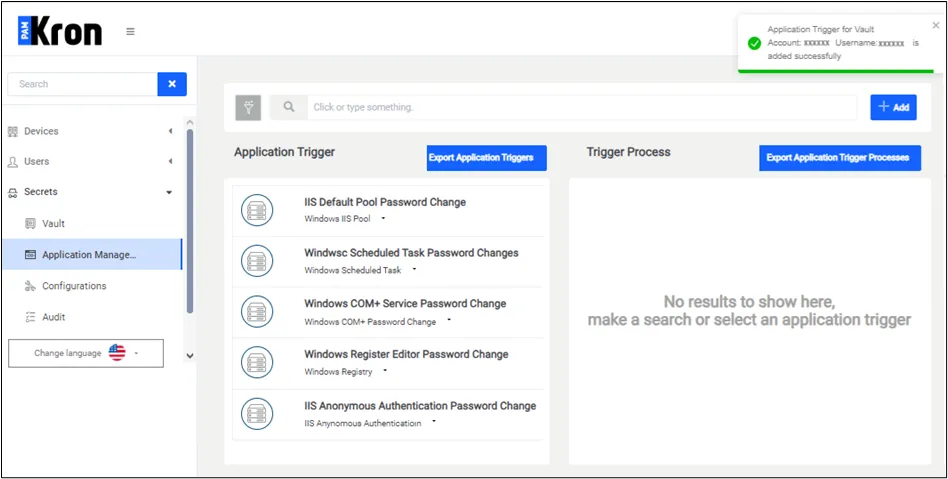
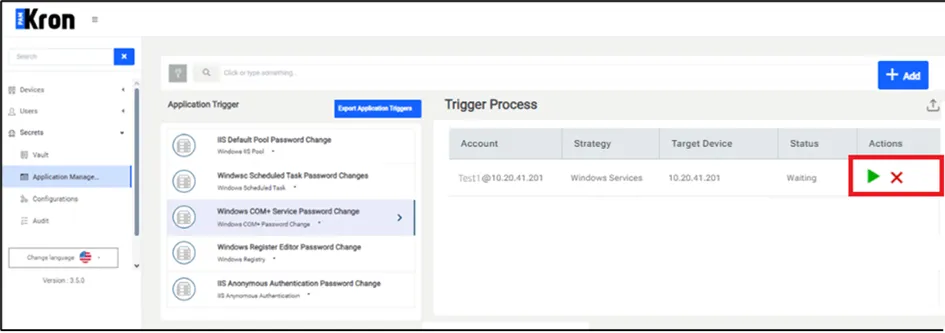
After the definition is completed, open the Vault screen and select the Vault account. Whenever the Vault account is selected and the 'Update' or 'Reset Password' option is clicked, a trigger will be created, and a password change will be performed, either automatically after some time or upon your manual request from the trigger process list shown on the application management page, as pictured below.