Device Actions Menu
There are two tabs on the Inventory page. In the first tab, there are devices and device groups. There is a list of devices on the right side of the Inventory screen. Clicking a device's Device Actions button as an admin opens the menu with the items below:
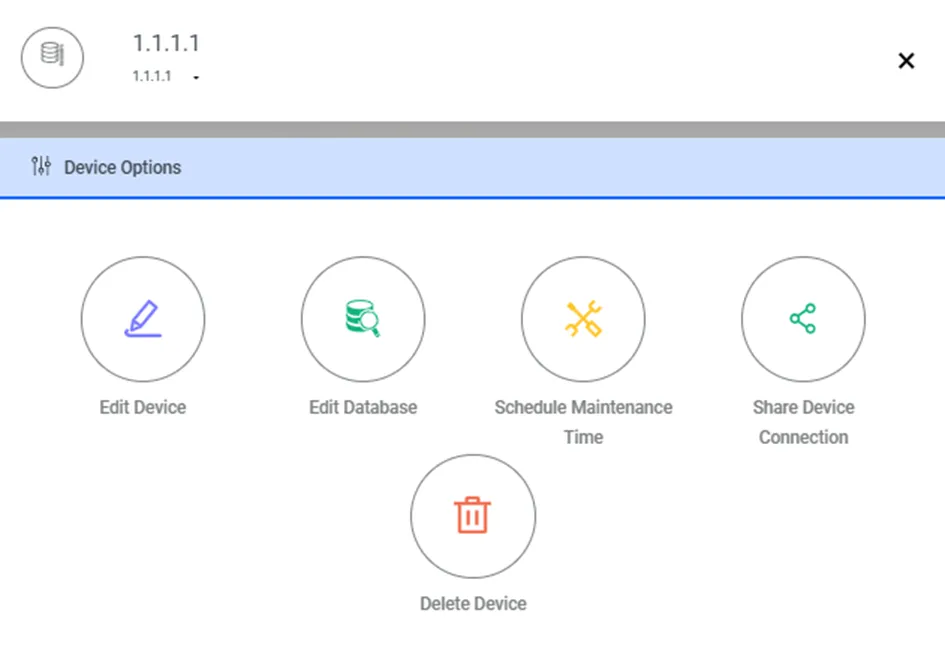
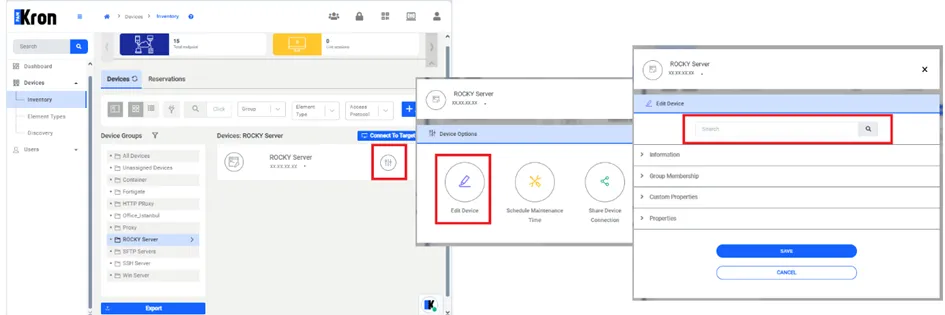
Edit device: To edit device creation configurations. -Group Membership: To assign the device to a device group. A device can be assigned to more than one device group. -Custom Properties: Device properties can be added, deleted, edited, and listed. Information on current device properties is available in the next section, 4.3.3 Device Properties. -Properties: Other Device Propertiesdevice properties can be enabled. (Drive for File Transfers, Printing to PDF, Security mode etc.) When editing the properties of multiple devices, different devices may have different properties and this is indicated by the message Multiple values found in selected devices. When properties with different values are edited, the new value is applied to all selected devices. A search feature has been added to the screen to search within the Device types defined in the system by users.
To search Devices: 1. Navigate to Devices > Inventory. 2. Select the Device, then proceed by clicking the Device Actions button. 3. Click on the Edit Device button. 4. Fill out the Search field.
Schedule Maintenance Time: To configure and schedule a maintenance time for the user. Date, time, and user can be selected. Maintenance Policy Groups only apply to devices during maintenance time. Operations Policy Group doesn’t apply to maintenance time.
Press the device type icons to the left of the device names to choose multiple devices (the device type icons will turn into check marks). Then, you can configure properties for multiple device groups by assigning, deleting, and editing them.
To schedule maintenance time: 1. Navigate to Devices > Inventory. 2. Select the Device, then proceed by clicking the Device Actions button. 3. Click on the Schedule Maintenance Time button. 4. Select Users to allow device access during the maintenance period, and Start – End Time for maintenance. 5. Navigate Save button.

Delete Device: Used to delete the defined Device in system. To delete Devices: 1. Navigate to Devices > Inventory. 2. Select the Device, then proceed by clicking the Device Actions button. 3. Click on the Delete Device button. 4. Navigate to Continue button.

Share Device Connection: This feature allows users to generate and manage shareable links for target devices. Each link generation is logged in the Kron PAM event log.
When the user clicks this button, a modal window appears, prompting the user to configure the link with the following options:
- Link to Device Connection: The user can copy the generated link or copy it to the clipboard.
- Username: The username selected by the administrator to send the link via email.
Edit Database: Only shown if the device in question is a datasource, and allows quick addition of new databases.