Containerization of Web Browser
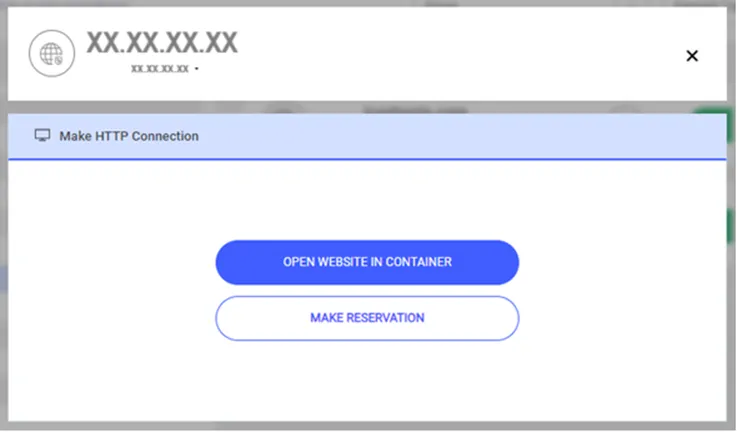
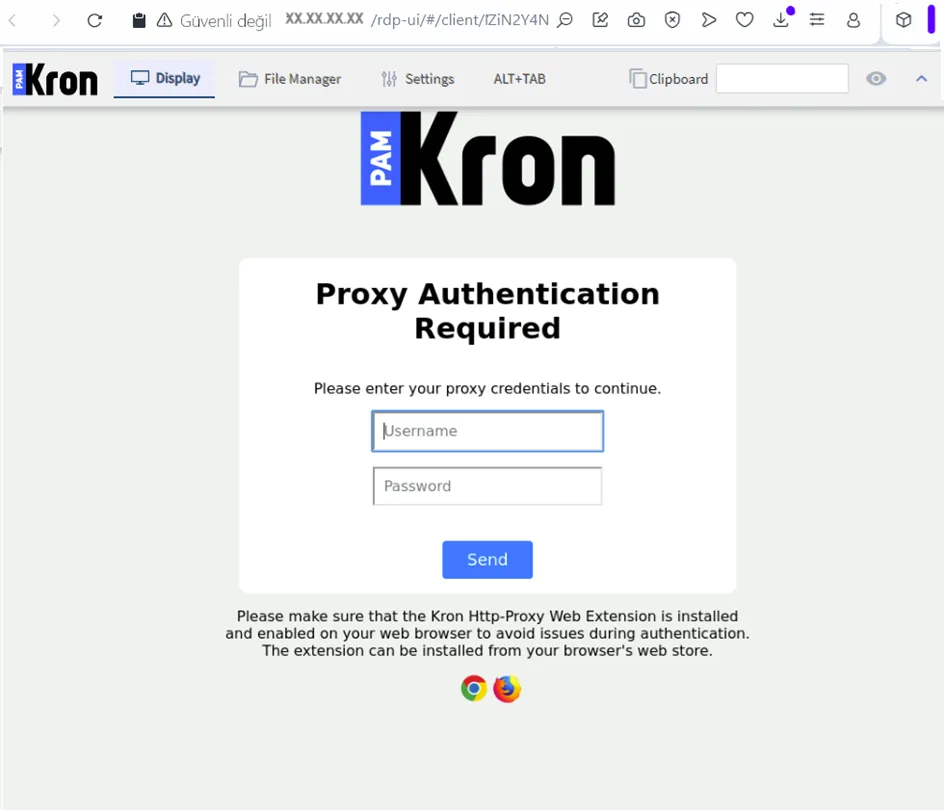
To be able to record videos of HTTP sessions, the HTTP session must be initiated through RDP, which is possible via containerization. To enable the containerization feature, the corresponding licenses are required. In this section, we only address the required configurations.
Before continuing the configuration, the base image can be installed by the support team or can be downloaded via the following command on the PAM instance CLI:
docker pull krontechnology/containerization:331
Then its name should be changed with the following command:
$ docker image tag krontechnology/containerization:<relevant current tag> http-proxy-image
To check that the operation was successfully executed use the command:
$ docker image ls
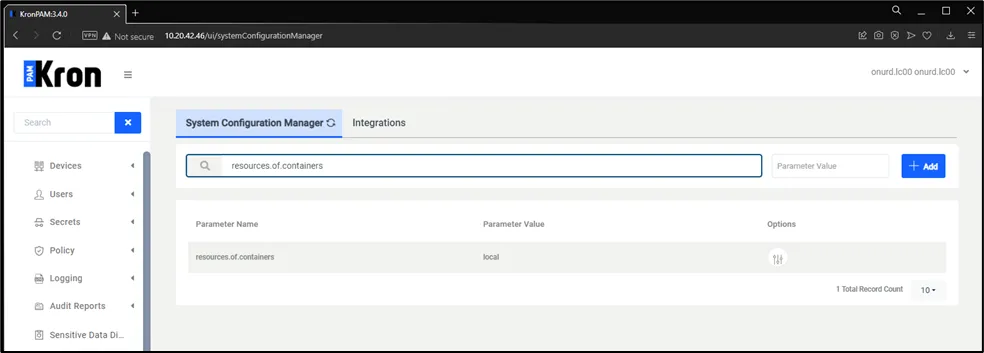
To set the resources for the containers to be created:
- Navigate to Administration > System Config Man.
- Set the resources.of.containers parameter with one of these values: local, remote, or all.
These values define which kind of resources will be used by the container manager.
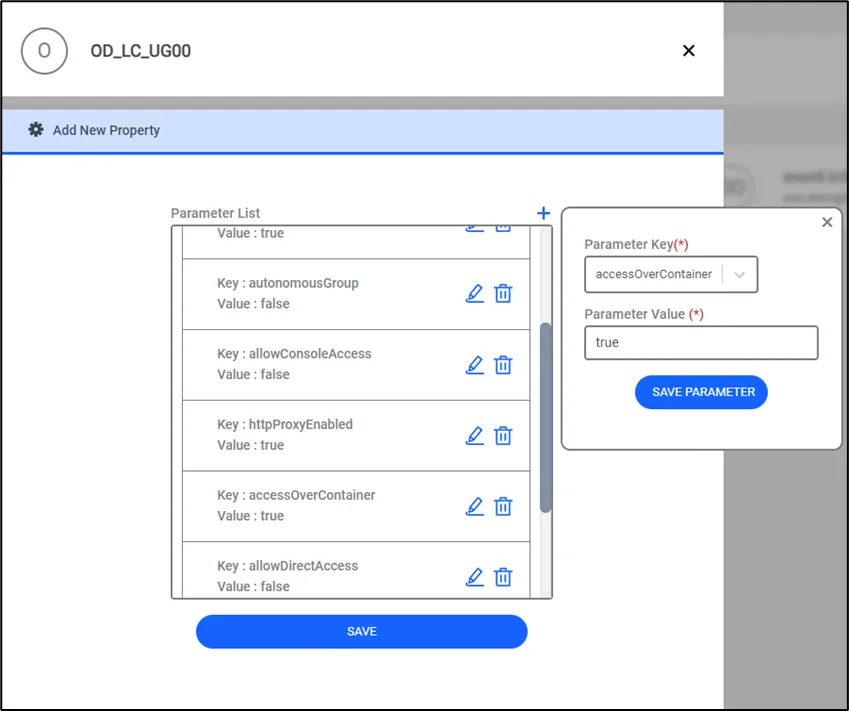
To define which user(/s) should reach HTTP devices through containers:
- Navigate to Users > Users > User Group Properties.
- Click the Add New Property.
- Set the accessOverContainer property key as true.
To specify which HTTP device access to use containerization:
- Navigate to Devices > Inventory.
- Click the Edit Device then add the accessOverContainer value as true under Custom Properties.
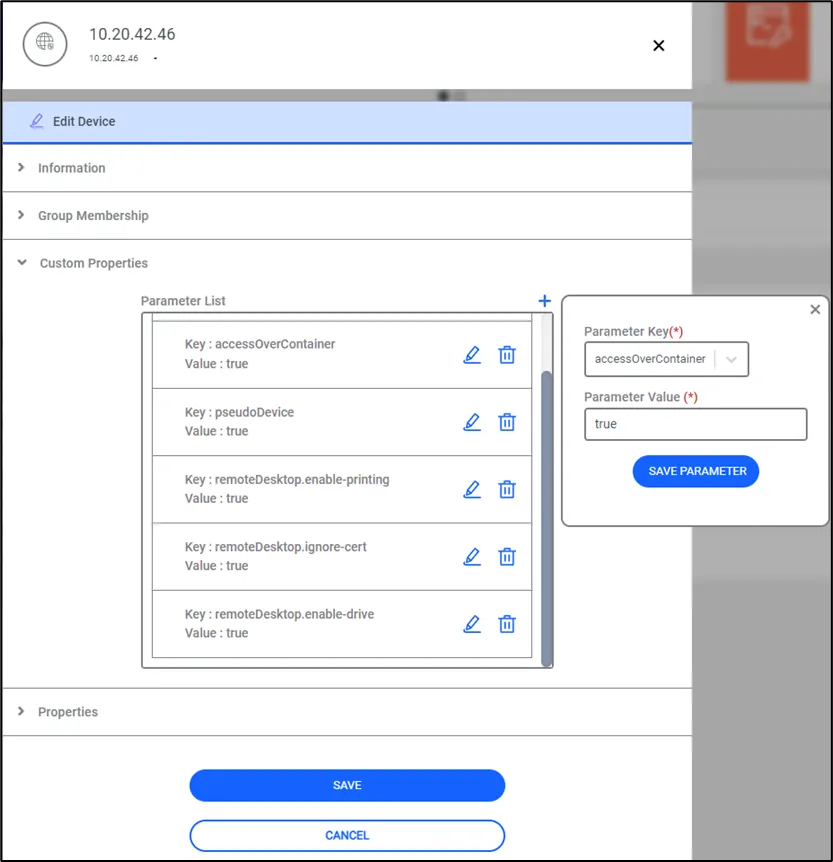
After saving this setting couple, some additional properties will be loaded automatically.
From now on, that HTTP device can be reached only from the PAM web GUI and Desktop Client App.