Authenticating to HTTP Proxy
To use HTTP Proxy through a web browser, you need to make the required configurations described in the Web Browser Configuration page. After making these configurations, requests (and responses) to all web pages to be accessed via the corresponding web browser are routed through the HTTP proxy.
If an HTTP proxy is configured, the following authentication page always returns in response to the request at the beginning of the session started by the client browser.
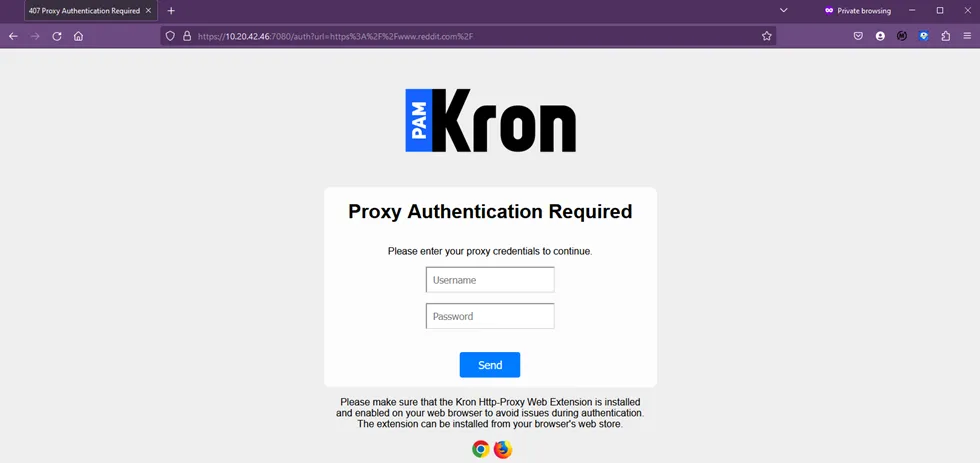
HTTP Proxy Authentication Page
- Open the web browser on the proxy-configured endpoint.
- Download and install the necessary browser extension by clicking the link at the bottom left corner to establish enhanced security.
- Then activate the extension by clicking the Krontech icon.
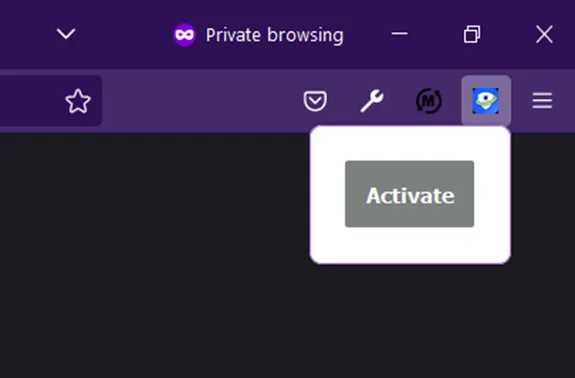
- Re-open the browser and log in with your credentials.
- If you encounter an issue during the installation of the browser extension, HTTP Proxy can be configured to be used before with manual token operation. To revert to that legacy authentication method edit the http-proxy.properties file with http.proxy.auto.submit.session.id.on.login=false
- Also, you can edit the text prompted on the authentication page with: http.proxy.login.screen.message= <Some guiding information>